What is the Social Context Dimension?
min read - Updated on Nov 02, 2026Social Context is the Dimension that asks every piece of customer feedback "With whom does this occur?" It reveals whether the experience is lived alone or together with others: on your own, with a partner, with children, with friends, with colleagues or with a whole team. Kimola groups the same social setting across all of your reviews, survey responses and support conversations and counts the records behind each one, so you see who your customers share the experience with and how much of your feedback each setting accounts for. Social Context belongs to both the Actors and the Context groups and is available in every package.
A Dimension is a research question Kimola asks of every piece of feedback. Themes tell you what customers talk about, and sentiment tells you how they feel about it. Social Context tells you who else is part of the experience, so a product used by one person and the same product used by a family or a team can be read apart. Every answer stays tied to the feedback that gives it, so you can open the records behind a social setting and read them.
To use Social Context, you need a Kimola account and customer feedback to analyze. If you don’t have an account yet, sign up first.
For a Report, sign in and open the report you want to work with from the Reports section. If you haven’t created a report yet, follow one of these guides: Create a Report by Uploading a Custom Dataset, Create a Report by Adding Links
You can select Social Context while creating the Report or add it later. See Use It in Kimola.
For a Space, you need a Funnel with a Social Context Dimension model. If you haven’t set these up yet, see Create a Funnel, Add Dimensions to a Funnel and Create a Space. Upload feedback to the Space after adding the model so it can be classified with Social Context.
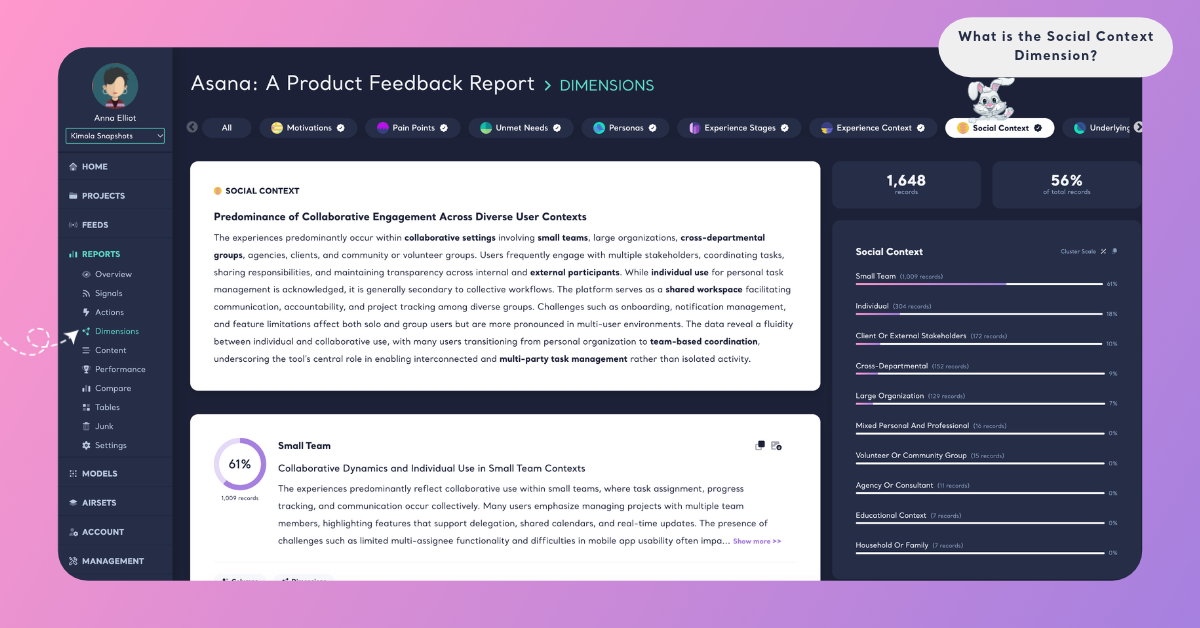
The Question It Asks
Social Context asks one question of each record: "With whom does this occur?" The answer is the set of people the customer shares the experience with, taken from what the feedback says. It can be no one, as in "I use it on my own" or "I traveled solo". It can be a partner, children, parents, friends, a class, colleagues or a team the customer rolls a product out to. Some feedback names the others directly ("My wife and I…", "I set it up for my team…"). Other feedback shows them through its language: "we", "our kids", "everyone in the office" or a review that describes splitting a bill all point to an experience lived with others.
Feedback that gives no clue about whether anyone else was involved gets no answer for Social Context. That is expected: a short review such as "Fast shipping, works as described." says nothing about who was there. The share of records that answer Social Context tells you how much of your feedback describes a social setting at all. One piece of feedback can describe more than one setting, for example a customer who uses an app alone on weekdays and with friends on weekends, and each one is counted.
Social Context sits in two groups because it describes both a person's surroundings and the people in them. It is different from Personas, the other Dimension of the Actors group: Personas asks "Who is experiencing this?" and describes the person who has the experience, while Social Context describes the people they have it with. A parent is a persona; "with children" is a social context. It is also different from Co-Occurrences in the Context group, which asks "Alongside what does this occur?" and finds the products, tools and behaviors mentioned with the experience. Social Context is about people only.
What You Get
Kimola builds the answers of Social Context from your data. It reads the dataset, finds the social settings the feedback describes and names each answer in their terms, so the settings behind a holiday rental and those behind a project management tool come out different. Across thousands of records, Kimola groups the same setting under one answer and counts the records that give it. The counts and shares come from the classification itself; an AI model writes the summaries afterwards, from numbers that are already computed.
In a Report
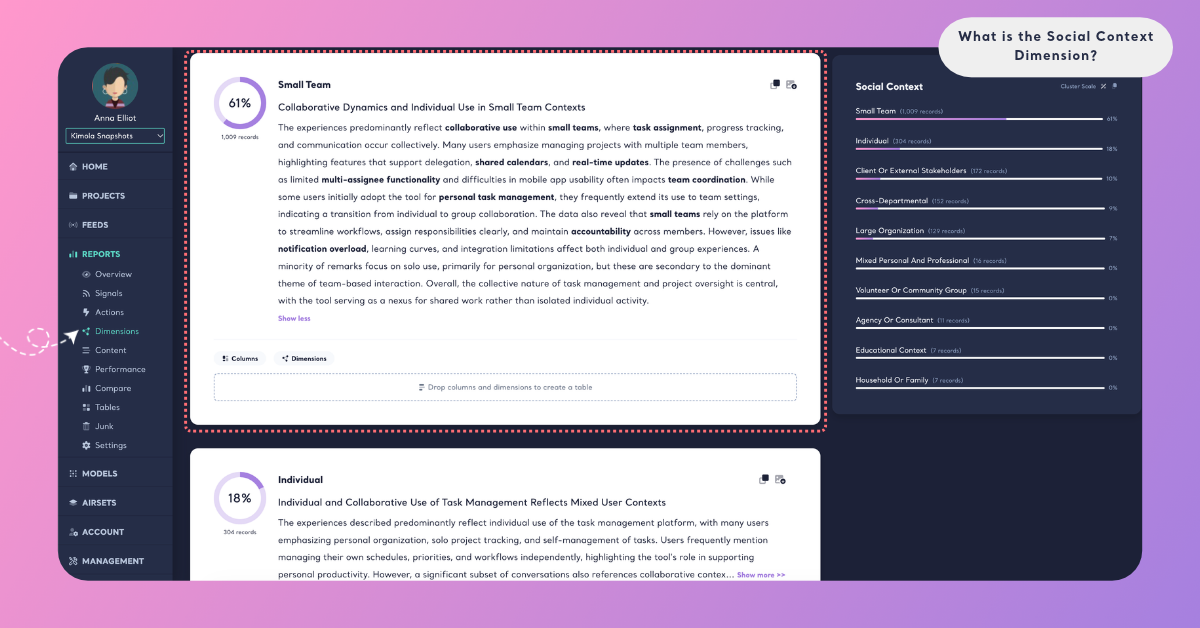
On the Report's Dimensions page, Social Context has its own tab. A ring shows the share of the Report's records that answer the question. The summary card gives a headline and a few paragraphs on whether your customers live the experience alone or with others, with key terms in bold. Below it, each social setting is a cluster with its number of records, its share, a short summary. A setting with very few records gets no summary, and the page says "Summaries are not available due to small cluster sizes."
Cluster Scale shows each setting's share of the records that answer Social Context, and Dataset Scale shows its share of all the records in the Report. Because one record can describe several settings, the shares on Cluster Scale can add up to more than 100%. The Columns and Dimensions buttons on a cluster card show what lies behind a setting, for example the Pain Points customers report most often when they use the product as a family, or the plans the team feedback comes from. See Dimensions in Reports.
In a Space
Spaces are available in the Enterprise package. On a Space's Dimensions page, Social Context shows its answers under What they talk about and how they change Over time. A setting whose share changed significantly with the last upload is marked ▲ or ▼ "since the last upload", which can show more customers starting to write about using the product together with others. Kimola writes Insights after every new file: What the answers say for Social Context as a whole, and Why they answer so for each setting that at least 10 of the latest records give. In a Space, the answers come from the labels of the Funnel's Social Context model. See Dimensions in Spaces.
In both Reports and Spaces, you can filter the Content and Performance pages by a social setting, or cross Social Context with a column or a classifier in Tables, for example Social Context by sentiment or by subscription plan.
An Example
Take this invented review of a meal kit subscription:
"I signed up to cook for myself, but now my partner and I make these together on weeknights, and on Sundays our two kids help with the easy steps. The four-person box is fine for us. When my parents visit, though, there's no way to add two servings for just one week."
Social Context finds four answers in it. "Alone" comes from signing up to cook for oneself. "With a partner" comes from cooking together on weeknights, and "With children" from the kids helping on Sundays. "With extended family" comes from the parents' visits, a setting the customer describes even though the service doesn't fit it yet. Social Context needs no household data or account details for this: the people come from the text. The missing option to add servings for one week is not a social setting; it is an answer for Unmet Needs. The weeknights and Sundays are picked up by Experience Stages, and the customer's role as a parent by Personas, when those Dimensions are added.
A second review, "The recipes are clear and the vegetables are always fresh.", says nothing about anyone else, so it gets no Social Context answer.
Across a dataset of 4,000 reviews, the same settings gather into clusters. "Cooking with a partner" might be the largest, with 820 records, followed by "Family meals with children" and "Cooking alone". The summary would then say that most customers cook with someone else, and crossing Social Context with Pain Points in Tables would show that portion sizes come up mostly in family feedback while delivery times come up in every setting.
The answer names and numbers here are illustrative: Kimola names the social settings of your own data in your customers' words.
When to Use It
Use Social Context whenever a decision depends on whether your product is used by one person or shared with others. It reads best in feedback where customers tell what happened to them: product reviews, app store reviews, travel and hospitality reviews, open-ended survey answers and support conversations.
Shared use and product design. Find out how many customers use your product with others, and what they ask for when they do: family plans, shared accounts, more seats, larger portions or a way to invite someone. A large "with others" setting you never designed for is worth a closer look.
Locating problems. Cross Social Context with Pain Points in Tables to see whether a problem belongs to one setting. A problem that only appears when customers use the product together, such as syncing between devices or splitting a payment, calls for a different fix than one every customer reports.
Messaging and offers. The largest settings tell you whether to speak to individuals, couples, families or teams, and which offer fits each. Cross them with Motivations to see why each setting chooses you.
Team adoption in B2B feedback. In feedback about software and services, Social Context tells apart a person working on their own from one rolling a tool out to a team. The two read differently: a single user writes about features, while a team owner often writes about onboarding colleagues, permissions and price per seat.
Competitors. Create a Report from the review pages of a rival's product to see whether their customers live the experience alone or with others, and compare it with your own.
Change over time. In a Space, follow whether a setting starts to collect more feedback after a change, such as a new family plan or a team feature.
Social Context works best together with the Dimensions of its two groups. In the Actors group, Personas ("Who is experiencing this?") shows who has the experience, and Social Context shows who they have it with. In the Context group, Experience Stages ("When does this occur?") adds the moment, Experience Context ("Where does this occur?") adds the setting or situation, and Co-Occurrences ("Alongside what does this occur?") adds the products, tools or behaviors that come with it. Outside its groups, Pain Points and Unmet Needs give each setting its problems and what it still misses.
Use It in Kimola
How you add Social Context depends on whether you work in a Report or a Space.
In a Report
Select Social Context in the Dimensions step while you create a Report. It is listed under All, under Actors and under Context. Click it to add it to My List, then check the Required Query in the Review step. To add it to a Report that is already analyzed, open the Report's Dimensions page, click the Social Context tab without a check mark and click Generate Now. Kimola classifies the Report's existing records with Social Context and writes its analysis. The steps are in Add Dimensions to a Report.
Dimensions add to the queries a Report uses: queries = rows × models × Dimensions. For what your package includes, see kimola.com/pricing.
In a Space
A Space gets Social Context from a Dimension model in its Funnel. In Models, click Create AI Model, choose By Prompt, click Dimension in the Purpose step and choose Social Context under Which dimension?. Its Question and Description are filled in, and you can fine-tune them for your business. In Labels, define the social settings your Spaces can find, such as "Alone", "With a partner", "With children" or "With a team", each with a short description. Then pick the model on the DIMENSIONS tab of the Funnel wizard's Models step. Every file uploaded to the Funnel's Spaces after that is classified with Social Context. The steps are in Add Dimensions to a Funnel.
Spaces are available in the Enterprise package. They are also available in Kimola On-Premises.