Add Dimensions to a Report
5 mins read - Created on Jun 02, 2026Dimensions can be added to reports in Kimola to generate additional analytical layers based on customer feedback. These dimensions help structure qualitative data into categories such as motivations, pain points, unmet needs, personas, contextual factors, and behavioral patterns. By adding dimensions to a report, you can move beyond standard analytics and explore the deeper context behind customer experiences.
This article explains when dimensions can be added to a report and how to generate them both during report creation and after a report has already been created.
Sign in to your Kimola account and open the report you want to work with from the Reports section.
Dimensions are available for analyzed reports and can be generated at different stages of the reporting workflow depending on your analysis needs.
When Can Dimensions Be Added?
Dimensions can be added at two different stages within Kimola. The first option is during report creation, where dimensions can be selected as part of the setup flow while building a report from a feed, link, integration, or custom dataset. The second option is after the report has already been created, allowing additional dimensions to be generated later without rebuilding the report.
This flexibility makes it possible to expand and refine your analysis over time. For example, you may initially create a report focused on sentiment and themes, then later decide to explore deeper contextual insights such as motivations, experience stages, or underlying causes.
Add Dimensions During Report Creation
When creating a new report, dimensions can be selected directly within the report setup process. During the configuration flow, Kimola provides a dedicated Dimensions step where available dimension options are displayed.
To add dimensions during report creation, start by opening the report creation flow using a Feed, Link, Custom Dataset, or Integration source. As you progress through the setup steps, you will reach the Dimensions section. From there, you can browse the available dimensions and select the dimensions you want to include in your report.
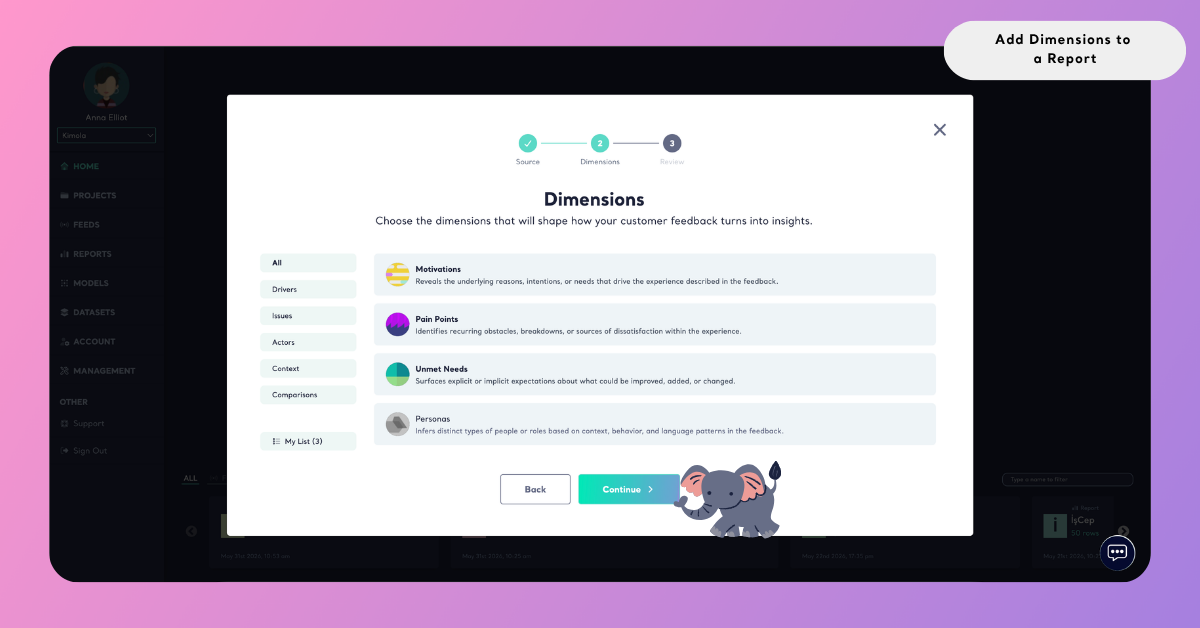
Selected dimensions are displayed under My List, allowing you to review or remove items before continuing. Once the report setup is completed, Kimola automatically generates the selected dimensions and adds them to the report after the analysis process is finished.
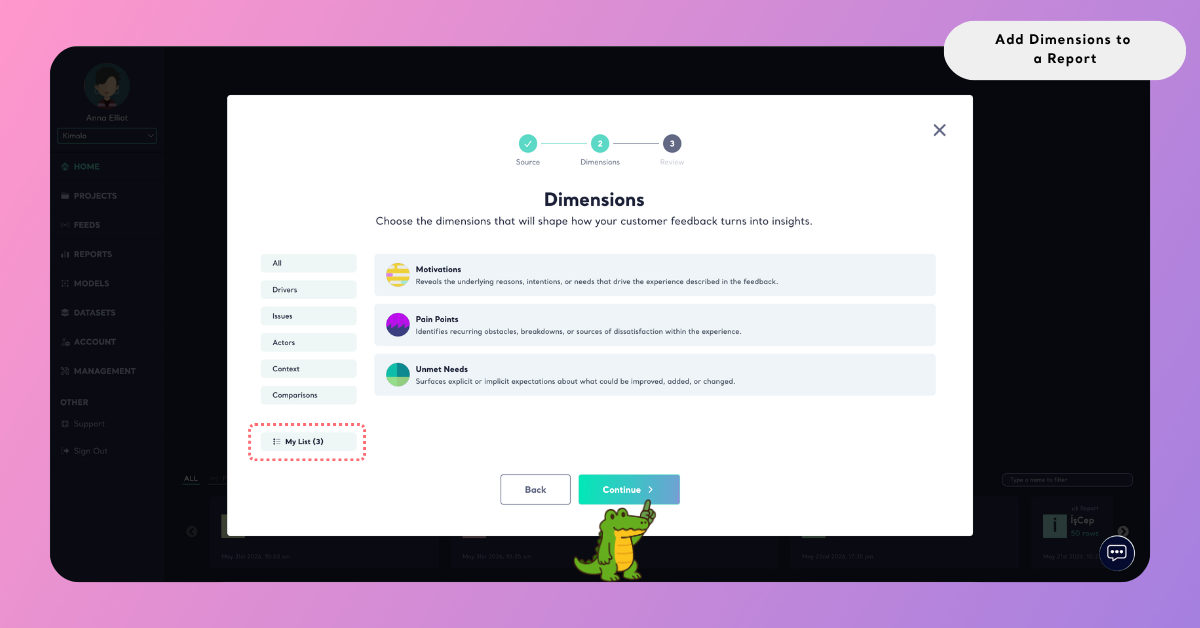
This approach is useful when you already know which types of qualitative insights you want to include as part of the initial report configuration.
Add Dimensions After Report Creation
Dimensions can also be added after a report has already been created. This allows reports to be enriched incrementally as new research questions, business priorities, or analysis needs emerge over time.
To add dimensions to an existing report, open the Reports section and select the report you want to work on. Inside the report, navigate to the Dimensions page where available dimensions are displayed. From the Dimensions panel or slider at the top of the page, you can select any dimension you want to generate.
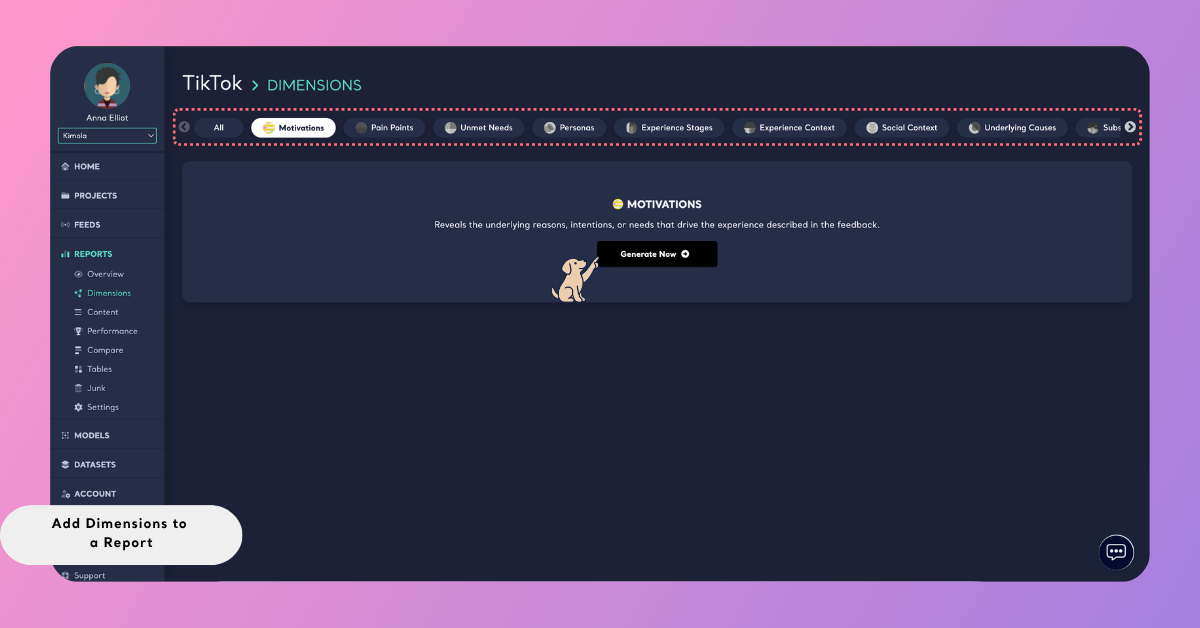
After selecting a dimension, click "Generate now" in the window that opens. If you want to generate multiple dimensions, click All to access the full list of available options and make additional selections before starting the process. Once generation begins, Kimola processes the selected dimensions and automatically adds the outputs to the report when the analysis is completed.
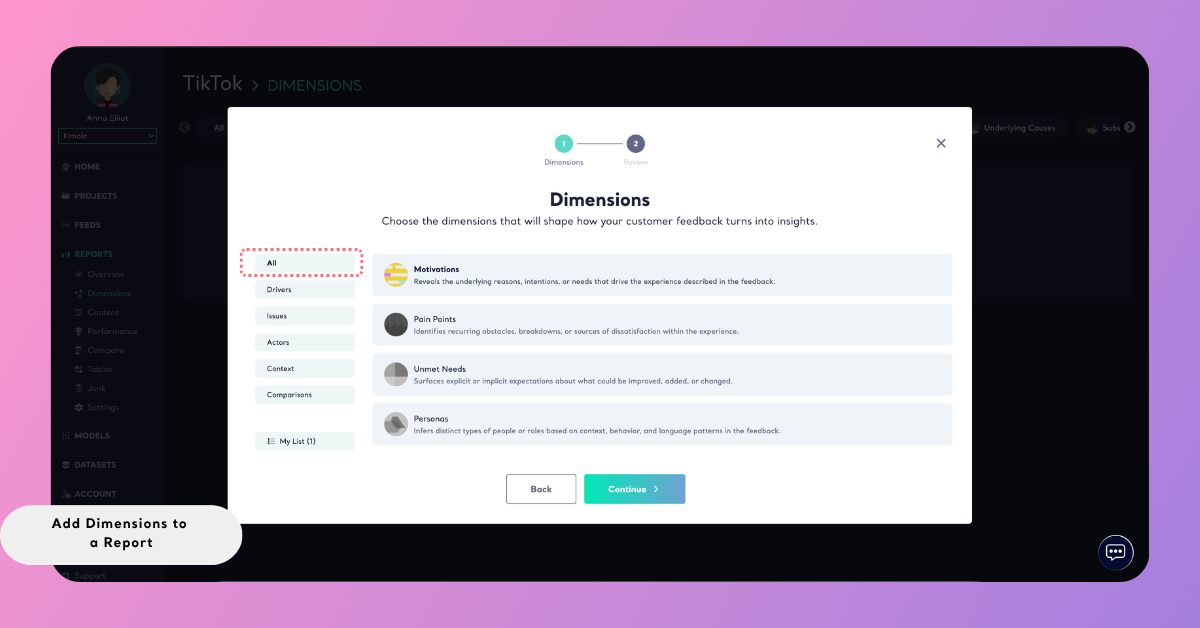
This workflow makes it possible to expand reports dynamically without recreating datasets or rerunning the entire report setup process.
Dimension Queries
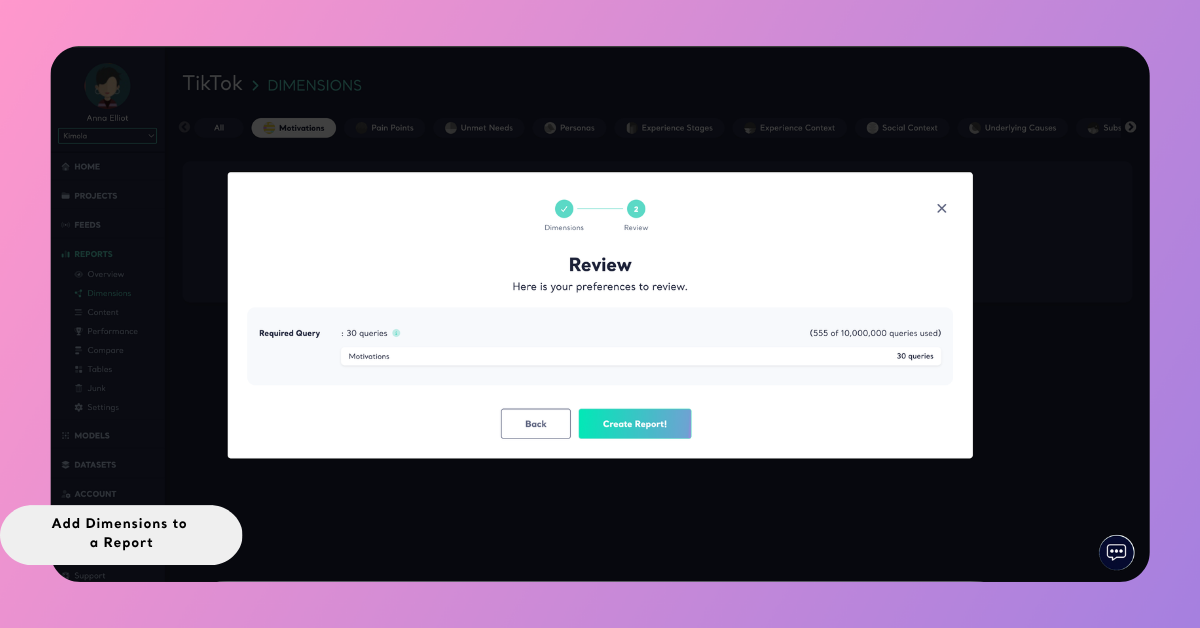
In Kimola, dimensions are generated on top of analyzed report data to uncover deeper qualitative patterns such as motivations, pain points, unmet needs, personas, and contextual experience signals. During this generation process, Kimola uses queries to process your data and create the selected dimension outputs.
Understanding when and how queries are consumed helps you plan dimension generation more effectively, estimate usage in advance, and avoid unexpected limits.
Queries in dimensions are used only for generation and analysis operations. They are not consumed when browsing reports, viewing dimension outputs, applying filters, or interacting with an existing report. Queries are consumed only when Kimola actively processes data to generate new dimension outputs.
Query usage for dimensions depends on several factors, including the number of records included in the report, the dimensions selected for generation, and the analysis scope defined during the process. If no new dimension generation is performed, no additional queries are consumed.
After Dimensions Are Generated
Once dimensions are added to a report and generation is completed, the outputs become available directly inside the report interface. Each generated dimension can be reviewed individually, allowing you to explore the detected patterns, insight summaries, related records, and associated analytical context within the report.
You can also interact with generated dimensions using the available actions in the dimension card. Depending on your workflow, dimensions can be copied for reuse in presentations, documents, or external workflows, or downloaded for sharing and further analysis outside the platform.
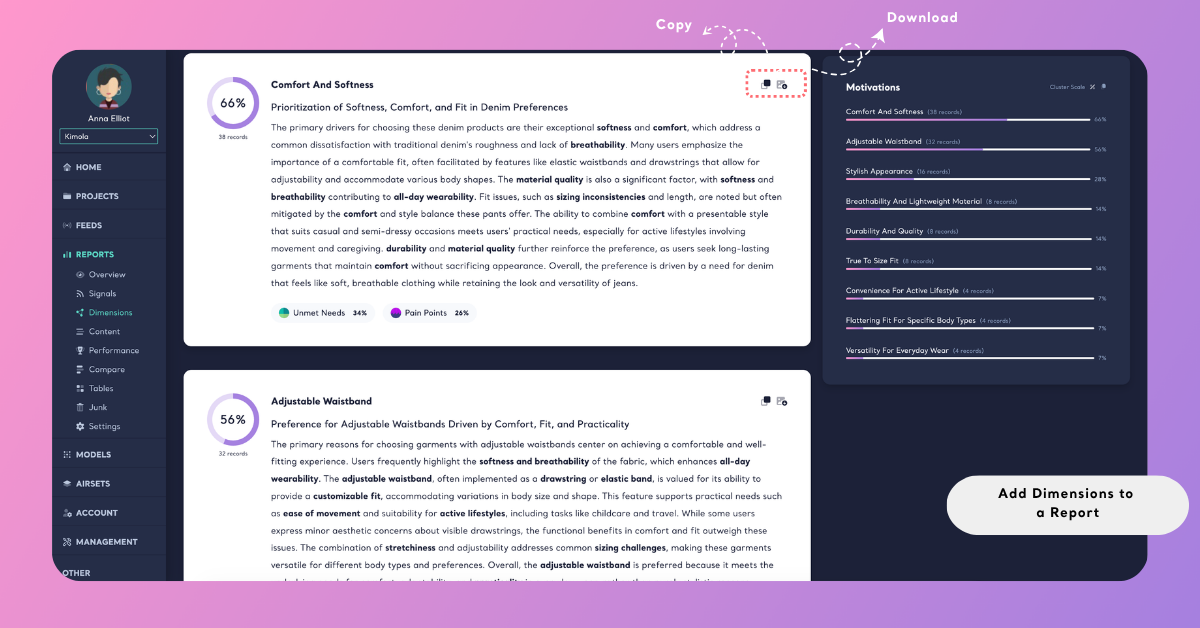
These options make it easier to distribute insights across teams and integrate dimension outputs into reporting, research, product, or customer experience processes.