Manage Labels in Reports
6 mins read - Created on Dec 25, 2025In Kimola, you can manually update theme and sentiment labels directly after a report is created. Available editing options depend on whether the report is created as single-label or multi-label.
This article explains how to update labels for individual records or multiple records at once, and outlines the limitations for each report type.
Before managing labels in a report, sign in to your Kimola account and go to the Dashboard Home page. From the left-hand menu, open the Reports section to view your reports, then locate and open the report you want to edit. All label and sentiment changes are made from the report’s Analysis page.
Change Labels in Single-label Reports
In a single-label report, each record is associated with one theme and one sentiment. You can update these assignments, but you cannot add or remove themes.
Edit Labels for a Single Record
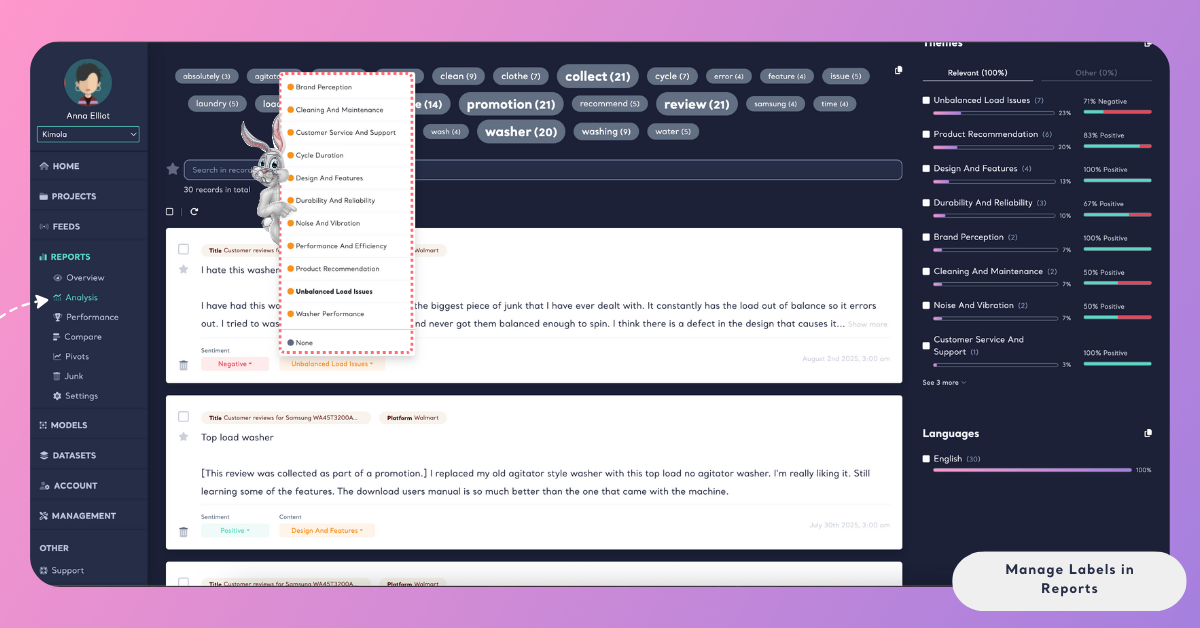
To update labels for a single record, locate the record you want to edit on the Analysis page. Click on the theme or sentiment label shown under the record, then select the new theme or sentiment from the dropdown menu. Theme and sentiment labels can be updated independently for the same record.
Edit Labels for Multiple Records
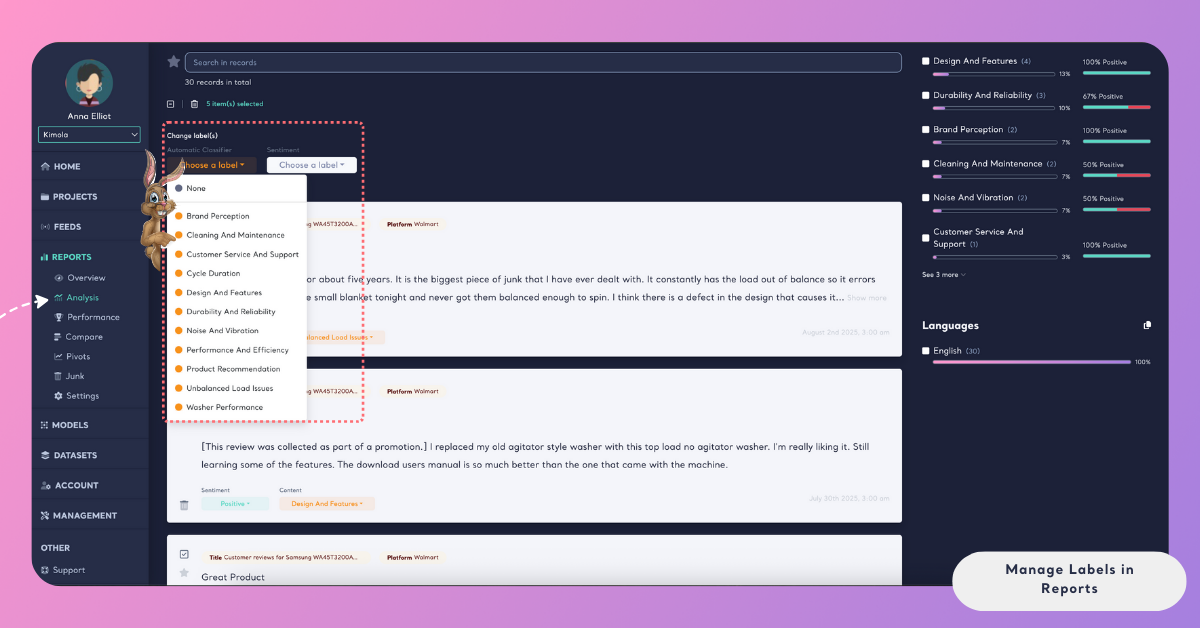
To update labels for multiple records at once, go to the Analysis page and select the records you want to modify by using the checkboxes located in the corner of each record. Once at least one record is selected, the Change Label panel appears at the top of the list. From this panel, choose the new theme or sentiment you want to apply and confirm the change. The selected update is applied to all chosen records, and the theme distribution and overall sentiment metrics are recalculated automatically based on the updated labels.
Change Labels in Multi-label Reports
In multi-label reports, a single record can contain multiple themes, each with its own sentiment. Label editing is performed at the theme level, allowing you to update individual themes and their sentiment without affecting the rest of the record.
Edit Labels for a Single Record
To update a label for a single record in a multi-label report, go to the Analysis page and locate the record you want to edit. Under the record, open the Themes section and click on the existing theme label.
A list of available themes in the report will appear. To change the label, find the theme you want to apply and click on its sentiment icon:
- Green heart for Positive
- Red heart for Negative
- Gray heart for Neutral
The selected theme and sentiment are applied together as a single aspect. In multi-label reports, themes and their sentiments are not edited separately—selecting a theme always includes selecting its sentiment at the same time.
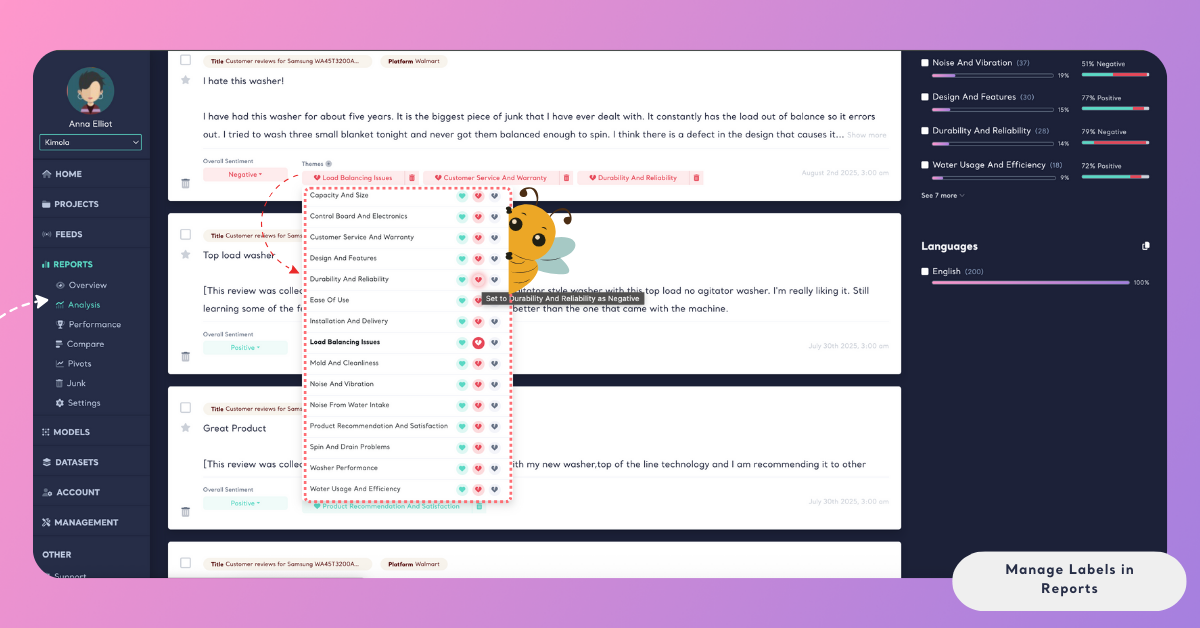
Only the chosen theme–sentiment pair is updated. Other themes and sentiments associated with the same record remain unchanged.
Edit Labels for Multiple Records
To update themes and sentiments for multiple records at once, select the records you want to edit using the checkboxes in the top corner of each record on the Analysis page.
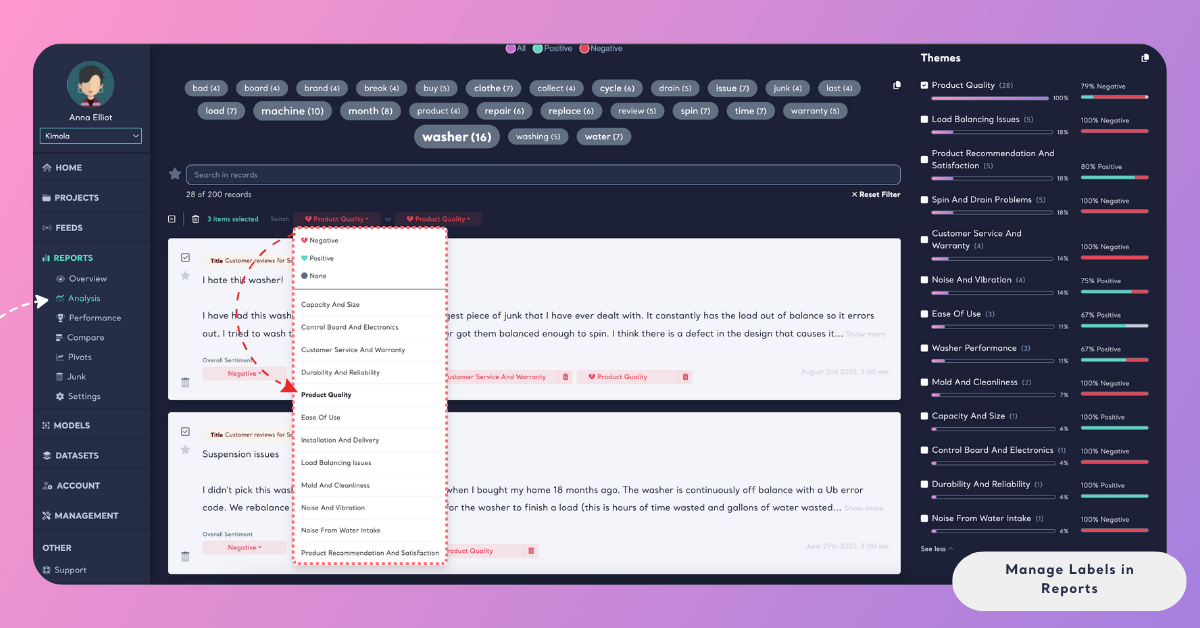
Once records are selected, the Switch panel appears at the top of the screen. From this panel, choose the theme you want to apply. After selecting a theme, you must also select its sentiment (Positive, Negative, or None). In multi-label reports, a theme and its sentiment are treated as a single unit, meaning theme changes are always applied together with sentiment.
Replacing a Theme with Another Theme
(Product Quality – Negative → Durability and Reliability – Negative)
Now, assume the selected records are labeled as Product Quality (Negative), but after review, you decide the feedback is actually about Durability and Reliability, and it is still positive.
- Select the relevant records.
- In the Switch panel, choose Product Quality with Negative sentiment.
- In the To section, select Durability and Reliability.
- Choose Negative as the sentiment.
- Confirm the update.
In this case, Product Quality (Negative) is removed and replaced with Durability and Reliability (Negative) for all selected records.
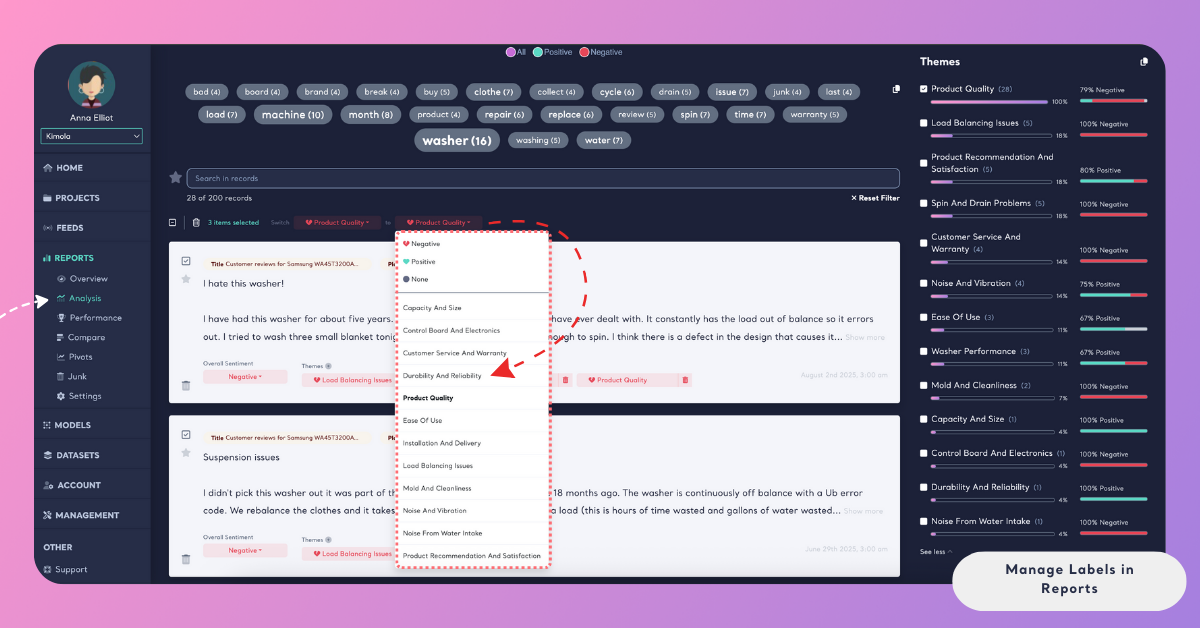
After confirming your selection, the chosen theme–sentiment combination is applied to all selected records. The theme distribution in the report is updated automatically based on these changes.
If you only want to update the sentiment of an existing theme, you can select the same theme in the TO field and change only its sentiment value.
Changing the Sentiment of the Same Theme
(Durability and Reliability – Negative → None)
Assume several selected records are currently labeled as Durability and Reliability with a Negative sentiment, but after review, you believe the feedback is more none than negative.
- Select the records you want to update using the checkboxes.
- In the Switch panel at the top, select Durability and Reliability and its Negative sentiment.
- In the To section, you will see Durability and Reliability listed.
- Click on it and choose None as the new sentiment.
- Confirm the update.
As a result, all selected records keep the Durability and Reliability theme, but their sentiment is updated from Negative to None. Theme and sentiment distributions are recalculated automatically.
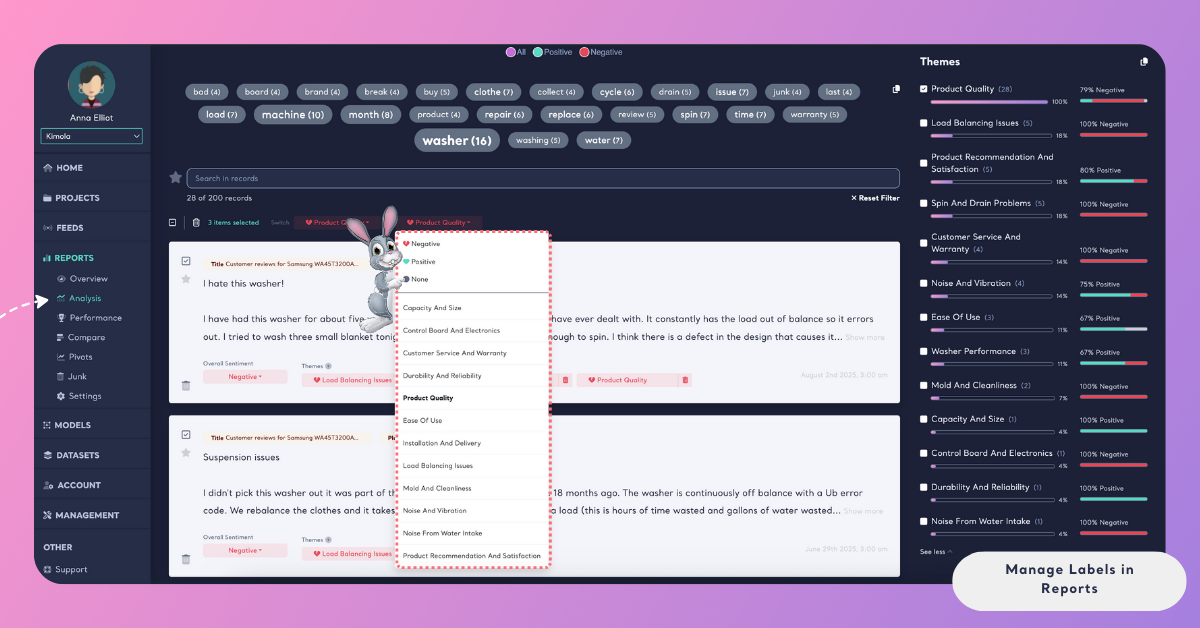
This bulk editing approach allows you to efficiently apply consistent updates across multiple records without editing each one individually.
In multi-label reports, theme-level sentiment and overall sentiment are handled separately. When you edit the sentiment of a specific theme, this change affects only that theme and does not update the overall sentiment of the record.
If you want to change the overall sentiment of a record, use the Overall Sentiment field displayed under the record. Updating the overall sentiment recalculates the overall sentiment distribution across the report.
Add a New Theme Label to a Record
In multi-label reports, you can add an additional theme to an existing record to reflect all relevant topics mentioned in the feedback. To do this, locate the Themes section under the record on the Analysis page and click the plus (+) icon. From the list, select the theme you want to add and choose its associated sentiment. After confirming your selection, the new theme is added to the record, and the overall theme distribution is automatically updated to reflect this change.
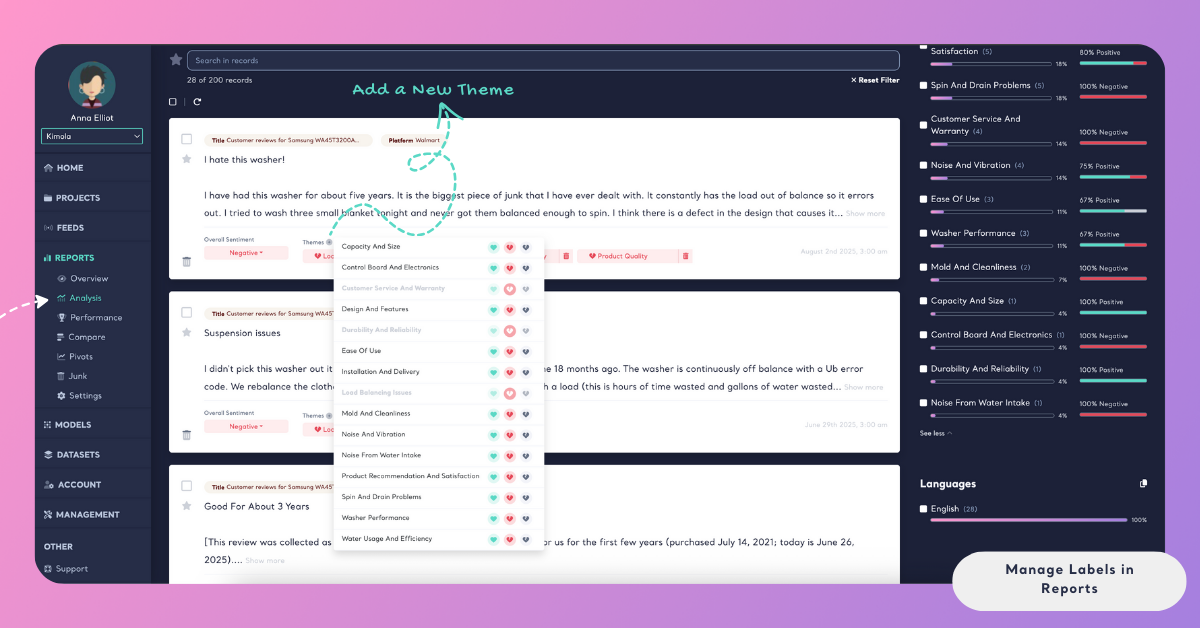
You can add only existing themes that are already part of the report to a record. It is not possible to create or introduce a new theme from scratch while editing records.
Remove a Theme from a Record
In multi-label reports, you can remove a theme from a record if it no longer accurately represents the feedback. To do this, find the relevant record on the Analysis page and locate the theme you want to remove under the record. Click the trash icon next to that theme and confirm the action. Once confirmed, the theme is removed from the record, and the theme distribution is automatically recalculated to reflect the change.

If dimensions were selected when the report was created, changes made to themes or sentiment labels do not automatically update existing dimension outputs.
This structure ensures label management remains consistent with the report type while allowing controlled manual refinement of analysis results.