Manage Interpretations in a Report
2 mins read - Created on Feb 20, 2025Managing interpretations in a report allows you to control how analysis outputs are presented and maintained. Interpretations are AI-generated analysis outputs that turn your data into structured insights such as summaries, pain points, motivations, or recommendations. You can review existing interpretations, edit supported ones, remove interpretations you no longer need, or regenerate them when required.
This article explains how to manage interpretations inside an existing report.
Sign in to your Kimola account and open the report you want to manage from the Reports section.
View Interpretations in a Report
To access interpretations in a report:
- Open the report from the Reports list
- Go to the Overview page
- Use the interpretation slider at the top of the page to browse all generated interpretations
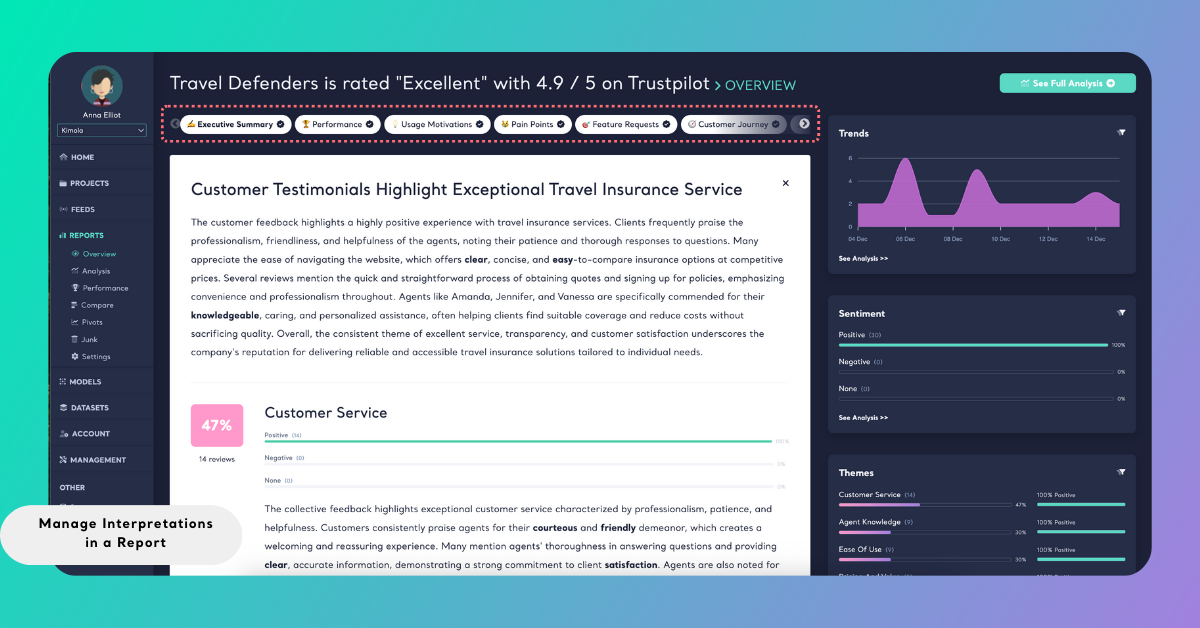
Each interpretation appears as a separate section within the report.
The Executive Summary is included in every report by default. It cannot be edited, but it can be deleted and regenerated if needed.
Edit an Interpretation
Some interpretations support manual editing after they are generated.
Interpretations that can be edited: Usage Motivations, Highlights, Frequently Asked Questions, Product Description, App Description, Product Features, Product Roadmap Generator, Marketing Recommendations
Interpretations that cannot be edited: Executive Summary, Performance, Pain Points, Feature Requests, Customer Journey, Personas
To edit an interpretation:
- Select the interpretation from the slider
- Click the edit (pencil) icon in the top-right corner
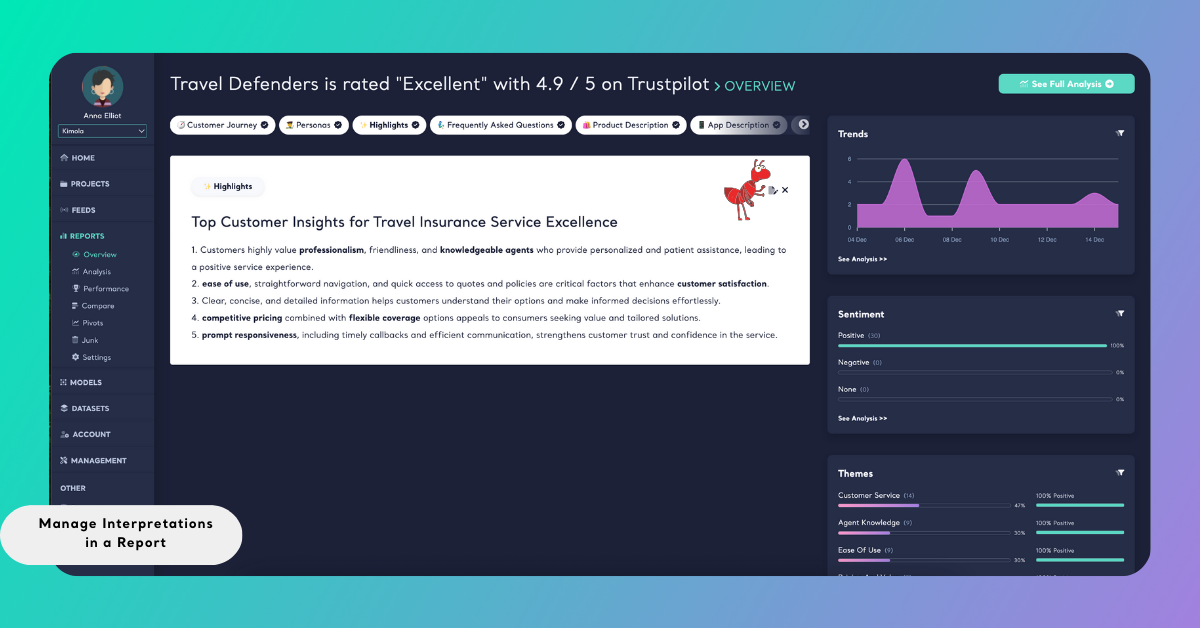
- Update the content as needed
- Click Save to apply your changes
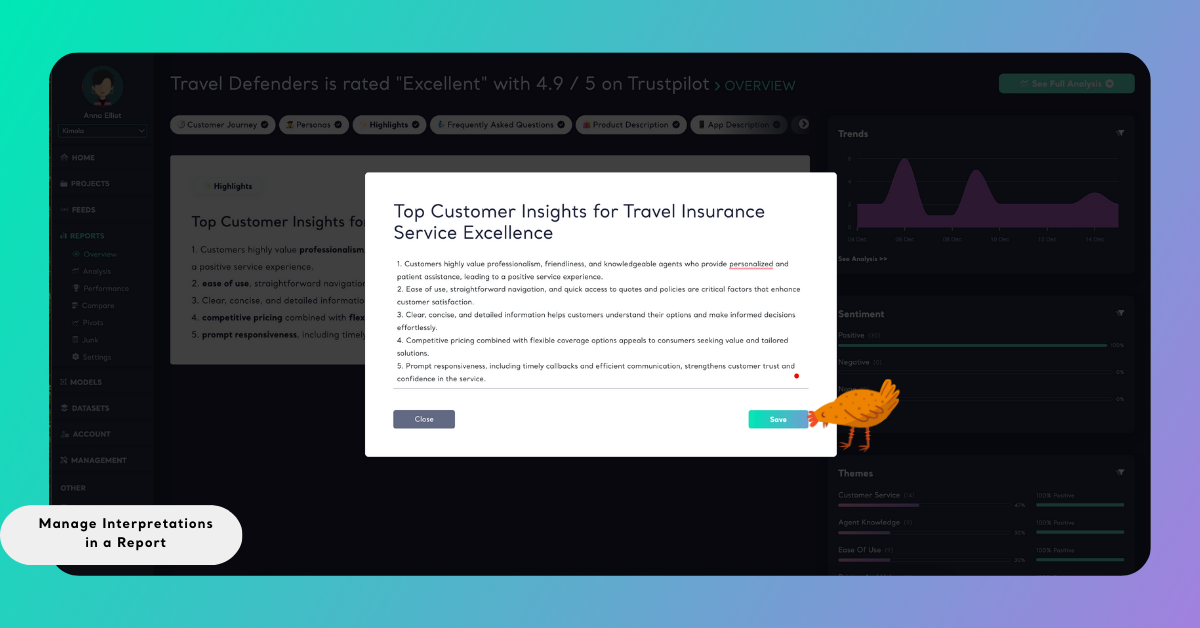
Edits are saved directly in the report.
Delete an Interpretation
All interpretations can be removed from a report.
To delete an interpretation:
- Select the interpretation from the Overview page
- Click the delete (X) icon in the top-right corner
- Confirm the deletion
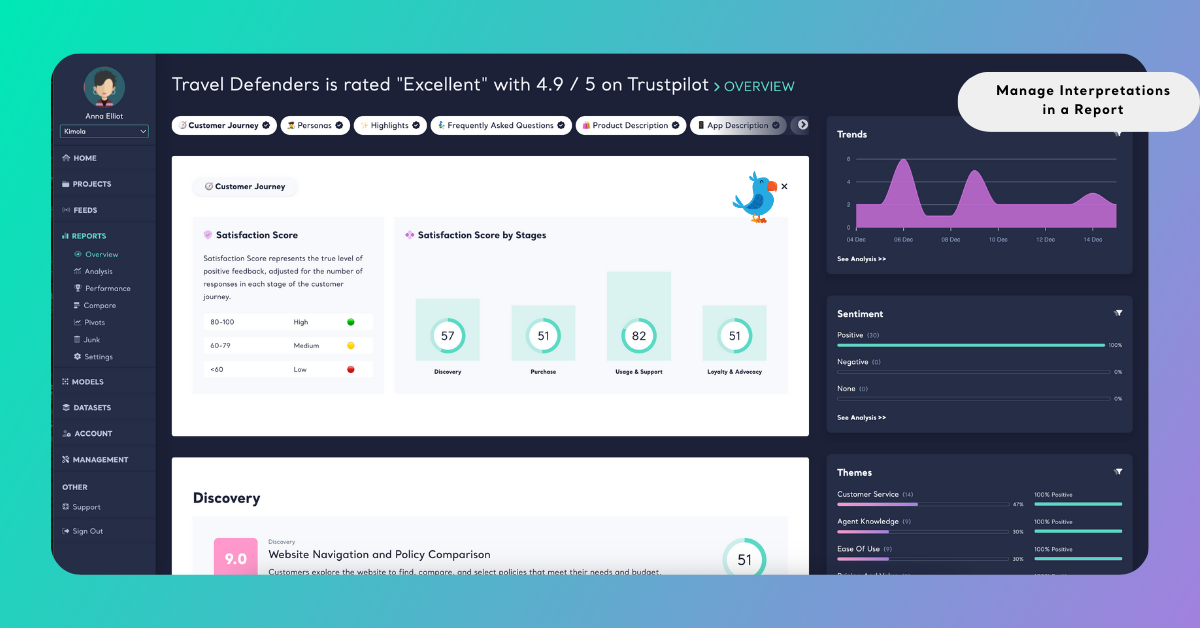
Once deleted, the interpretation is removed from the report.
Regenerate an Interpretation
If you delete an interpretation, you can generate it again at any time.
To regenerate an interpretation:
- Open the report and go to the Overview page.
- Select the interpretation you want to generate again from the interpretation panel.
- Generate the interpretation to create a new output inside the report.
- Regenerated interpretations appear as new analysis outputs and use GPT credits.
For detailed instructions on how to add or generate interpretations, see Add Interpretations to a Report.