What is the Experience Context Dimension?
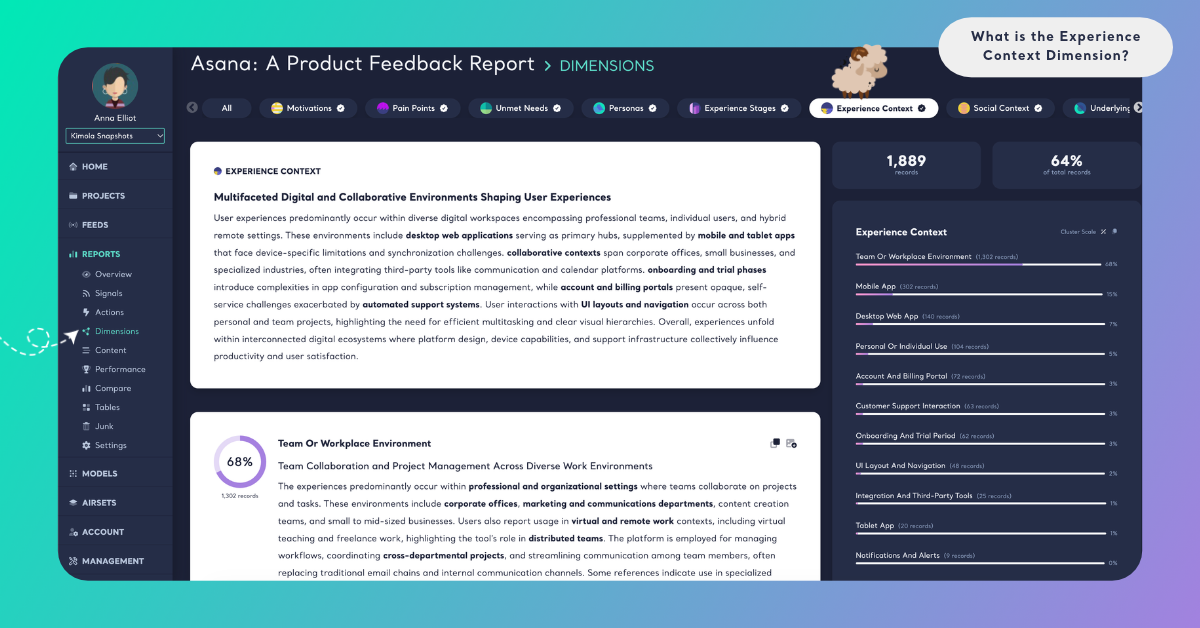
min read - Updated on Oct 30, 2026Experience Context is the Dimension that asks every piece of customer feedback "Where does this occur?" It indicates the environment, setting or situation in which the experience happens: at home, at work, in a store, on a train, in the car, abroad, on a weak mobile signal or on a hot summer day. Kimola groups the same setting across all of your reviews, survey responses and support conversations and counts the records behind each one, so you see the conditions your customers use your product or meet your service in and how much of your feedback each setting accounts for. Experience Context belongs to the Context group and is available in every package.
A Dimension is a research question Kimola asks of every piece of feedback. Themes tell you what customers talk about, and sentiment tells you how they feel about it. Experience Context tells you where it happened, so a complaint or a compliment can be read against the conditions the customer was in. Every answer stays tied to the feedback that gives it, so you can open the records behind a setting and read them.
To use Experience Context, you need a Kimola account and customer feedback to analyze. If you don’t have an account yet, sign up first.
For a Report, sign in and open the report you want to work with from the Reports section. If you haven’t created a report yet, follow one of these guides: Create a Report by Uploading a Custom Dataset, Create a Report by Adding Links
You can select Experience Context while creating the Report or add it later. See Use It in Kimola.
For a Space, you need a Funnel with an Experience Context Dimension model. If you haven’t set these up yet, see Create a Funnel, Add Dimensions to a Funnel and Create a Space. Upload feedback to the Space after adding the model so it can be classified with Experience Context.
The Question It Asks
Experience Context asks one question of each record: "Where does this occur?" The answer is a setting or a situation, taken from what the feedback says. It can be a physical place, such as at home, in the office, in a store, at a branch, at the gym or outdoors. It can be a way of being on the move, such as commuting by train, driving or traveling abroad. It can also be the situation around the experience, such as a crowded store on a Saturday, a weak mobile signal, a power cut or a hot day. Some feedback names the setting directly ("At the airport…", "In the store…", "On the train…"). Other feedback shows it through what the customer describes: a review about a screen that can't be read in direct sunlight places the experience outdoors even if the word never appears.
Feedback that gives no clue about where the experience happened gets no answer for Experience Context. That is expected: a short review such as "Battery lasts all day." says nothing about the setting. The share of records that answer Experience Context tells you how much of your feedback can be read against its setting at all. One piece of feedback can describe several settings, for example a product that works well at home and poorly on the road, and each one is counted.
An experience context comes from the text, not from your columns. Your data may hold a store, a country or a sales channel in its columns, and Kimola uses those for filtering and comparing; they tell you where the feedback was collected or how the customer bought. Experience Context describes the setting the feedback itself talks about: a review left on a website can be about using the product on a camping trip. Experience Context is also different from the other Dimensions of the Context group. Experience Stages asks "When does this occur?" and describes the moment or the stage of the customer journey, and Social Context asks "With whom does this occur?" and shows whether the experience is lived alone or with others. Experience Context describes the setting. The same sentence can answer more than one of them: "on my way to work" gives Experience Stages a moment of the day and Experience Context a setting, the commute.
What You Get
Kimola builds the answers of Experience Context from your data. It reads the dataset, finds the settings and situations the feedback describes and names each answer in their terms, so the settings behind a coffee machine brand and those behind a ride-hailing app come out different. Across thousands of records, Kimola groups the same setting under one answer and counts the records that give it. The counts and shares come from the classification itself; an AI model writes the summaries afterwards, from numbers that are already computed.
In a Report
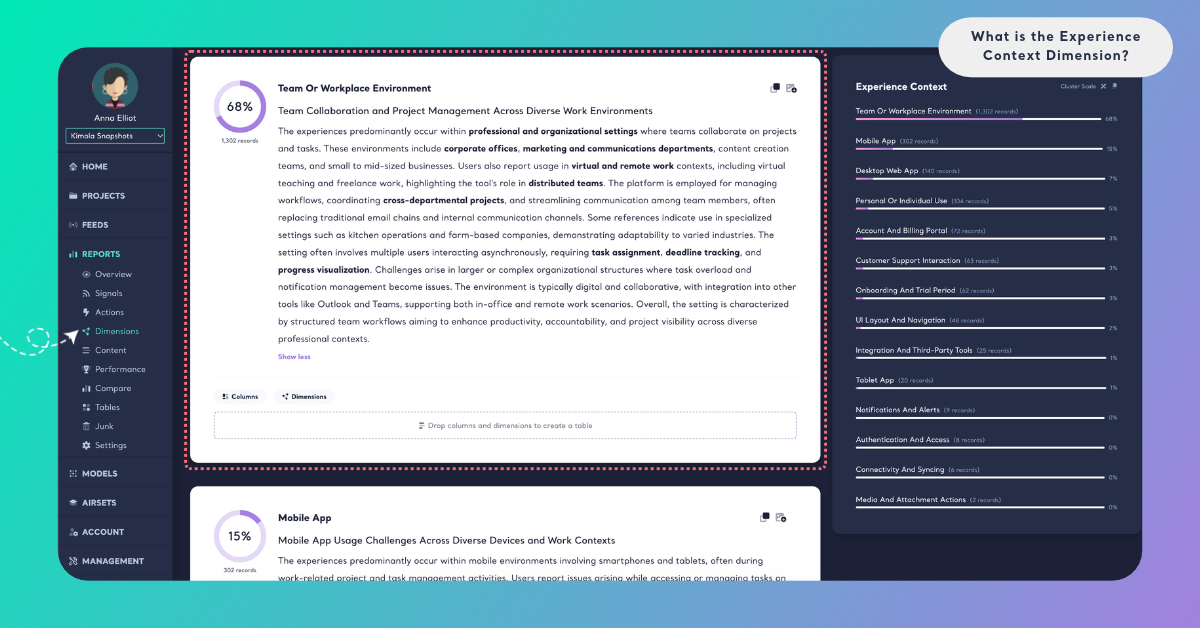
On the Report's Dimensions page, Experience Context has its own tab. A ring shows the share of the Report's records that answer the question. The summary card gives a headline and a few paragraphs on the settings your customers write about, with key terms in bold. Below it, each setting is a cluster with its number of records, its share and a short summary. A setting with very few records gets no summary, and the page says "Summaries are not available due to small cluster sizes."
Cluster Scale shows each setting's share of the records that answer Experience Context, and Dataset Scale shows its share of all the records in the Report. Because one record can describe several settings, the shares on Cluster Scale can add up to more than 100%. The Columns and Dimensions buttons on a cluster card show what lies behind a setting, for example the Pain Points customers report most often on the road or the countries the outdoor feedback comes from. See Dimensions in Reports.
In a Space
Spaces are available in the Enterprise package. On a Space's Dimensions page, Experience Context shows its answers under What they talk about and how they change Over time. A setting whose share changed significantly with the last upload is marked ▲ or ▼ "since the last upload", which can show customers starting to write more about using the product at home or while traveling. Kimola writes Insights after every new file: What the answers say for Experience Context as a whole, and Why they answer so for each setting that at least 10 of the latest records give. In a Space, the answers come from the labels of the Funnel's Experience Context model. See Dimensions in Spaces.
In both Reports and Spaces, you can filter the Content and Performance pages by a setting, or cross Experience Context with a column or a classifier in Tables, for example Experience Context by sentiment or by country.
An Example
Take this invented review of noise-cancelling wireless earbuds:
"I bought these for the open-plan office and the noise cancelling handles the chatter well. On the train they lose the connection every time we go through a tunnel, and at the gym they slip out as soon as I start running. At home on the sofa they're perfect."
Experience Context finds four answers in it. "Open-plan office" comes from the first sentence, and "On the train" from the tunnels. "At the gym" comes from the running, and "At home" from the sofa. The lost connection and the earbuds slipping out are not settings; they are answers for Pain Points. Placed on the settings, they show that this customer's problems sit on the move and during exercise, while the earbuds do their job at the office and at home. The reason the customer bought them, to work in a noisy office, is picked up by Motivations when that Dimension is added.
A second review, "The charging case feels cheap.", says nothing about where the experience happened, so it gets no Experience Context answer.
Across a dataset of 4,000 reviews, the same settings gather into clusters. "Commuting on public transport" might be the largest, with 620 records, followed by "Working out" and "Shared office". The summary would then say that many customers wear the earbuds on the move, and crossing Experience Context with Pain Points in Tables would show that the connection problems gather in commuting.
The answer names and numbers here are illustrative: Kimola names the settings of your own data in your customers' words.
When to Use It
Use Experience Context whenever a decision depends on the conditions in which customers use your product or meet your service. It reads best in feedback where customers describe their situation: product reviews, app store reviews, open-ended survey answers and support conversations.
Designing for real conditions. See the settings your product is actually used in, and how much feedback each one holds. A setting you never designed for, such as a kitchen appliance used in a camper van, is worth a closer look.
Locating problems. Cross Experience Context with Pain Points in Tables to see where each problem happens. A problem that appears only outdoors or on the move points to conditions such as heat, light or signal; one that appears in every setting points to the product itself.
Store, branch and online experiences. When you serve customers in several places, Experience Context tells apart what they say about the store, the branch, the website and the app, even when all of the feedback comes from one survey.
Messaging. The largest settings, and the words customers use for them, tell you which situations to show on a product page, in a campaign or in an ad. Cross them with Motivations to see why customers choose you in each setting.
Context your columns don't hold. Your data may hold a store or a country but nothing about where the product was used. Experience Context adds that layer from the text itself, and you can cross it with your columns in Tables, for example to see which settings sit behind each product line.
Competitors. Create a Report from the review pages of a rival's product to see in which settings their customers are happiest or most frustrated, and compare them with your own.
Change over time. In a Space, follow whether a setting starts to collect more feedback, such as more customers writing about travel in the summer or about using a product at home after a change in how they work.
Experience Context works best together with the other Dimensions of the Context group. Experience Stages ("When does this occur?") adds the moment to each setting, Social Context ("With whom does this occur?") shows whether customers are there alone or with others, and Co-Occurrences ("Alongside what does this occur?") shows the products, tools or behaviors that come with it. Outside the group, Pain Points gives each setting its problems and Personas shows who is there.
Use It in Kimola
How you add Experience Context depends on whether you work in a Report or a Space.
In a Report
Select Experience Context in the Dimensions step while you create a Report. It is listed under All and under Context. Click it to add it to My List, then check the Required Query in the Review step. To add it to a Report that is already analyzed, open the Report's Dimensions page, click the Experience Context tab without a check mark and click Generate Now. Kimola classifies the Report's existing records with Experience Context and writes its analysis. The steps are in Add Dimensions to a Report.
Dimensions add to the queries a Report uses: queries = rows × models × Dimensions. For what your package includes, see kimola.com/pricing.
In a Space
A Space gets Experience Context from a Dimension model in its Funnel. In Models, click Create AI Model, choose By Prompt, click Dimension in the Purpose step and choose Experience Context under Which dimension?. Its Question and Description are filled in, and you can fine-tune them for your business. In Labels, define the settings your Spaces can find, such as "At home", "On the road" or "In the store", each with a short description. Then pick the model on the DIMENSIONS tab of the Funnel wizard's Models step. Every file uploaded to the Funnel's Spaces after that is classified with Experience Context. The steps are in Add Dimensions to a Funnel.
If your team already works with a set of usage situations or service channels, enter them in Labels, so every file is read against the same set.
Spaces are available in the Enterprise package. They are also available in Kimola On-Premises.