Dimensions in Reports
min read - Updated on Oct 28, 2026Dimensions is the page of a Report where you read the answers your feedback gives to each research question you added. For every Dimension, Kimola shows how many records answer it, an AI-written summary of what those answers say, the answers grouped as clusters with their record counts and shares, quotations in customers' own words, and the columns and other Dimensions behind each answer.
You open the page from Dimensions in the menu of an open Report, or from Dimension Details and All Dimensions on the Dimensions card of the Report's Overview. A Dimension is a research question Kimola asks of every piece of feedback, such as Pain Points ("What goes wrong or creates difficulty?") or Personas ("Who is experiencing this?"). The page shows the Dimensions added to the Report while it was created or later; see Add Dimensions to a Report.
Dimensions are available in every package.
What You See
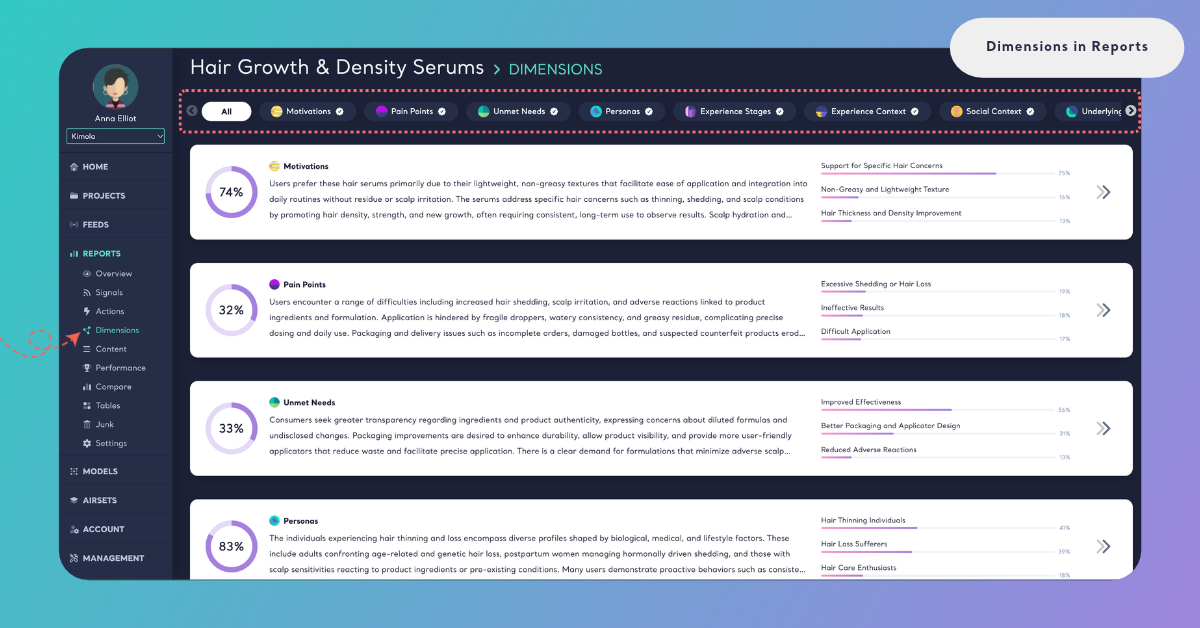
A row of tabs runs across the top of the page: All, then one tab for each Dimension. A Dimension with a check mark next to its name has been analyzed in this Report. The Dimensions that come after them, with a gray icon and no check mark, have not been added yet. Use the arrows at both ends of the row to scroll through the tabs.
All
All opens with one card for each analyzed Dimension. The ring on the left shows the share of the Report's records that answer the Dimension: 20% on Pain Points means one record in five describes something that went wrong. Next to it are the Dimension's name and the start of its summary, and on the right its three largest answers, each with its share. Click a card, or its arrow, to open the Dimension.
One Dimension
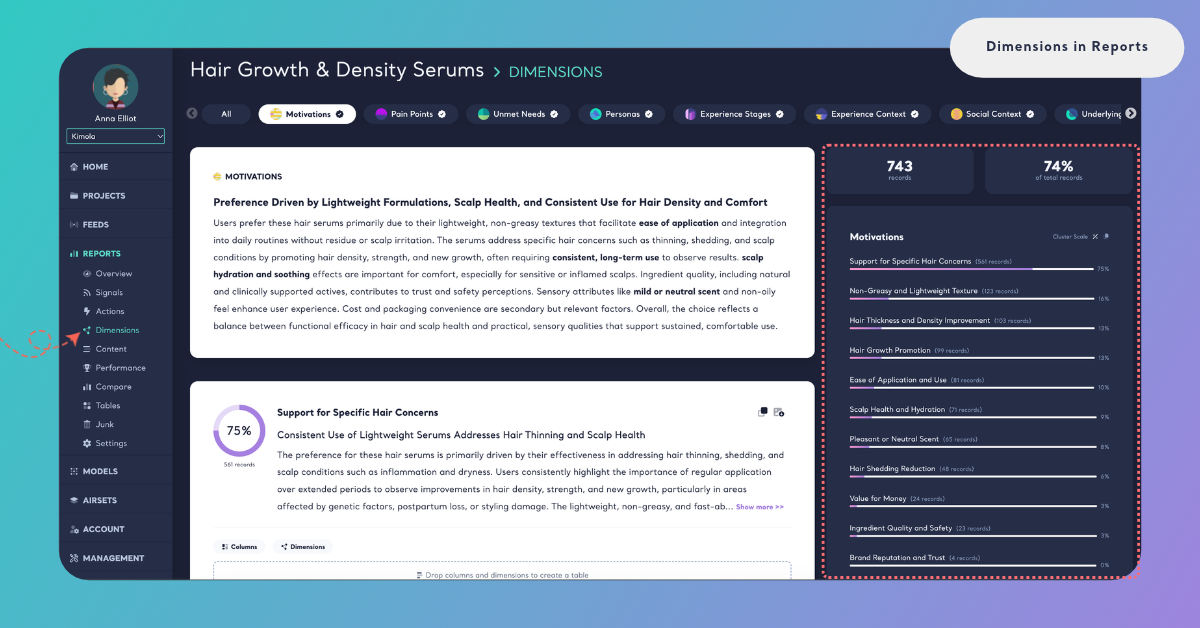
A Dimension's own tab is read from top to bottom. The summary card comes first, with the number of records that answer the Dimension and their share of total records next to it ("600 records", "20% of total records"). Below the summary, the page shows one card for each cluster, largest first.
On the right, a panel lists every cluster of the Dimension with its number of records and a bar for its share, and stays in view while you scroll. Cluster Scale at the top of the panel switches the shares between two readings. Cluster Scale shows each cluster's share of the records that answer the Dimension. Dataset Scale shows its share of all the records in the Report. A cluster with 180 records reads 30% on Cluster Scale when 600 records answer the Dimension, and 6% on Dataset Scale in a Report of 3,000 records. The rings on the cluster cards follow the same choice.
One piece of feedback can give several answers to the same Dimension, for example two different Pain Points. That is why the shares of a Dimension's clusters can add up to more than 100%.
The AI-Written Summary
The summary card names the Dimension and gives its findings a headline, followed by a few paragraphs on what customers' answers to the question say across the whole Report. Key terms are in bold, so you can scan the summary before reading it in full.
For a food delivery app, the Pain Points summary might say that customers struggle most with late deliveries, then with missing items, and that app crashes at checkout come up mostly among first-time orders.
Kimola classifies the records first and counts the answers. An AI model writes the summary afterwards, from the clusters and numbers that are already computed, so the text never decides which answer is larger. The summary is written once, when the Dimension is analyzed, in the Report's output language. See Language Options in Reports.
Clusters and Quotations
A cluster is one answer to the Dimension, with all the records that give it. Kimola builds the clusters from your data: the Pain Points of a food delivery app and of a banking app are different clusters, named in their customers' terms.
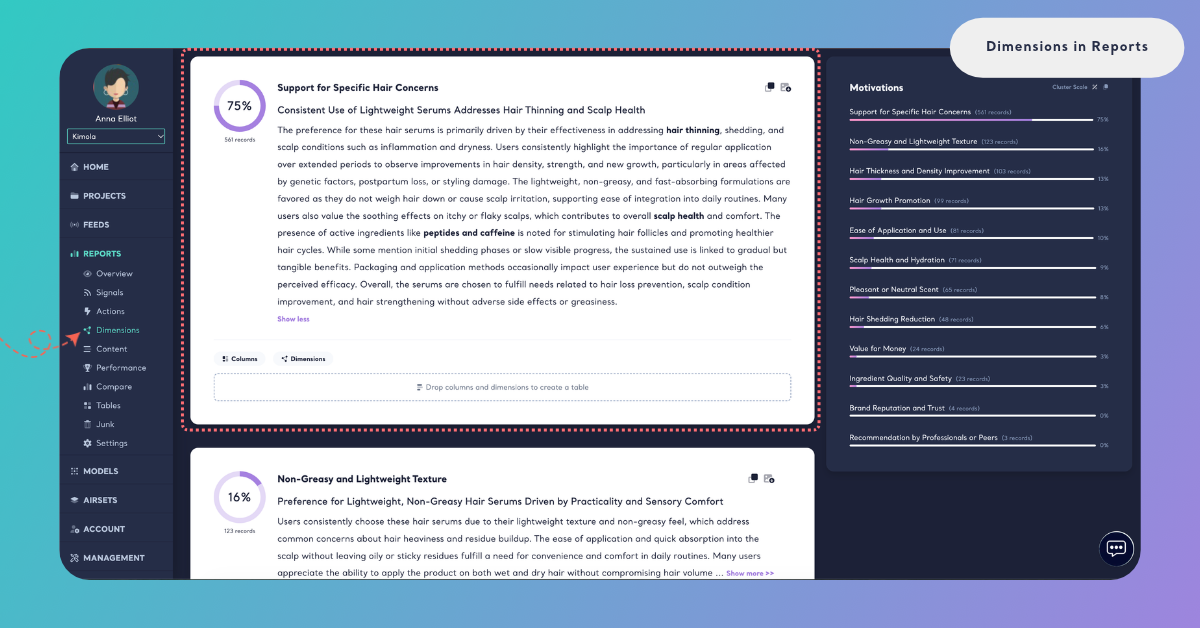
Each cluster card shows:
The ring and the record count. The cluster's share, on Cluster Scale or Dataset Scale, and the number of records under it.
The name and the headline. The answer itself, such as "Excessive Shedding or Hair Loss", and a one-line finding about it.
The summary. What the records of this cluster say, with key terms in bold. Long summaries are cut after a few lines: click Show more >> to read the rest and Show less to fold it again.
Kimola writes a summary only for a cluster with enough records to support one. When some clusters are too small, the page lists them under "Summaries are not available for the following topics due to small cluster sizes:". When none of the Dimension's clusters is large enough, it says "Summaries are not available due to small cluster sizes." The clusters and their record counts are still shown.
Classifications Behind a Dimension
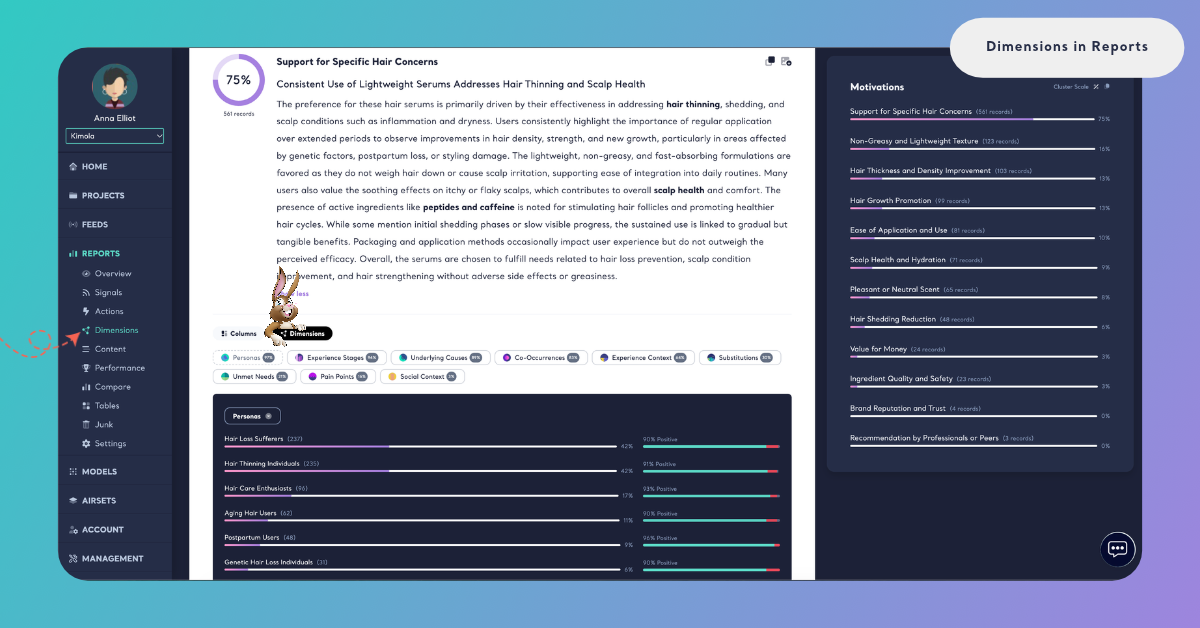
Every cluster card ends with two buttons that show what lies behind the answer. Columns lists the columns of the Report's dataset, such as a city, a product or a channel. Dimensions lists the Report's other Dimensions, each with the share of this cluster's records that also answer it. If 80% of the records under "Late Deliveries" also answer Unmet Needs, most customers who complain about late deliveries also say what they expected instead.
To look closer, drag a column or a Dimension from the list into the box that says "Drop columns and dimensions to create a table". The card then shows a table of that column's values or that Dimension's answers within the cluster, each with its number of records and its share. When the Report has a sentiment classifier, every row also shows its sentiment, so you see, for example, which Personas are behind "Late Deliveries" and how negative each of them is. Drop more than one column or Dimension to add them to the same table, and click the cross on a chip to take it out.
A table on a cluster card is a quick look and is not saved: it is gone when you leave the page. To cross columns, classifiers and Dimensions across the whole Report and keep the result, use Tables in Reports. To read the records that give an answer, filter the Content page by it; see Filter Records in Reports.
Copy or Download as Image
The summary card and every cluster card have two icons in their top right corner. Copy as image puts the card on your clipboard as a picture, ready to paste into a presentation, a document or a chat. Download as image saves the same picture as a file. The image shows the card on a white background, with a table you built inside it, and leaves out the buttons and the Columns and Dimensions lists.
-!:note
To share the whole Report, export it as an Excel, CSV, PDF or PowerPoint file instead; see Export a Report as PDF File and the other export articles.
note:'-
Generate a Dimension's Analysis
A Report can get more Dimensions after it is created. Open a tab without a check mark, and the page shows the Dimension's name, its description and Generate Now. For Social Context, for example: "Reveals whether the experience is lived alone or together with others."
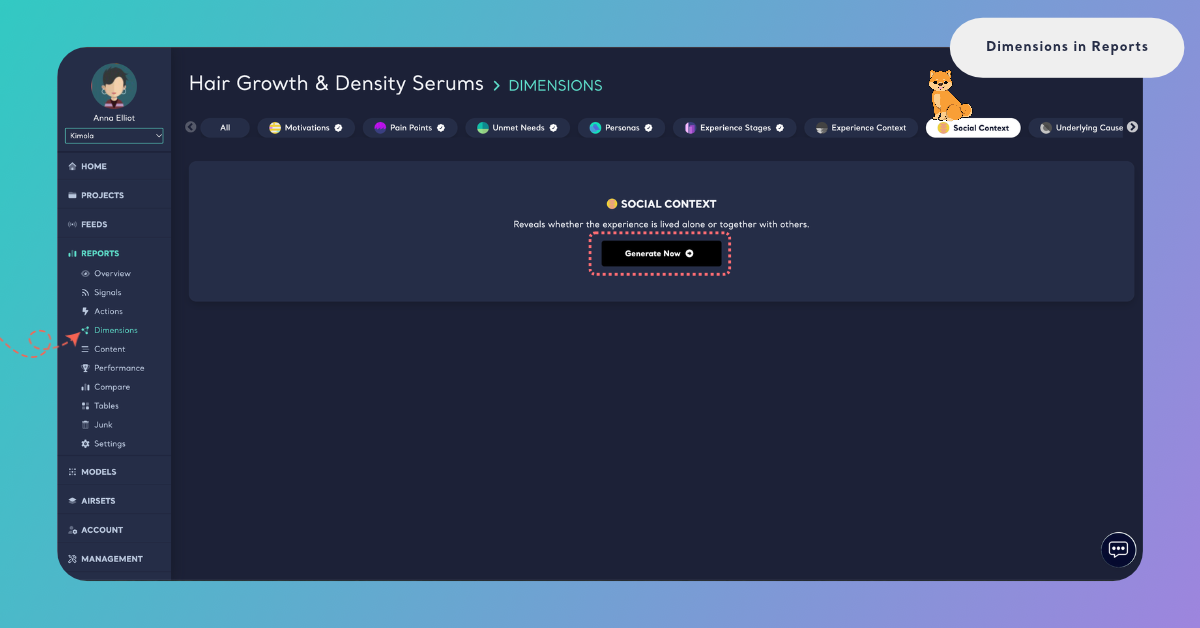
Click Generate Now to open the Dimensions window with that Dimension already in My List. You can add other Dimensions there from All, Drivers, Issues, Actors, Context and Comparisons. Continue takes you to Review, which shows the Required Query before anything starts. Dimensions add to the queries a Report uses: queries = rows × models × Dimensions, that is, every analyzed row multiplied by the number of models and the number of Dimensions. For what your package includes, see kimola.com/pricing. Kimola then classifies the Report's records with the new Dimensions and writes their analyses. The steps are in Add Dimensions to a Report.
How It Differs in Spaces
Spaces are available in the Enterprise package. A Space has a Dimensions page too, but a Space keeps growing file by file, so its page shows how each answer changes Over time and marks the answers that moved with the last upload with ▲ or ▼. In place of a summary written once, a Space has Insights that Kimola writes again after every new file: What the answers say for each Dimension and Why they answer so for each answer. See Dimensions in Spaces.