Export a Report as PDF file
3 mins read - Created on Feb 20, 2025Exporting a report as a PDF file allows you to share your analysis results in a fixed, professional format that is easy to view on any device. PDF exports preserve the layout and visuals of your report, making them ideal for documentation, sharing with stakeholders, or archiving analysis results.
This article explains how to export a report as a PDF file and what to expect from the exported output.
Sign in to your Kimola account and open the Reports section from the left menu.
Step 1: Open the Report
Go to the Reports page and find the report you want to export. Open the report by clicking its title or using the View option.
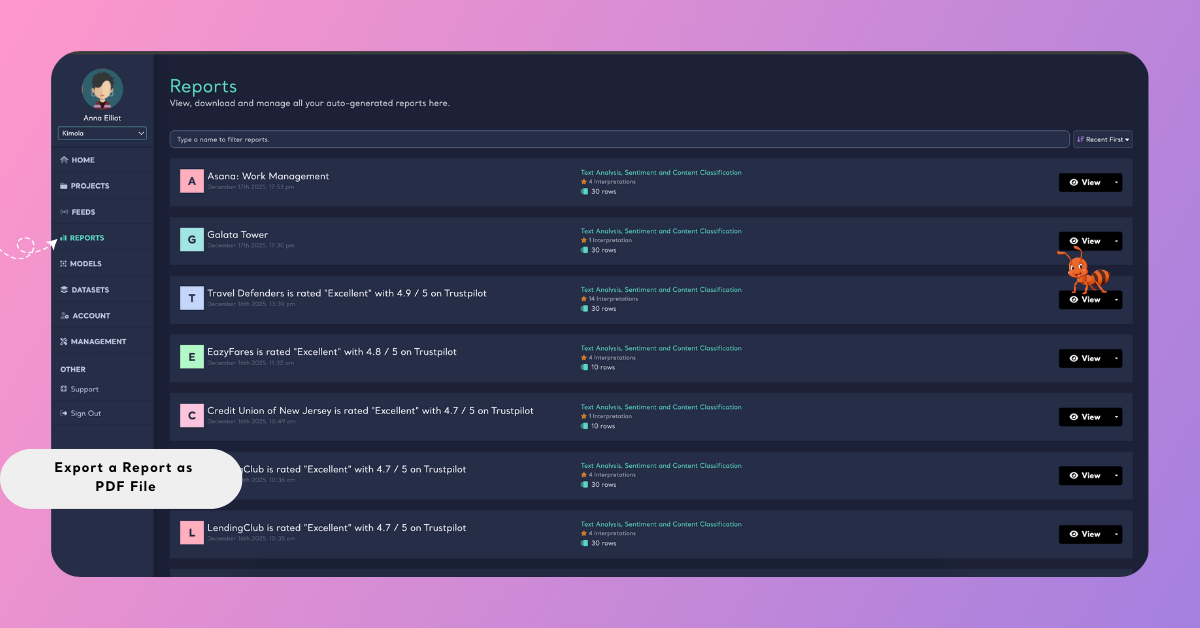
To export faster, you don’t need to open the report. From the Reports list, click the arrow next to View and choose PDF to download the file directly.
Step 2: Open the Full Analysis View
To include all charts, visuals, and summaries in the export, the report must be opened in the full analysis view.
From the report page, click See Full Analysis in the top-right corner, or use the report menu on the left to navigate to the analysis view.

Step 3: Export the Report as a PDF
From the full analysis view of the report:
- Select Export from the top-right menu.
- Choose PDF as the export format.
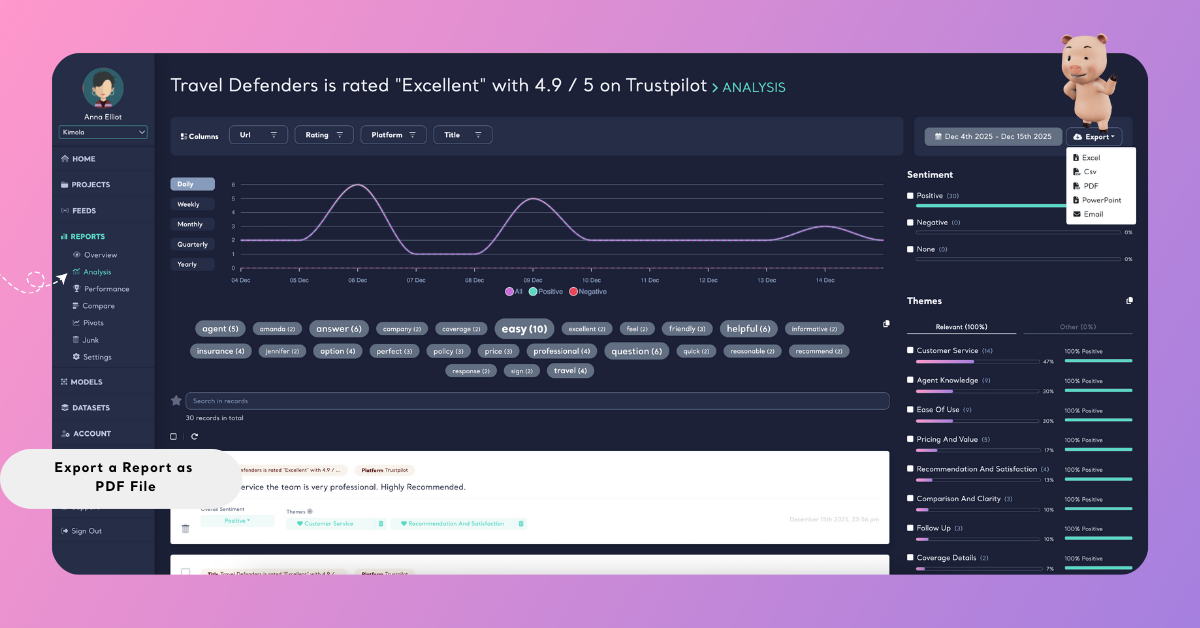
Kimola creates a PDF file that mirrors the report exactly, including the available analysis visuals and summaries.
Step 4: Choose How Filters Affect the PDF (Optional)
If your report includes active filters (such as date range, attributes, language, or themes), Kimola lets you decide whether these filters should be reflected in the exported PDF.
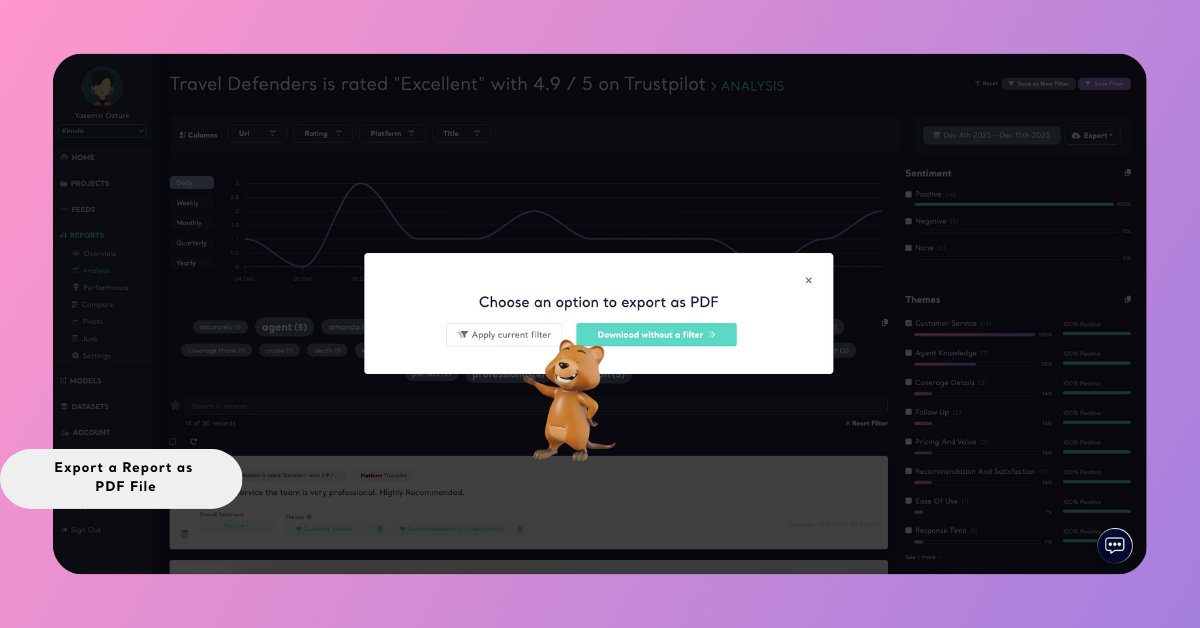
When exporting, you can select one of the following options:
- Apply current filters Exports only the data and visuals currently displayed in the report view, based on the active filters.
- Download without filters Exports the full report, ignoring any filters applied in the interface.
Select the option that best fits how you want to share or present the report content.
Step 5: Download and Access the PDF
After the export is finished, the PDF file is saved to your device. You can open it with any PDF viewer to review the report, share it with others, or store it for future reference.
What’s Included in the Exported PDF File
When you export a report as a PDF file, Kimola creates a document that reflects the current content and analysis results of your report. The PDF is designed to be clean, readable, and ready for sharing.
The exported PDF typically includes:
- A cover section showing key report details such as the report title and data source, providing clear context for the analysis.
- Sentiment analysis visuals that summarize the distribution of positive, negative, and neutral feedback, offering a high-level overview of customer sentiment.
- Theme or category-based analysis sections where records are grouped into meaningful topics or labels, helping highlight recurring issues, strengths, or discussion areas.
- Dimension outputs (if included in the report), such as executive summaries or insight-focused content, presented in a concise and readable format.
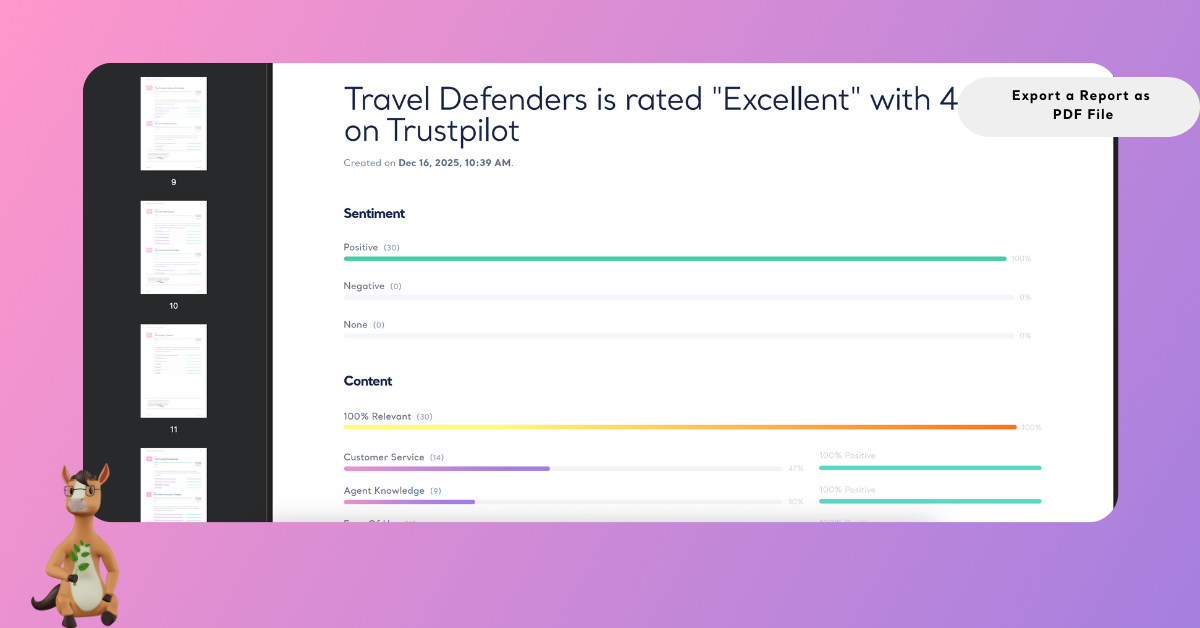
The PDF export preserves the structure and visuals of the report, making it suitable for sharing with stakeholders, attaching to emails, or storing as part of project documentation without additional formatting.
Exporting reports as PDF files ensures your insights are easy to distribute, consistently formatted, and ready for professional use. PDF exports are especially useful for documentation, client sharing, and situations where a fixed, non-editable format is preferred.