Manage Reports
5 mins read - Updated on Dec 24, 2025In Kimola, a report is the space where customer feedback is analyzed and transformed into structured insights such as sentiment, themes, dimensions, comparisons, and performance metrics. Reports are created after data is collected—either by uploading a dataset or by adding supported links—and once analysis is completed, they become available in the Reports section.
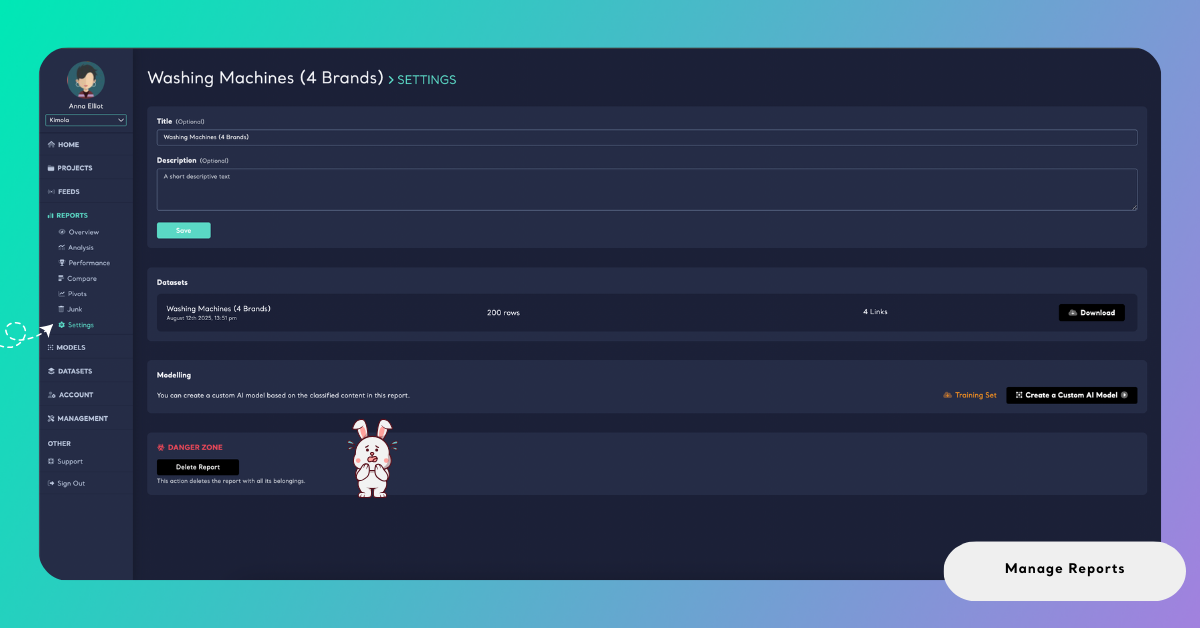
The Settings page of a report allows you to manage key report-level actions. You can update the report title and description, access or download the underlying dataset, create reusable custom AI models based on the report’s classifications, or delete reports that are no longer needed. These options help you keep your reports organized, clearly documented, and easy to reuse over time.
If you don’t see any reports listed yet, it means that no reports have been created in your account so far. Reports are generated only after data collection and analysis are completed in Kimola. To create your first report, you can follow one of these guides depending on your data source:
- Create a Report by Uploading a Custom Dataset – if you already have data in Excel or CSV format
- Create a Report by Adding Links – if you want to collect and analyze data directly from supported platforms using URLs
Once a report is created, it will automatically appear in the Reports list and can be managed from this page.
This article explains how to access report settings and what actions you can take from this page.
To manage a report, start by signing in to your Kimola account and opening the Reports section from the left-hand menu. Locate the report you want to manage and click View to open it.
Once inside the report, navigate to Settings from the left panel. This page contains all available management options for the selected report.
Edit Report Title
Each report has a title that helps you identify it in the Reports list. From the Settings page, you can update the report title by editing the Title field. Use a clear and descriptive name that reflects the content or purpose of the report. After making changes, click Save to apply them.
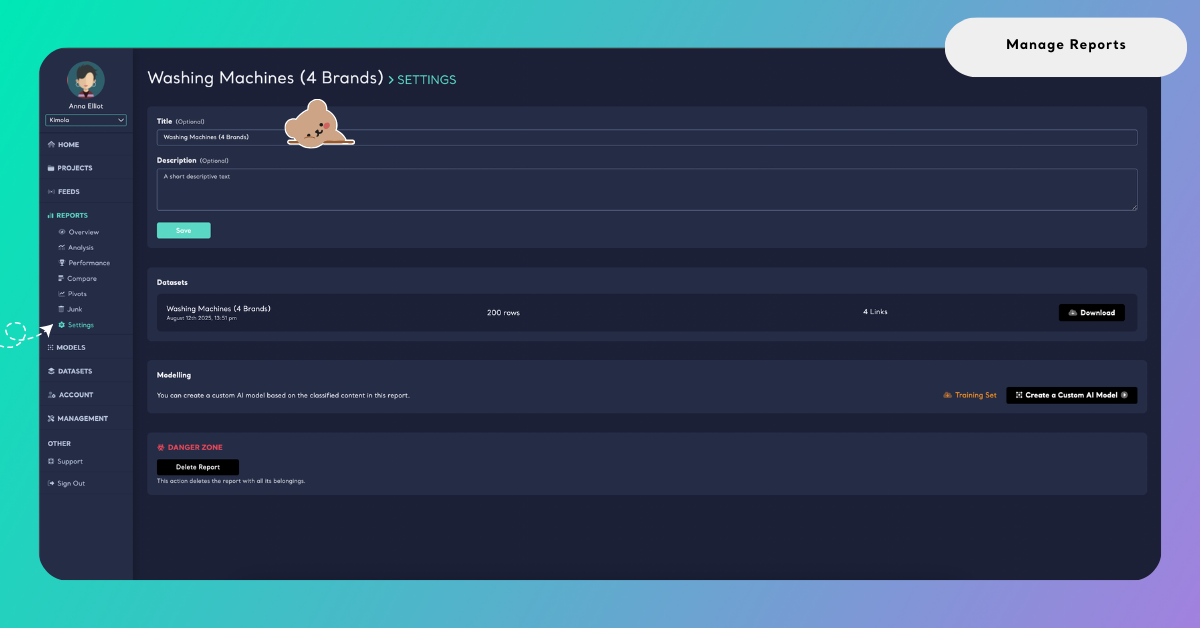
Updating the title does not affect the analysis or data inside the report—it only changes how the report is labeled.
Add or Update the Report Description
The Description field allows you to add additional context to your report. You can use this area to summarize the scope of the analysis, note key objectives, or add internal explanations for future reference. Once updated, click Save to store the description.
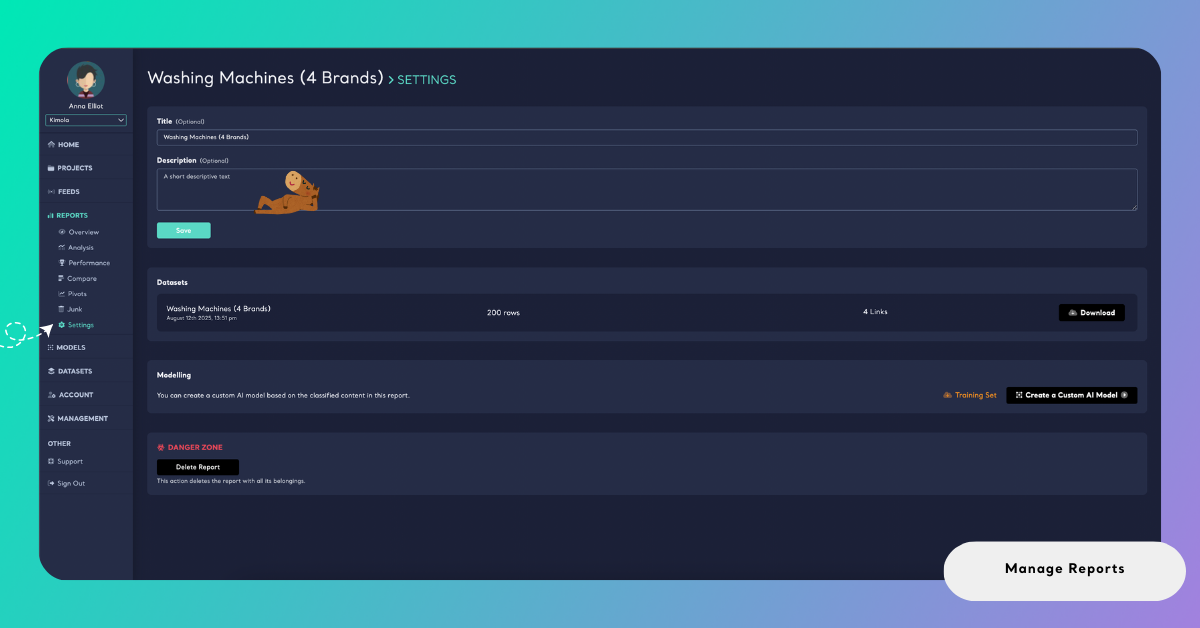
Descriptions are optional, but they are especially useful when working with multiple reports or sharing.
Download the Dataset
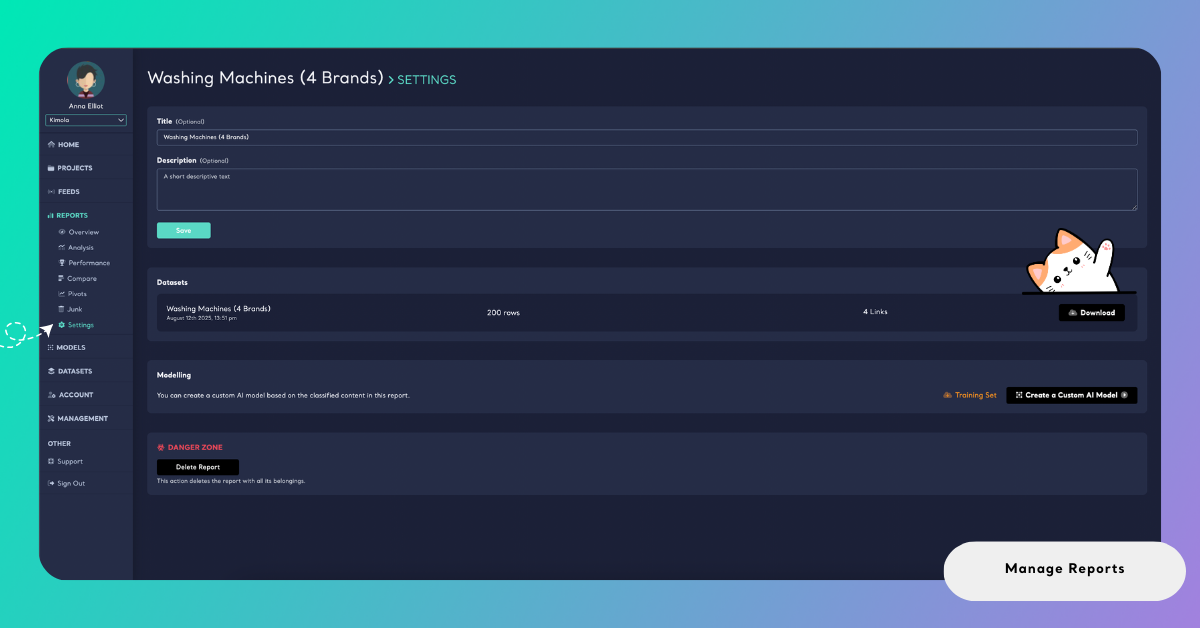
Each report is created from a dataset. From the Datasets section in report settings, you can download the dataset used in the report.
Click Download to retrieve the data in its original form. This is useful if you want to perform additional analysis outside Kimola or keep a local copy of the dataset.
Create a Custom AI Model
If the report includes classified data, the Modelling section allows you to create a custom model based on the labels and classifications used in this report.
Creating a custom AI model from a report lets you reuse the same labels, themes, or KPIs in future reports. Instead of redefining or reselecting these categories each time, the model applies the existing labeling structure automatically to new datasets. This is especially useful when you want to track specific themes, metrics, or KPIs consistently across multiple analyses.
For example, if this report is built around predefined themes such as usability issues, delivery problems, or satisfaction drivers, a custom model ensures that future reports classify new data using the same theme definitions. This makes it easier to monitor changes over time, compare results across datasets, and maintain a consistent analytical framework.
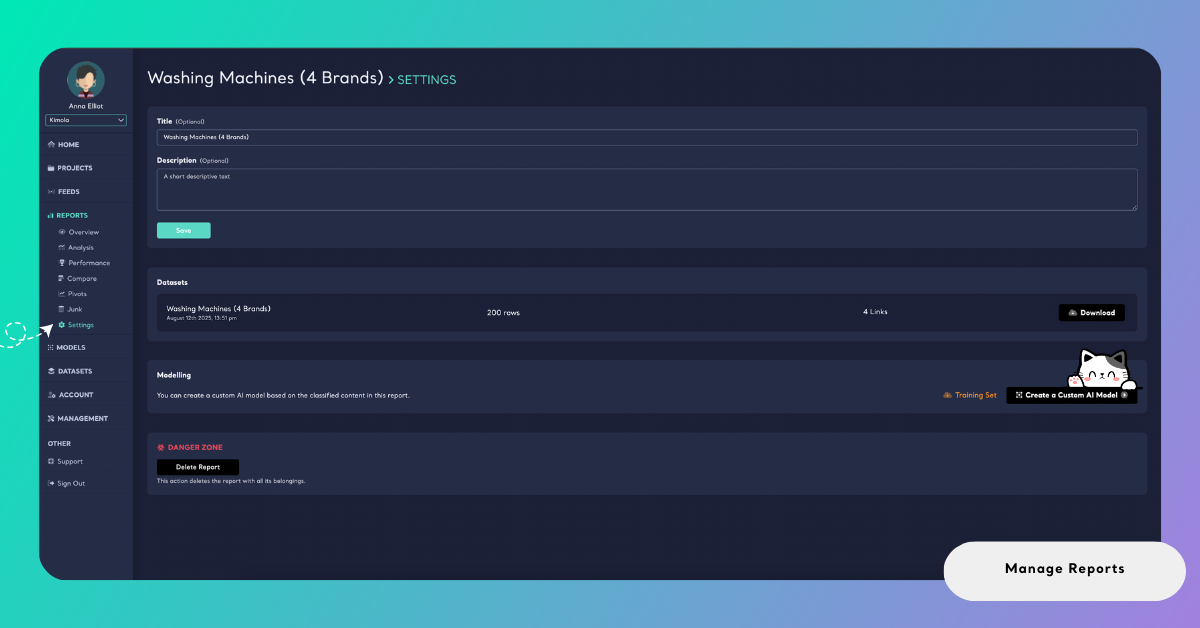
To create the model, click Create a Custom AI Model. For a step-by-step guide, see Create a Custom Model with a Report.
You can also download the training set of this report by clicking the Training Set button located in the Modelling section. This allows you to review or reuse your labeled data before creating the model.
Delete a Report
At the bottom of the Settings page, you’ll find the Danger Zone. Click Delete Report to permanently remove the report along with all its associated data and outputs. This action cannot be undone. You will be asked to confirm before the report is deleted.
Use this option to clean up reports that are no longer relevant.
You can also delete reports directly from the Reports list without opening them. Click the arrow next to the View button for a report and select Delete. Confirm the action to remove the report, or cancel if you change your mind.
By using the Settings page, you can keep your report library well-structured—updating titles and descriptions for clarity, accessing datasets when needed, and removing outdated reports to stay organized.