List Reports
3 mins read - Updated on Dec 24, 2025The Reports page is where all your created reports are listed in Kimola. It acts as a central place where you can access all reports created from uploaded datasets or added links, once data collection and analysis are completed. From here, you can quickly find reports you’ve created before and open them to continue exploring insights.
This article explains how to access the Reports page and understand the information shown in the reports list.
To view your reports, make sure that:
You are signed in to your Kimola account. After logging in, you’ll be directed to the Dashboard. From the left-hand menu on the Dashboard, open the Reports section. This page displays a list of all reports available in your account.
What You See on the Reports Page
Each row on the Reports page represents a single report. The list helps you quickly understand what each report contains before opening it.
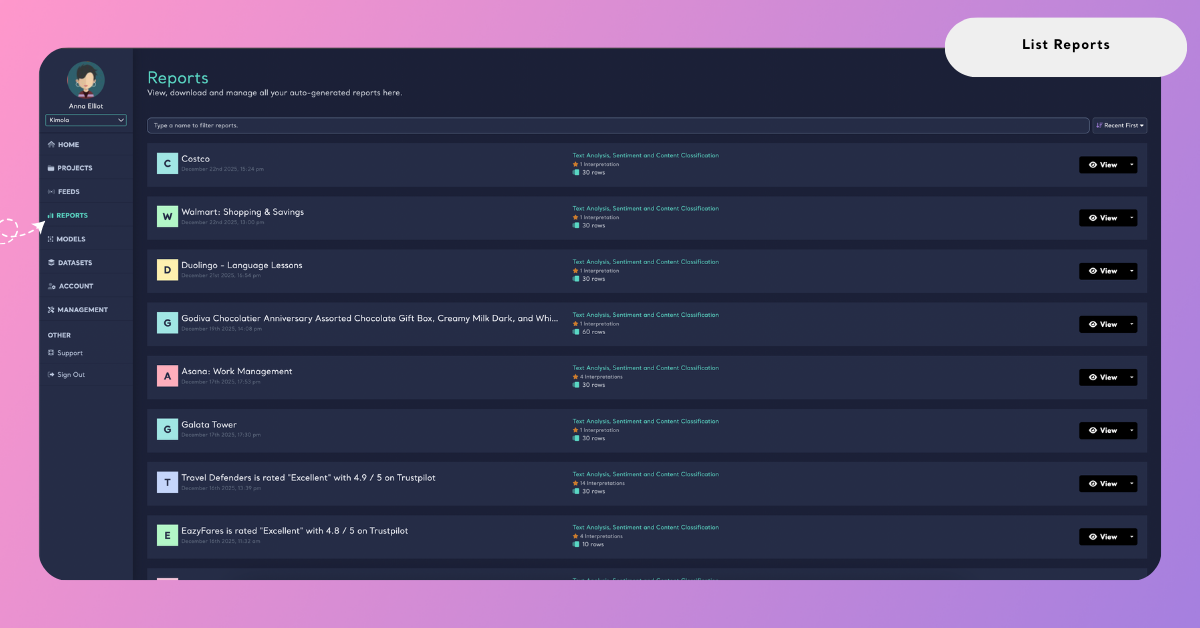
For each report, you can see:
- Report name – the title assigned during report creation
- Creation date and time – when the report was generated
- Analysis type – such as text analysis, sentiment, or content classification
- Dimensions count – how many dimension outputs were added
- Row count – how many records are included in the report
This overview makes it easier to identify the right report, especially when you are working with multiple analyses.
Open a Report
To open a report, locate it in the list and click View. This takes you into the report, where you can access analysis outputs such as sentiment, themes, performance, comparisons, pivots, and other report features.
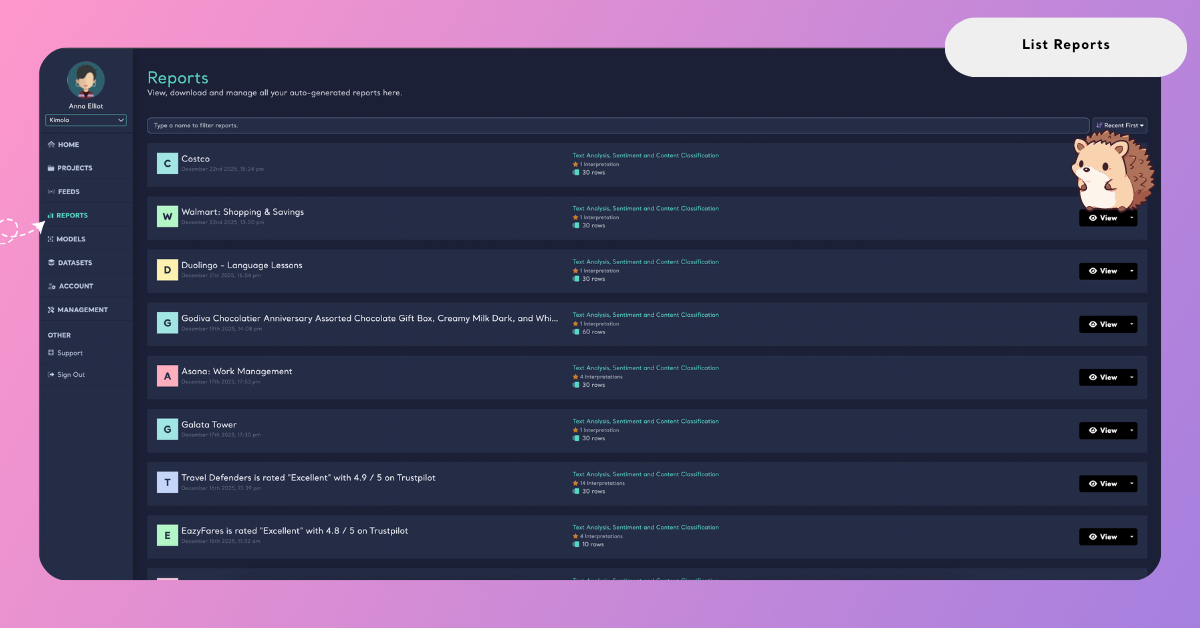
If you don’t see any reports listed yet, it means you haven’t created one. To get started, you can follow one of these guides:
Once a report is created, it will automatically appear on the Reports page.
Sorting Reports
The Reports page also lets you control how your reports are ordered in the list.
From the top-right corner of the page, you can choose a sorting option to reorganize your reports based on your preference. Available sorting options include:
- Recent First – Shows the most recently created reports at the top
- Oldest First – Lists reports starting from the oldest
- Largest First – Sorts reports by dataset size, from largest to smallest
- Smallest First – Sorts reports by dataset size, from smallest to largest
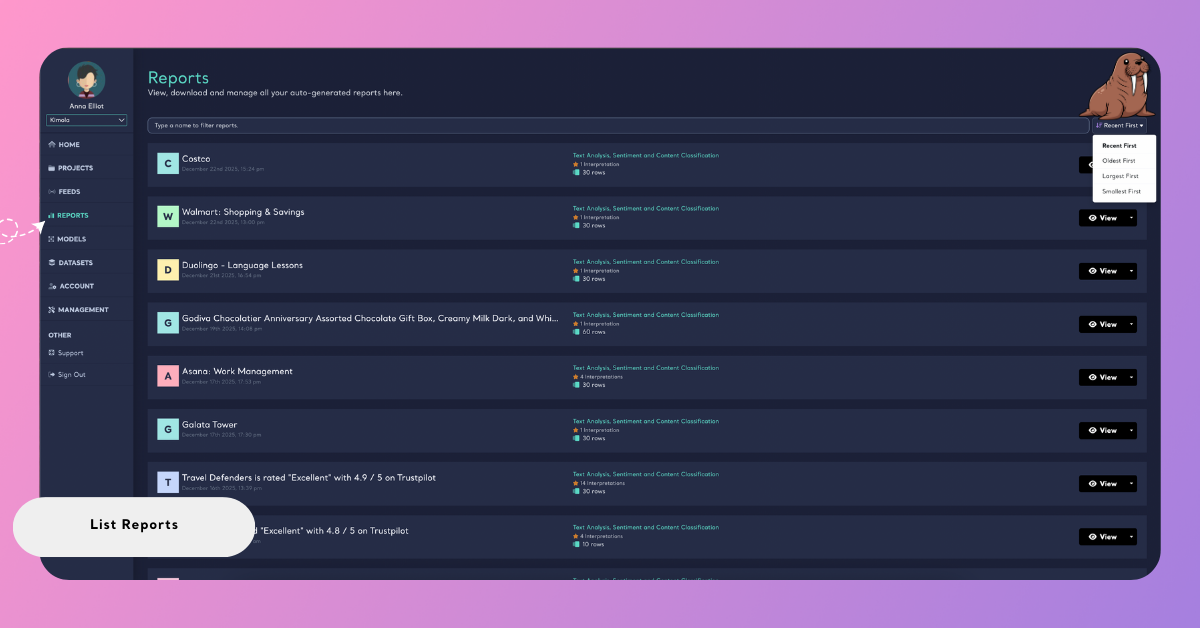
Sorting helps you quickly find the report you are looking for, whether you want to access your latest analysis, revisit older reports, or focus on reports with larger or smaller datasets.