Multi-label vs. Single-label Classification
4 mins read - Updated on Oct 28, 2026Multi-label classification lets one piece of customer feedback get every label it mentions, each with its own sentiment. Single-label classification gives each piece of feedback one label only: the main theme it fits best. In Kimola, you choose between the two in the Structure step when you create a Report or a Funnel, and the choice decides how your themes are counted and how their sentiment is read.
The structure is a setting of the Report or the Funnel, not of a model. The same classifier, whether the Automatic Classifier, a pretrained model or a custom model, can label feedback either way. Both structures are available in every package.
How Multi-label Classification Works
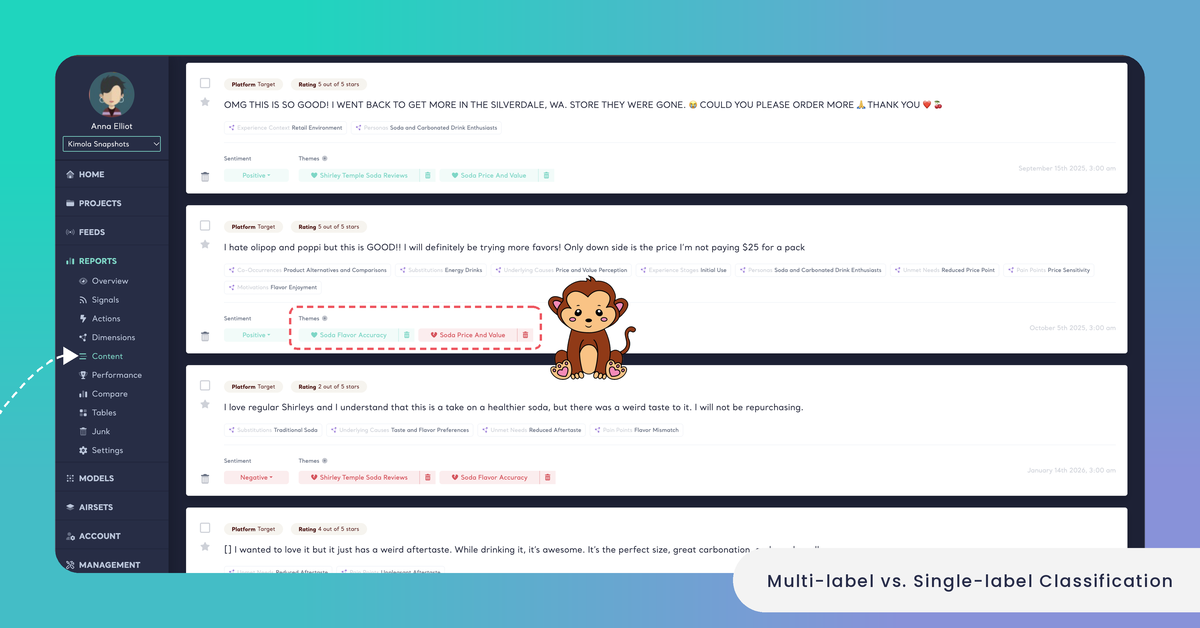
With multi-label classification, Kimola reads a piece of feedback and gives it every label of the classifier that the text matches. A review that talks about the delivery, the price and the app gets all three labels, and it is not split into separate records: it stays one piece of feedback that belongs to three themes.
Each of those labels also gets its own sentiment. A customer can be happy with one thing and unhappy with another in the same sentence, and each theme keeps the opinion that was given about it. This is called aspect-based sentiment analysis, and it is a core part of Kimola, available in every package, in the app and in the API.
A food delivery app's review says: "The courier was quick and polite, but two items were missing and the refund took a week." With multi-label classification, it gets Delivery Speed and Courier Service as positive, and Missing Items and Refunds as negative.
Multi-label doesn't mean every piece of feedback gets several labels. Feedback that talks about one thing gets one label, and feedback that fits none of the classifier's labels gets none of them, so unrelated text doesn't distort the counts.
How Single-label Classification Works
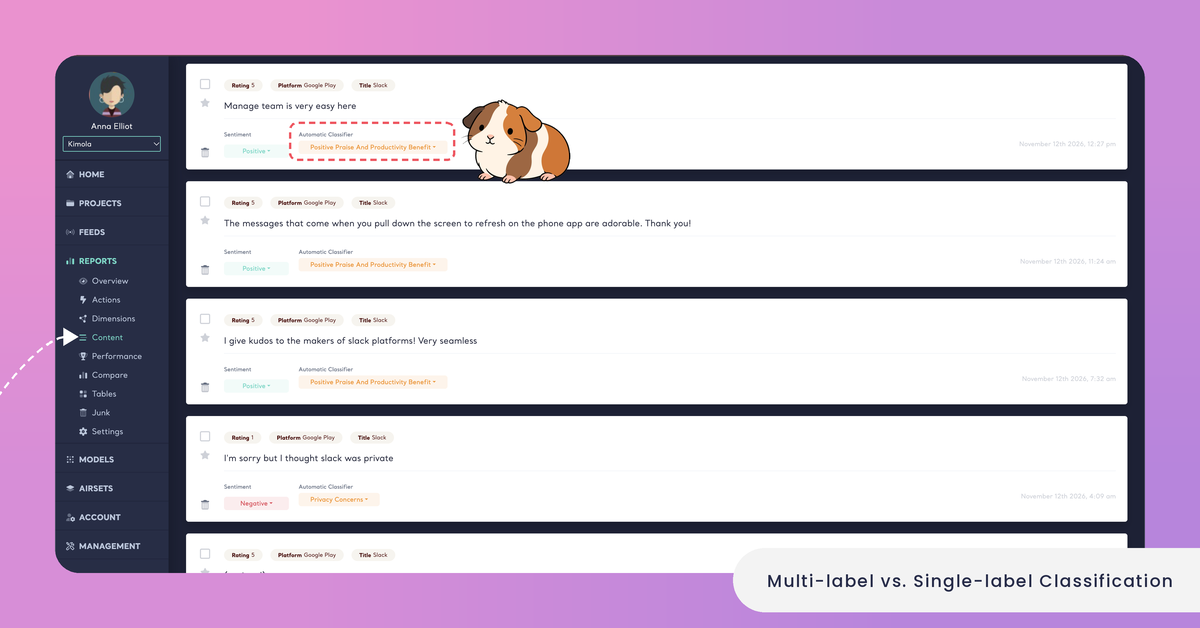
With single-label classification, every piece of feedback is grouped under one main theme, even when it mentions several. Kimola gives it the label that fits the text best, and the feedback and its sentiment count toward that one theme only. The result is a simpler structure in which themes don't overlap.
With single-label classification, the same food delivery review gets one label, for example Order Accuracy. The quick and polite courier is still in the text, but it doesn't count toward Delivery Speed or Courier Service.
Impact on Analysis
The structure changes how the numbers of a Report or a Space add up. In a multi-label analysis, one piece of feedback counts toward every theme it gets, so the shares of the themes can add up to more than 100%. Secondary topics are kept: a complaint mentioned in passing in a long review still shows up in its theme, and its sentiment is the sentiment given about that topic, not the mood of the whole review.
In a single-label analysis, every piece of feedback counts toward exactly one theme, so the theme shares add up to the share of feedback that got a label. This is easier to summarize and fits a dashboard or a KPI that counts each piece of feedback once. Topics that are not the main one are not counted, so a theme that customers often mention alongside something else can look smaller than it is.
The structure also shapes what you build from an analysis later. When you create a custom model from a Report, its training set has one row for every label a piece of feedback got, so a multi-label Report gives a training set with more rows than the Report has feedback.
The structure doesn't change your query count. Queries are counted as rows × models × Dimensions, whether a piece of feedback gets one label or several. See How to Calculate Queries.
Compatibility with Classification Methods
Multi-label and single-label classification work with every kind of classifier in Kimola. With the Automatic Classifier, the themes are discovered from your data while the Report is analyzed. With a pretrained model, the labels are set by Kimola. With a custom model, the labels are the ones you defined or the ones the model finds at runtime. In each case, the structure only decides how many of those labels a piece of feedback can get.
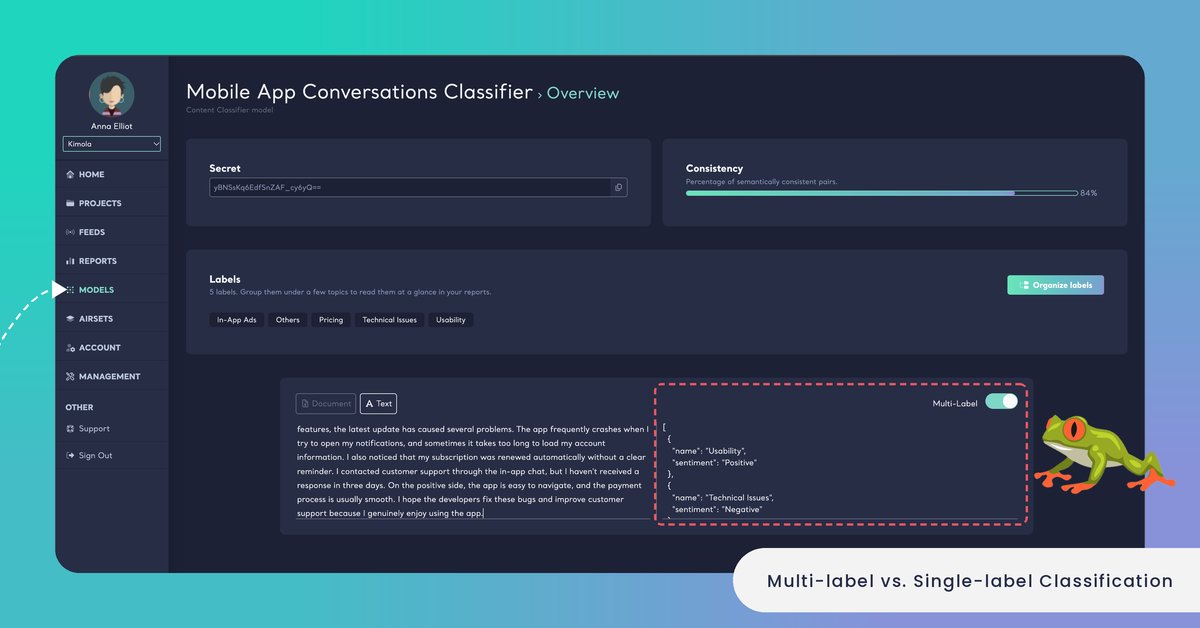
You can see the difference before you use a model in an analysis. The test console of a custom model has a Multi-Label switch: with it on, the model gives every label the text matches, each with its sentiment; with it off, it gives the single label that fits best, with its probability. Pretrained models have the same switch on their pages. See Test a Custom Model.
In Reports
Every way of creating a Report reaches the same Structure step, after Classifiers and before Dimensions: uploading a file, adding links, using an integration, an Airset or a Feed. The step says "Choose how feedback will be labeled in your classifiers." and has one switch, Enable Multi-label Classification, which is on when the step opens. Leave it on for multi-label classification, or turn it off to create a single-label Report. The choice applies to every classifier of the Report. See Create a Report Using Multi-Label Classification.
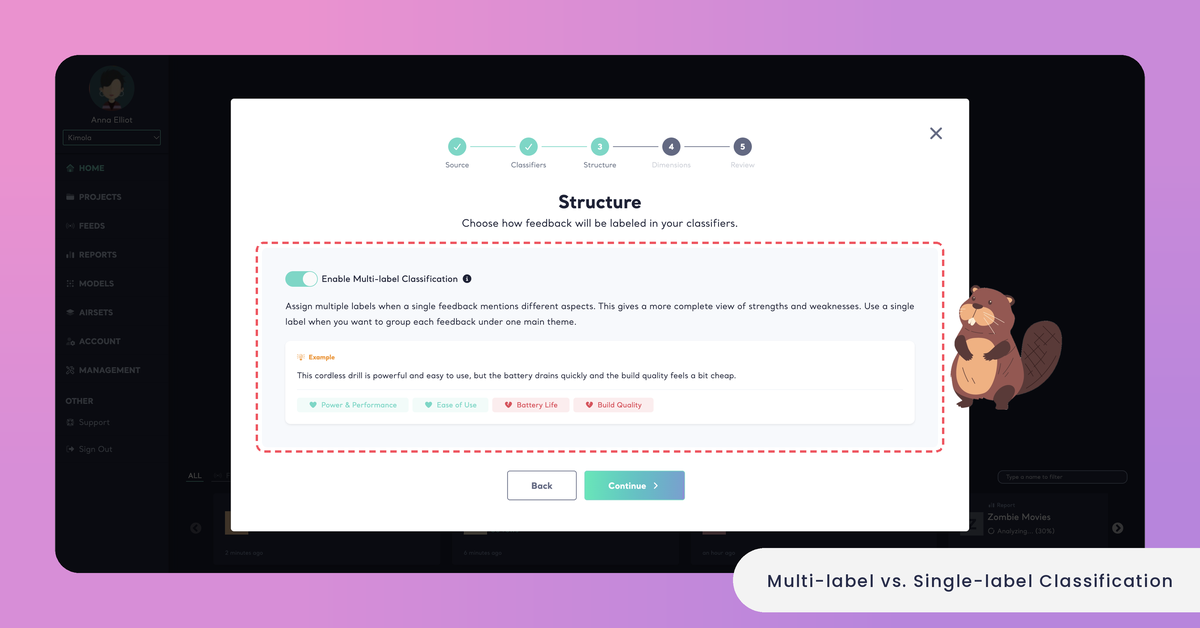
A Report's structure can't be changed after it is created. To read the same data the other way, create a new Report from it with the other structure.
In Funnels
A Funnel is the set of custom models every Space that uses it classifies feedback with, and its wizard has the same Structure step, between Models and Naming: "Choose how feedback will be labeled by the models of your funnel." Enable Multi-label Classification is on when the step opens here too. The choice applies to every Space that uses the Funnel, so call center conversations, surveys and social media posts are labeled the same way and their results can be compared side by side. The Funnels list shows each Funnel's structure next to its language, for example "English · Multi-label". See Create a Funnel.
Funnels and Spaces are available in the Enterprise package. They are also available in Kimola On-Premises.
A bank's call center transcripts often cover several requests in one call: "I wanted to raise my transfer limit, and while I was on the line I asked them to block my lost card." A multi-label Funnel gives the call both Transfer Limits and Card Blocking, so neither request is lost in the Space's themes.
Unlike a Report, a Funnel can be edited: open it with Edit on the Funnels page and turn the switch on or off. The change isn't retroactive. Records already in its Spaces keep the number of labels they got, and the files uploaded after the edit are classified with the new structure. See Manage Funnels.
When to Use Each Approach
Use multi-label classification when one piece of feedback usually covers more than one topic. This is typical of product and app reviews, social media comments, support tickets and conversations, and open-ended survey answers. It keeps every topic and the opinion given about each one, which suits research that needs to see strengths and weaknesses side by side.
Use single-label classification when each piece of feedback is about one main subject, such as short answers to a focused survey question, or when every piece of feedback must be counted under exactly one theme, as in a KPI or a dashboard that shouldn't count anything twice.
Neither structure is right for every dataset. Multi-label classification gives a more complete view, and single-label classification gives a simpler one. Because you choose the structure for each Report and each Funnel, you can use both in the same account.