Manage Funnels
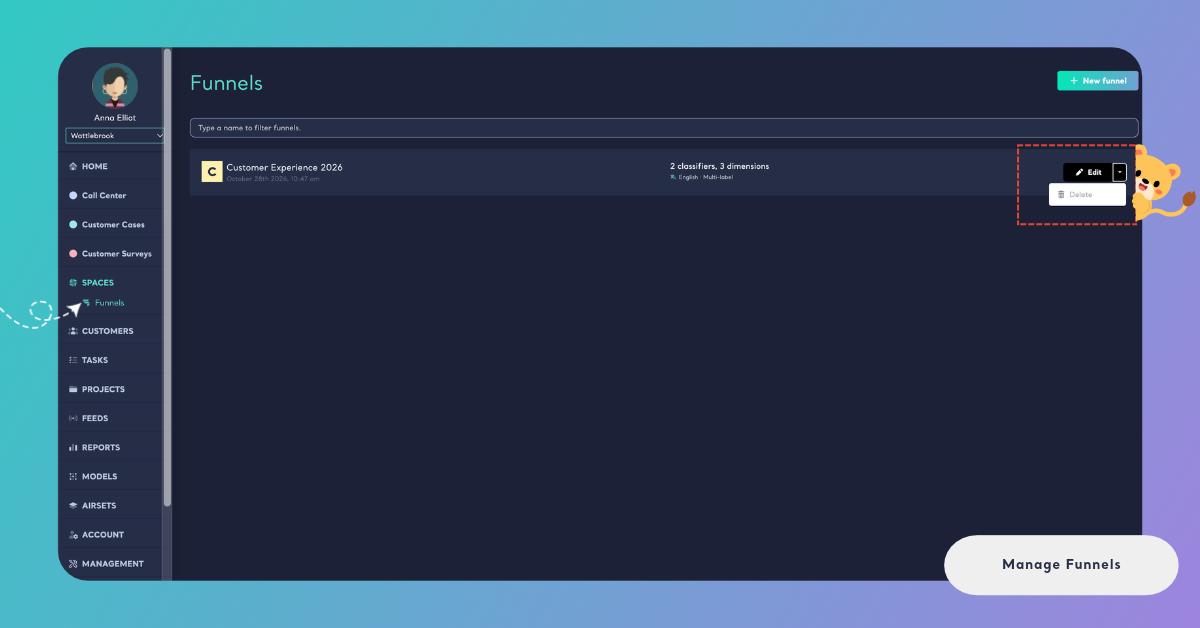
min read - Updated on Nov 12, 2026You manage your team's Funnels on the Funnels page under Spaces in the main menu: you can edit a Funnel to change its models, its structure, its name or the language of its analyses, and you can delete a Funnel that no Space uses. Editing a Funnel is not retroactive: the records already in its Spaces keep their classification, and the change shows in the files uploaded after the edit. Deleting a Funnel keeps its models.
The Funnels page lists every Funnel of your team with its name, its date, its models counted (for example "2 classifiers, 3 dimensions"), its language and its structure (for example "English · Multi-label"). To find a Funnel in a long list, type in the field that says "Type a name to filter funnels." If the list can't be loaded, the page says "The funnels could not be loaded, please try again."; reload the page to try again.
Funnels are available in the Enterprise package and in Kimola On-Premises. Sign in to Kimola and make sure your team has a Funnel. If your team doesn't have one yet, see Create a Funnel.
If you plan to add or replace a model, make sure the custom model is available in Models and has labels. If you need to create one, see Create a Custom Model with a Prompt. To delete a Funnel, first check that no Space uses it.
Edit a Funnel
Click Edit on the row of the Funnel. The Funnel opens in the same steps you created it with, Models, Structure and Naming, so you can change its models, turn Enable Multi-label Classification on or off, rename it, or choose another Language of the analyses. Click Continue to move from one step to the next, check the Summary on the last step and save. Kimola confirms with "The funnel is saved." See Create a Funnel for what each step does.
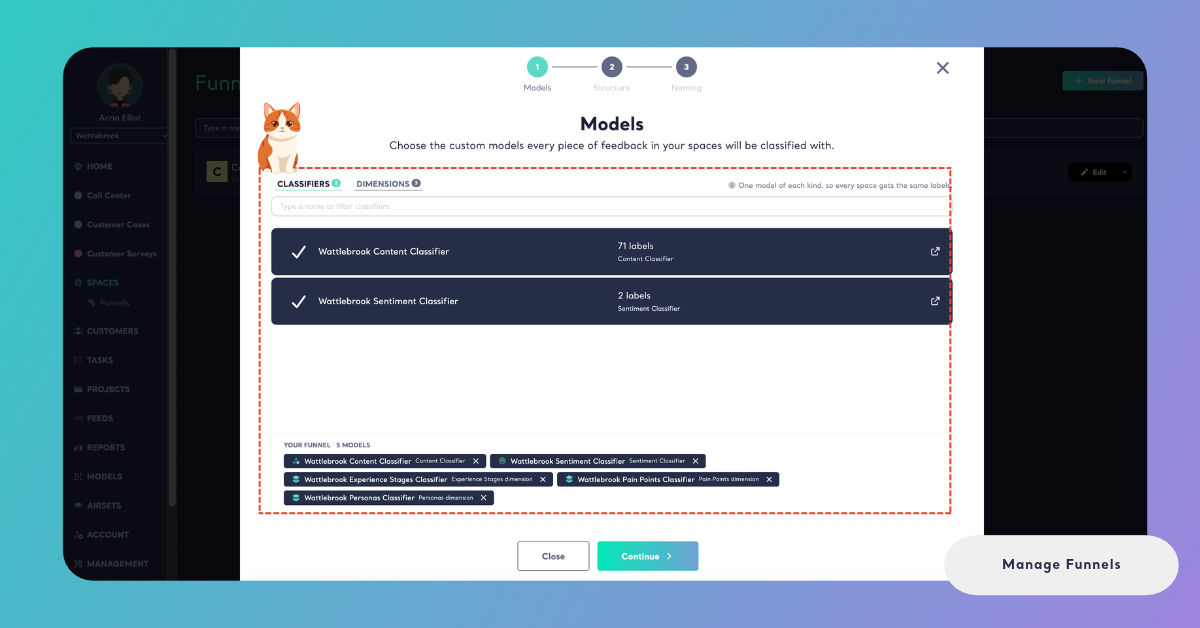
The rules of the Models step stay the same: a Funnel takes at most one model of each kind, so it holds one content classifier, one sentiment classifier and one Dimension model per Dimension. To replace a model, take the current one out by clicking it again in the list or clicking the × next to it under Your Funnel, then add the new one. If a model of the Funnel has lost its labels in the meantime, saving stops with "One of your models has no labels anymore. Please go back and choose another one." Click Back and choose another model.
A Funnel is shared by your whole team and can be used by several Spaces, so an edit applies to every Space that uses it, and every teammate sees the new version at once. The edit works from then on. The records already in those Spaces keep the classification they got, and the files uploaded after the edit are classified with the new version. When you add a Dimension, its answers appear for the files uploaded after the edit, and the earlier records have none. The same goes for the structure: records classified before the edit keep the number of labels they got.
When you replace the content classifier, the earlier records keep their old themes and the new files get the themes of the new model, so a comparison across the date of the edit compares two different sets of labels.
Make larger changes, such as a new content classifier, at a point where a clean break in your data makes sense, for example at the start of a quarter.
The language of the analyses sets the language Kimola writes the Dimension analyses, Signals, Insights, Action Plans and task drafts of the Funnel's Spaces in. The language of the feedback itself doesn't change anything here: Kimola analyzes feedback in 30+ languages, and the Funnel's language only decides the language of what Kimola writes.
Every model and every Dimension of a Funnel adds to the queries its Spaces use, because queries = rows × models × Dimensions. If you add a model, the files uploaded after the edit use more queries; if you take one out, they use fewer. The Summary on the Naming step shows how many queries the Funnel will use. See How to Calculate Queries, and for package limits, kimola.com/pricing.
If only one channel needs different models, create a separate Funnel for it instead of editing a Funnel the other channels share. A Space keeps the Funnel it was created with, so a new Funnel is used by the Spaces you create with it from then on.
Delete a Funnel
Click Delete on the row of the Funnel to delete it.
Only a Funnel that no Space uses can be deleted. A Space keeps the Funnel it was created with, so a Funnel stays in use for as long as one of its Spaces exists, and a Space never loses the models its feedback is classified with.
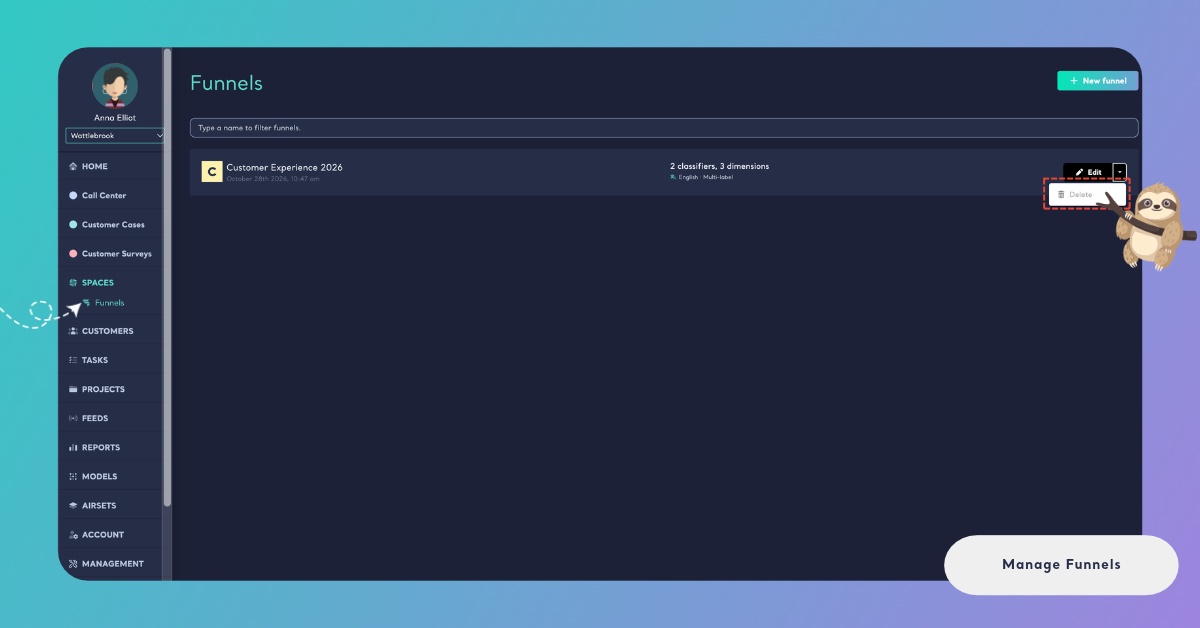
Deleting a Funnel keeps its models. The content classifier, the sentiment classifier and the Dimension models of the Funnel stay in Models, with their labels, and you can choose them again when you create another Funnel. To change a model's labels, open it in Models; see What is a Custom Model?.