Export Records in Feeds
2 mins read - Updated on Oct 09, 2025Exporting records in Kimola lets you download your data in Excel format. This makes it easy to analyze further, share with your team, or prepare presentations.
Sign in to Kimola, open the Feeds menu, and select the feed you want to export.
Step 1: Apply Filters (Optional)
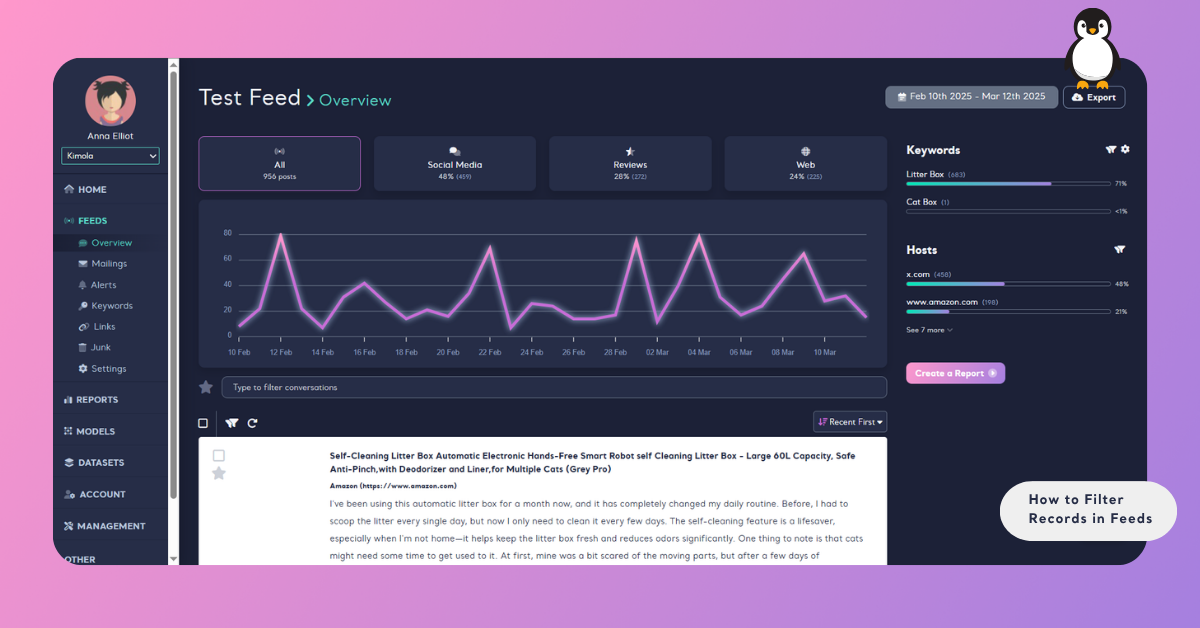
To export only part of your data, adjust filters or set a date range, then click Apply.
Step 2: Export Data
Click the Export button next to the date filter. Your data will be downloaded in Excel format.
What’s in the Exported File
When you export records in Kimola, the downloaded Excel file contains two sheets:
Sheet 1. Overview
This sheet gives you a summary of your feed setup:
- Channel – the source type (e.g., Reviews, Social Media, Web).
- Keyword – keywords you used to collect data.
- Search Term – additional search terms applied.
- Date Range – the timeframe of the collected data.
Sheet 2. Posts
This sheet lists all collected records in detail, including:
- Channel & Platform – the channel (e.g., Reviews) and platform name (e.g., Trendyol).
- Content – the text of the review, post, or mention.
- Language – the detected language of the content.
- Engagement Metrics – shares, comments, bookmarks, impressions (if available).
- Domain & URL – the source website and direct link to the content.
- Date & Time – when the post or review was published.
This structure ensures that your exported file provides both a high-level summary and record-level details for deeper analysis, reporting, or presentations.