Delete and Recover Records in Feeds
2 mins read - Updated on Dec 24, 2025While tracking data in Kimola, you may sometimes find entries that fall outside your current focus or relevance. In such cases, you might want to delete these records from your feed. Fortunately, if you change your mind later on, you also have the option to recover the data you've removed. This guide will walk you through the process of deleting and recovering records within your feed, ensuring that your data remains aligned with your objectives.
- Sign in to Kimola Account: Access your account and navigate to the dashboard to get started.
- Access Feeds Menu: Locate and click on the "Feeds" menu on the left panel of the dashboard.
- Select the Feed: Choose the feed you wish to manage.
Delete Records Individually
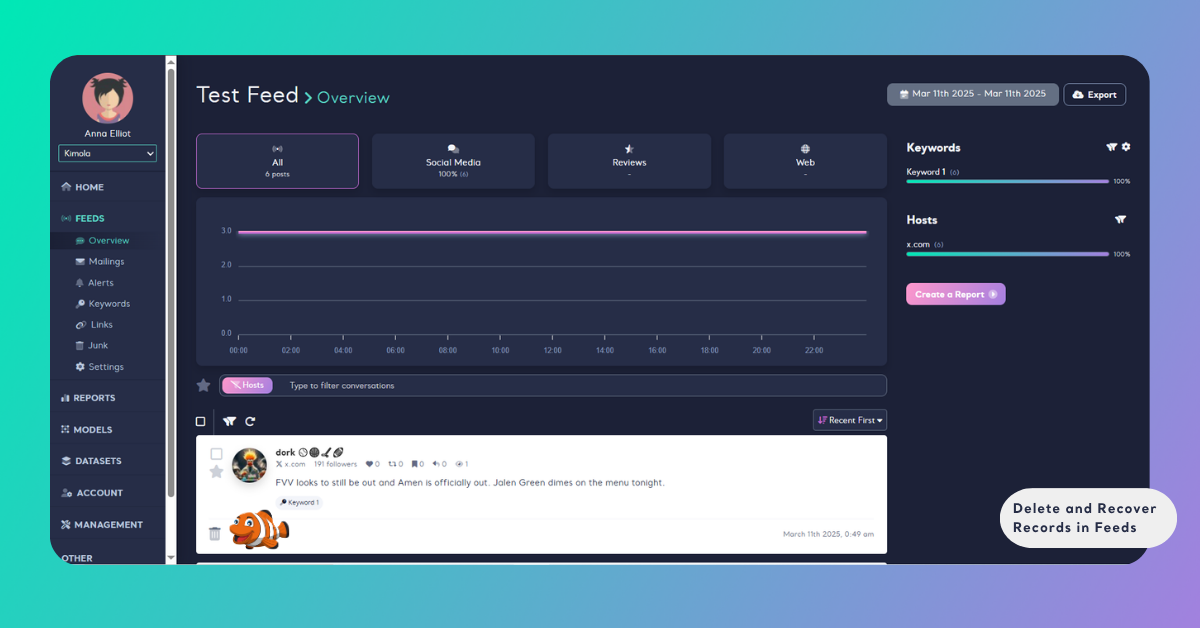
On the Overview page, click the trash can icon at the bottom of the record you want to remove. Confirm with OK, or click Cancel to abort.
Delete Records in Bulk
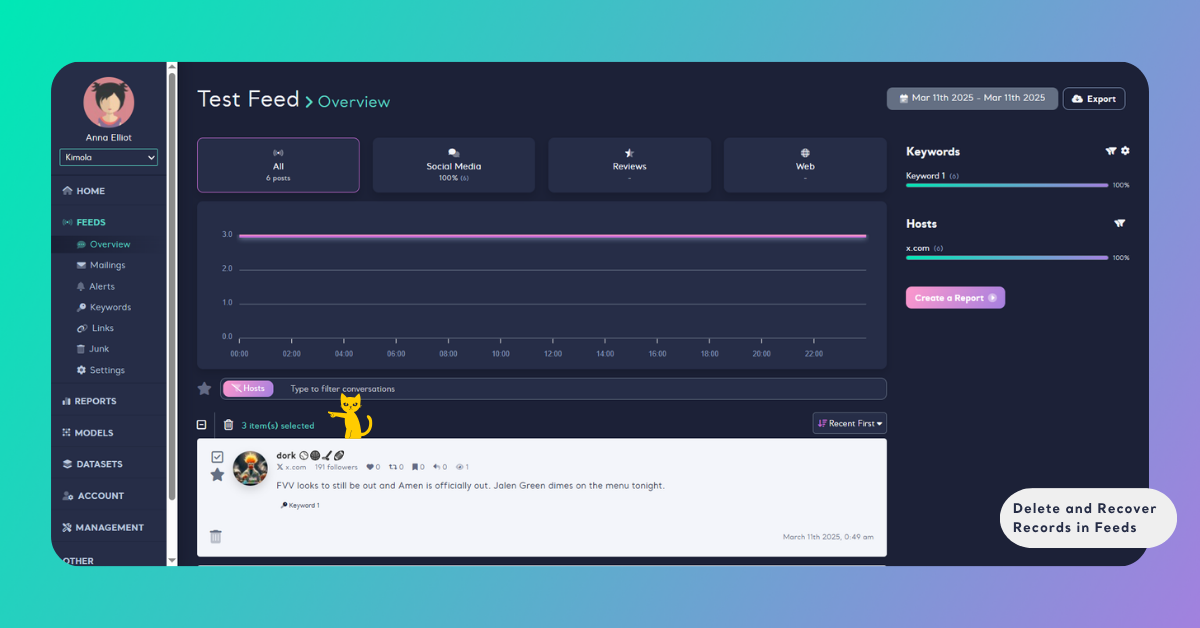
If multiple entries need to be removed, each record features a checkbox at its top left corner. Check these boxes for the records you want to delete. The total selected appears at the top of the list just below the search bar. Click the adjacent delete icon and confirm by selecting “Delete Records” in the confirmation window. To cancel, click “Cancel.”
Recover Records
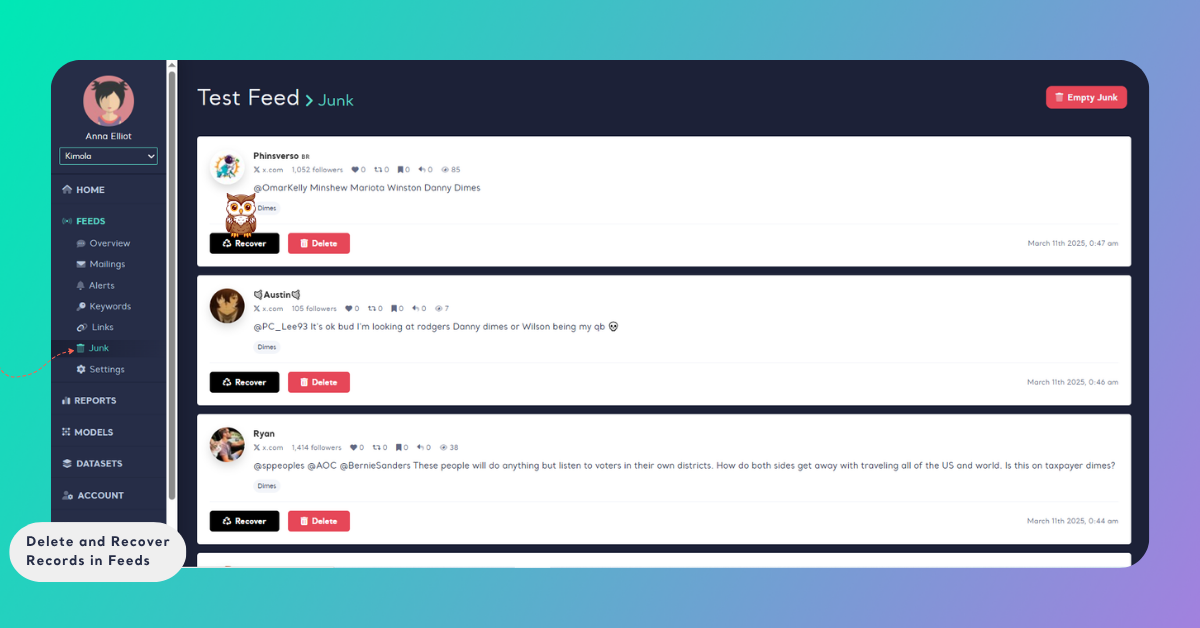
Deleted records are not removed permanently — instead, they are moved to the Junk section under the Feed menu. To recover data:
Go to the Junk section under the Feed menu. Click Recover under a record, then confirm with OK.
Permanently Delete Records from Junk
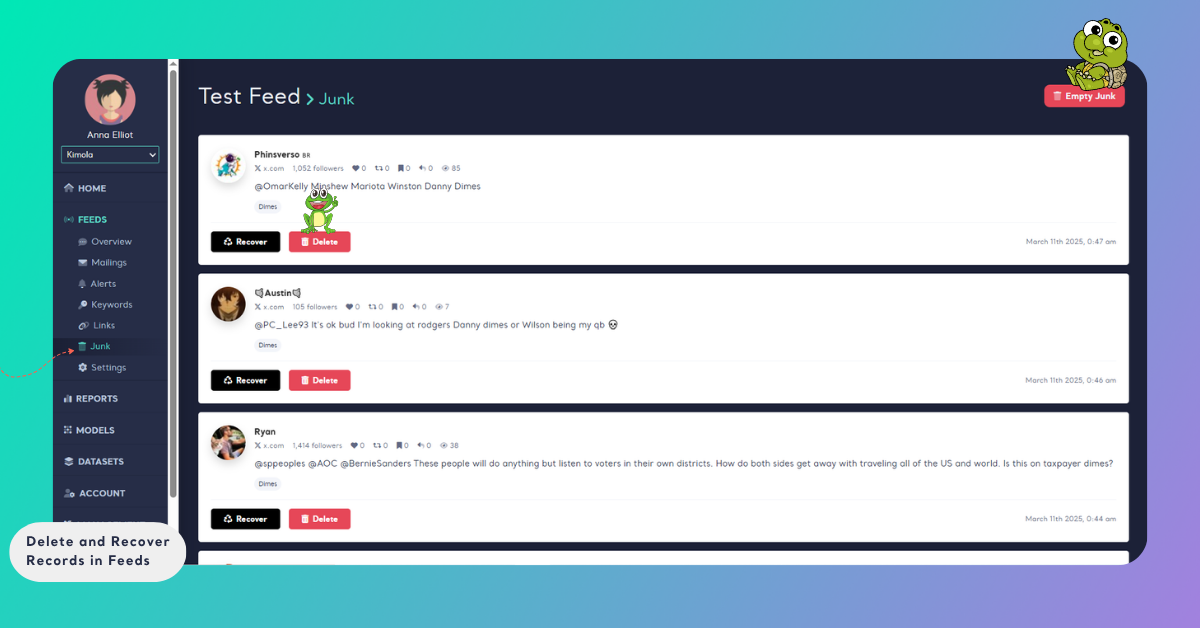
For permanent deletion of a record from the junk, click “Delete” below the record and confirm with “OK” in the pop-up. To cancel, select “Cancel.” To clear all records from Junk, click the “Empty Junk” button at the top right of the Junk page. This will permanently remove all items, making them irretrievable.
Managing deleted and recovered records helps keep your feed clean and your analysis focused.