Manage Keywords
4 mins read - Updated on Oct 09, 2025Keywords set the criteria for what Kimola tracks in your feeds. Regularly managing them ensures your feeds remain accurate and relevant. This guide explains how to add, edit, delete, or refine keywords.
Sign in, open the Feeds menu, and select the feed you want to edit. Then open the Keywords page.
Choose Keywords
Keywords are vital for creating feeds that sift through vast internet content, focusing on what's relevant for your brand, product, or topics of interest. Keywords can be concepts, hashtags, Twitter accounts, and specific words tied to the subjects you're interested in tracking.
Imagine you're managing a sustainable clothing brand. Relevant keywords might include:
- Terms like "sustainable fashion," "eco-friendly fabrics," "ethical sourcing," and hashtags such as "#slowfashion."
- Twitter accounts and hashtags associated with your brand, competitors, fashion influencers, or industry movements can be valuable keywords to enhance your tracking strategy.
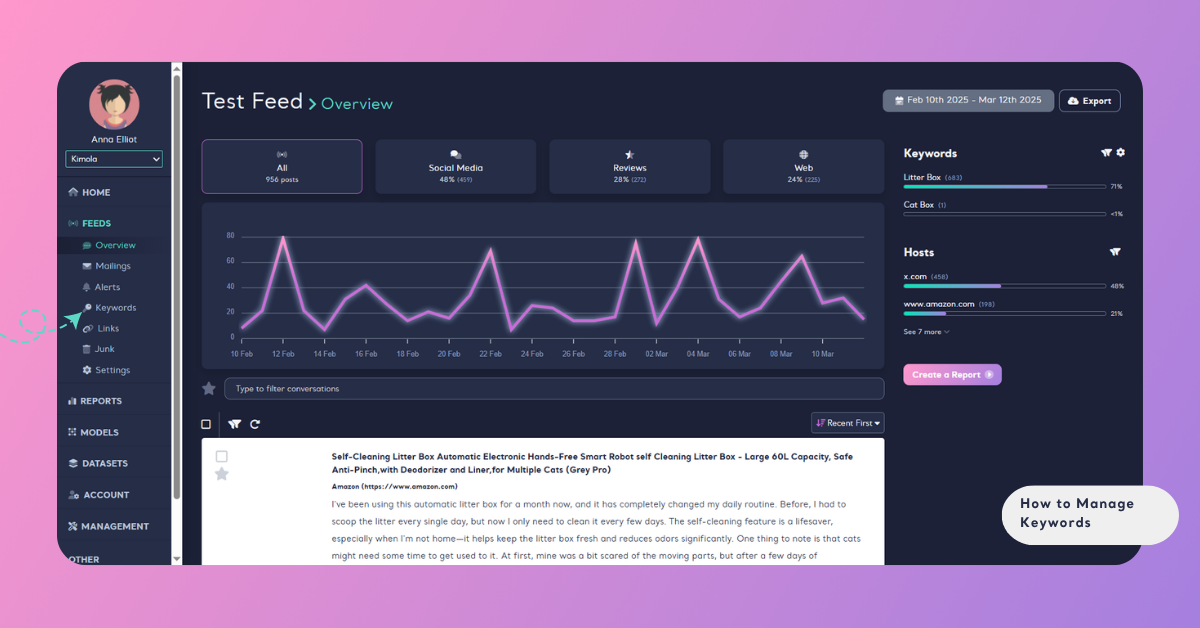
When you enter the keywords page, the first 25 keywords will be listed. If you have added more than 25, click "Load more" to access additional keywords.
Edit Keywords
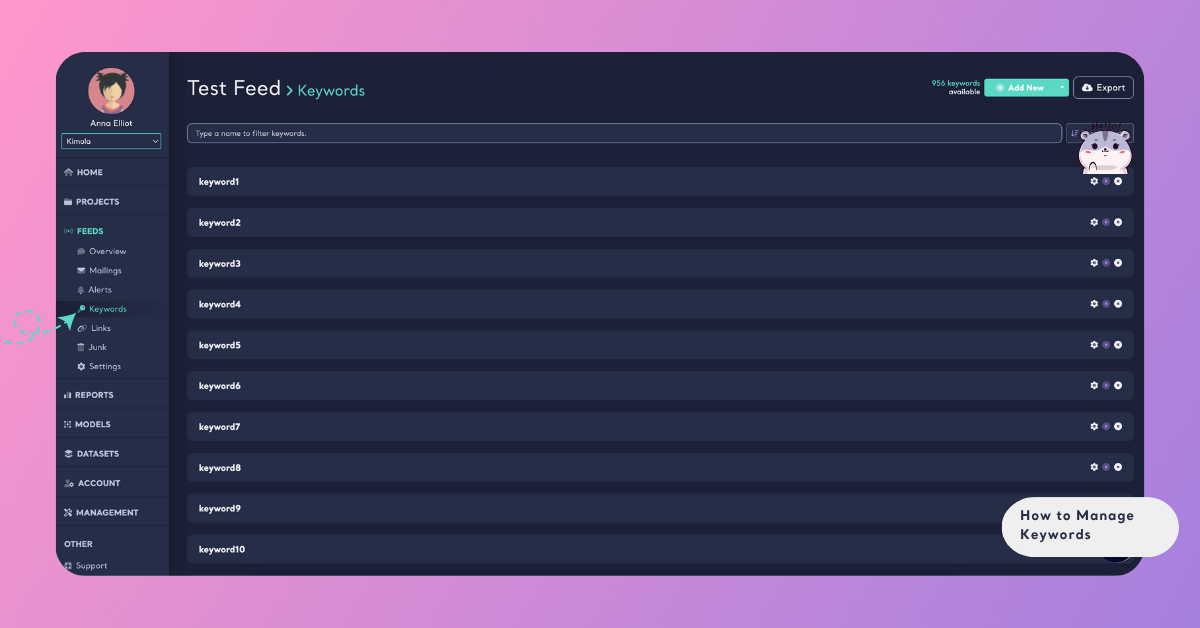
Click the gear icon next to the keyword you want to edit. Here, you'll find fields to update the include and exclude expressions.
Delete a Keyword
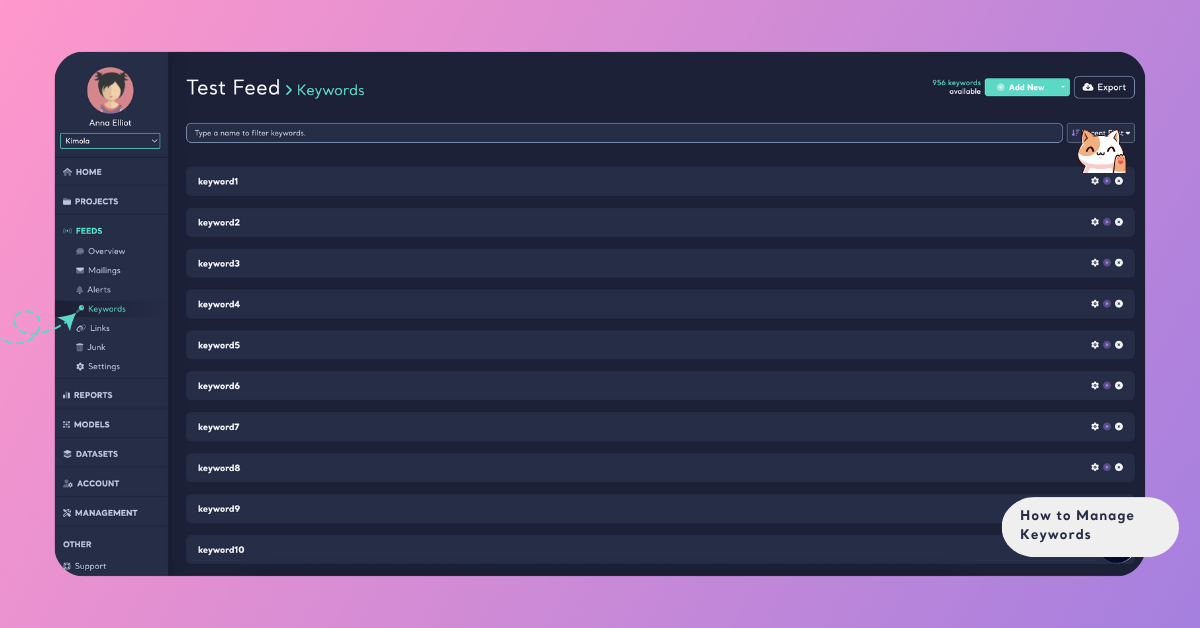
Click the cross icon on the corner of the keyword you wish to delete. In the confirmation window that appears, select "Delete keyword" to proceed. If you reconsider, use the cancel option to abort the deletion.
Deleting a keyword will erase all data previously collected with that keyword.
Change a Keyword
To change a keyword, delete the current entry and type in the new version. Press add to save the updated keyword.
Add a Single Keyword
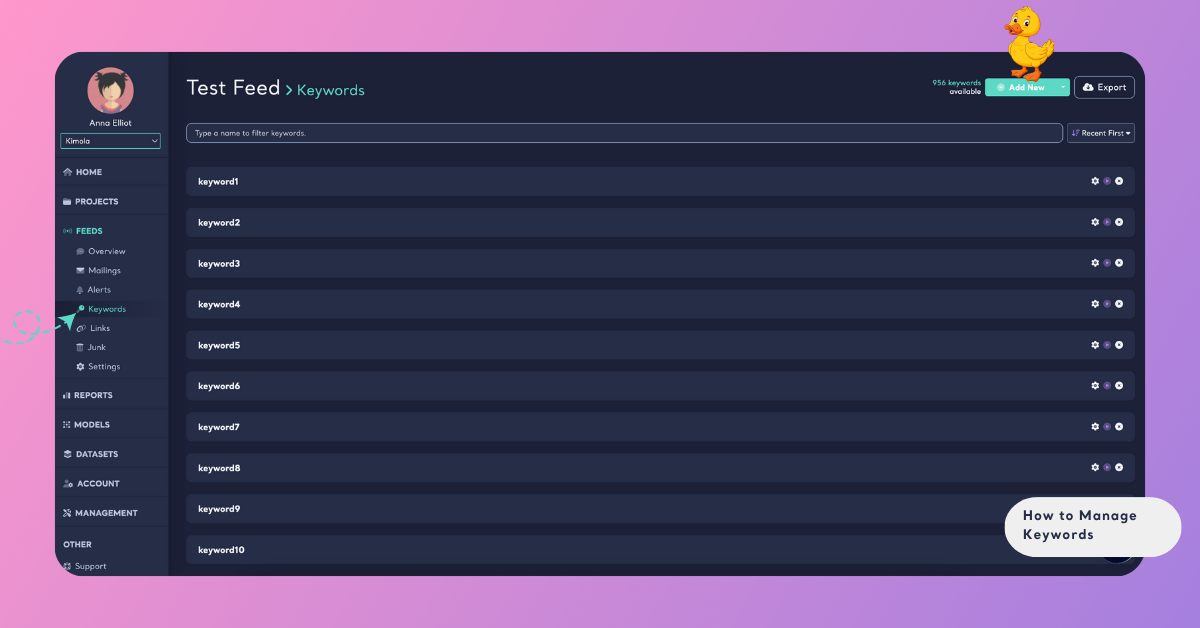
To add a single keyword, click the Add New button located in the upper-right corner of the Keywords page.
In the window that opens, enter the word, phrase, or hashtag you want to add.
If you want to continue adding more keywords, click "Add & Continue". If you're done adding keywords, click "Add & Close".
Just below the keyword input field, there is a “Start Collecting” checkbox. Select this option if you want data collection for that keyword to begin immediately after adding it.
Add Keywords in Bulk
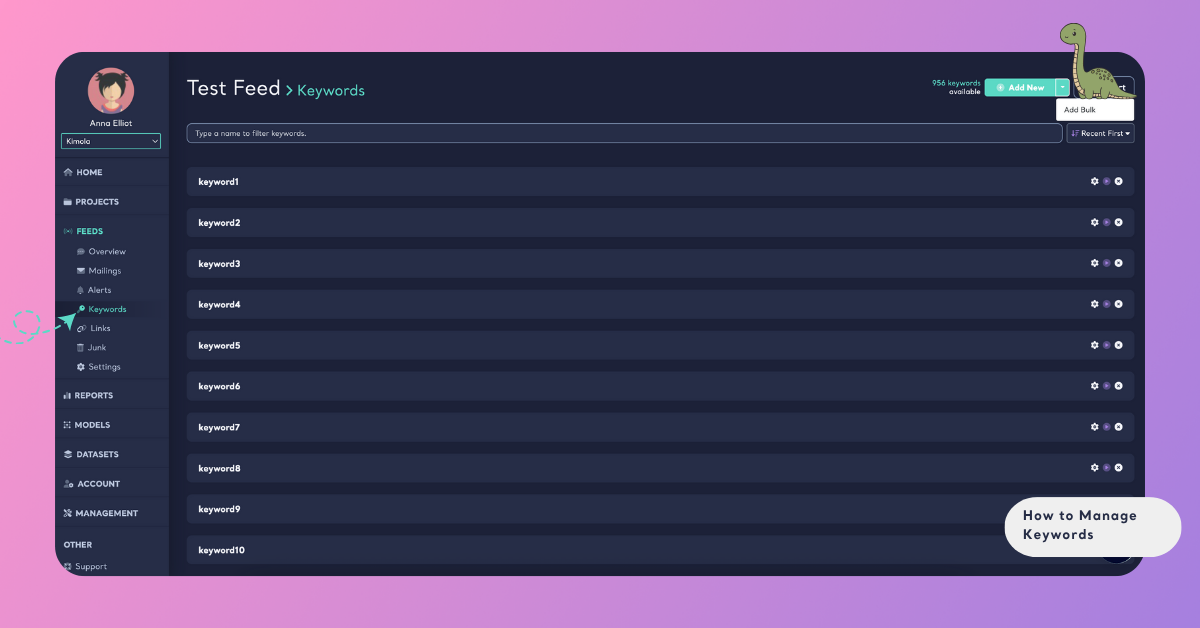
To add multiple keywords at once, click the "Add Bulk" button next to the "Add New" button.
In the window that appears, enter your list of keywords either by typing each one on a separate line or separating them with commas. All keywords entered will be added to your feed in bulk.
You have the flexibility to write your keywords in uppercase or lowercase letters, and they can include or exclude Turkish characters. In either case, you’ll still be able to access the relevant data without any issues.
Pause a Keyword
If you want to temporarily stop collecting data from a specific keyword without deleting it, you can pause it.
Click the pause icon (⏸) next to the keyword you want to stop tracking.
Once paused, the system will not collect new data associated with that keyword, but your past data will remain accessible.
You can reactivate it anytime by clicking the play icon (▶️) next to the same keyword.
Pausing is useful when you want to focus your feed on active topics or prevent temporary noise without losing previous keyword configurations.
Include (+) and Exclude (-) – Keywords
Understanding the use of include (+) and exclude (-) sections helps avoid misunderstandings while refining your keyword strategy.
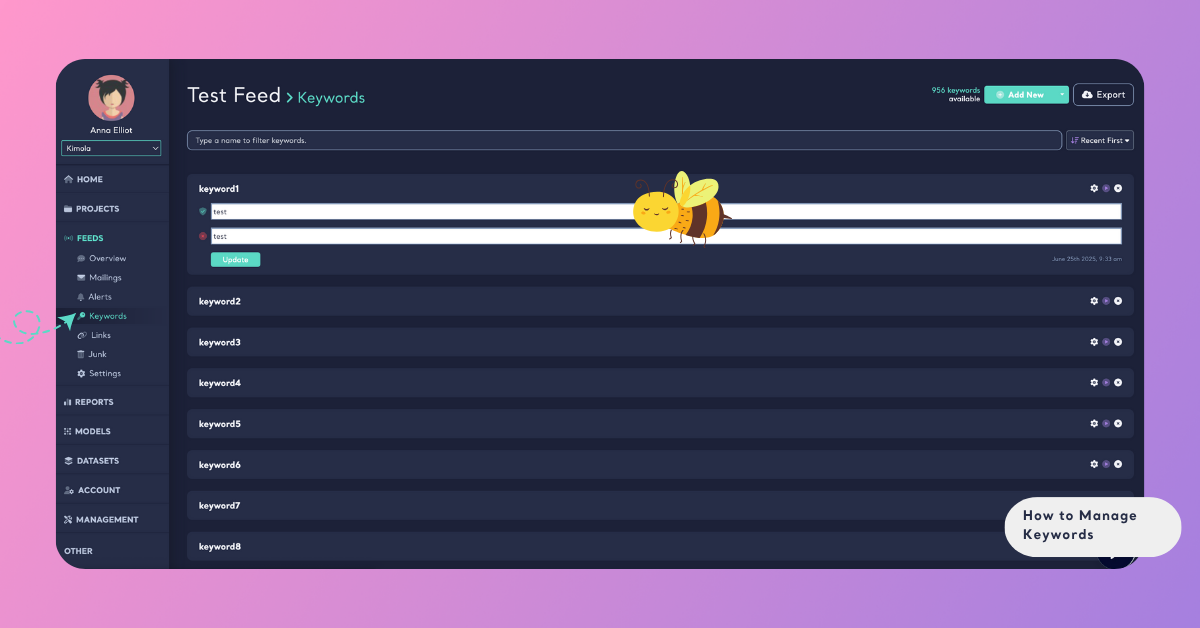
Must Include (+): These are comma-separated terms required alongside your main keyword. For instance, when focusing on a "meat" keyword for a vegan or vegetarian audience, you want it to capture data only if terms like "vegan" or "vegetarians" are present.
Must Exclude (-): These are comma-separated terms you wish to avoid pairing with your keyword. For example, with a "mask" keyword related to skincare, to prevent capturing data about COVID-19 masks, unrelated terms or hashtags should be added to the (-) section.
Managing keywords keeps your feeds focused and ensures you collect meaningful data for analysis.