Manage Links
3 mins read - Updated on Oct 09, 2025Managing links helps you control which sources Kimola tracks in your feeds. This guide explains how to add, edit, pause, or delete links.
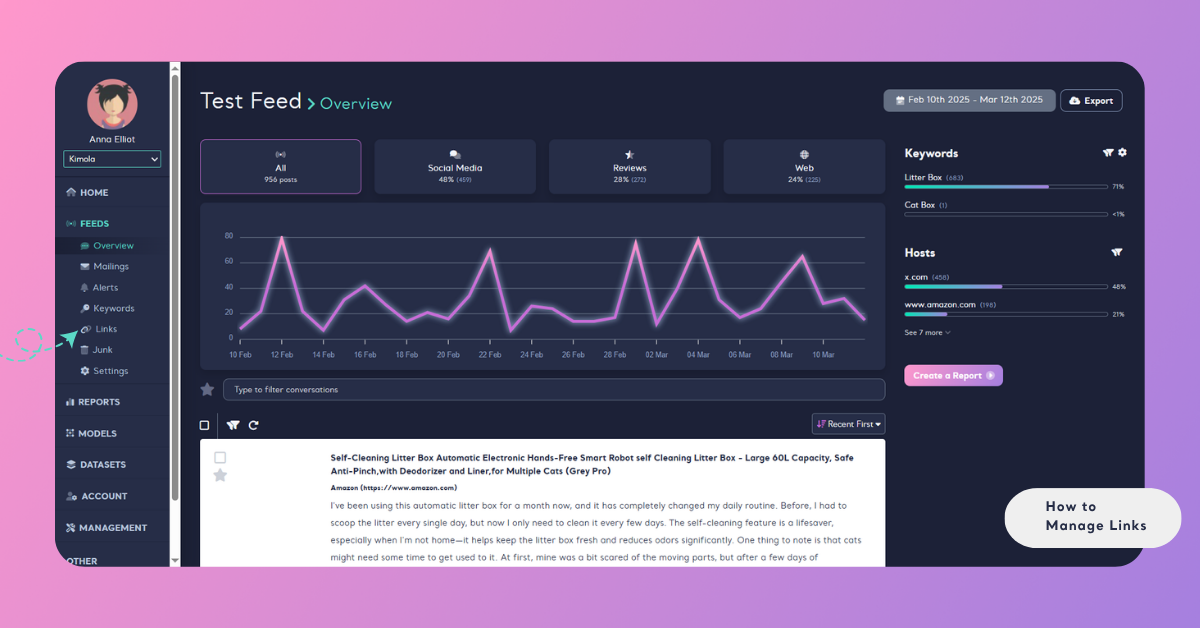
After signing in at Kimola Sign-in, go to the Feeds menu, choose a feed, and open the Links section.
Add a Single Link
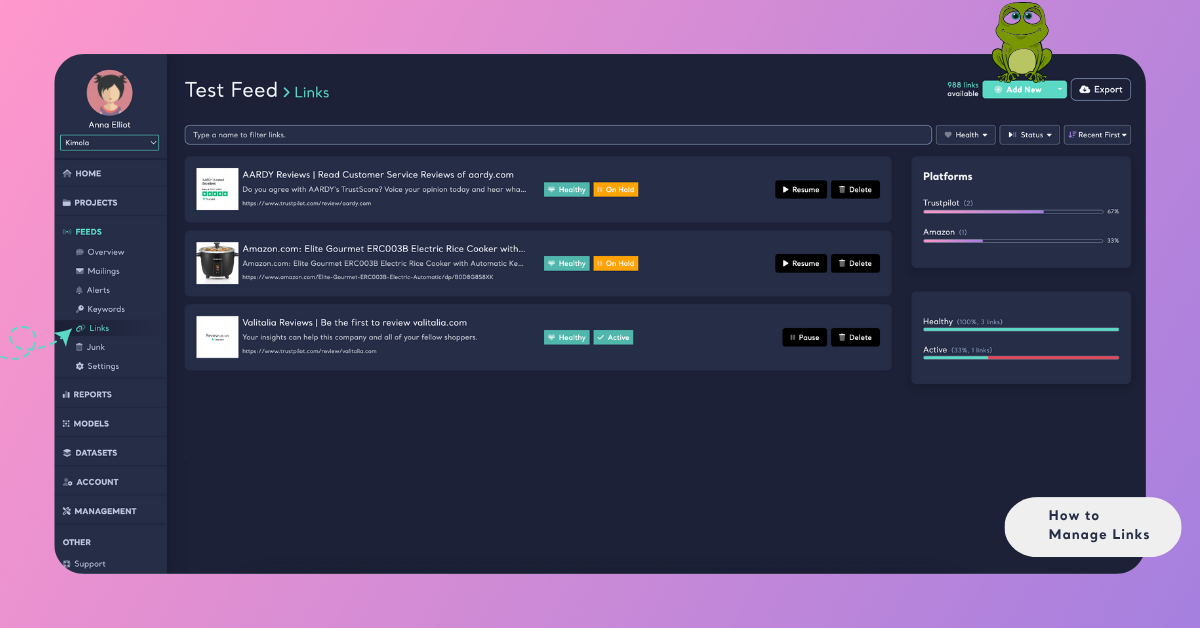
To add a new link to your feed, click the Add New button located in the upper-right corner of the Links page. In the window that opens, paste the full URL of the link you want to add — for example, a product page from an e-commerce website or a title from a discussion platform like a forum.
If you want to continue adding more links, click "Add & Continue". If you’re done adding links, click "Add & Close" to save your changes.
Just below the link input field, there is a “Start Collecting” checkbox. Select this option if you want data collection for that keyword to begin immediately after adding it.
Add Links in Bulk
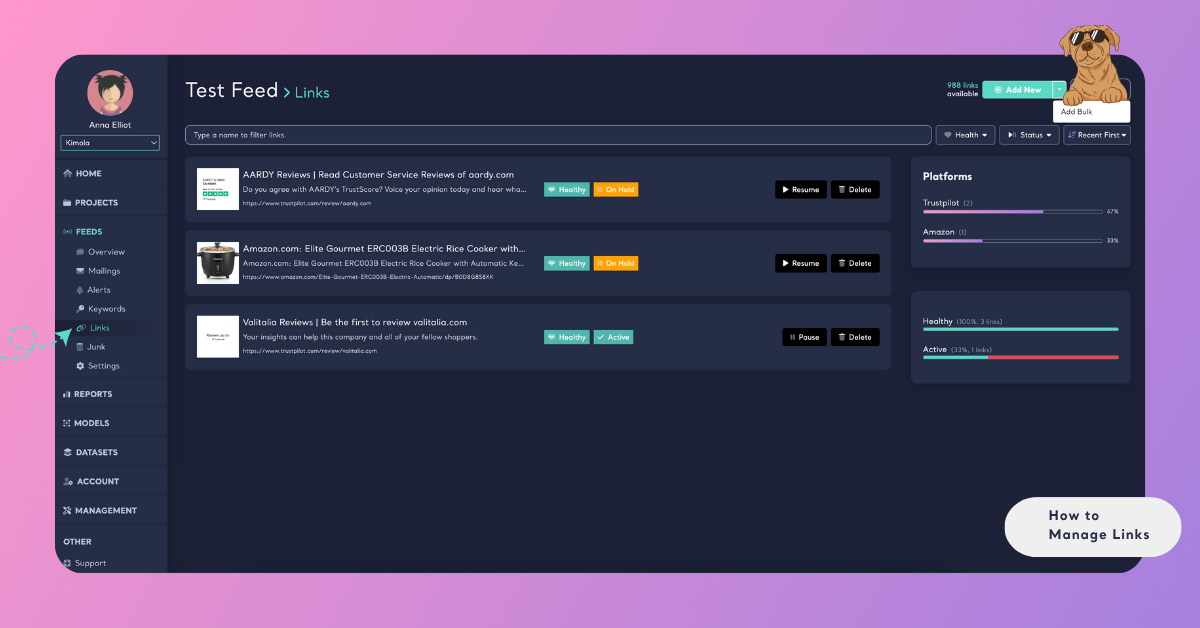
To add multiple links at once, click the "Add Bulk" button located next to the "Add New" button. In the window that opens, enter your list of links, placing each link on a separate line.
Click "Next" to see the results indicating whether the links were successfully added. Duplicate links will trigger an "Url already exists" message. Once links are added without issues, you'll see "Links successfully added". Click "Close" to finish.
All valid links will be added to your feed in bulk. Invalid or duplicate links will be skipped automatically, and only healthy links will be successfully added.
When you add a link to a feed, 50 pieces of data are collected retroactively from the time you added it.
Delete a Link
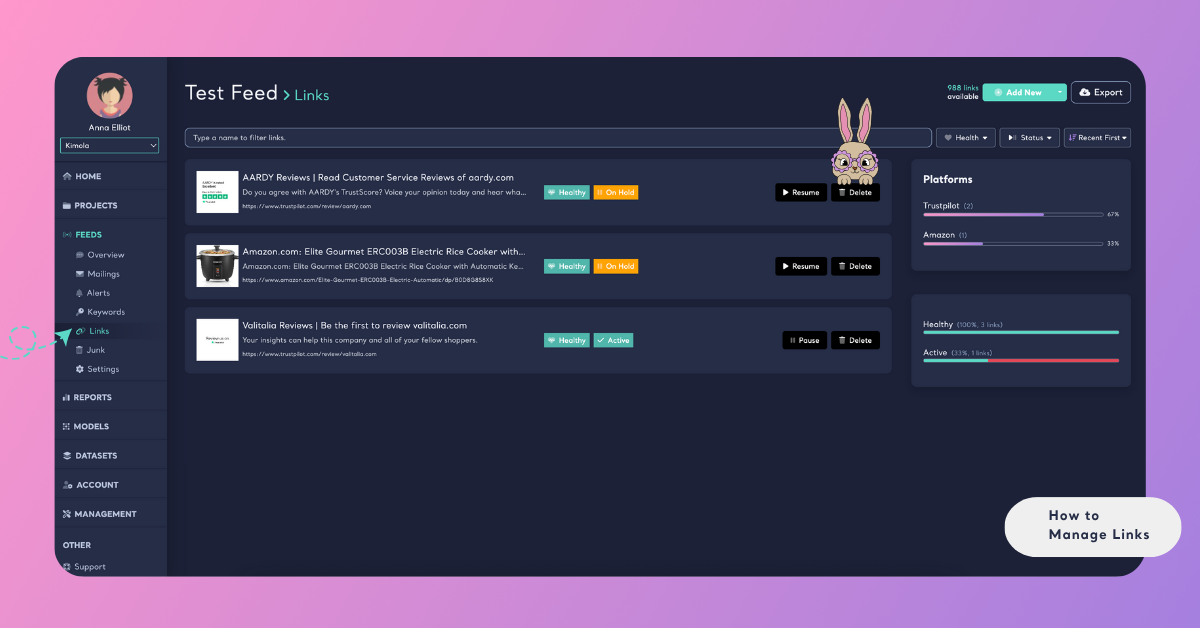
A delete button appears to the right of each link in your list. Click the "Delete" button next to the link you want to remove.
In the confirmation window that appears, click "Delete Link" to confirm your choice. If you change your mind, click "Cancel" to abort the deletion.
Deleting a link will also remove all the data previously collected from that source. Use this action carefully to avoid losing valuable information.
Pause a Link
If you want to temporarily stop collecting data from a specific link without deleting it, you can pause it.
Click the "Pause" button next to the link you want to stop tracking. Once paused, Kimola will no longer collect new data from that link, but all previously collected data will remain available in your feed.
When you’re ready to resume data collection, click the "Resume" button to reactivate the link.
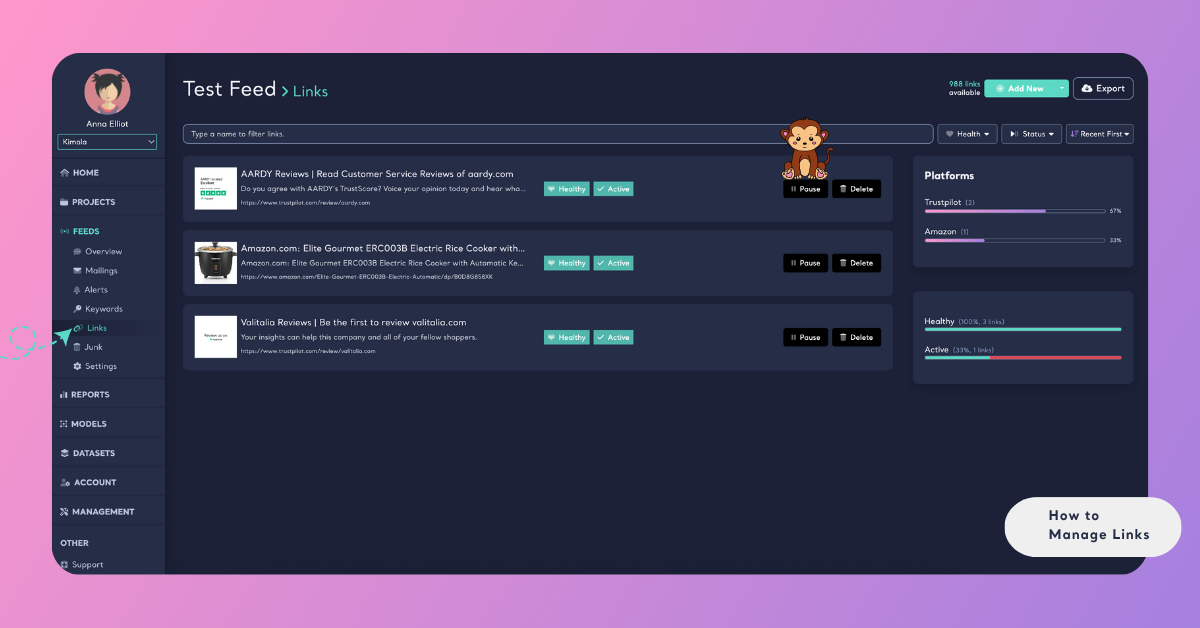
A healthy link is valid and reachable. An active link is currently being tracked and collecting data.
Managing links keeps your feeds focused and ensures you collect from the right sources.