Manage Alerts
2 mins read - Updated on Oct 09, 2025Alerts notify you instantly when important changes happen in your feeds — such as a keyword mention, a sudden spike in mentions, or an influencer engagement. Managing alerts ensures you stay informed at the right moment and can act before issues escalate.
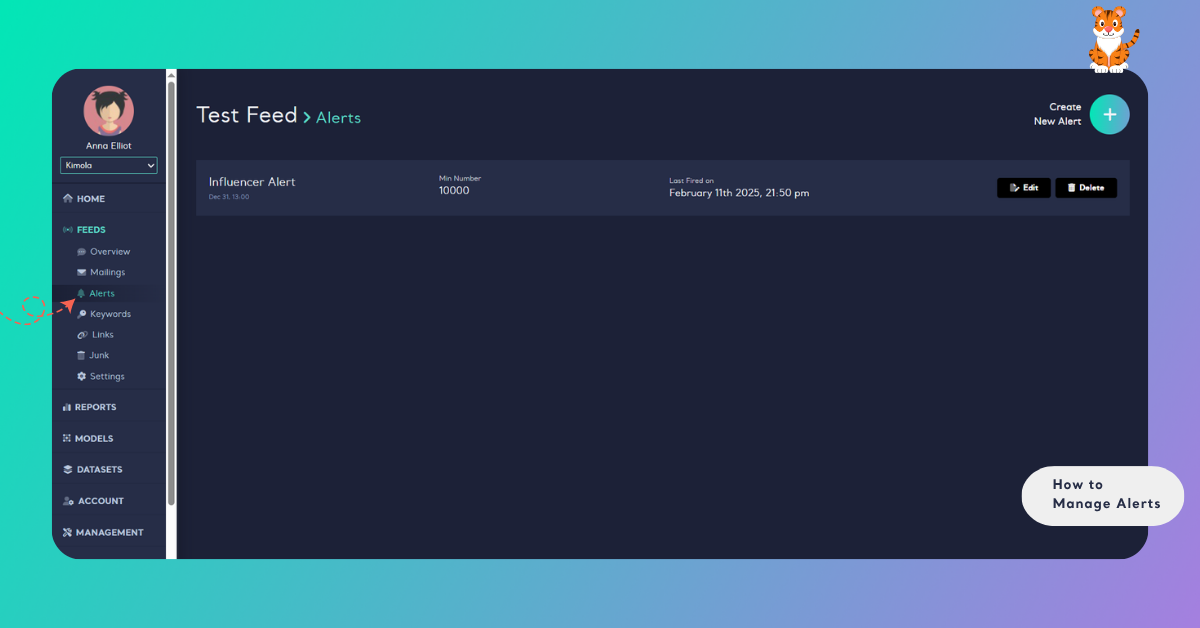
Sign in to your Kimola account, go to the Feeds menu, select a feed, open Alerts from the left panel, and click Create New Alert to start a new one or add another if alerts already exist.
Create an Alert
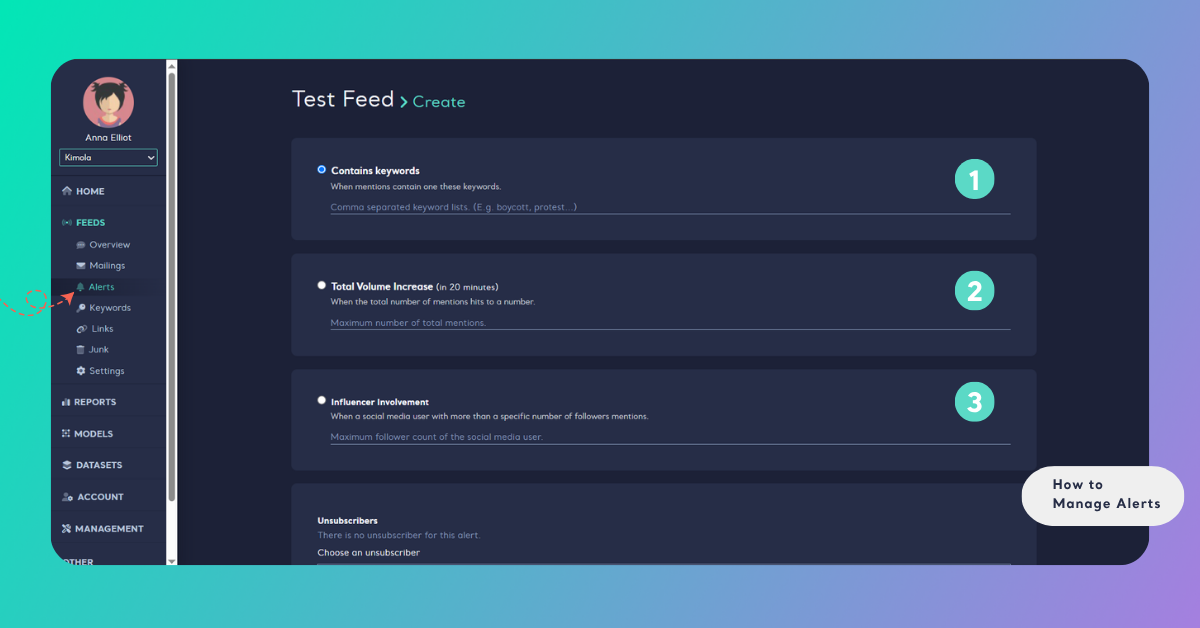
Choose Alert Type:
- Keyword Alerts – Triggered when specific terms appear in your feed. Useful for campaigns, crises, or hashtags.
- Volume Spike Alerts – Triggered when mentions exceed a threshold in 20 minutes (e.g., 100 mentions).
- Influencer Alerts – Triggered when a user with more than X followers mentions your brand or keyword.
- Set Conditions – Enter terms, thresholds, or follower counts. Define start (and optional end) dates.
- Save – Click Create to activate the alert.
If you want alerts to stop coming after a specific date, you can set an "ending at" date to ensure notifications only arrive within your desired timeframe. This is perfect for keeping your alert system timely and relevant!
Edit an Alert
- After entering the relevant feed, navigate to the alerts page where all created alerts are listed.
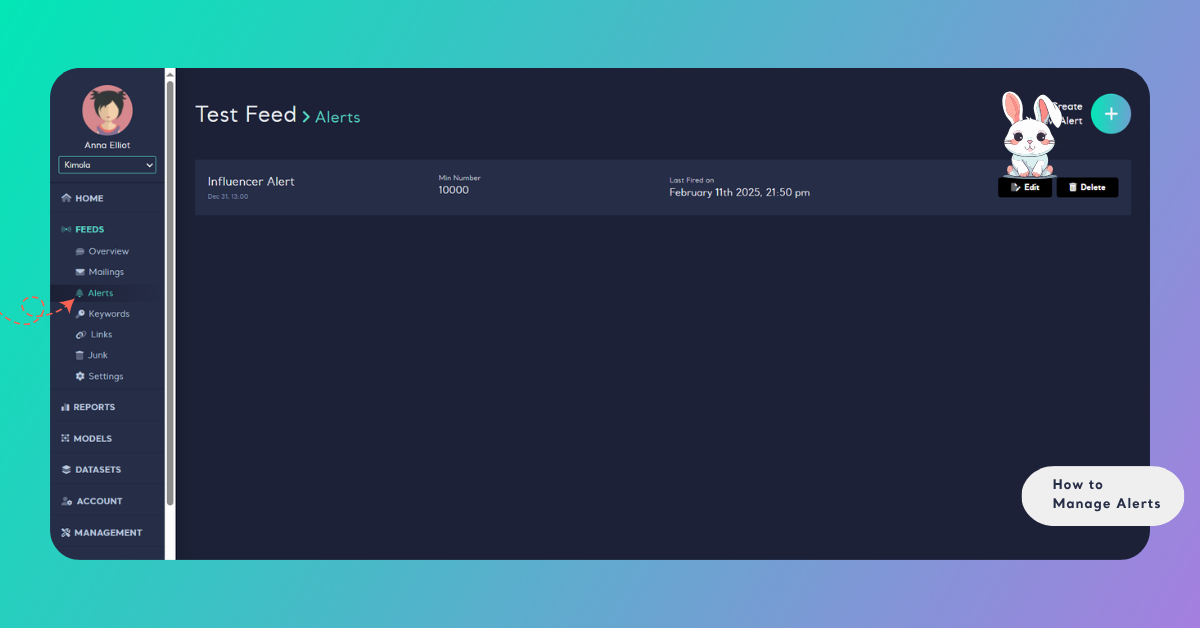
- Find the specific alert you wish to modify and click the edit (pencil) icon beside it. Make the necessary changes, then click "Save" to confirm them or "Save & Close" to exit.
Delete an Alert
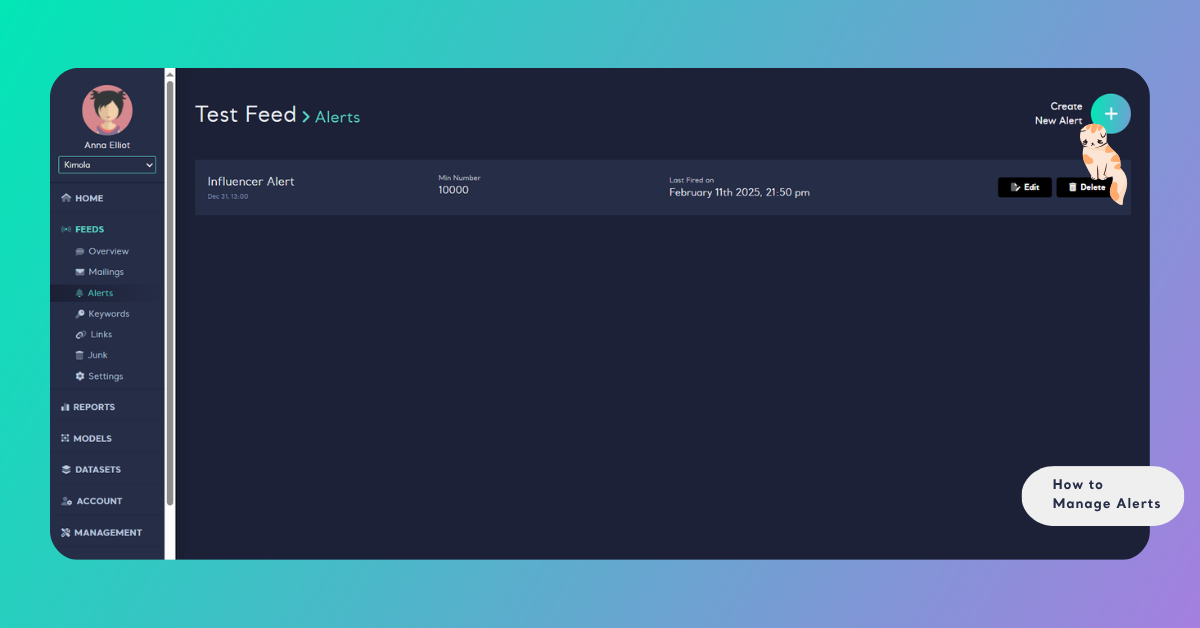
- Click the delete (trash can) icon located next to the edit icon of the alert you want to remove.
- Confirm your decision by clicking "I'm sure, delete!" If you decide against deleting the alert, simply click "Cancel" to abort the process.
Managing alerts helps you react quickly to critical changes, protect your brand’s reputation, and make proactive, data-driven decisions.