What is Model Consistency?
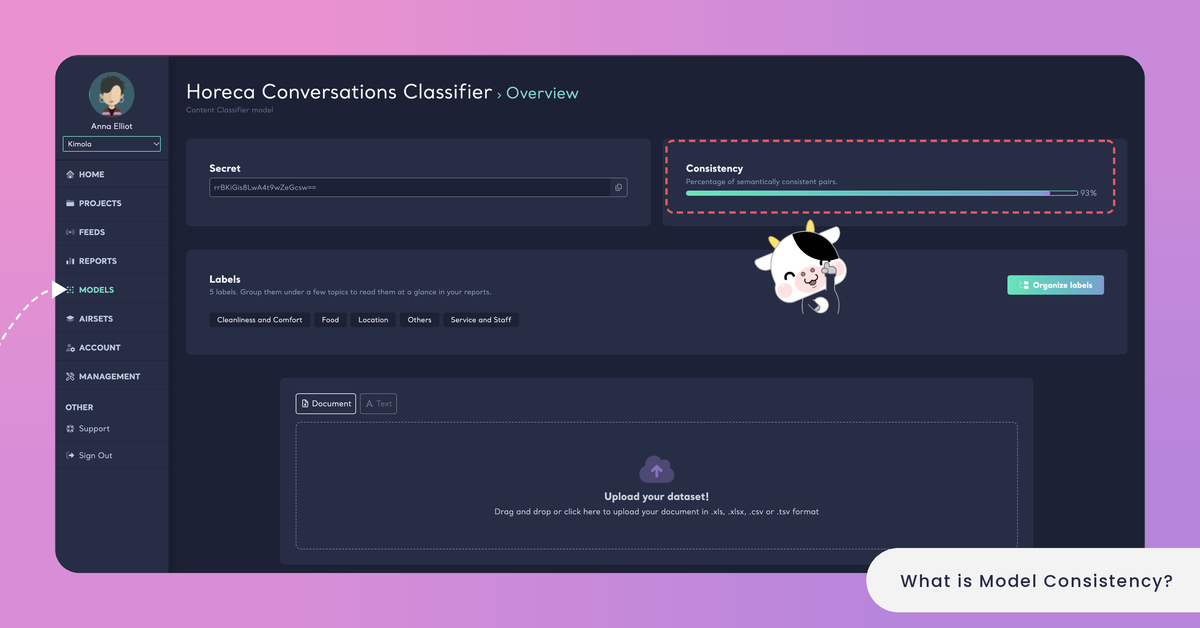
min read - Updated on Oct 28, 2026Model consistency is a score Kimola shows for your custom models: the percentage of semantically consistent pairs in a model's records. It tells you how clearly a model's labels are told apart, so you can see at a glance which models classify customer feedback in a stable way and which ones need their labels or their training set reviewed.
Custom models and their consistency scores are available in the paid packages, not in Starter.
A model is only as useful as the clarity of its labels. When two labels overlap, or a label collects unrelated feedback, the model can put the same kind of feedback under different labels, and theme counts in your Reports and Spaces move for reasons that have nothing to do with your customers. The consistency score is a quick check of this before you use a model in an analysis, and a way to see whether a new version of a model works better than the old one.
What Consistency Measures
Kimola reads a model's records in pairs. A pair is semantically consistent when its labels agree with its meaning: two records that say the same thing in other words carry the same label, and two records about different things carry different labels. The score is the share of consistent pairs, from 0% to 100%.
What the records are depends on how the model was created. A model created with a training dataset, or with a Report, has the labeled rows it learned from, the ones you browse on its Explore page (see Explore a Custom Model). A model created with a prompt has no training set to browse: its labels are defined by their names and descriptions, so its score shows how clearly those labels and descriptions separate feedback.
A high consistency means the labels are well separated. Similar feedback gets the same label, and the model counts each theme the same way from one dataset to the next.
A low consistency means some labels are hard to tell apart. The usual causes are labels that overlap in meaning, labels that mix several topics, descriptions that read alike and, in a training set, rows with the wrong label. Similar feedback may then be split between labels at random.
The score describes the model itself. It doesn't test the model on your own feedback: a model with a high score can still miss a topic it has no label for. Try a model on texts your team knows well before you use it, in the test console on its Overview page (see Test a Custom Model).
The score is most useful as a comparison: between two versions of the same model, or between the models your team uses for the same kind of feedback.
An online education platform creates a prompt-based model for its course reviews with the labels Course Content, Course Material, Instructor and Teaching Quality. Reviews about slides and exercises fit both Course Content and Course Material, and reviews about explanations fit both Instructor and Teaching Quality, so the model shows 58% consistency. A second version with Course Content ("What the course teaches: topics, exercises, slides and projects") and Instructor ("How the instructor explains, answers questions and gives feedback") shows 81% consistency.
Where You See It
Kimola shows the consistency score in three places: on the Models list, on each model's Overview page, and in the list of classifiers you choose from when you create a Report. Pretrained models don't have a consistency score. Custom models are available in the paid packages; the free Starter package doesn't include them (see kimola.com/pricing).
On the Models list. Open Models in the main menu. Every custom model has a row with its date, its consistency (for example "67% consistency"), its number of labels (or, for a model trained on a dataset, its number of records) and its kind. The sort menu above the list, set to Recent First by default, also offers Oldest First, Most Consistent First and Least Consistent First, which brings the models to review first to the top.
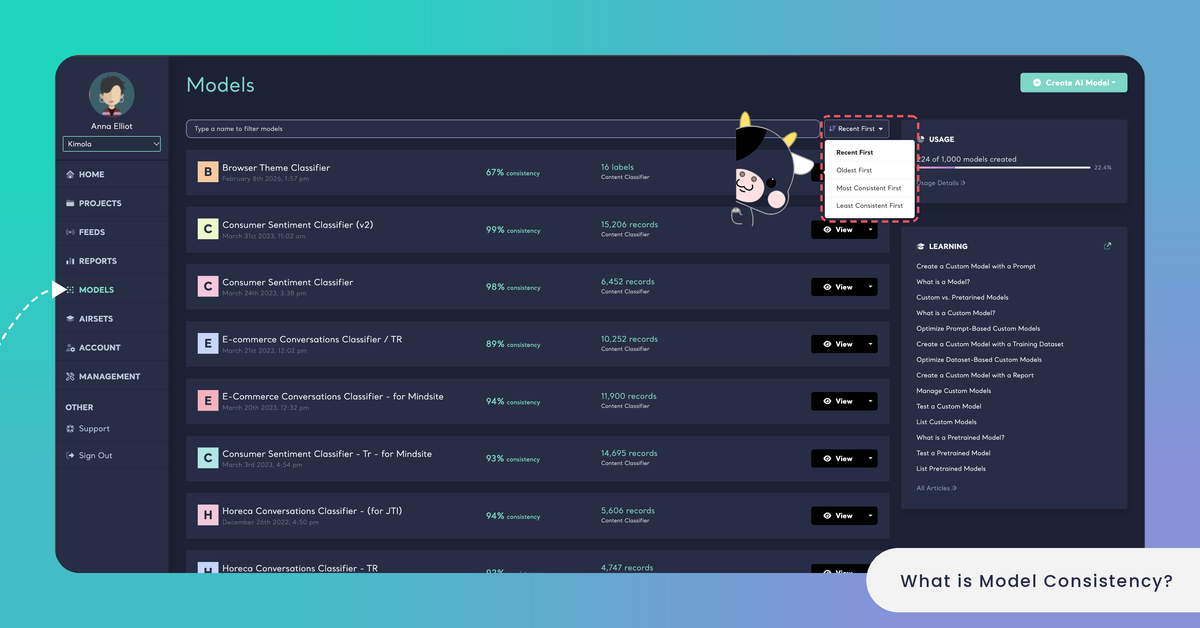
Sort the Models list by Least Consistent First to find the models to review first.
On the model's Overview page. Click View on a model's row. The Consistency card at the top of the page shows the score as a bar with its percentage, under the line "Percentage of semantically consistent pairs." The model's labels and its test console are on the same page.
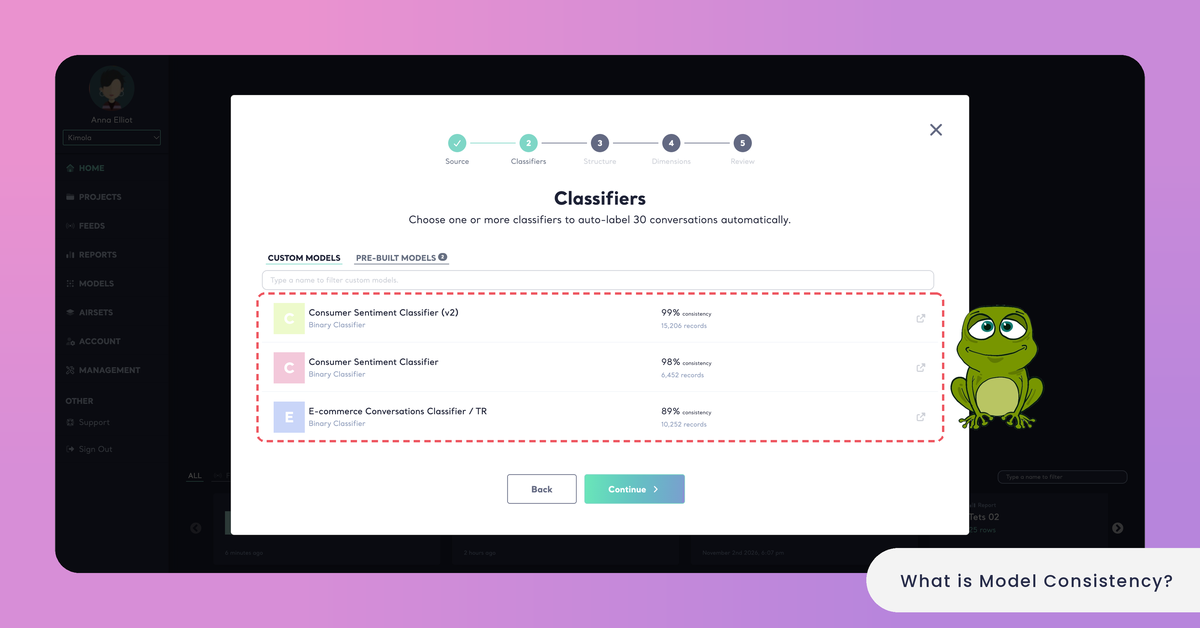
When you create a Report. In the step where you choose the classifiers of a new Report, your custom models are listed with their consistency, so you can compare them before you choose one. See Create a Report Using a Custom Model.
How to Improve It
The consistency score goes up when the model's labels become easier to tell apart. A model's Settings page changes only its name, and Organize labels changes only how its labels are grouped into categories, so improving the score means creating a new version of the model with clearer labels or a cleaner training set. How you do this depends on how the model was created.
For a Prompt-Based Model
A prompt-based model classifies feedback from the names and descriptions of its labels, so these are what you refine. Give every label one topic, merge labels that mean nearly the same thing, name topics neutrally (Pricing rather than "Too Expensive") and write descriptions that draw the line between close labels in your customers' own words. The labels of a prompt-based model can't be edited after it is created: create the new version with Create AI Model › By Prompt, under a new name such as "Course Reviews v2". See Optimize Prompt-Based Custom Models.
Drafting categories is also a quick reading of your labels. Organize labels on the Models list groups them under a few topics in a few seconds, and labels that end up side by side in one category may be closer in meaning than you intended. See Organize Labels into Categories.
For a Dataset-Based Model
A dataset-based model learns from its training set, so a clearer training set gives a clearer model. Look for mislabeled rows, labels that collect unrelated feedback, labels that overlap or differ only in spelling, and rows that were labeled by different rules. If several people label the data, agree on a written definition of every label before they start. On the model's Explore page you can filter the records by label, and Download gives you the training set the model learned from. Correct the file in a spreadsheet and create the new version with Create AI Model › By Training Set. See Optimize Dataset-Based Custom Models.
If several people label your training data, agree on a written definition of every label before they start.
Compare and Replace
When the new version is ready, compare its consistency with the old version's on the Models list, and test both on the same texts. Once the new version works better, choose it in your next Reports, and edit the Funnels that use the old version so the files uploaded to their Spaces after the edit are classified with the new one (see Manage Funnels). When you no longer need the old version, delete it from its Settings page with Delete Model. See Manage Custom Models.
Delete Model deletes the model with all its records, and it can't be undone.