What is a Task?
min read - Updated on Oct 28, 2026A Task in Kimola is a finding from your customer feedback turned into work for one teammate, with the feedback and the numbers behind it kept as its evidence. You make a Task where the finding appears, in a Space, on a Customer's page or on a Department's page, or you write one in your own words. Kimola drafts its title and description, everyone in your team sees who is on what, and once the Task is done, Kimola reads the same feedback again and tells you whether customers noticed.
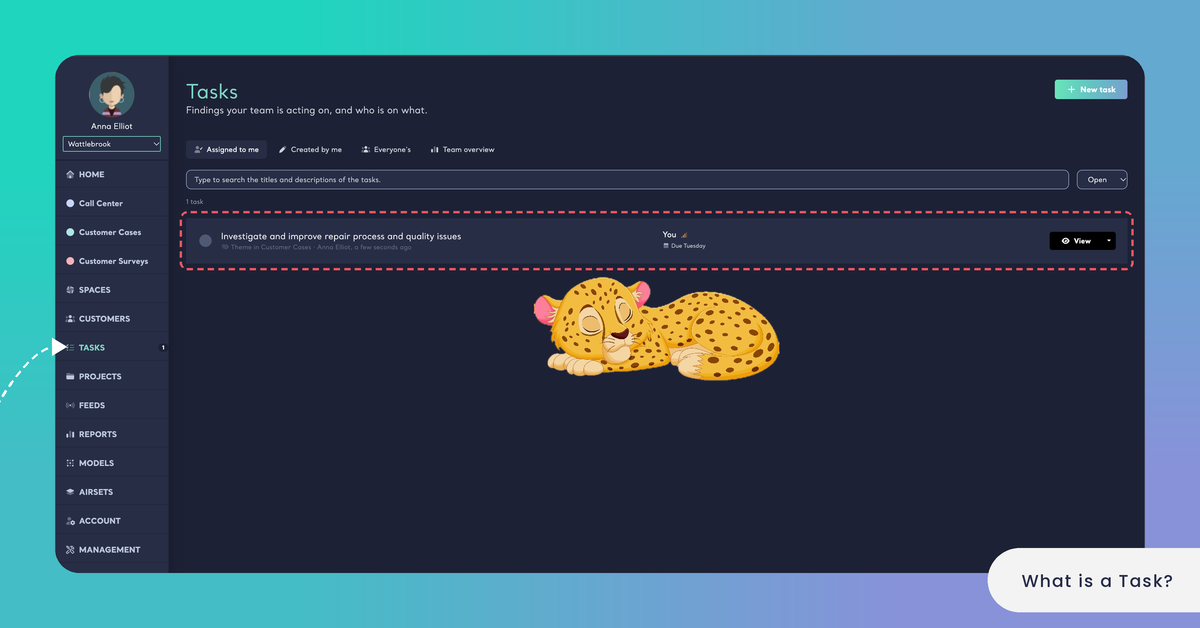
You find your Tasks under TASKS in the main menu, below CUSTOMERS. To make your first one, see Create a Task.
Tasks are available in the Enterprise package. They are also available in Kimola On-Premises.
Why Tasks Matter
Kimola tells you what customers say: the themes they talk about, the Signals where a topic stands apart, the Pain Points and Unmet Needs in their words. Acting on a finding takes more than reading it. Someone has to own it, someone has to know why it matters, and someone has to check later whether the change made a difference. When a finding is passed on as a message or a screenshot, the numbers and the customers' words stay behind, and nobody goes back to the same feedback to see whether it changed.
A Task carries a finding to the teammate who can act on it, with the feedback and the numbers behind it. When you make a Task, Kimola keeps the finding's evidence as it is that day: its share of the feedback, its sentiment and a few quotes in customers' own words. The evidence doesn't change afterwards, so whoever works on the Task sees the finding exactly as it was when the Task was made, and Kimola has a fixed point to compare with once the Task is done.
Kimola is not a task tracker. The work itself happens where your team already plans it, for example in Jira. The Task keeps the reason for the work and its evidence, and the loop closes in Kimola, when the same feedback is read again after the Task is done.
For a food delivery app, a Space of app reviews shows a Signal: missing items are mentioned more, and more negatively, in orders from one city than in the others. The product lead makes a Task of the Signal and assigns it to the operations manager of that city, due in 2 weeks. The Task keeps the Signal's share of the feedback, its negative sentiment and three reviews that describe the missing items, so the operations manager sees the problem in customers' own words without opening the Space.
Who Is on What
Every Task has one assignee, and everyone in your team can see it. The Tasks page lists the Tasks Assigned to me, the ones Created by me and everyone's Tasks, open or closed, and you can search their titles and descriptions. Team overview shows who is on what across the team and whether customers noticed the Tasks that were done. See Manage Tasks and Use the Team Overview.
A Task is Open, In progress, Done or Won't do, and it has a due date, a priority (Low, Medium, High or Urgent) and, under Keep informed, the teammates who are told when it changes. The assignee and the teammates kept informed must be members of your team. The TASKS item in the main menu shows how many open Tasks you have, in red when one of them is overdue. Kimola emails the people involved when a Task is assigned, done or commented on, and sends a weekly digest on Mondays. See Task Emails and Weekly Digest.
Where Tasks Come From
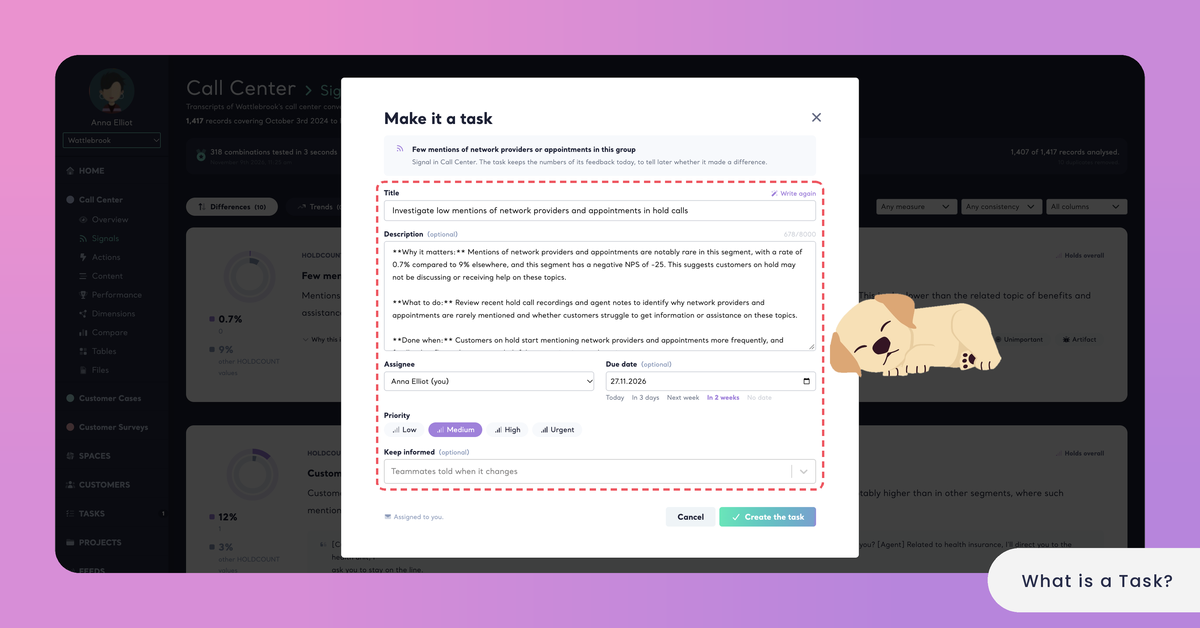
A Task is made where its finding is shown, with Make a task, so it starts with the finding and its feedback already attached. Tasks come from Spaces, from Customers and from Departments, or from your own words on the Tasks page. Reports don't make Tasks, and neither do their Signals or their Action Plans.
On a Task, its source is named Signal, Feedback, View, Theme, Action, Customer, Department or Own task, so you can tell at a glance what the Task was made of.
In a Space
Most Tasks come from the pages of a Space. On Signals, every Signal card offers Make a task. On Content, you can make a Task of a single piece of feedback, or of everything the current filters show with Make a task of the feedback these filters show. In the All Themes part of Overview, a theme offers Make a task. On Tables, Make a task of the records this table reads turns a table into a Task. On Actions, every action card of the Space's Action Plan offers Make a task.
Kimola drafts the Task's title and description from the finding, in the language of the Space's Funnel: why it matters, what to do first and how you will know it is done. You can edit the draft before you create the Task. If a teammate already has an open Task of the same finding, the window shows it first, and you can follow that Task or make a new one anyway. Findings that already have Tasks show a badge where they appear.
Look for the badge on a Signal, a theme or an action before you make a Task: it means the finding already has one, and you can follow it instead.
From a Customer or a Department
On a Customer's page, Make a task of this customer turns what one customer has told you, through every channel, into a Task. On a Department's page, Make a task of this department does the same for the feedback one of your teams owns, and keeps the label filters of the page. See What is a Customer? and What is a Department?
A Customer's or a Department's Task belongs to no Space. Its evidence, and the measurement after it is done, read all of your Spaces.
In Your Own Words
Not every piece of work starts in the data. New task on the Tasks page lets you write down something that is on your mind and assign it to a teammate. Write with AI turns a few words of yours into a title and a description. The source of such a Task is Own task.
What Happens After a Task Is Done
A Task made from feedback doesn't end when someone marks it done. Two and four weeks after the Task is done, Kimola reads the same feedback again and compares the weeks before the Task was made with the weeks after it was done. While an improvement holds, Kimola checks again at eight and twelve weeks. The result appears on the Task's page under DID CUSTOMERS NOTICE?.
A Task counts as improved when the finding's share of the feedback dropped clearly, or when its NPS rose clearly. When there is too little feedback in the weeks compared, Kimola gives no verdict yet. On the Task and in the Team overview, a measured Task shows where it stands: Being measured, Customers noticed, No change, Got worse or Too little feedback.
If customers start talking about the finding again as they did before, the Task says "It came back: customers talk about it as they did before the task." and offers Open it again. The four-week result and any return of the problem are also emailed, and written to the Task's Jira issue when it has one. See How Kimola Measures Task Impact.
Four weeks after the operations manager marks the missing items Task done, fewer reviews from that city mention missing items than in the weeks before the Task was made, and the Task shows Customers noticed. If the complaints return at the eight-week check, the Task says it came back and offers Open it again.
Some Tasks have no feedback to read again. A Task written in your own words has nothing to measure, and neither does the Task of an action whose evidence names no Signal; those Tasks show Nothing to measure.
Only Tasks with feedback behind them are measured. An own task, and the Task of an action whose evidence names no Signal, have nothing to measure.
Tasks and Jira
If your team plans its work in Jira, a Task can go there while Kimola keeps its evidence and its measurement. Once Jira is connected for your team, you can send a Task to Jira as a new issue, or link it to an issue that already exists by its key, such as CX-123. When Jira is connected with a default project, the window where you make a Task can also send it to Jira at once with Also send to Jira. See Connect Jira to Kimola and Send a Task to Jira.
The issue gets the finding, its numbers and a few quotes, with emails and numbers masked. From then on, the Task's status, assignee and due date follow the issue, and comments on the Task become read-only. When the Task is done in Jira, Kimola still reads the same feedback again and writes the four-week result to the issue.
Once a Task is in Jira, its status follows the issue and can't be changed in Kimola.