What is a Customer?
min read - Updated on Oct 28, 2026A Customer in Kimola is anyone your files tell apart by a key: a customer code, an ID, a number or an email. Kimola reads that key from the Customer Column of your Spaces and recognizes the same customer in every Space, so whatever channel their feedback arrives through, it comes together on one page of their own: what they talk about, which of your Dimensions their feedback answers, how it changed over time, and every word they wrote.
You find Customers under CUSTOMERS in the main menu. Customers appear there as soon as a Space has a Customer Column and classified feedback in it. See Add a Customer Column to a Space.
Customers are available in the Enterprise package. They are also available in Kimola On-Premises.
Why Customers Matter
Spaces answer questions about channels: what the call center hears, what a survey says, how social media talks about you. The same person can show up in all of them, and read channel by channel, nobody sees that their records are one customer's story.
A bank customer calls about a delayed payment, answers a satisfaction survey a week later and writes to you again the next month. Read channel by channel, these are three unrelated records in three places.
Customers turn that around. The page of a customer reads all of your Spaces as one, for that customer only. You see which Spaces their feedback comes from, the themes they mention, the answers their feedback gives to your Dimensions, how their feedback moved over time and the full list of what they wrote. A key account manager can prepare for a meeting from one page, a customer experience team can follow a customer who keeps coming back with the same problem, and a team that wants to act on one customer's feedback can make a Task of it.
A customer's feedback is classified with the same Funnel as the rest of its Space, so their themes and Dimension answers mean the same thing as everywhere else in your account. Their page is clearest when your Spaces share a Funnel, because the themes from one Space and another are then the same themes.
How Kimola Recognizes a Customer
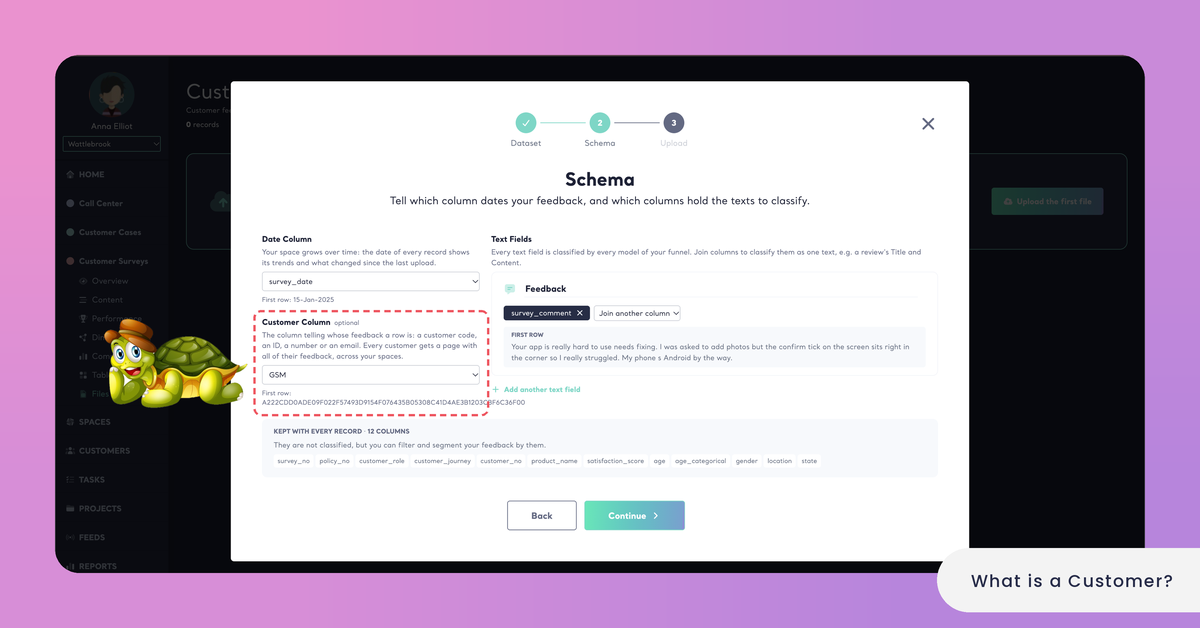
Kimola recognizes customers from a column of your files: the Customer Column of a Space. It is the column telling whose feedback a row is, and it holds a key your organization already uses for its customers, such as a customer number in a call center export or the email of a survey respondent. Nothing else about the customer is needed: no names and no profiles.
The Customer Column
The Customer Column is optional, and a Space can have only one. You can choose it in the Schema step when you upload the first file of a Space, or later, when a Space already has files. A later file of a Space without a Customer Column can bring one, and the Space keeps it for the files after it. For the records already in the Space, you choose the column on the Space's Files page with Choose a customer column: the records get their customers from the values they kept in that column, without being classified again. See Add Files to a Space and Add a Customer Column to a Space.
The Customer Column is kept apart from the Space's other columns. It isn't offered as a column to filter or compare by, and Signals don't use it as a group, because a key that is different for every customer doesn't make a segment.
How Keys Are Matched
Kimola matches keys ignoring upper and lower case and the spaces around them, so "C-1042", "c-1042" and " C-1042 " are the same customer. The customer is shown with the key as it was first seen.
A customer is one customer across all of your Spaces. When a Call Center Space and a Survey Space both carry the same customer number, their feedback lands on the same customer's page.
The match is by the key alone, so it works only when your Spaces use the same identifier: a customer known by their email in one Space and by a customer number in another appears as two customers.
A key longer than 250 characters is ignored, and its record stays without a customer. Records with an empty Customer Column stay without a customer too, and they are still part of their Space as before.
What Is Counted for a Customer
For every customer, Kimola counts their records, the Spaces their feedback comes from, the dates of their first and latest feedback, and their NPS: the share of their positive feedback minus the share of their negative feedback, from −100 to 100, calculated from what they wrote. See How NPS Is Calculated in Spaces.
These numbers are counted again whenever a file with their feedback is classified or taken back. A customer whose feedback was all in files that were taken back is no longer listed. See Take Back a File from a Space.
Where You Find Customers
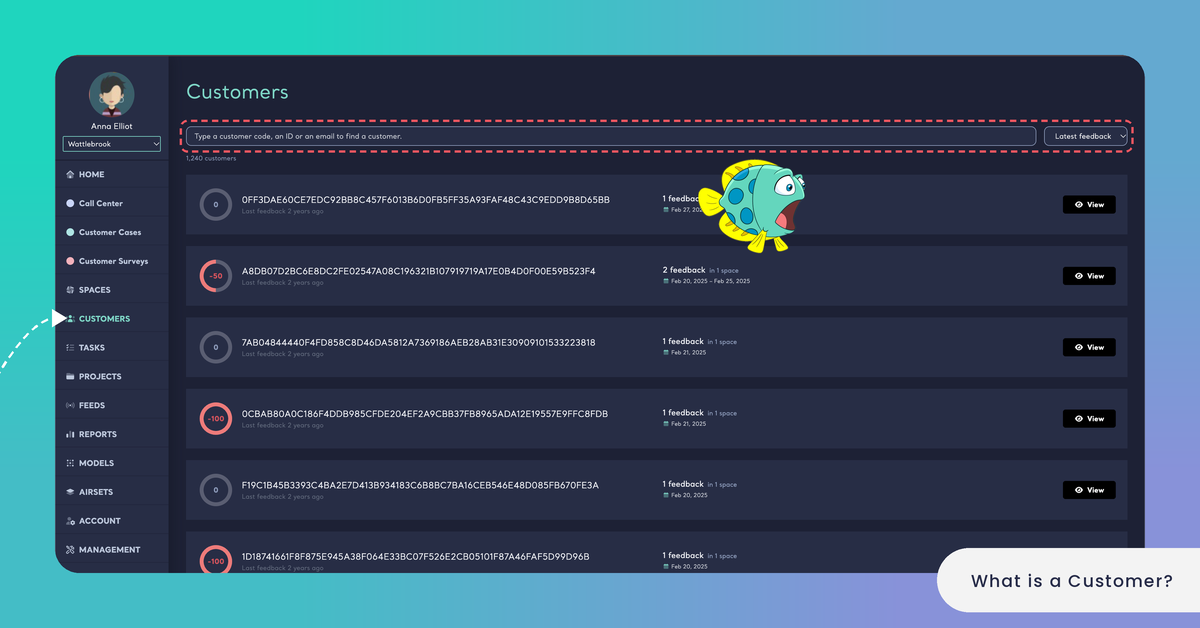
CUSTOMERS sits in the main menu with the other features of the Enterprise package, below SPACES and above TASKS. It opens the list of your customers, and every customer opens their own page.
The Customers List
The list holds every customer your Spaces have recognized. To find one, type into the search box: "Type a customer code, an ID or an email to find a customer." With Sort the customers, you order the list by latest, by number of records, by NPS or by key. View opens a customer's page. See Find a Customer.
A Customer's Page
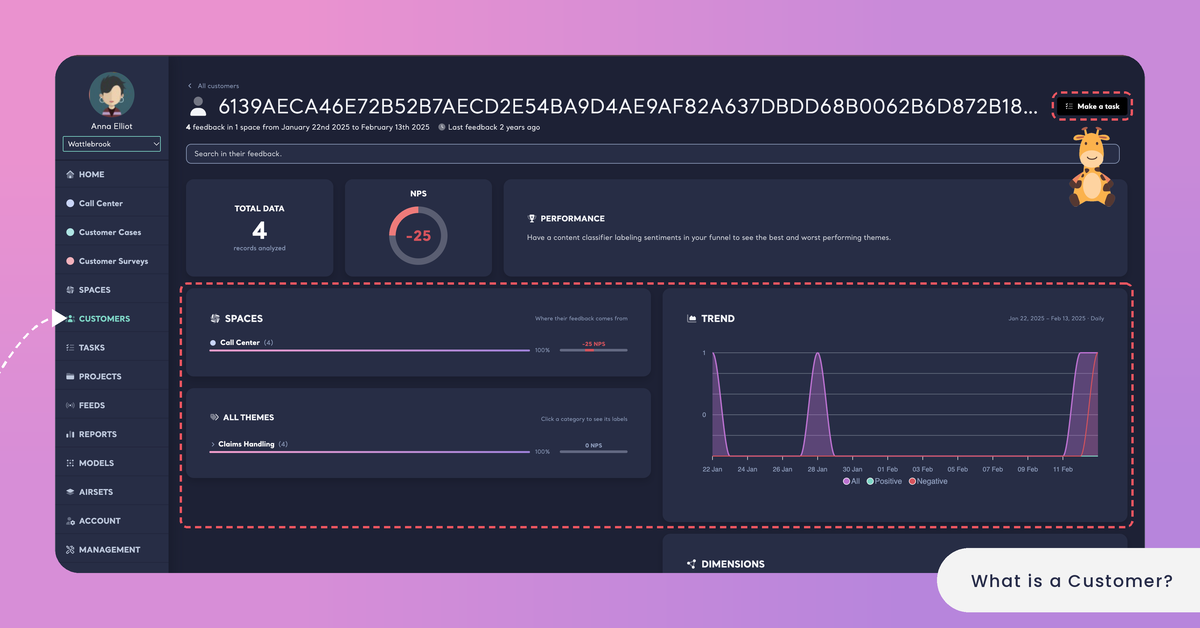
A customer's Overview reads all of your Spaces as one, for this customer. SPACES shows where their feedback comes from. DIMENSIONS shows the answers their feedback gives to your Dimensions: "Click an answer to see its feedback." TREND shows how their feedback moved over time, and FEEDBACK lists everything they wrote, with "Search in their feedback." to find a word in it.
Click a label to filter the page to it, and Clear filters to bring the whole page back.
Make a task of this customer turns what the page shows into a Task for a teammate. Kimola drafts its title and description from the customer's feedback. A customer's task belongs to no single Space: its evidence, and the measurement after it is done, read the customer's feedback in all of your Spaces. See Overview in Customers and Create a Task.
Your First Customers
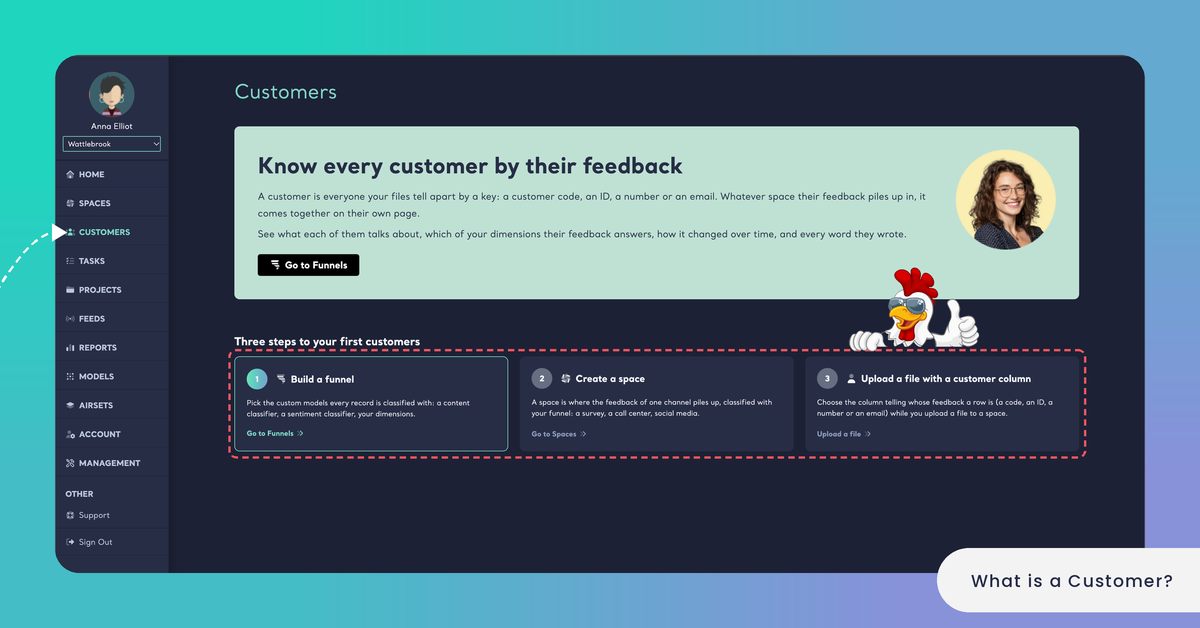
Until your first customers are recognized, the Customers page says "Know every customer by their feedback" and shows the three steps to your first customers. A step that is already finished is marked Done.
Build a funnel. Pick the custom models every record is classified with: a content classifier, a sentiment classifier and your Dimensions. See Create a Funnel.
Create a space. A Space is where the feedback of one channel piles up, classified with your Funnel: a survey, a call center, social media. See Create a Space.
Upload a file with a customer column. While you upload a file to a Space, choose the column telling whose feedback a row is: a code, an ID, a number or an email. See Add Files to a Space.