Find a Customer
min read - Updated on Oct 28, 2026You find a customer in Kimola by typing their key into the search box on the Customers page: the customer code, ID, number or email that a Space's Customer Column holds for them. Kimola lists every customer whose key contains what you typed, and you can sort the list by Latest feedback, Most feedback, Lowest NPS or Key. View then opens the customer's own page, with their feedback from all of your Spaces. See What is a Customer?
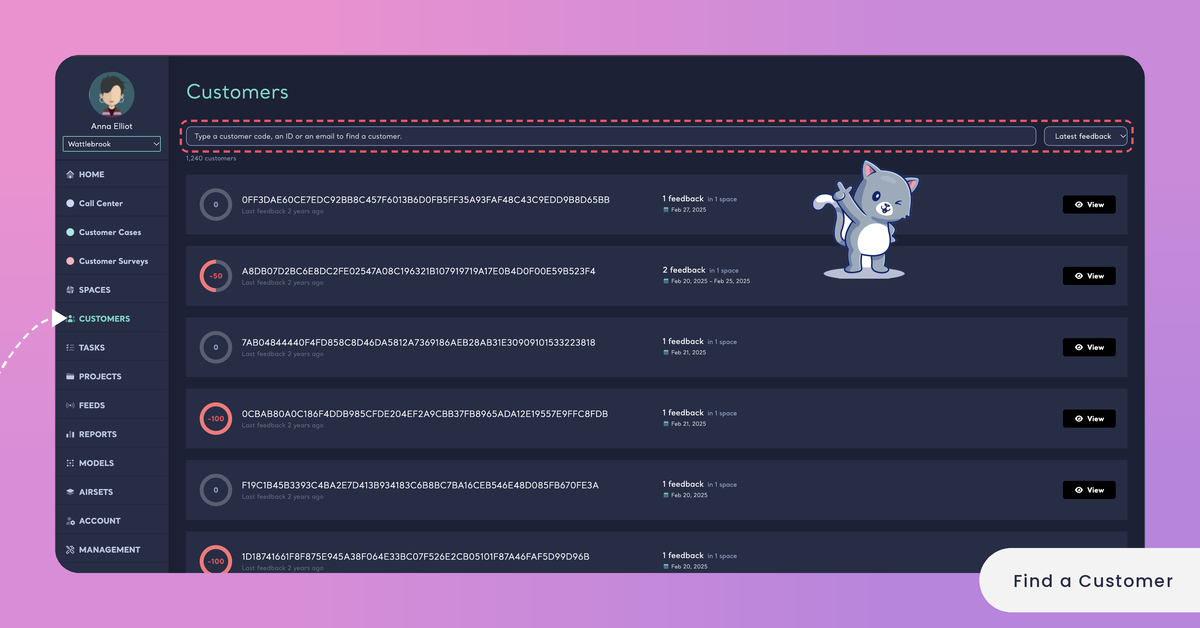
Open CUSTOMERS in the main menu. The list holds every customer your Spaces have recognized, with their total above it, for example "1,240 customers". Every row shows the customer's NPS in a ring, their key, when their latest feedback came ("Last feedback 2 days ago"), how much feedback they gave in how many Spaces ("3 feedback in 2 spaces"), the dates of their first and latest feedback, and View. More customers load as you scroll down.
Customers are available in the Enterprise package. They are also available in Kimola On-Premises.
Search
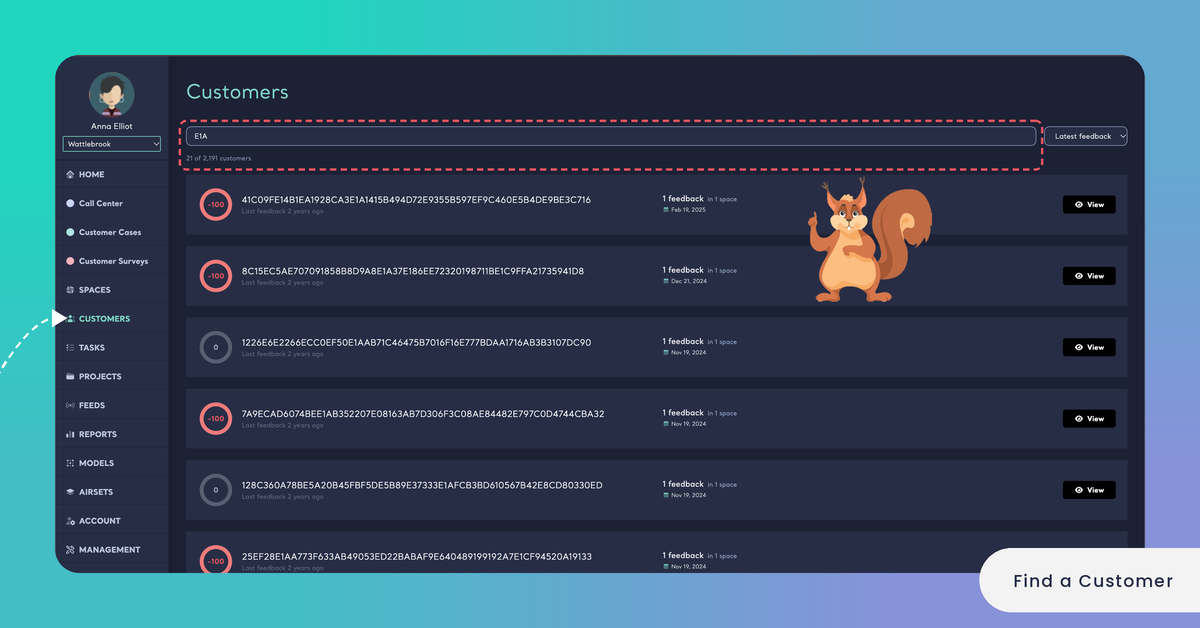
Search is the fastest way to a customer when you know their key. Click the box at the top of the list, "Type a customer code, an ID or an email to find a customer.", and type the key. The list narrows as you type, without a button to press. To see every customer again, clear the box.
Kimola looks for what you type anywhere in the key and ignores upper and lower case, so part of a key, or of an email, is enough. Above the list, the count tells how many customers match out of all of them, for example "2 of 1,240 customers". When none matches, the list says "No customer matches" followed by what you typed.
"1042" finds C-1042, and "c-10" finds both C-1042 and C-1087. Part of an email works the same way: "@example.com" lists every customer whose email ends with that domain.
Search reads the keys only. It doesn't find a customer by name or by a word in their feedback, because Kimola keeps no names or profiles for customers.
To find a word in what a customer wrote, open their page and type in "Search in their feedback." under FEEDBACK.
If a Customer Isn't in the List
A customer appears in the list once a file with their key in the Customer Column is classified in one of your Spaces. If someone you expect isn't found, one of these is usually the reason.
The Space uses another key for them. Customers are matched by the key alone. A customer known by their email in one Space and by a customer number in another is two customers, so search for each key.
The feedback came before the Customer Column. Records uploaded to a Space before it had a Customer Column get their customers only after you choose the column on the Space's Files page. See Add a Customer Column to a Space.
The file is still being classified. A file counts in its Space, and for its customers, once it is classified.
The file was taken back. A customer whose feedback was all in files that were taken back is no longer listed. See Take Back a File from a Space.
The key is longer than 250 characters. Kimola ignores such a key, and its record stays without a customer.
Sort
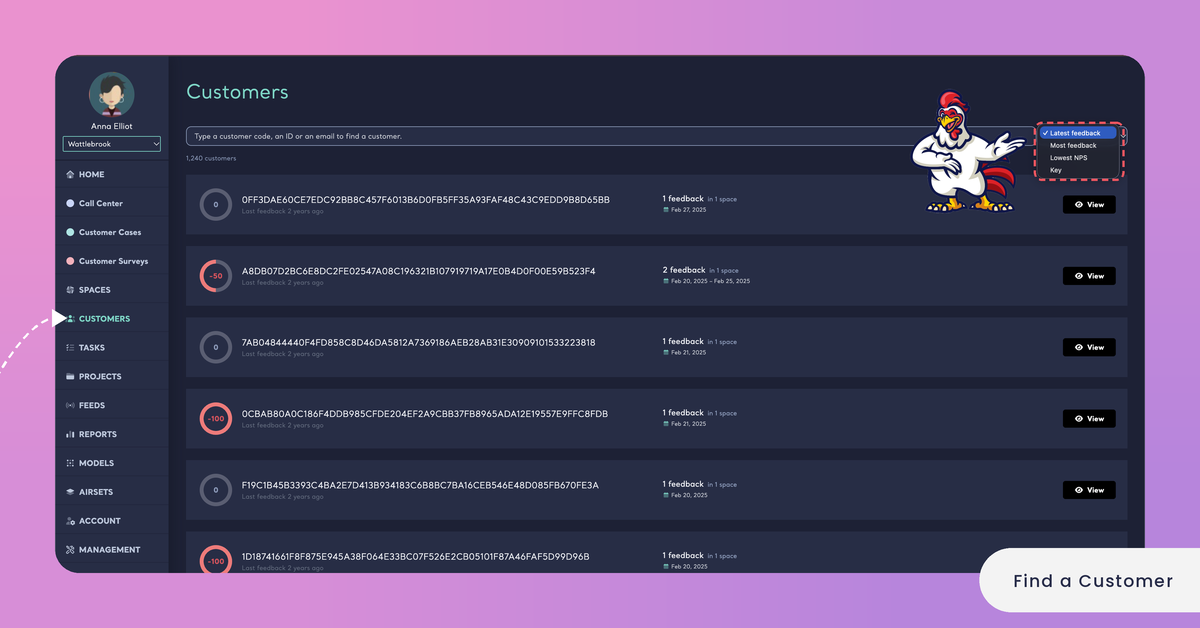
Sort the customers is the menu next to the search box. It sets the order of the list and opens on Latest feedback. Each order answers a different question.
Latest feedback puts first the customers whose feedback came most recently. Use it to see who has been in touch lately.
Most feedback puts first the customers with the most feedback across all of your Spaces. Use it to find the customers who come back to you most often.
Lowest NPS puts first the customers whose feedback is the most negative. A customer's NPS is the share of their positive feedback minus the share of their negative feedback, from −100 to 100, calculated from what they wrote; it is not a score they gave in a survey. See How NPS Is Calculated in Spaces.
Key orders the customers by their keys, in ascending order, numbers before letters.
A single negative piece of feedback already gives a customer an NPS of −100, so when you sort by Lowest NPS, check the amount of feedback in the row as well.
Search and sort work together.
Type "@example.com" and choose Lowest NPS to see the least satisfied customers with that email domain first.
The page's address keeps your search and your sort, so you can bookmark the list or send its link to a teammate.
Open a Customer's Page
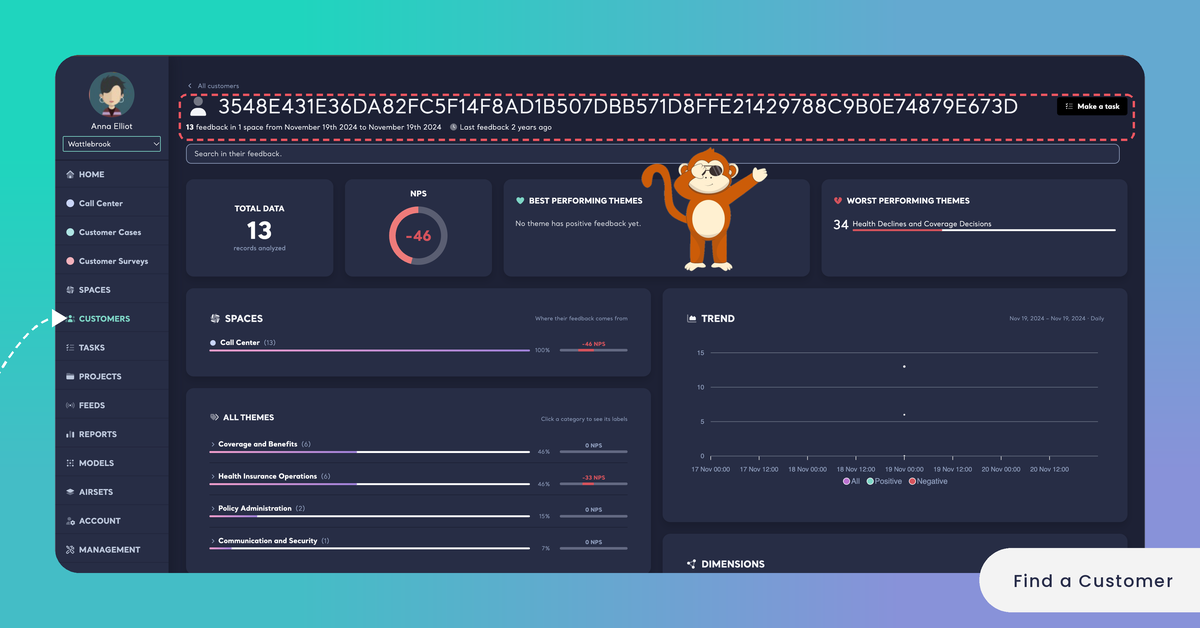
Click View, the customer's key or their NPS ring to open the customer's page. Their Overview reads all of your Spaces as one, for this customer: SPACES shows where their feedback comes from, DIMENSIONS the answers their feedback gives to your Dimensions, TREND how their feedback moved over time, and FEEDBACK everything they wrote. Make a task of this customer turns what the page shows into a Task for a teammate. See Overview in Customers and Create a Task.
If the list says "The customers could not be loaded, please try again.", reload the page.