Overview in Customers
min read - Updated on Oct 28, 2026Overview is the page of a single Customer in Kimola: it reads all of your team's Spaces as one, for that customer only, and shows on one screen how much feedback they gave, their NPS, the themes they mention, the Spaces their feedback comes from, the answers it gives to your Dimensions, how it moved over time and every word they wrote. It is the single customer view of your feedback: a call, a survey answer and a message from the same customer end up on the same page, as long as your Spaces carry the same customer key.
You open a customer's Overview from CUSTOMERS in the main menu: find the customer by their key and click View. All customers at the top of the page takes you back to the list. See Find a Customer.
Customers are available in the Enterprise package. They are also available in Kimola On-Premises.
What You See
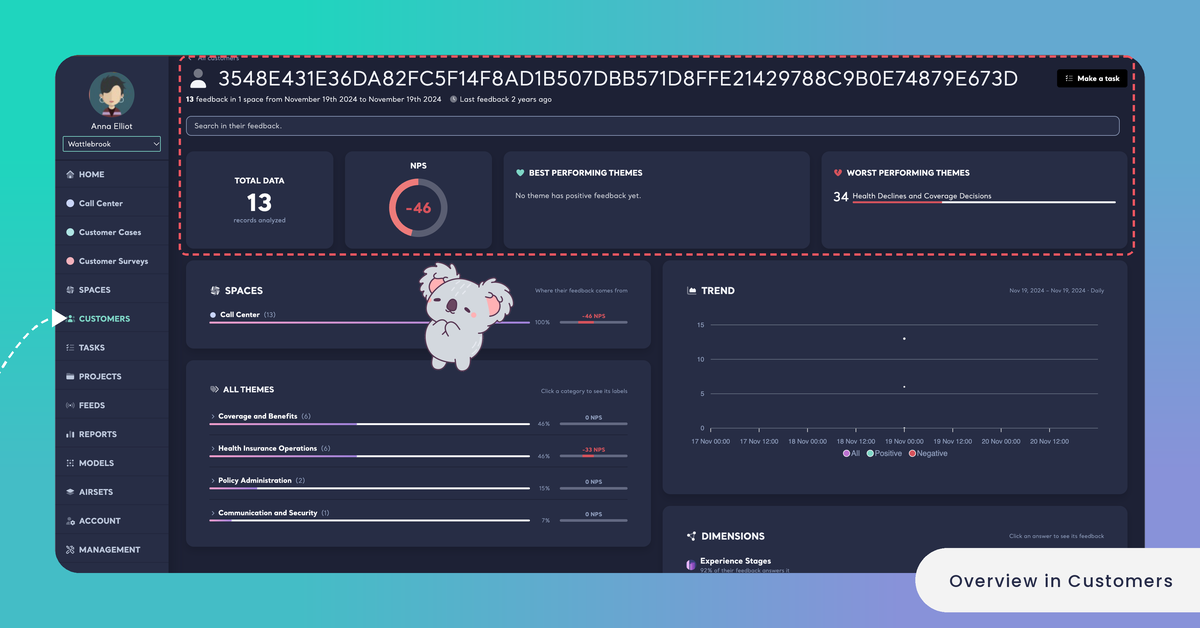
The page opens with the customer's key, the code, ID, number or email your files tell them apart by, and Make a task next to it. Below the key, a line tells how much feedback they gave, in how many Spaces and over which dates, for example "8 feedback in 2 spaces from March 3rd 2026 to June 18th 2026", with "Last feedback 4 days ago" next to it. Under that line sits the search box of the page, "Search in their feedback."
The rest of the page is read from top to bottom in this order.
- TOTAL DATA and NPS. How many of the customer's records are analyzed, as "records analyzed", and their NPS as a ring from −100 to 100. A customer's NPS is the share of their positive feedback minus the share of their negative feedback, calculated from what they wrote. It is not a score they gave in a survey. See How NPS Is Calculated in Spaces.
- BEST PERFORMING THEMES and WORST PERFORMING THEMES. The themes this customer is most satisfied and most dissatisfied with, ranked by Satisfaction Score and Dissatisfaction Score, not by NPS. When none of their feedback is positive, the first card says "No theme has positive feedback yet."
- SPACES. Where their feedback comes from.
- ALL THEMES. Every category of the content classifier they mention, with its labels.
- TREND. How their feedback moved over time.
- DIMENSIONS. The answers their feedback gives to your Dimensions.
- FEEDBACK. Everything they wrote, newest first.
The page reads the classified files of every Space your team has, as one. A file counts on a customer's page once its classification is completed, and a file that is taken back leaves the page with its records. A Space's own Overview reads one Space for all of its customers; a customer's Overview reads all of your Spaces for one customer. A customer's Overview has no Insights and no Signals. See Overview in Spaces.
Spaces
The SPACES card, "Where their feedback comes from", lists every Space that holds feedback from this customer. Each row shows the Space's name, how many of the customer's records it holds, its share of the customer's feedback and the customer's NPS in that Space.
For a telecom operator, a customer with 6 records in a Call Center Space and 2 in a Survey Space shows 75% and 25%, each with its own NPS, so you can tell in which channel their experience is worse.
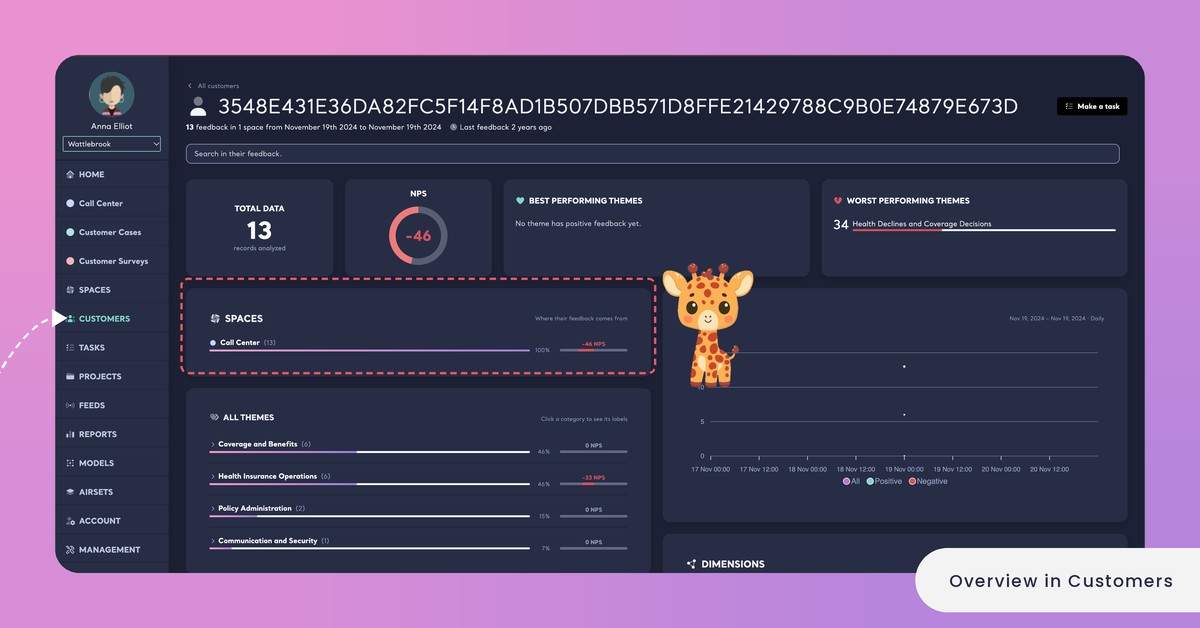
The card always shows the customer's whole history. It doesn't change when you search or filter the page, so you keep seeing where all of their feedback comes from while you read a part of it. When the files that brought this customer's feedback into a Space have been taken back, the card says "Their files were taken back." See Take Back a File from a Space.
A customer appears in a Space only when the Space has a Customer Column and the customer's key is in it. If you expect a Space here and don't see it, check that the Space uses the same key for this customer. See Add a Customer Column to a Space.
Themes and Dimensions
The customer's feedback is classified with the same Funnel as the rest of its Space, so their themes and their answers mean the same as everywhere else in your account. Three parts of the page show them.
The BEST PERFORMING THEMES and WORST PERFORMING THEMES cards list the themes this customer is most satisfied and most dissatisfied with, each with its score and a bar. A Satisfaction Score is a theme's share of positive feedback and a Dissatisfaction Score its share of negative feedback, adjusted so that small and large themes compare fairly.
For a customer with a few records, read these cards together with the number of records in TOTAL DATA.
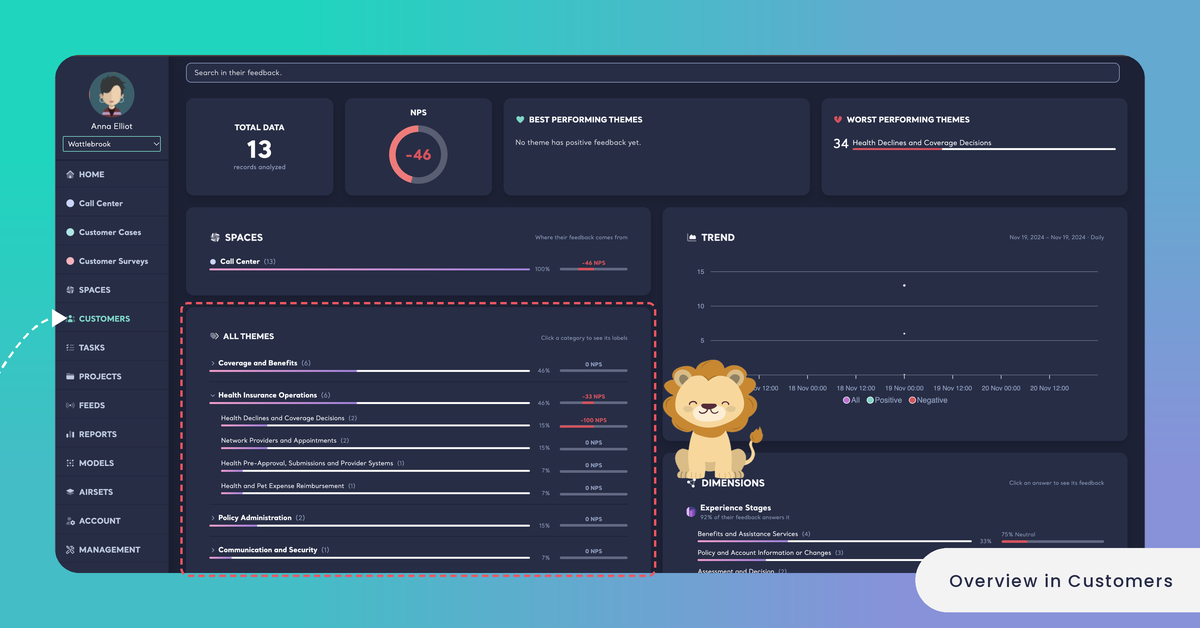
ALL THEMES lists the categories of the content classifier that the customer's feedback falls into: "Click a category to see its labels." Every category and every label shows how many of the customer's records it holds, its share of their feedback and its NPS. Opening the categories shows which problems keep coming back in what this customer says.
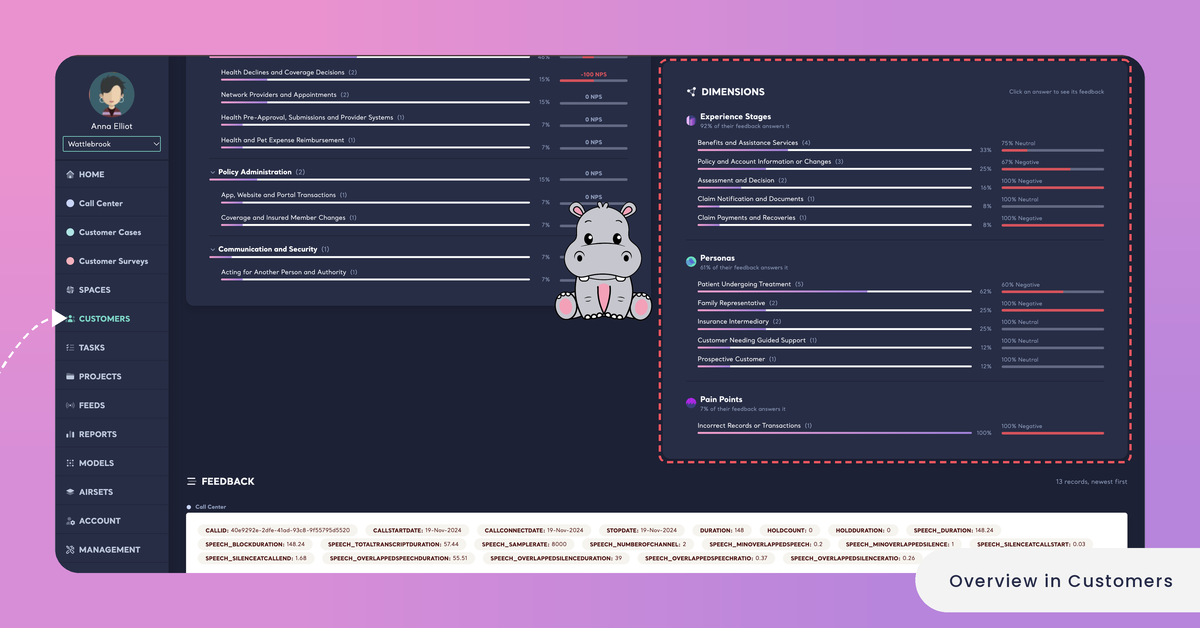
DIMENSIONS has one block for every Dimension that the customer's feedback answers, such as Pain Points or Experience Stages, with how much of their feedback answers it, for example "37% of their feedback answers it". Under it, every answer shows its number of records, its share of the Dimension's answers and its sentiment, for example "50% Negative". "Click an answer to see its feedback": clicking an answer filters the whole page to the records that give it, so you read the exact words behind it in FEEDBACK. See What is a Dimension?
Trend
The TREND card shows how much feedback the customer gave over time, from their first feedback to their latest, for example "Mar 3, 2026 – Jun 18, 2026 · Weekly". Kimola picks the length of each period from the dates the page reads and shows it next to the dates. The chart has three lines, All, Positive and Negative, so you can tell whether a customer who writes more often is also writing more negatively.
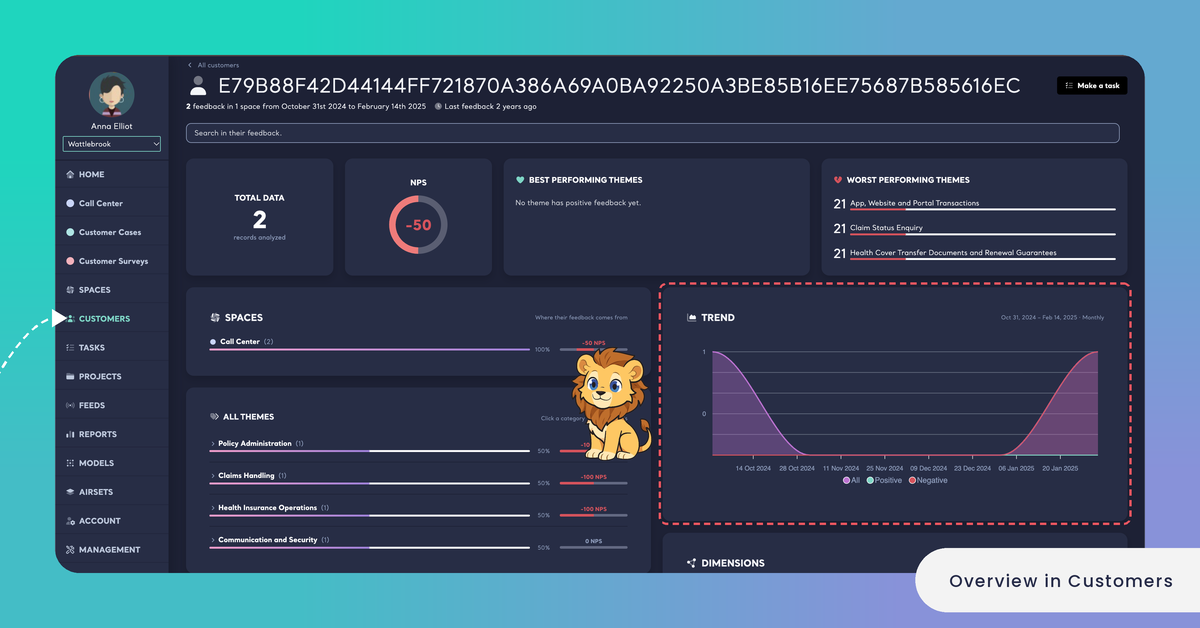
The chart follows the page's search and filters: filter the page to a theme or an answer to see when the customer talked about it.
Feedback
FEEDBACK lists every record of the customer, newest first, with their number above the list, for example "8 records, newest first". Every record shows the Space it comes from, its columns, the text the customer wrote, its sentiment, the labels it got from your models and its date. A long text, such as a call transcript, opens in full with Show more.
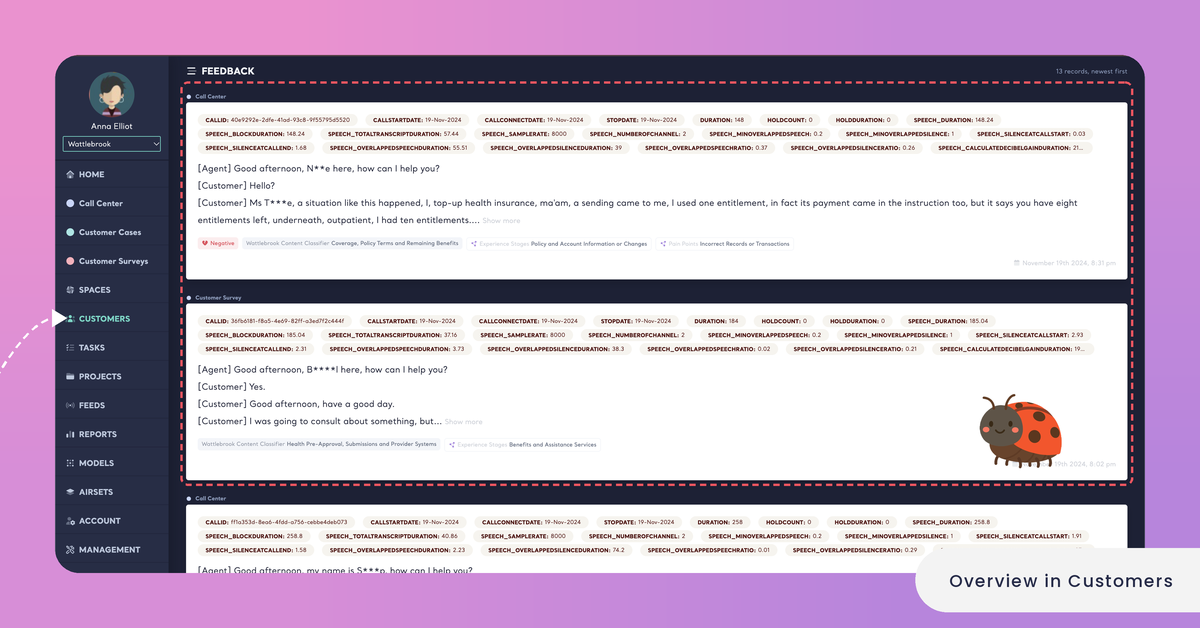
To find a word in what the customer wrote, type it into "Search in their feedback." at the top of the page. The search narrows the whole page, not only the list: TOTAL DATA, the NPS, the themes, the Dimensions, the trend and the list then read only the records that contain the word. Clear the box to read all of their feedback again.
Filter the Page
Clicking a label narrows the page to the records that carry it. You can click a label on any record in FEEDBACK, including its sentiment, or an answer in DIMENSIONS. The label then appears at the top of the page, and every card except SPACES reads only the matching records. The list says how many match, for example "5 records matching the filters, newest first".
[Screenshot: A customer's Overview filtered by a label, with the filter at the top and Clear filters next to it]
Remove this filter on a label at the top removes that one filter, and Clear filters brings the whole page back.
Only labels filter a customer's page. The columns of a record don't, because the same column can mean something different in another Space.
Make a Task of This Customer
Make a task at the top of the page turns what you see about this customer into a Task for a teammate. It opens Make it a task, which says what the task is about: "Customer, across all your spaces. The task keeps the numbers of its feedback today, to tell later whether it made a difference."
Kimola drafts the title and the description from the customer's feedback, in the language of your Funnel. The description says why the task matters, what to do and when it is done. You can change the text, or click Write again for a new draft. Then choose the assignee, an optional due date (Today, In 3 days, Next week or In 2 weeks), the priority (Low, Medium, High or Urgent) and the teammates to keep informed, and click Create the task. See Create a Task.
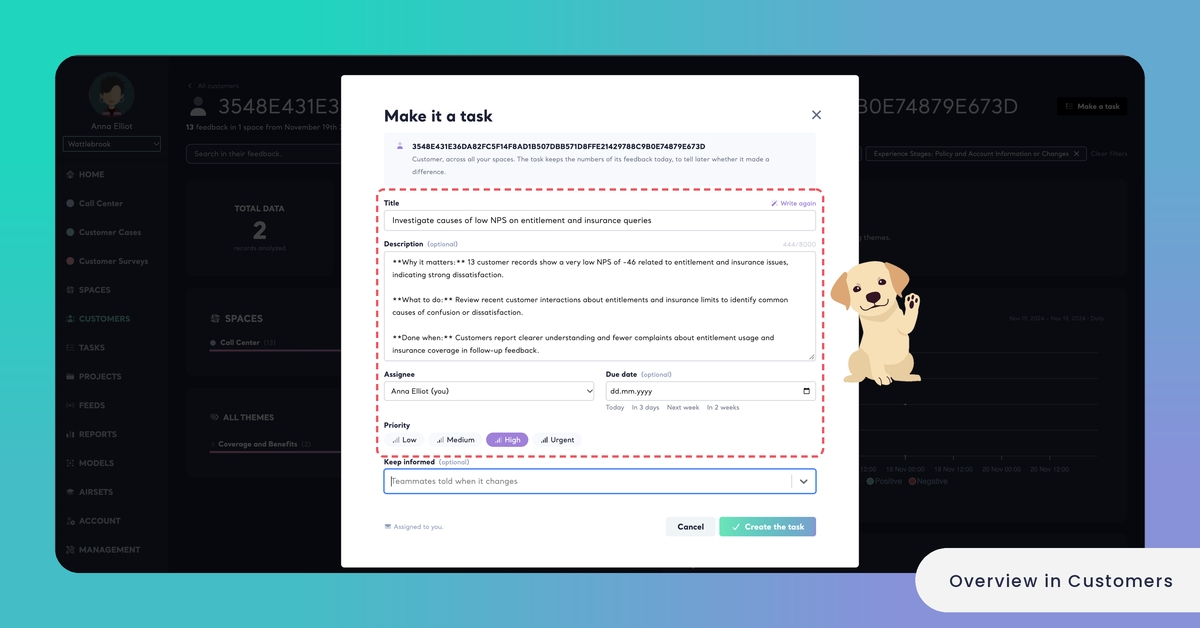
A customer's task belongs to no single Space. Its evidence, and the measurement after it is done, read the customer's feedback in all of your Spaces. On the task's page, its source is named Customer. Once the task is done, Kimola reads the customer's feedback again two and four weeks later and tells whether they noticed.