Create a Task
min read - Updated on Oct 28, 2026You can create a Task in Kimola to turn a finding from your customer feedback into work for one teammate. You make it where the finding is shown, on a Signal, a piece of feedback, a filtered view, a theme, a table or an action of a Space, on a Customer's page or on a Department's page, or you write it in your own words. Kimola drafts the title and the description from the finding, you choose who does it, when and how urgently, and the Task keeps the feedback and the numbers behind it as its evidence. To learn what a Task is first, see What is a Task?
Tasks are available in the Enterprise package. They are also available in Kimola On-Premises.
You start from the page where the finding is shown, or from Tasks › New task for a Task in your own words.
Where You Can Make a Task
A Task starts where its finding is, so it carries the finding and its feedback from the first moment. Every source below opens the same window, with the finding already attached:
- A Signal: on a Space's Signals page, click Make a task on a Signal card.
- A piece of feedback: on a Space's Content page, click Make a task on a single record.
- A filtered view: on Content, filter the records, then click Make a task of the feedback these filters show.
- A theme: in the All Themes part of a Space's Overview, click Make a task on a theme.
- A table: on Tables, build a table, then click Make a task of the records this table reads.
- An action: on Actions, click Make a task on an action card of the Space's Action Plan.
- A Customer: on a Customer's page, click Make a task of this customer.
- A Department: on a Department's page, click Make a task of this department. The Task keeps the label filters of the page.
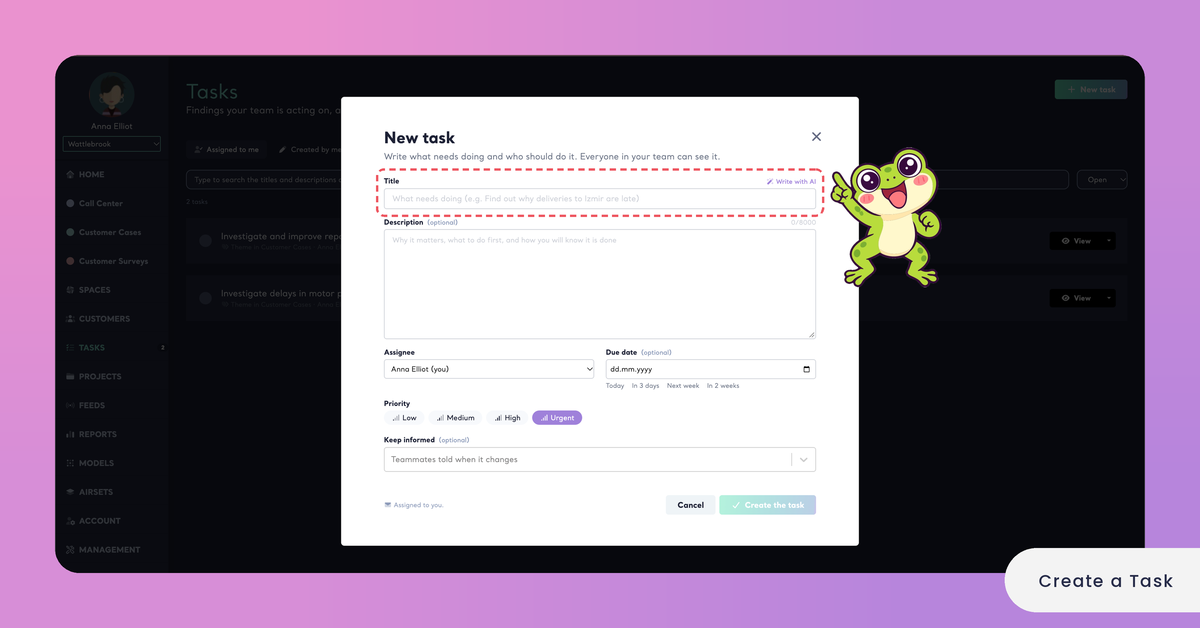
- Your own words: on the Tasks page, click New task. See "Your Own Tasks" below.
On the Task, its source is named Signal, Feedback, View, Theme, Action, Customer, Department or Own task. Reports don't make Tasks, and neither do their Signals or their Action Plans.
A Customer's or a Department's Task belongs to no Space. Its evidence, and the measurement after it is done, read all of your Spaces.
An action's Task is measured only when the action's evidence names a Signal: the Task then reads that Signal's feedback again after it is done. An action whose evidence names no Signal makes a Task with nothing to measure.
Step 1: Check Open Tasks of the Same Finding
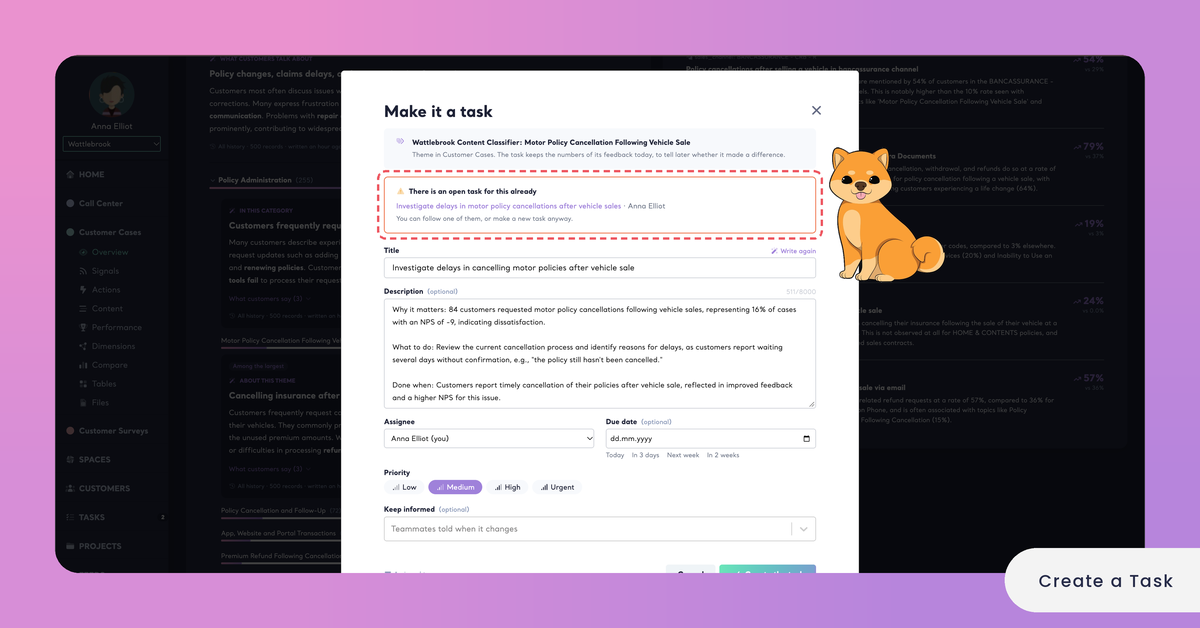
When you click Make a task, Kimola checks whether a teammate already has an open Task of the same finding. If one exists, the window shows it first, with "You can follow one of them, or make a new task anyway." Open the existing Task to follow it, or go on with a new one.
Checking first keeps two teammates from working on the same problem without knowing it, and it keeps the finding's history in one place.
Findings that already have Tasks show a badge where they appear. Look for it on a Signal, a theme or an action before you click Make a task.
Step 2: Review the Draft
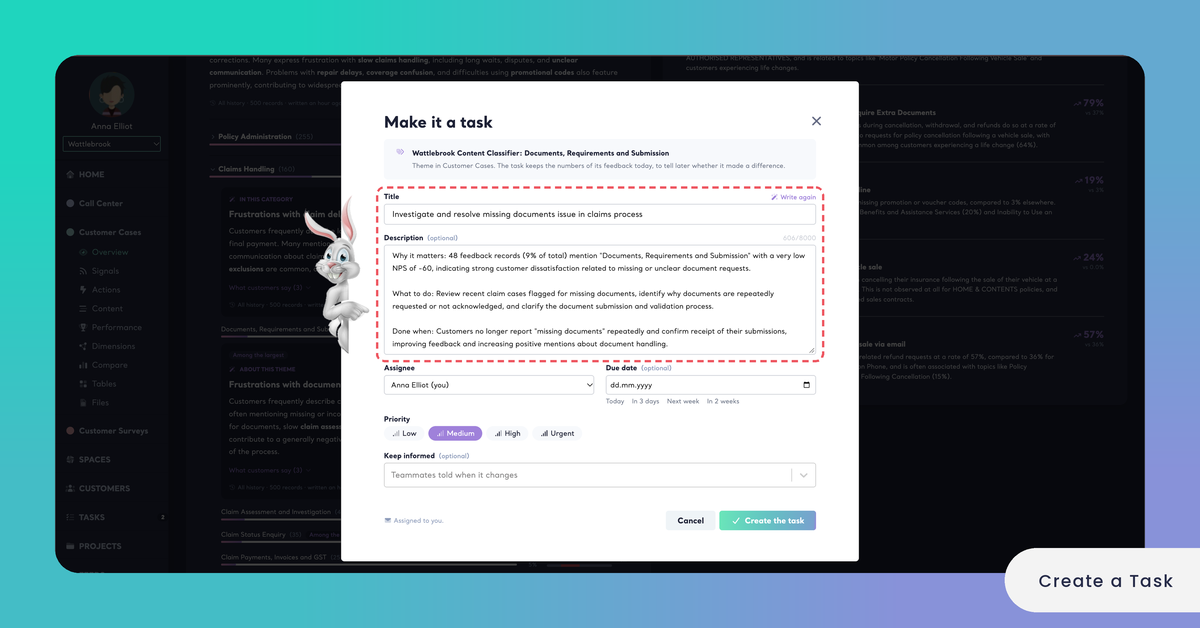
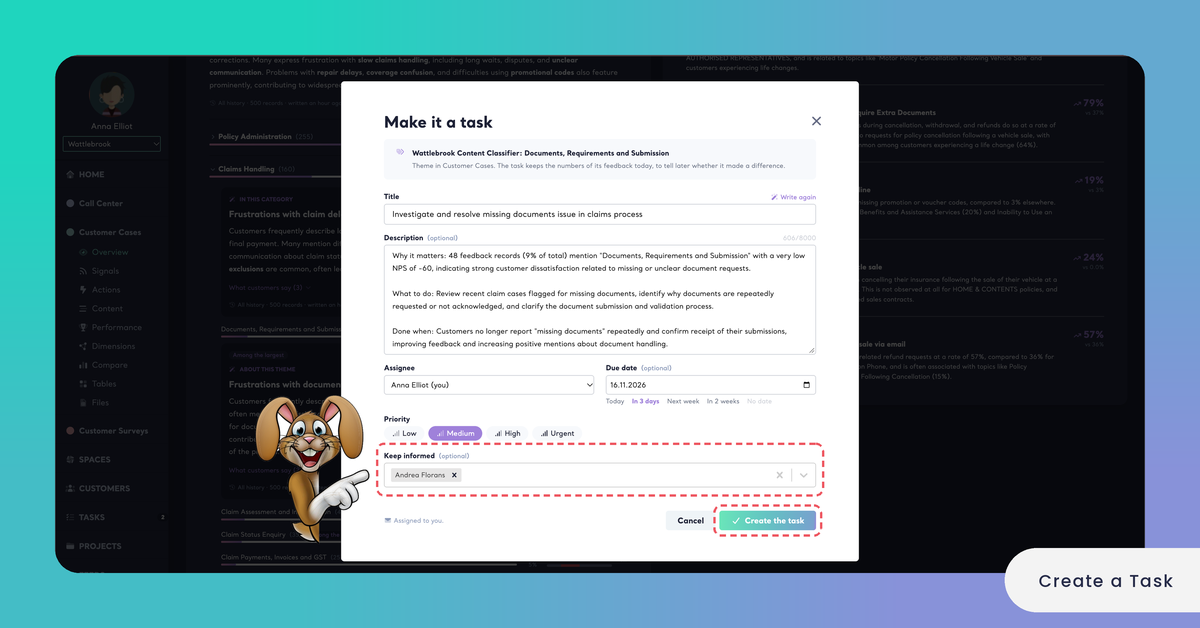
As the window opens, Kimola writes a draft from the finding, its numbers and a few quotes, in the language of the Space's Funnel. While it writes, the window shows Writing.... The draft has two parts:
- Title: what needs doing, in one line.
- Description: why it matters, what to do first, and how you will know it is done.
Read the draft and change anything you want. If the draft can't be written, the window says "The draft could not be written, please try again."
For an online furniture store, a Space of product reviews shows the theme packaging damage among its most dissatisfied themes. A Task made of the theme might be titled "Find out why sofas arrive with torn packaging", with a description that says how much of the feedback mentions it, what to check first with the carrier, and that the Task is done when fewer reviews mention damaged packaging.
Step 3: Assign and Schedule
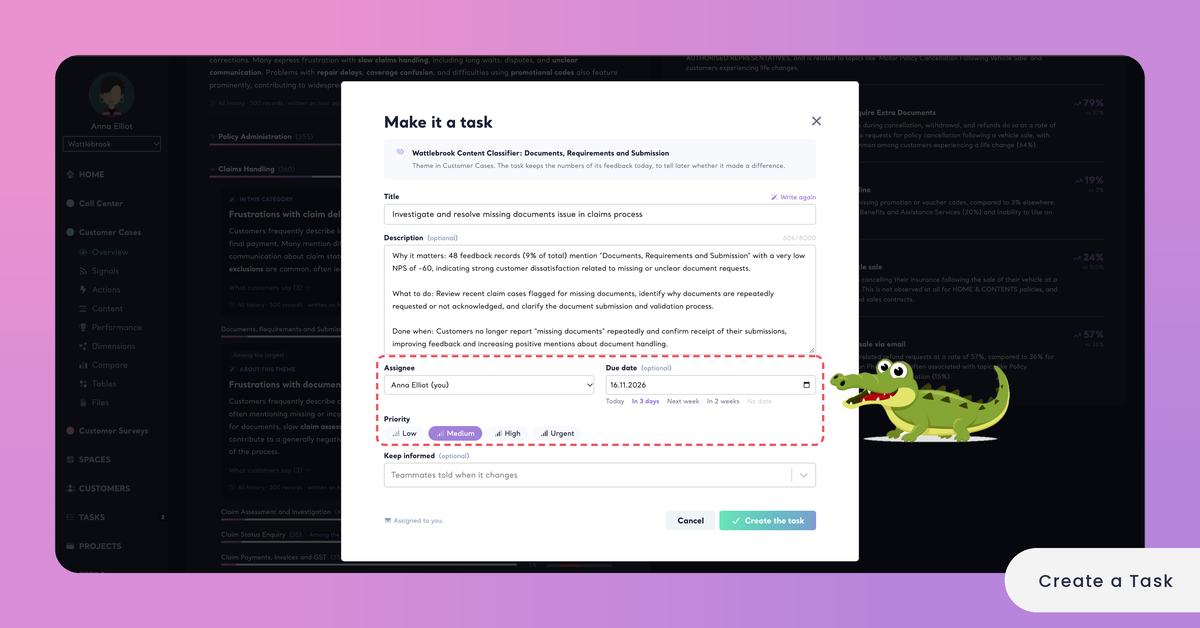
Below the draft, three fields say who does the work, by when and how urgently it is needed:
- Assignee: the teammate who does the work. It starts with you ("Assigned to you."); pick a teammate from the list to assign it to them. The assignee must be a member of your team.
- Due date (optional): pick a date, or click Today, In 3 days, Next week or In 2 weeks. Leave it empty for a Task with no date.
- Priority: Low, Medium, High or Urgent. Medium is selected when the window opens.
When you create the Task, Kimola emails the assignee, unless you assign it to yourself. See Task Emails and Weekly Digest.
Step 4: Keep Teammates Informed
Some teammates need to know about the work without doing it, such as the manager of the team that owns the finding. Add them under Keep informed (optional): they are told when the Task changes. Every teammate you add must be a member of your team.
If Jira is connected for your team with a default project, the window also offers Also send to Jira. Choose it to send the Task to Jira as a new issue as soon as it is created. See Send a Task to Jira.
Click Create the task. The Task appears on the Tasks page, the finding shows a badge where it appears, and Kimola keeps the finding's evidence as it is that day: its share of the feedback, its sentiment and a few quotes. To change the Task's status or find it again later, see Manage Tasks.
The evidence doesn't change after the Task is created. Whoever works on the Task sees the finding exactly as it was that day, and Kimola compares the same feedback with it once the Task is done.
Your Own Tasks
Not every piece of work starts in the data. On the Tasks page, click New task to write down something that is on your mind and assign it to a teammate. The window says "Write what needs doing and who should do it. Everyone in your team can see it."
Write a Title, and a Description if you want one (up to 8,000 characters). To have Kimola write them for you, write a few words and click Write with AI: it turns them into a title and a description with the same three parts as a draft from a finding. If there is nothing to draft from, Kimola asks you to write a few words first. Then set the Assignee, Due date, Priority and Keep informed fields as in Steps 3 and 4, and click Create the task.
The source of such a Task is Own task. It has no feedback behind it, so Kimola has nothing to measure once it is done.