Manage Tasks
min read - Updated on Oct 28, 2026You manage your team's Tasks on the Tasks page, under TASKS in the main menu: you switch between the Tasks assigned to you, the Tasks you created and everyone's Tasks, search their titles and descriptions, move a Task from Open to In progress and to Done or Won't do, and delete a Task you no longer need. Each Task also has a page of its own, where you follow its evidence, its comments and its history.
The TASKS item in the main menu shows how many open Tasks you have, in red when one of them is overdue, so you can see from any page whether something of yours is late.
Tasks are available in the Enterprise package. They are also available in Kimola On-Premises.
Views
The Tasks page, "Findings your team is acting on, and who is on what.", gives you several views of the same Tasks, so you can look at your own work, at the work you handed out or at the whole team's.
- Assigned to me lists the Tasks you are the assignee of: the work that is yours to do.
- Created by me lists the Tasks you made, whoever they are assigned to, so you can see how the findings you handed out are moving.
- A third view lists everyone's Tasks: every Task of your team, whoever made it and whoever it is assigned to. Everyone in your team can see every Task, so this view shows who is on what across the team.
- Team overview shows the team's Tasks as a whole: whether customers noticed the Tasks that were done, who is on what, what the Tasks were made of and in which Spaces. See Use the Team Overview.
In each list you choose between open and closed Tasks. Open Tasks are the ones still Open or In progress; closed Tasks are the ones that are Done or that someone marked Won't do. Each Task in the list has View, which opens its page, and the buttons that move it to its next status or delete it.
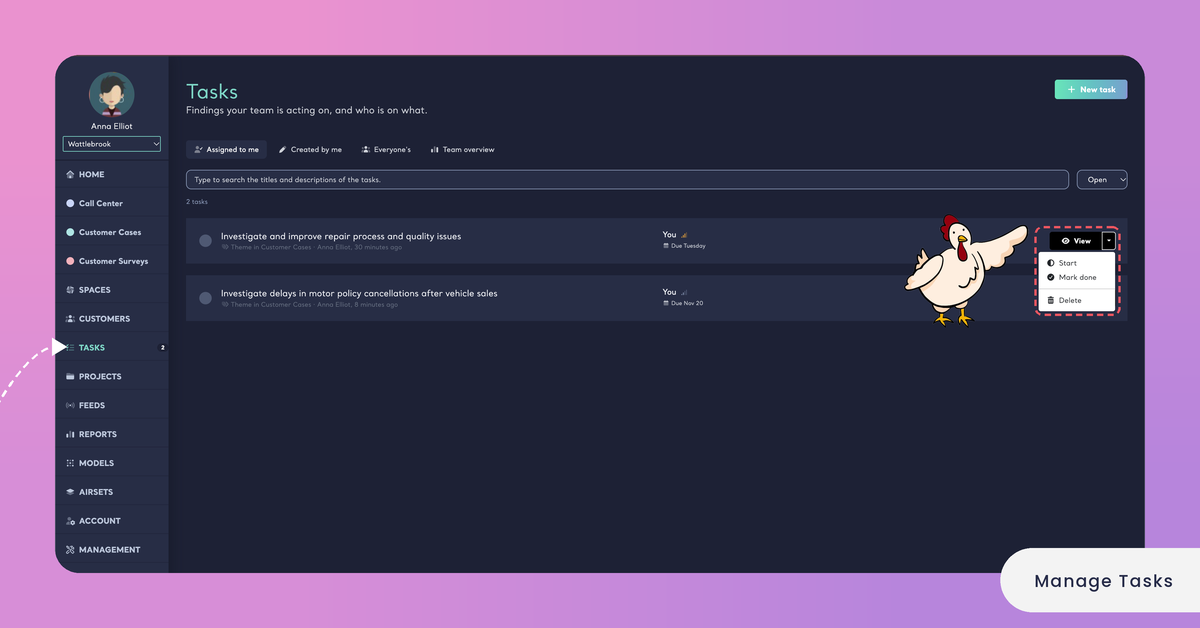
The support lead of a software company makes Tasks from the Signals of a Space of support tickets: billing confusion goes to the billing team's product manager, slow invoice exports to an engineer. On Monday she opens Created by me to see which of the Tasks she handed out are still Open, then switches to Assigned to me for the one Task that is hers.
If the list can't be loaded, the page says "The tasks could not be loaded, please try again."; reload the page to try again.
When There Are No Tasks Yet
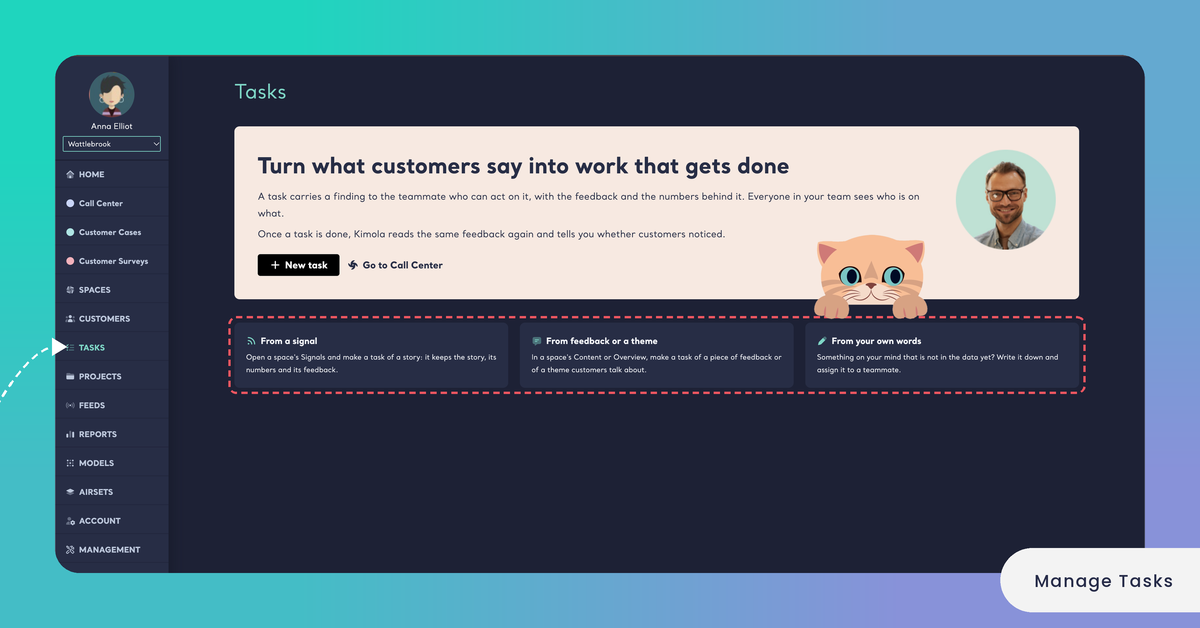
Before your team makes its first Task, the Tasks page says "Turn what customers say into work that gets done" and shows where Tasks come from. From a signal and From feedback or a theme point you to a Space, where you make a Task of a finding with Make a task. From your own words is for something that is not in the data yet: New task lets you write it down and assign it to a teammate. See Create a Task.
Search
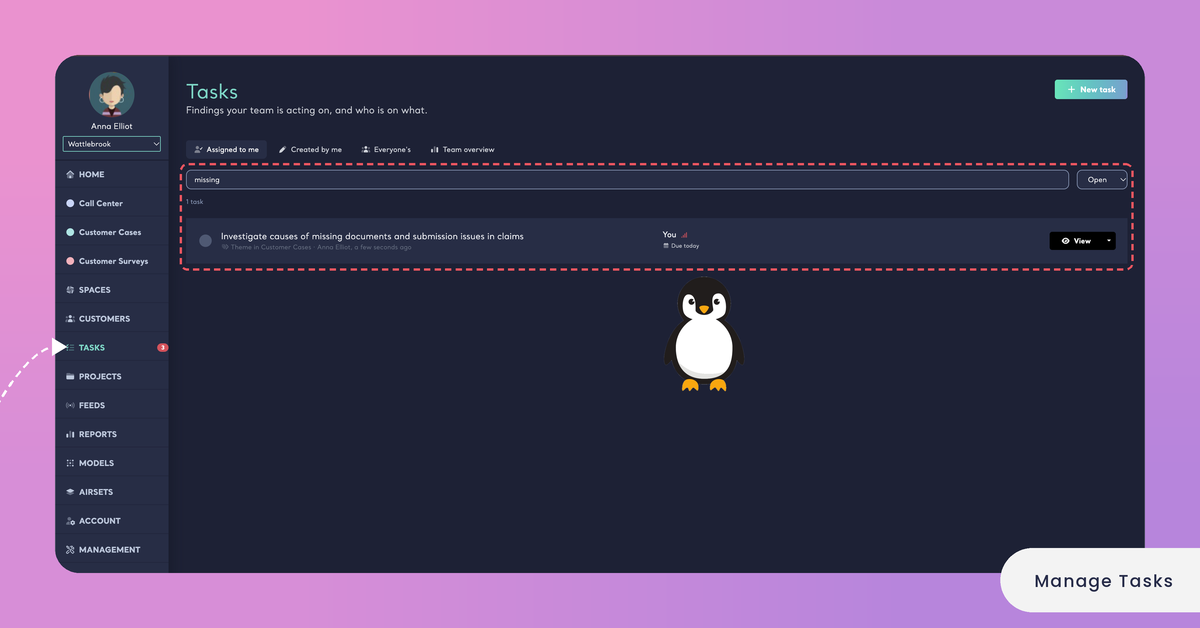
Search finds a Task by the words in its title and description. Type in the search field of the Tasks page, which says "Type to search the titles and descriptions of the tasks.", and the list shows the Tasks that contain your words.
Kimola drafts the title and description of a Task from its finding, so they usually name the theme, the Signal or the customers' problem the Task was made of. Searching for the name of a theme is a quick way to see whether it already has a Task, open or closed.
Search for a theme's name to see whether it already has a Task before you make a new one.
Change Status
Every Task has one of four statuses: Open, In progress, Done and Won't do. A new Task starts as Open. You move it forward from the list or from its page, and every change is kept in the Task's history.
- Start moves an open Task to In progress, so your team sees that someone is working on it.
- Mark done moves a Task to Done when the work is finished.
- Won't do closes a Task the team decided not to act on. You choose it from the status of the Task on its page.
- Reopen takes a closed Task back to Open.
When you mark a Task Done or Won't do, Kimola asks for a closing note. The note is optional: use it to say what was done, or why the Task won't be done, so that whoever opens the Task later knows how it ended.
[Screenshot: A Task's page with its status and the optional closing note asked for when the Task is marked done]
An online course platform has a Task to add subtitles to its older video lessons, made from the Unmet Needs answer subtitles. The team decides to rebuild those courses instead, so the course manager marks the Task Won't do with the closing note "The older courses are being recorded again, with subtitles."
Marking a Task Done is what starts the measurement of a Task made from feedback. Two and four weeks after the Task is done, Kimola reads the same feedback again and shows under DID CUSTOMERS NOTICE? whether customers noticed. A Task marked Won't do is not measured. If you reopen a done Task and mark it done again later, the measurement starts from the new date. See How Kimola Measures Task Impact.
When a Task is marked done, Kimola emails the people involved in it, except the person who made the change. See Task Emails and Weekly Digest.
Tasks Kept in Jira
A Task sent to Jira, or linked to a Jira issue, follows that issue. Its status, assignee and due date come from Jira, so you change its status in Jira, and Kimola updates the Task: an issue that is done in Jira makes the Task Done, and one resolved as won't do makes it Won't do. See Send a Task to Jira.
Once a Task is in Jira, its status follows the issue and can't be changed in Kimola.
Delete a Task
Click Delete on the Task in the list, or Delete the task on its page. Deleting a Task removes it for your whole team, together with its comments, its history and its results under DID CUSTOMERS NOTICE?.
Deleting a Task also deletes its comments and its history.
Delete a Task that was made by mistake or twice. When the work simply won't happen, mark the Task Won't do instead: it leaves the list of open Tasks, and its evidence, its closing note and its history stay for anyone who looks for it later.
Mark a Task Won't do instead of deleting it when you want to keep its evidence and history.
If a teammate later opens a link to a deleted Task, for example from an email, the page says "This task does not exist, or it was deleted." with See all tasks. If the Task can't be deleted, Kimola says "The task could not be deleted, please try again."; try again in a moment.
[Screenshot: A Task's page with Delete the task]