Use the Team Overview
min read - Updated on Oct 28, 2026The Team overview shows your team's Tasks as a whole for a period you choose: how many Tasks were made and done, whether customers noticed the Tasks that were done, who is on what, which findings the Tasks were made of and in which Spaces. Use it to see whether the work your team does on customer feedback reaches customers, and where the work piles up. To open it, click TASKS in the main menu, then Team overview at the top of the Tasks page.
The other views of the Tasks page list Tasks one by one: the ones assigned to you, the ones you created and everyone's (see Manage Tasks). The Team overview adds them up, so a team lead can read the state of the whole team on one page without opening every Task. The Team overview appears once your team has made its first Task; before that, the Tasks page shows where Tasks come from.
Tasks are available in the Enterprise package. They are also available in Kimola On-Premises.
The Team overview appears once your team has made its first Task. Until then, the Tasks page shows where Tasks come from: see Create a Task.
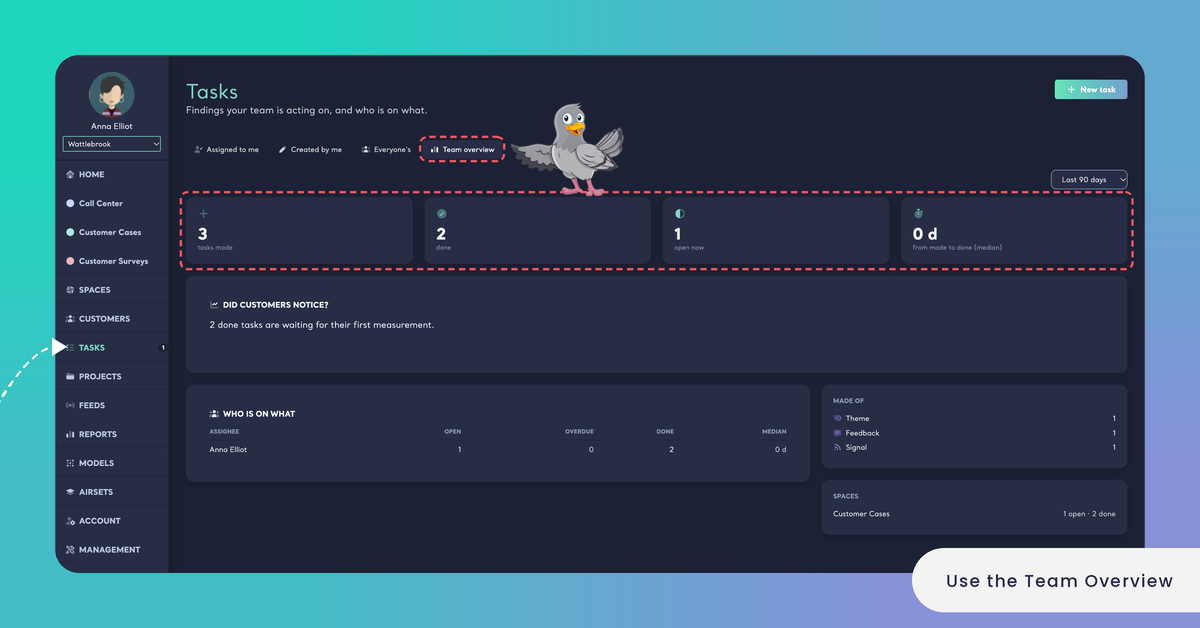
The Team's Numbers
Four numbers at the top of the Team overview sum up the period you chose. Each one is counted for your whole team, whoever made or was assigned the Tasks.
- tasks made: how many Tasks your team made in the period.
- done: how many Tasks were done in the period.
- open now: how many Tasks are open today, Open or In progress. When some of them are past their due date, the number turns red and says how many, for example "open now, 3 overdue".
- from made to done (median): the typical number of days between the day a Task was made and the day it was done, shown in days, for example "6.5 d". It is the median, so one Task that stayed open for months doesn't change it much. When no Task was done in the period, it shows "–".
When open now is red, the OVERDUE column of WHO IS ON WHAT shows whose Tasks are late.
Did Customers Notice?
DID CUSTOMERS NOTICE? tells whether the Tasks your team finished made a difference to what customers say. Two and four weeks after a Task is done, Kimola reads the same feedback again and compares it with the feedback from before the Task (see How Kimola Measures Task Impact). This section adds up those results for the Tasks done in the period.
The sentence at the top gives the main answer, for example "Of 8 done tasks measured, customers noticed 5." A Task counts as measured once its result is Customers noticed, No change or Got worse. When the Tasks done in the period haven't had their first check yet, the section says how many are waiting, for example "3 done tasks are waiting for their first measurement."
Under the sentence, a bar splits the done Tasks by their latest result, and a legend gives the number of each. Only the results that have at least one Task are shown:
- Customers noticed: the finding's share of the feedback dropped clearly, or its NPS rose clearly, after the Task was done.
- No change: customers talk about the finding about as much, and in the same way, as before.
- Got worse: the finding's share of the feedback rose clearly, or its NPS fell clearly.
- Too little feedback: there were too few records in the weeks compared to give a result yet.
- Being measured: the Task is done, and its first check hasn't come yet.
- Nothing to measure: the Task has no feedback behind it, as a Task written in your own words.
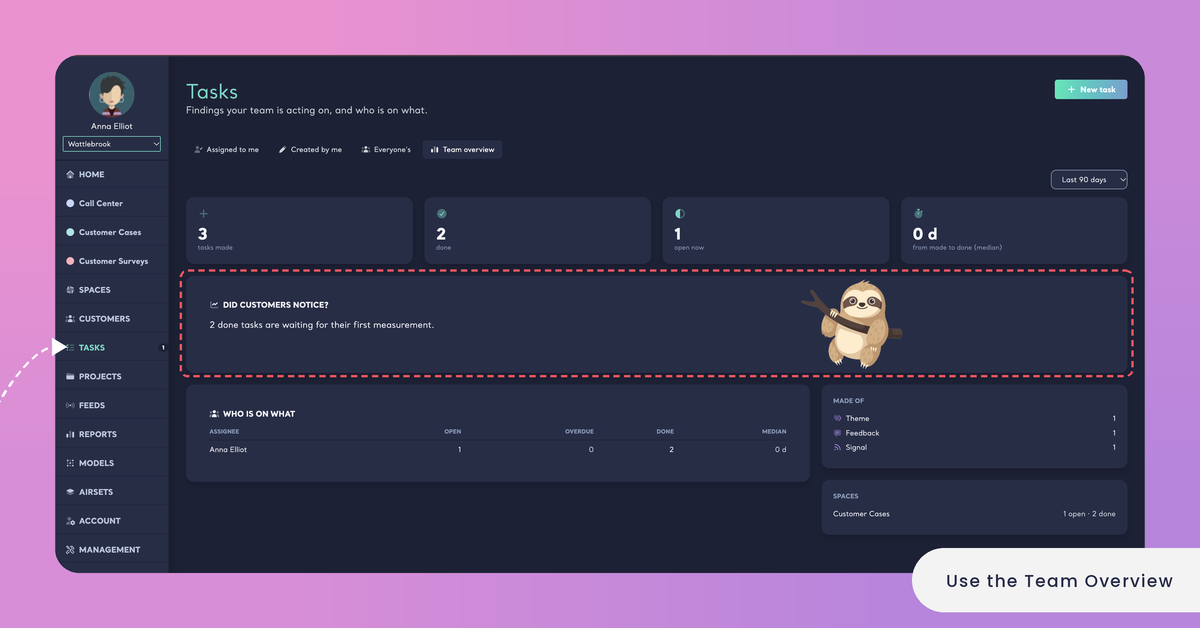
A hotel group's guest experience team finished 8 Tasks last quarter, made from the Signals and themes of its guest review Space. The Team overview says "Of 6 done tasks measured, customers noticed 4.", with No change for 2 and Being measured for 2. The two Tasks with no change, about check-in waiting time, are the ones the team looks at again.
If no Task was done in the period, the section says "No task was done in this period yet. Kimola measures a done task two and four weeks after it is done." A Task needs at least two weeks after it is done before it can show a result, so a short period may hold mostly Tasks that are Being measured: choose a longer period to see more results.
Results appear two weeks after a Task is done at the earliest. In Last 30 days, many done Tasks may still be Being measured.
To see which Tasks got which result, open them from the Tasks page: each Task's page shows its own result under DID CUSTOMERS NOTICE? (see Follow a Task).
Who Is on What
WHO IS ON WHAT lists every teammate who has a Task in the period, one row per assignee. Use it to see who is carrying the most work, whose Tasks are late and how fast Tasks get done across the team.
- ASSIGNEE: the teammate the Tasks are assigned to.
- OPEN: how many of their Tasks are Open or In progress.
- OVERDUE: how many of their open Tasks are past their due date. The number is red when it is above zero.
- DONE: how many of their Tasks are done.
- MEDIAN: the typical number of days from made to done for their Tasks, for example "4 d", or "–" when none of their Tasks is done yet.
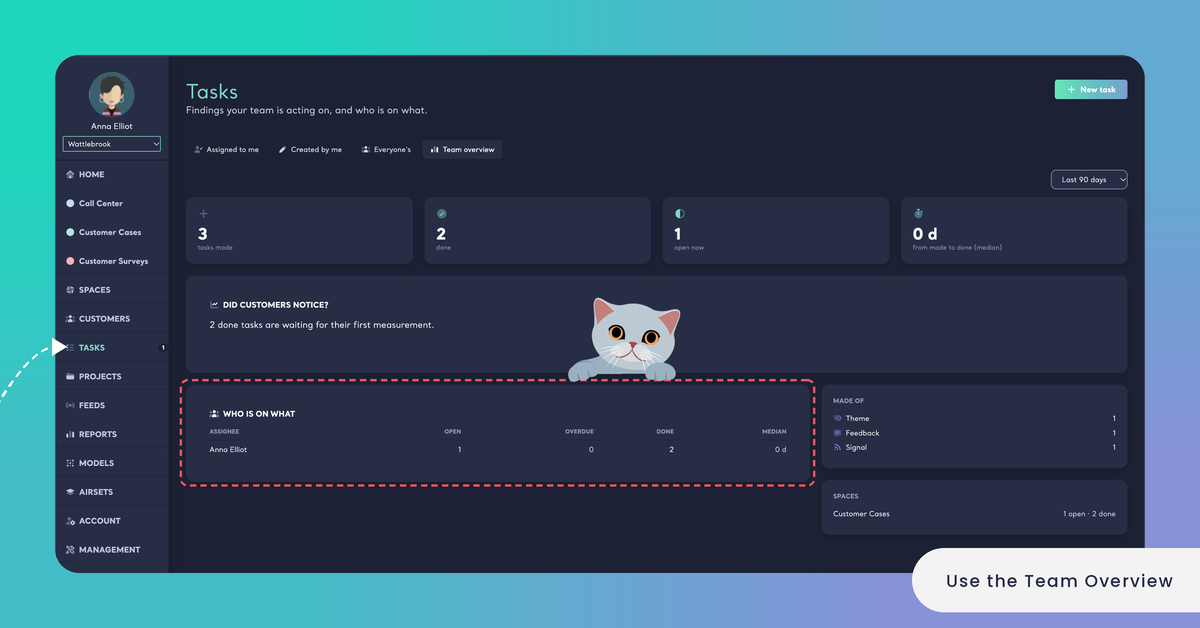
At an online store, the customer experience lead sees in WHO IS ON WHAT that the logistics manager has 9 open Tasks, 4 of them overdue, while the others have two or three each. Most of them come from the theme packaging damage, so she moves two Tasks to a teammate and agrees new due dates for the rest.
If no one has a Task in the period, the section says "No one has a task in this period." Each teammate's own list is under Assigned to me when they open the Tasks page; to reassign a Task, change its assignee on the Task's page (see Follow a Task).
What Tasks Are Made Of
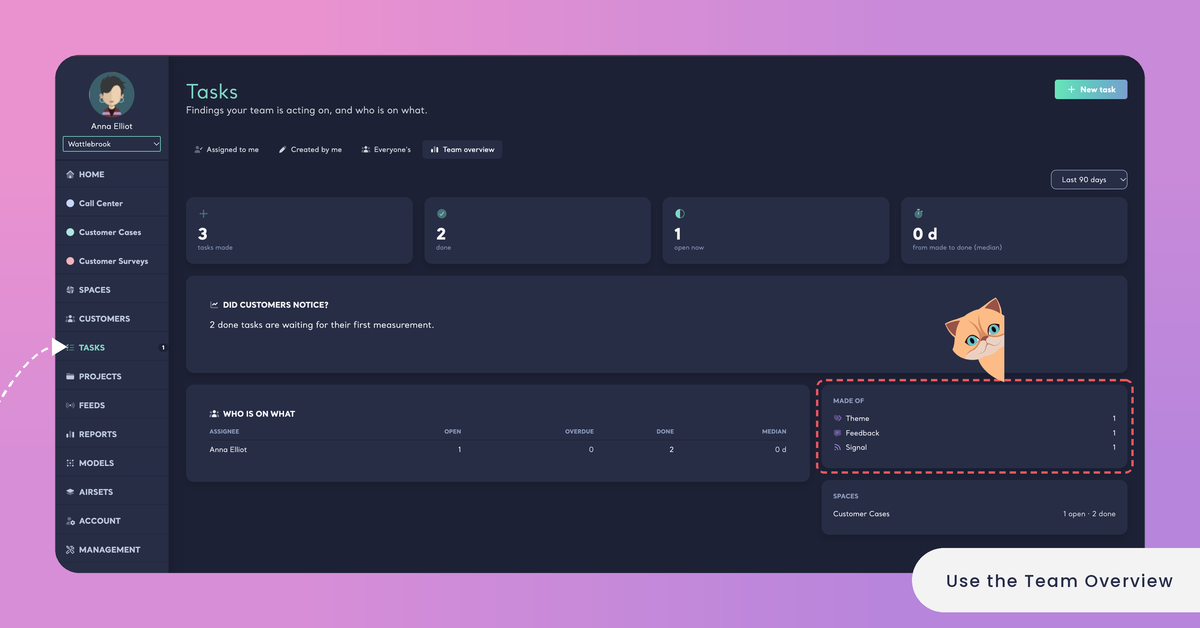
MADE OF shows where the Tasks made in the period came from, with the number of Tasks of each source. The sources are named as they are on every Task:
- Signal: a Signal of a Space.
- Feedback: a single piece of feedback.
- Theme: a theme customers talk about, from a Space's Overview.
- View: a filtered view of a Space's feedback, or a table.
- Action: an action of a Space's Action Plan.
- Customer: a Customer's page.
- Department: a Department's page.
- Own task: a Task written in your own words with New task.
Only the sources your team used in the period are listed. If no Task was made in the period, the section says "No task made in this period." To read more about each source, see Create a Task.
This section tells how your team turns feedback into work. Tasks made from Signals, themes and feedback carry their evidence and can be measured; a period with mostly Own task Tasks may mean the team writes down work that isn't tied to what customers said, and those Tasks show Nothing to measure under DID CUSTOMERS NOTICE?.
Own tasks have no feedback behind them, so Kimola can't measure whether customers noticed them.
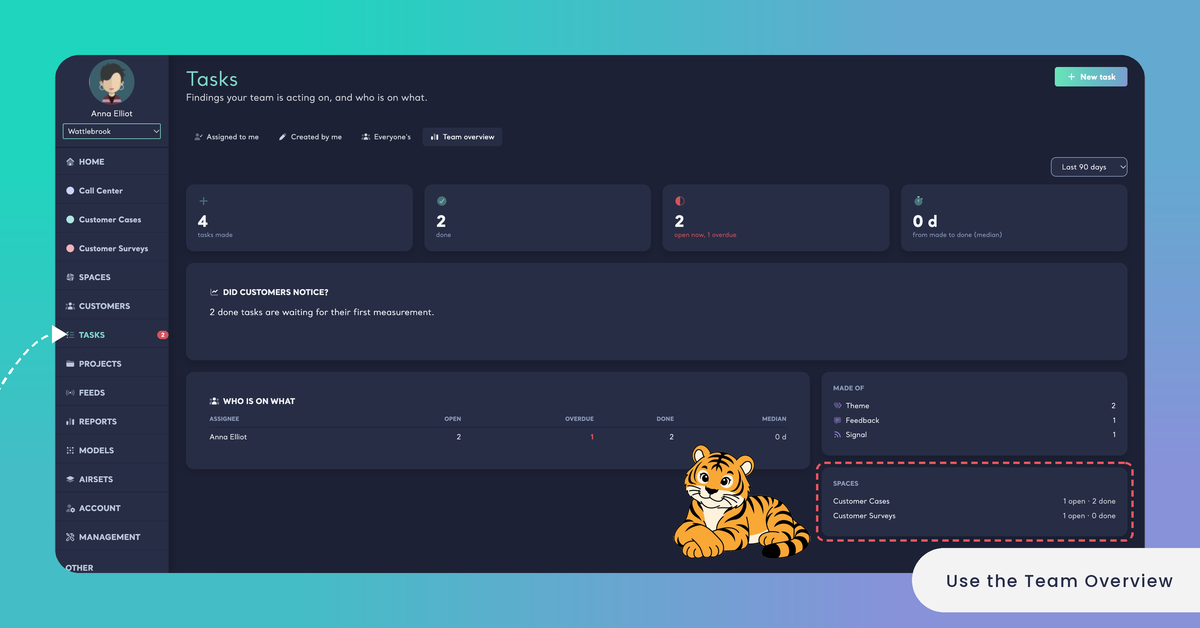
Spaces
SPACES lists the Spaces your team's Tasks of the period were made in. Each row shows the Space's name and its Tasks as "5 open · 12 done". Hover over the numbers to see how many Tasks were made in the Space too, for example "17 made, 5 open, 12 done". Click a Space's name to open its Overview.
Use it to see which channels of feedback your team acts on most, and which ones have open work waiting. A Space with many open Tasks and few done ones is a good place to start a team meeting.
The section appears only when Tasks of the period belong to a Space. A Customer's or a Department's Task belongs to no Space, because it reads all of your Spaces, so these Tasks are not listed under any Space.
Choose a Period
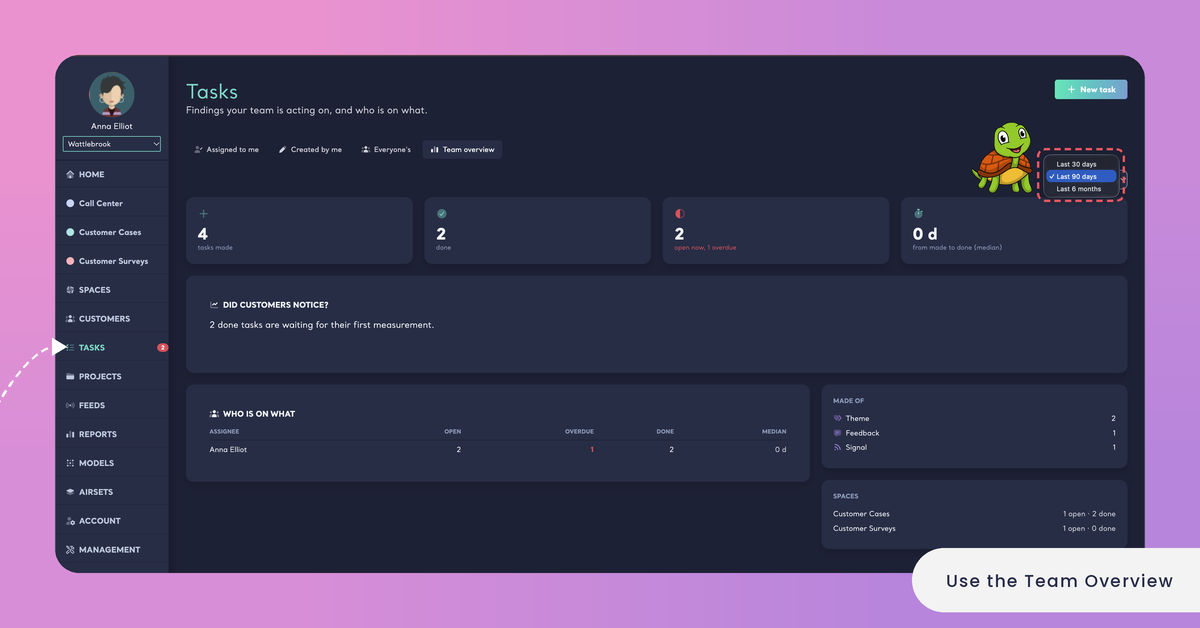
Every section of the Team overview reads the same period. Choose it from the menu at the top right of the page:
- Last 30 days: the latest month of work.
- Last 90 days: the latest quarter. The Team overview opens with this period.
- Last 6 months: a longer view, with more Tasks that have had time to be measured.
When you change the period, the whole page is counted again for it. A short period shows what your team is busy with now; a longer one gives more Tasks enough time after they are done to show whether customers noticed.
Choose Last 90 days or Last 6 months to read DID CUSTOMERS NOTICE?, and Last 30 days to check current workload.
If the page can't be loaded, Kimola says "The overview could not be loaded, please try again."; reload the page to try again.