Follow a Task
min read - Updated on Oct 28, 2026You follow a Task in Kimola on its own page, where everything about one piece of work is kept together: the evidence of the finding it was made of, who does it, its priority and due date, the teammates kept informed, the comments and the history of every change. Open a Task to see why it was made, change who does it and by when, talk it over with your team and read what happened to it, including what came from Jira. To learn what a Task is first, see What is a Task?
Tasks are available in the Enterprise package. They are also available in Kimola On-Premises.
You open a Task from the Tasks page, under TASKS in the main menu.
To open a Task, go to TASKS in the main menu and click View on a Task in the list. To find a Task in the list first, see Manage Tasks. If a Task was deleted, its link opens a page that says "This task does not exist, or it was deleted." with See all tasks.
Besides the parts below, the Task's page shows its status, which you change as the work moves on (see Manage Tasks). Once a Task made from feedback is done, DID CUSTOMERS NOTICE? shows whether its feedback changed (see How Kimola Measures Task Impact), and the JIRA card sends the Task to Jira or links it to an issue (see Send a Task to Jira).
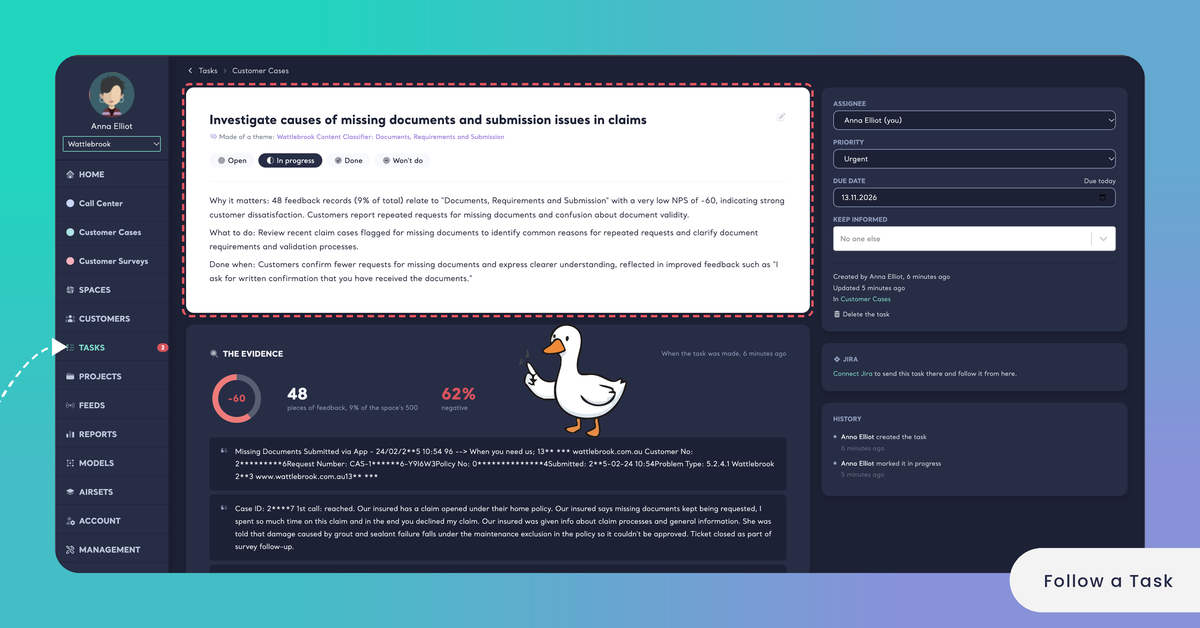
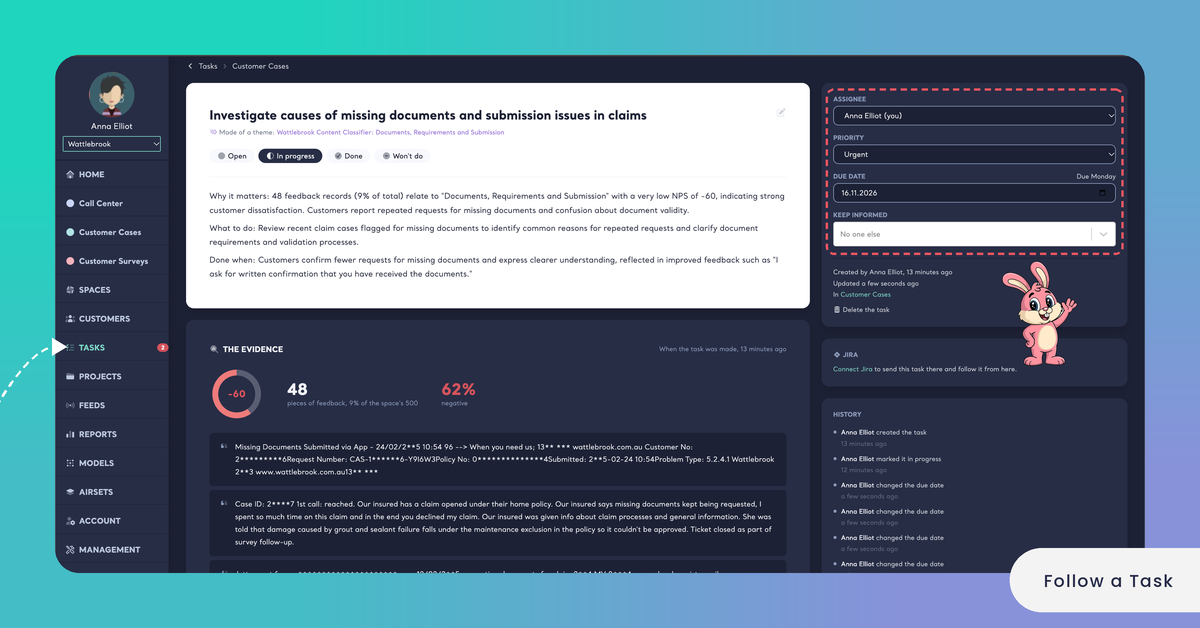
The Evidence
THE EVIDENCE shows the finding as it was on the day the Task was made, so whoever works on the Task knows why it matters without opening the Space. It has three parts:
- Share of the feedback: how much of the feedback the finding covers.
- Sentiment: how much of that feedback is negative.
- Quotes: a few pieces of feedback in customers' own words.
Kimola keeps these numbers and quotes as they were when the Task was made. They don't change as new files join the Space, so the Task always shows the problem it was made to solve, and Kimola has a fixed point to compare with once the Task is done.
The evidence is frozen when the Task is made: it doesn't change as new feedback arrives.
To read more than the quotes, click See all of this feedback in the space. It opens the finding's feedback in its Space, where you can read every record behind the finding.
For a project management app, a Task made from the theme billing confusion might show that the theme covers 9% of the feedback, that 81% of it is negative, and three support tickets in which customers on annual plans ask why they were charged twice. The engineer who picks up the Task reads the problem in customers' words before planning the fix.
A Task made from a Customer or a Department belongs to no Space, so its evidence reads all of your Spaces. A Task written in your own words (its source is Own task) has no feedback behind it, so it has no evidence and nothing to measure once it is done.
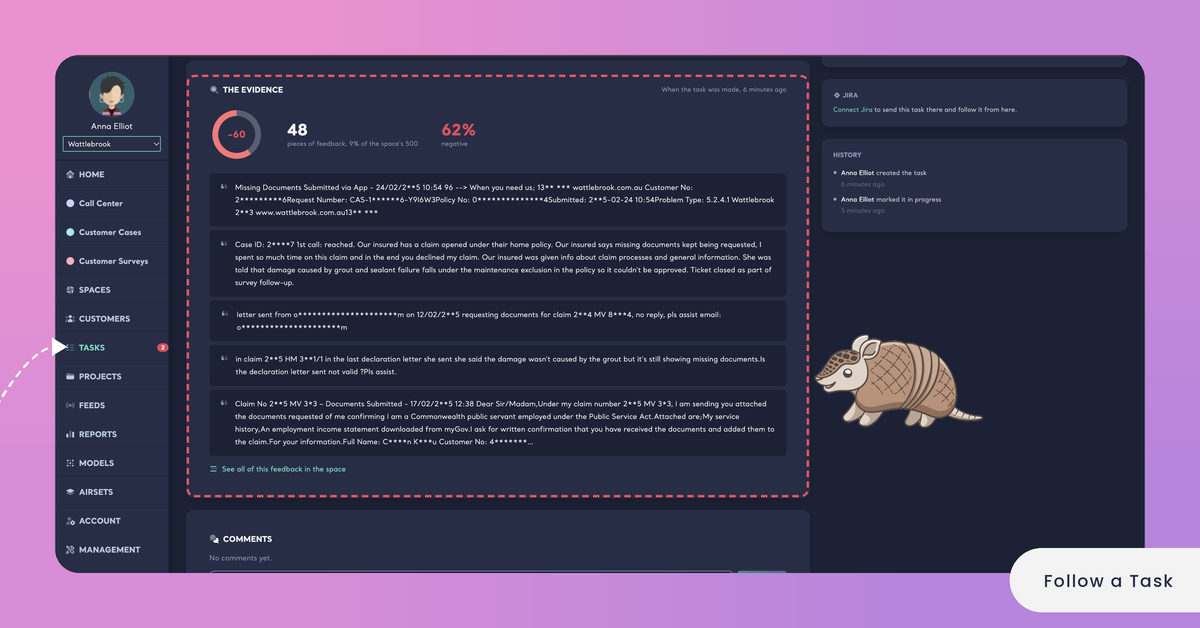
Assignee, Priority, Due Date and Keep Informed
Four fields say who does the work, how urgent it is, by when it is due and who else is told about it. Each one saves as soon as you change it, so there is no save button to click:
- ASSIGNEE: the teammate who does the work. Pick another teammate to hand the Task over. Kimola emails the new assignee, unless they made the change themselves.
- PRIORITY: Low, Medium, High or Urgent.
- DUE DATE: the date the work is due. You can change it or leave the Task with no date.
- KEEP INFORMED: teammates who don't do the work but are told when the Task changes. Add yourself here to follow a Task someone else owns. When nobody is added, the field shows No one else.
The assignee and every teammate you keep informed must be members of your team. Every change you make here is added to the Task's history with your name.
To follow a Task someone else owns, add yourself under KEEP INFORMED. You are then told when it changes.
Once a Task is sent to Jira or linked to an issue, the JIRA card says "Its status, assignee and due date follow the issue." From then on, the assignee (matched by email) and the due date come from Jira, and the Task's status can't be changed in Kimola.
Once a Task is in Jira, its status, assignee and due date follow the issue.
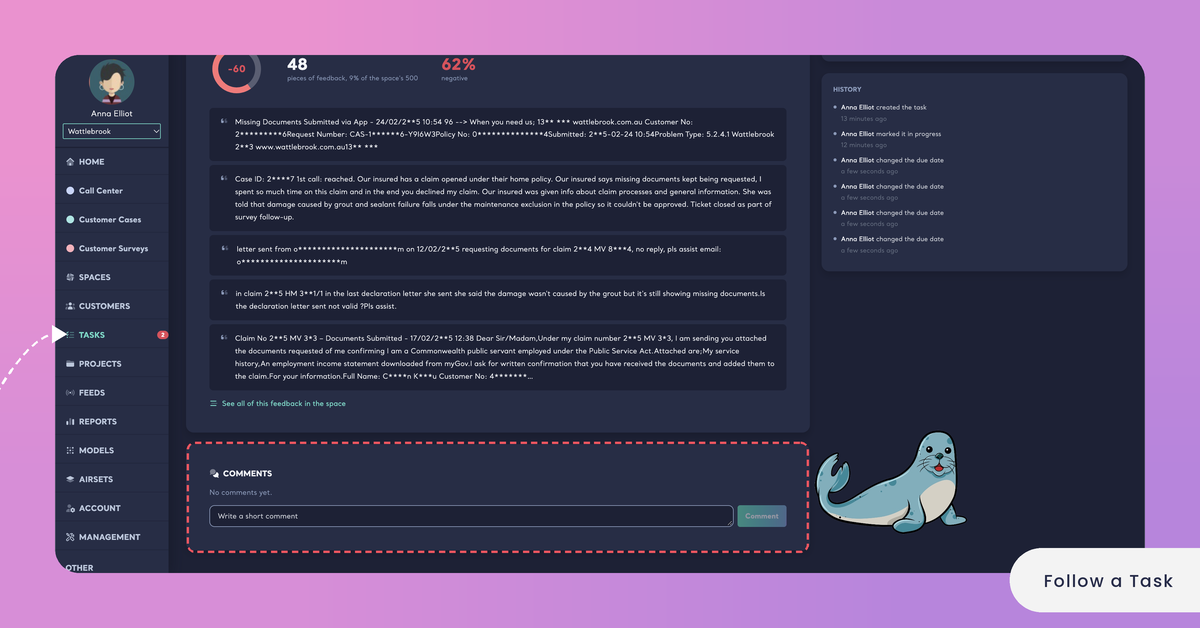
Comments
Comments keep the conversation about the work on the Task itself, next to its evidence, where the whole team can read it. Write in the Write a short comment box and post it. A comment can be up to 1,000 characters long. Kimola emails the people on the Task about a new comment, but never the teammate who wrote it.
You can delete a comment if it is no longer needed. If it can't be deleted, the page says "The comment could not be deleted, please try again."
Once the Task is in Jira, its comments become read-only: the conversation moves to the Jira issue, where your team plans the work. The comments written before stay on the Task.
Comments are up to 1,000 characters long and become read-only once the Task is in Jira.
History
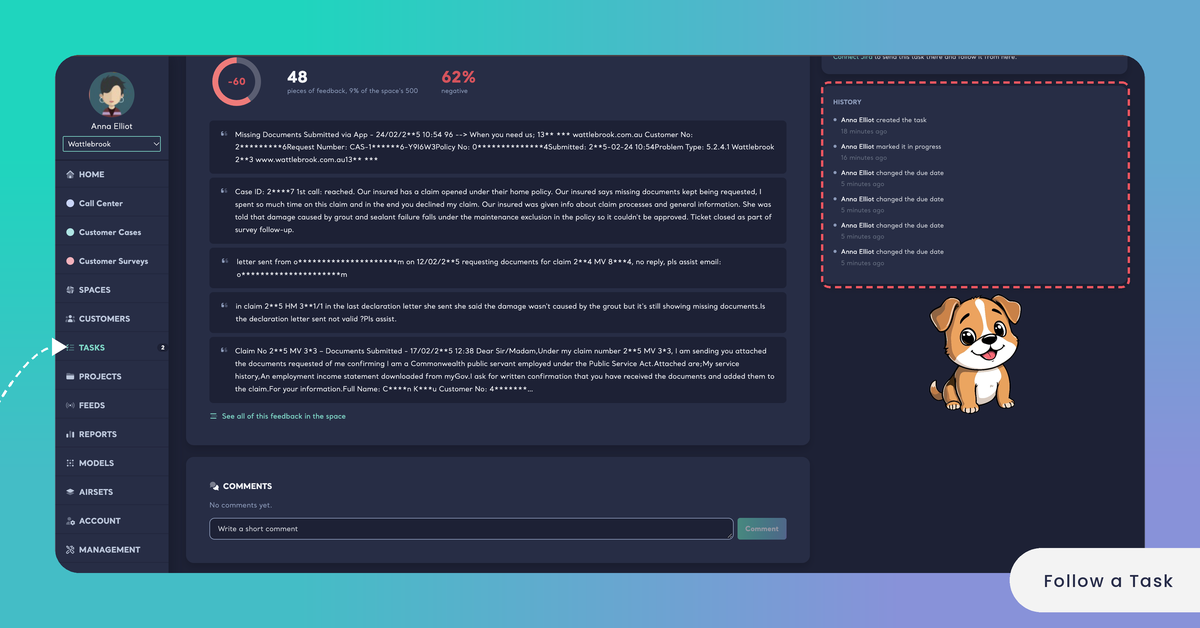
HISTORY lists everything that happened to the Task since it was made, in the order it happened: status changes, a new assignee, priority, due date, teammates kept informed, edits to the title and the description, and the Task going to Jira. A change made by a teammate shows who made it.
When the Task is in Jira, the changes that come from the issue, such as a new status or assignee, are listed too and marked as Jira's, so you can tell them apart from the changes made in Kimola. Events Kimola adds itself, such as the result of a check after the Task is done, appear in the same list.
Read HISTORY to see who changed a Task and whether a change came from Kimola or from Jira.
When a Task is deleted with Delete the task, its comments and its history are deleted with it. See Manage Tasks.
Deleting a Task deletes its comments and its history too.
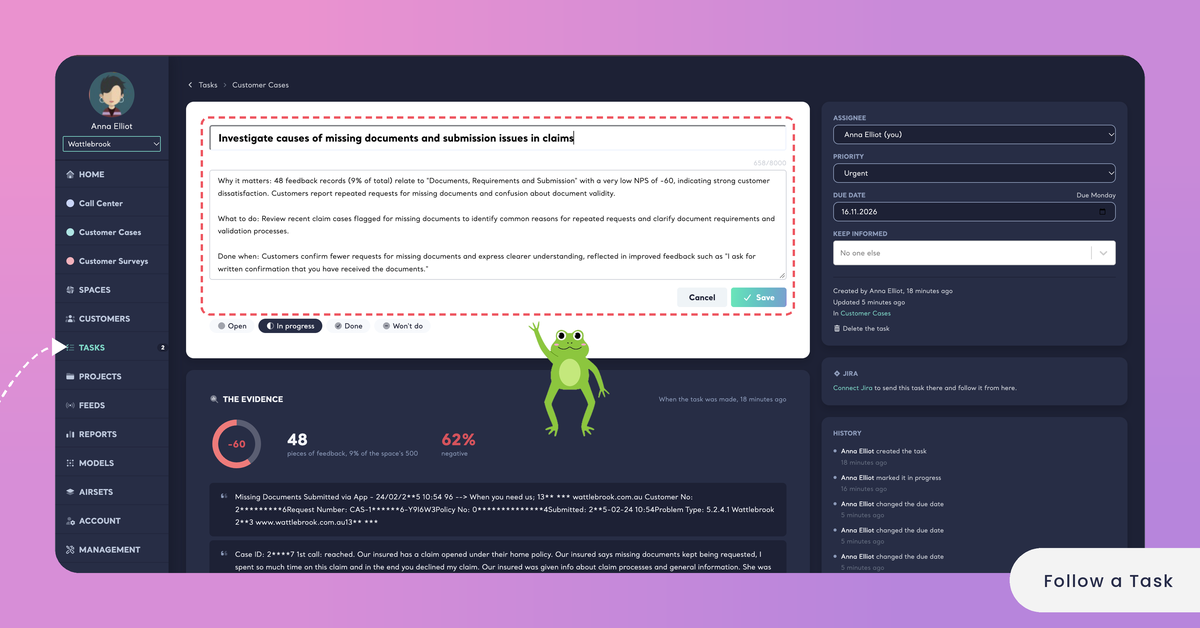
Edit the Title and Description
The title and the description Kimola drafted when the Task was made can be changed at any time, for example when the work turns out to be different from what the finding suggested. Click Edit the title and the description, change the title or the description, then save your changes, or click Cancel to keep the text as it was.
A good description says why the work matters, what to do first and how you will know it is done, as the drafts Kimola writes do. When a Task has no description, the page says "No description yet: why it matters, what to do first, and how you will know it is done." The description can be up to 8,000 characters long.
Editing the title and the description doesn't change the Task's evidence or what Kimola measures once the Task is done. The edit is added to the Task's history.
Editing the text doesn't change the evidence or what Kimola measures.