Actions in Spaces
min read - Updated on Nov 11, 2026Actions is the page of a Space where Kimola turns the Space's feedback into an Action Plan: up to 12 concrete actions for your organization, each saying what to change, for whom and when, who owns it and how to see it worked. A Space's plan reads every classified file of the Space, whether its feedback comes from a call center, a survey or any other channel, and every action rests on figures and quotes from that feedback. On this page you start a plan, follow it while it is written, read its action cards and the evidence behind each one, rate the actions, and turn an action into a Task for a teammate.
You open the page from Actions in the menu of an open Space. To learn what an Action Plan is and how Kimola writes one, see What is an Action Plan?
Action Plans in Spaces are available in the Enterprise package and in Kimola On-Premises. Sign in to Kimola and open a Space with at least one classified file. If you don’t have a Space yet, see Create a Space. If you haven’t uploaded your first file, see Add Files to a Space and wait for Kimola to finish classifying it.
If you’re creating a plan, you’ll need a Profile for your organization. You can use an existing Profile or create one when you start the plan. If you’re creating one, have your organization’s name and a short description ready. See Manage Profiles.
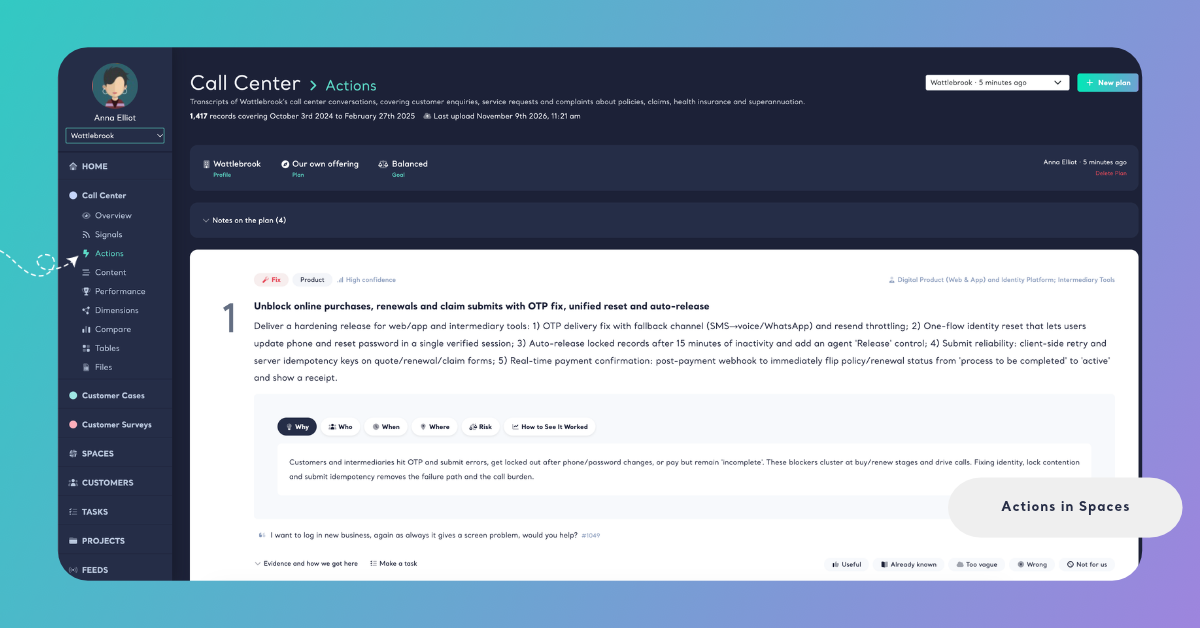
What You See
Actions appears in a Space's menu once the Space has classified feedback. Until the first file of a new Space is classified, the menu doesn't show it, because a plan has nothing to read yet.
A Space without a plan shows Turn this space into an action plan. The panel sums up what a plan does: you tell Kimola who the plan is for and what you want from it, and Kimola forms hypotheses from the Space, tests them on its feedback and writes up to 12 concrete actions. It also states that every figure comes from the feedback and every quote is in a customer's own words. Create an action plan opens the steps described in Create an Action Plan. In a Space, the side Our own offering is preselected, and the language of the plan starts as the language of the Space's Funnel.
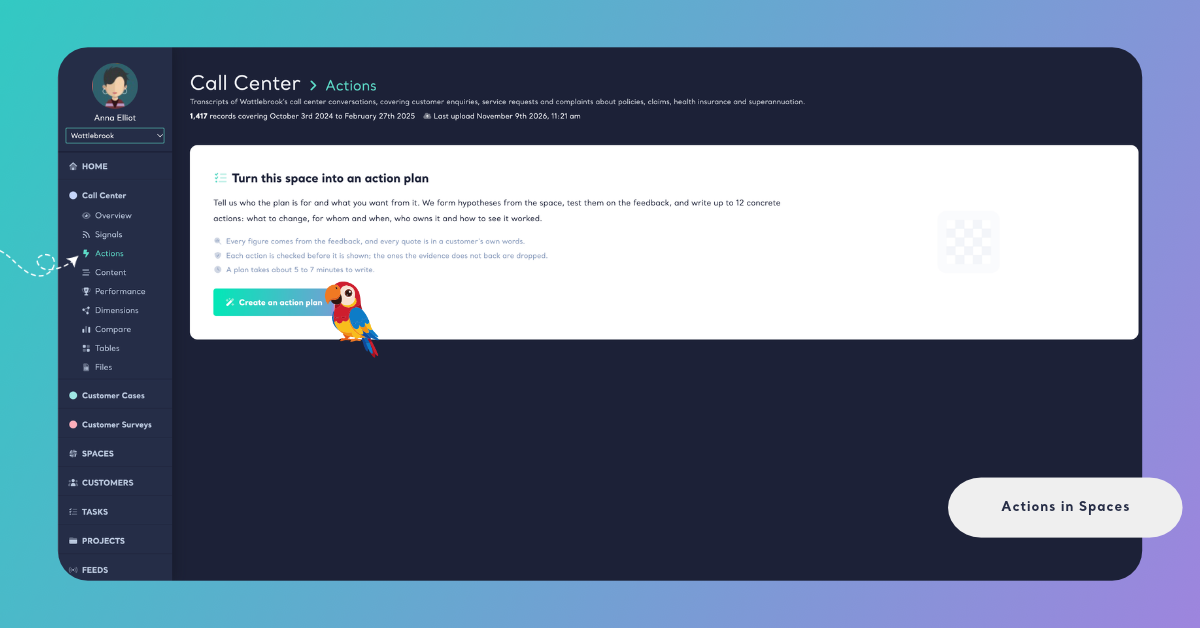
Once the Space has a plan, the page works as it does in a Report. The top of the page lists the Space's plans next to New plan, and the plan's header shows its Profile, Plan (the side), Goal and, when you wrote one, Situation, with who started the plan, when, and Delete Plan. While a plan is being written, the page shows Generating your action plan with the four steps Kimola goes through: Forming hypotheses (reading the Space and testing where problems, needs and strengths concentrate), Reading the evidence, Writing the actions and Checking every claim. Writing a plan takes about 5 to 7 minutes, and you can leave the page meanwhile.
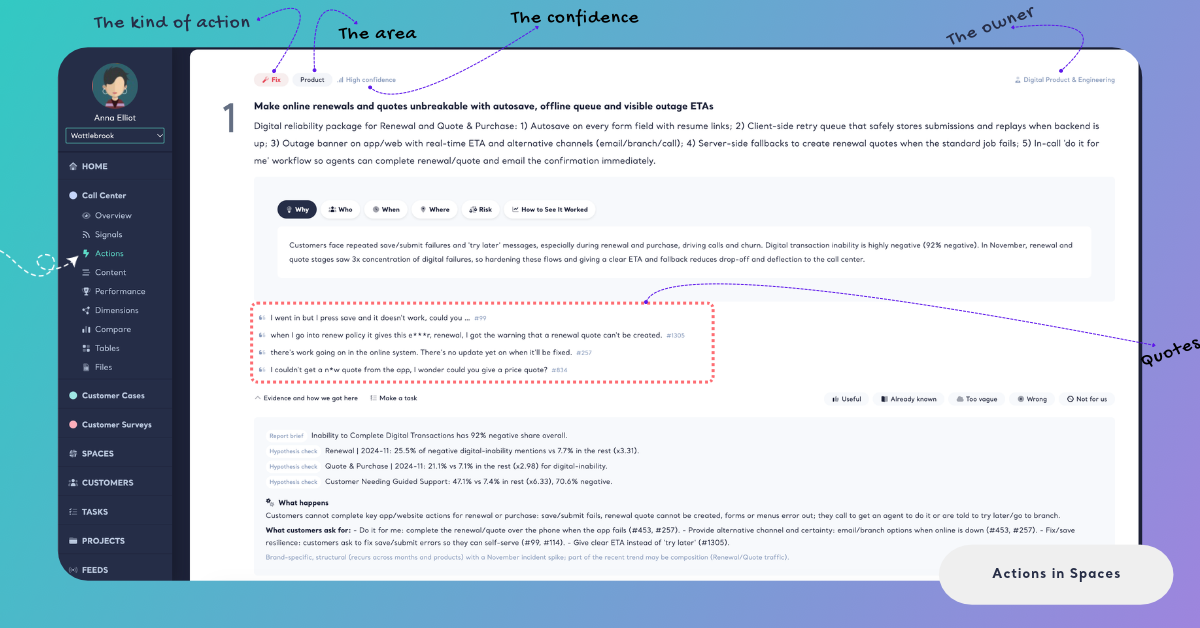
Each action is a card with its kind, its area, its confidence (High confidence, Medium confidence or Low confidence) and its owner, the change itself, the tabs Why, Who, When, Where, Risk and How to See It Worked, and a few quotes from the feedback. Evidence and how we got here opens the claims the action rests on, with their numbers, followed by What happens and What customers ask for:. Every part of the plan, the progress and the cards is described in Actions in Reports.
For a mobile network operator, a Space of call center transcripts might lead to a card that reads: Fix, Support, High confidence, owned by the customer care team. The action: "Send a text with the daily roaming charge when a customer's phone first connects abroad." How to See It Worked: fewer calls mention unexpected roaming charges after trips abroad.
At the bottom of every card, Useful, Already known, Too vague, Wrong and Not for us let you rate the action, with an optional note under Why? (optional). See Rate Actions in an Action Plan. In a Space, every card also offers Make a task, described below.
A Plan Reads the Whole Space
A Space's plan reads every classified file of the Space, as its Signals do. It doesn't read a single file, and it doesn't follow the filters of other pages: the plan reads all the feedback the Space holds when the plan starts, together with the Signals found in it, so an action can build on a tested finding rather than on a single comment.
A Space is your organization's own channel of feedback, so its plans are always about your own offering. The plan says what to fix, protect and build on. When the Space holds feedback about several of your products or brands, Kimola may suggest a column of the Space that names them, and you can take its values, change them or leave the column at None: the whole space is about us. The steps are in Create an Action Plan.
A Space with no classified feedback yet can't start a plan: Kimola says "The space has no classified feedback yet." Upload a file and wait until it is classified. See Add Files to a Space.
A plan reads every classified file of the Space, not the filters of other pages.
When New Files Arrive
A Space grows file by file, but a plan stays as it was written: its actions and their verdicts stay as they are, read from the feedback the Space held when the plan was written. Nothing rewrites a plan by itself.
When files are classified after a plan was written, the plan says how many, for example "4 files were classified after this plan was written: its actions do not read them.", and offers Write a new plan. Write a new plan opens the same steps as New plan. The new plan reads every classified file of the Space, the new ones included, and the plans already written stay in the list, so you can open an earlier plan and compare.
A hotel chain adds its guest survey to a Space every month. Its September plan names slow check-in at weekends as the first action. In January the plan says "4 files were classified after this plan was written: its actions do not read them." A new plan written then shows whether weekend check-in is still among the actions, or whether something else, such as breakfast crowding, has taken its place.
A plan doesn't read the files classified after it. Write a new plan to include them.
Make a Task from an Action
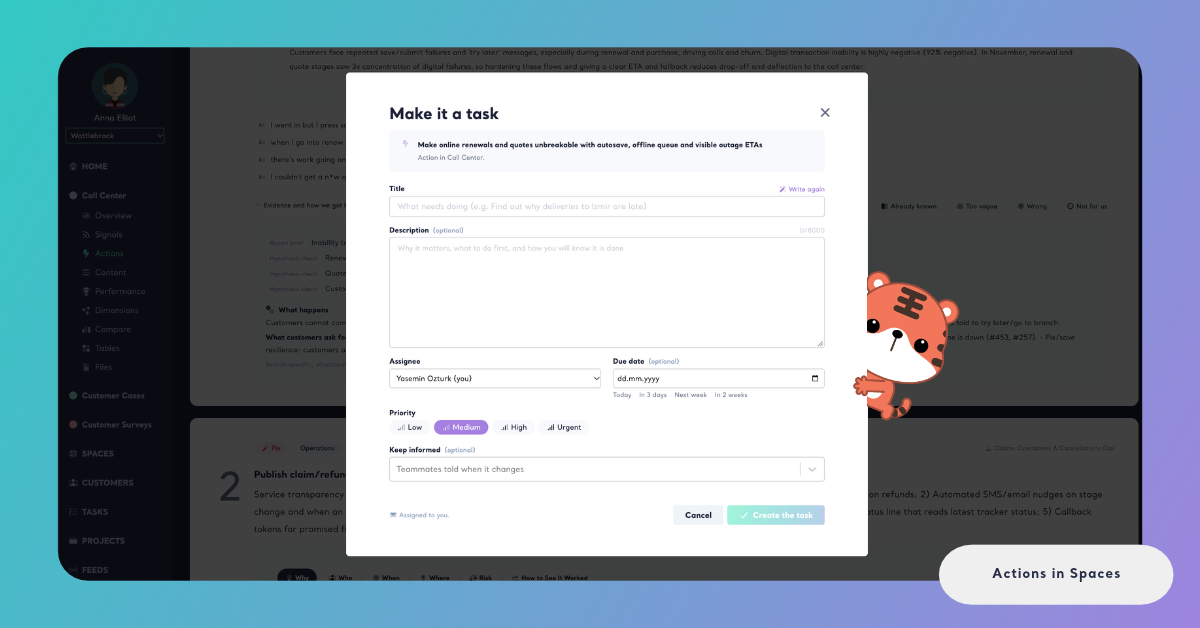
Every action card of a Space's plan offers Make a task. It turns the action into a Task: work for one teammate, with the action and its evidence kept on the task. On the task, its source is named Action.
Make a task opens the task window described in Create a Task. Kimola drafts the title and the description from the action, in the language of the Space's Funnel, and you choose the assignee, the due date, the priority and the teammates to keep informed. When the same action already has an open task, the window shows it first: you can follow it, or make a new task anyway.
The task keeps the action, its plan and a few quotes from the feedback, and it links back to the plan, so whoever works on the task can open the action and its evidence. Actions that already have tasks show a badge on their card.
Whether Kimola can measure the task once it is done depends on the action's evidence. When the evidence names a Signal of the Space, the task keeps that Signal's feedback, and Kimola reads the same feedback again after the task is done to tell whether customers noticed. When the evidence names no Signal, the task isn't measured. See How Kimola Measures Task Impact.
An action's task is measured only when the action's evidence names a Signal.
How It Differs from Reports
Action Plans are written the same way in Reports and in Spaces: the same steps, the same four stages, the same action cards, evidence and verdicts, and Delete Plan in the plan's header. What differs comes from the Space:
- Package. Action Plans of a Report are available in every package; Action Plans of a Space are available in the Enterprise package.
- The feedback a plan reads. A Report's plan reads the records of the Report. A Space's plan reads every classified file of the Space, as its Signals do.
- The side. In a Report you choose Our own offering, A rival or Our market. In a Space, Our own offering is preselected, because a Space is your organization's own feedback.
- The language. In a Space, the language of the plan starts as the language of the Space's Funnel.
- New feedback. A Space keeps growing, so its plan says how many files were classified after it and offers Write a new plan.
- Tasks. Every action of a Space's plan offers Make a task. A Report's Action Plans don't make Tasks.
Deleting a Space also deletes its Action Plans. For the Report's page, see Actions in Reports.