Signals in Spaces
min read - Updated on Nov 03, 2026The Signals page of a Space lists the statistically tested findings in all of the Space's feedback: where a topic is mentioned more, or more negatively, in one group of feedback than in the others (Differences), and how the mentions of a topic changed over time (Trends). A Space's Signals run again after every classified file, over the whole Space, and the file itself is one of the groups they compare, so a topic that stands apart in the latest upload shows up as a Signal. From every Signal you can open its records in Content or turn it into a Task for a teammate.
A Space is a channel that keeps growing, such as a call center, a survey or an app store, and every new file adds to the records before it. As the Space grows, checking every theme in every product, store, channel and week by hand stops being practical. The Signals page does that work after each file and keeps only the findings that pass a test adjusted for group size. What is a Signal? explains how a Signal is found and how to read its card.
To use Signals in Spaces, you need a Kimola account with the Enterprise package or access to Kimola On-Premises, a Funnel and a Space containing classified feedback. If you don’t have an account yet, sign up first.
If you haven’t set up a Funnel and a Space yet, see Create a Funnel and Create a Space.
Your feedback needs enough records and groups to compare. Include descriptive columns such as product, store, channel or country, or add Dimension models to your Funnel. To identify Trends, your records also need dates spanning multiple periods.
When Signals Appear
A new Space has no Signals and no Signals item in its menu. Signals need classified feedback, so they run for the first time when the first file of the Space is classified. After that file, Kimola calculates the Space's NPS, runs its Signals and writes its Insights.
The Signals item appears in the Space's menu, right under Overview, once the Space has its first Signals. The Signals card on Overview appears at the same time and shows the strongest of them, with All Signals to open the page. See Overview in Spaces.
Signals compare groups, so they depend on what the Space's files carry. Differences come from the other columns of the Space (columns that are not classified, such as a product, a store, a channel or a country), from the answers of the Dimensions in the Space's Funnel, and from the files. Trends come from the Date column, grouped into periods such as weeks. If the tests find no group or period that stands apart with enough evidence, the Space has no Signals yet and the menu item stays hidden. More feedback, or more descriptive columns in your files, give the tests more to work with.
The Customer Column is not one of the groups. Every customer is a value of their own, so a customer can't form a group large enough to test. To read one customer's feedback, open Customers.
What You See
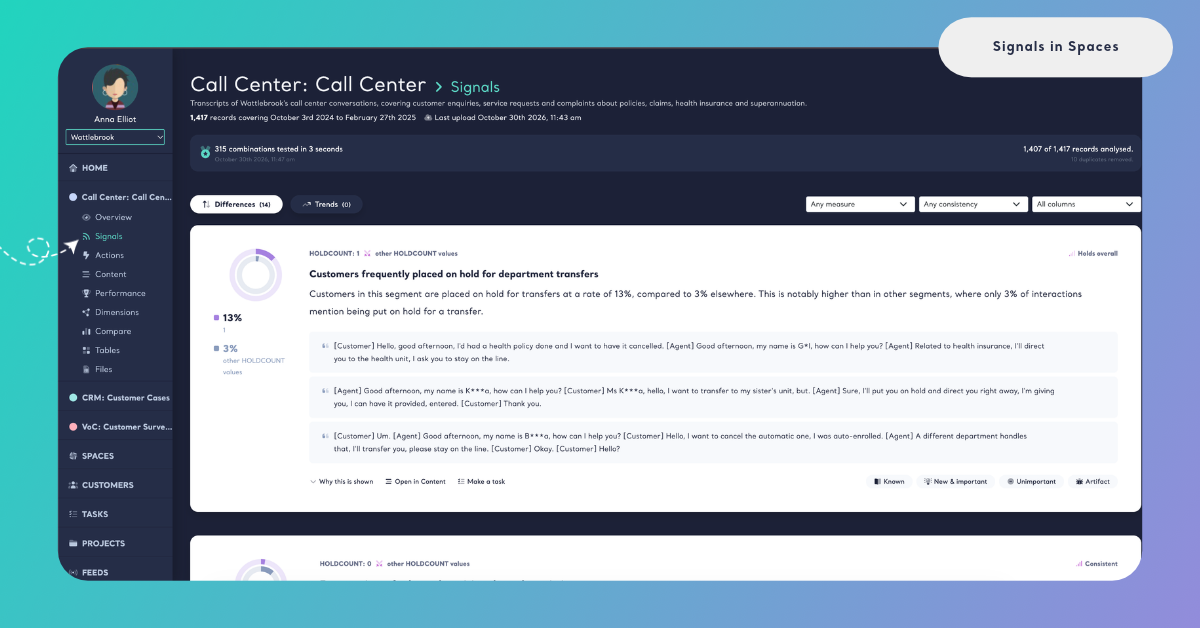
The page reads the same way as the Signals page of a Report. From top to bottom it shows a summary of the latest run, the two lists, three filters and the Signal cards.
The Run Summary
At the top, the page names the Space and says how many records it holds and which dates they cover, for example "1,417 records covering October 3rd 2024 to February 27th 2025", with the date of the last upload under it. The next lines describe the latest run: how much it tested, for example "315 combinations tested in 3 seconds", when it ran, how many records it read, for example "1,407 of 1,417 records analysed.", and how many duplicates it removed, for example "10 duplicates removed."
Differences, Trends and Filters
The two tabs, Differences and Trends, show their number of Signals in brackets. A tab with no Signals can't be opened, for example Trends(0).
Next to the tabs, three filters narrow the list: Any measure (Mentions, Negativity or Change), Any consistency (Consistent, Mostly consistent, Varies or Holds overall) and All columns, which lists the columns and Dimensions the list compares groups by. When some Signals are hidden because their evidence is weaker, a Show hidden switch adds them to the list. See Review Signals for how the filters and the switch work.
The Signal Cards
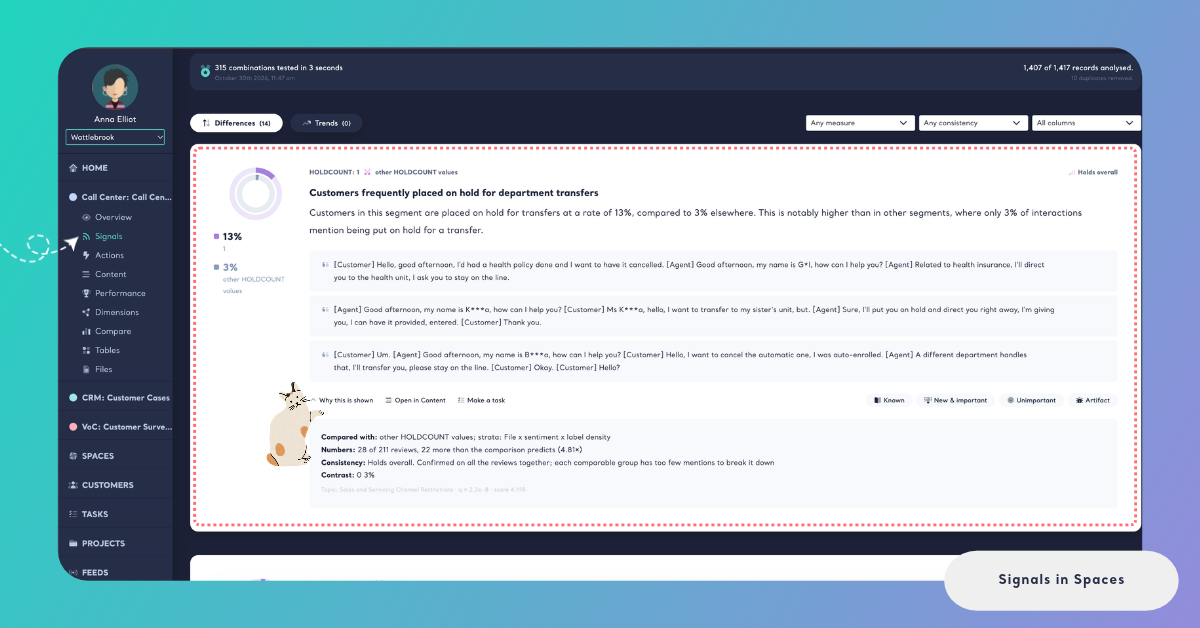
Every card shows the two shares it compares, for example "18% Mobile app" and "6% other channels", the line that names the column and its two sides, the consistency level, a title, two or three sentences with the numbers and up to three quotes. Why this is shown opens the evidence: Compared with:, Numbers:, Consistency: and, when they apply, the other lines described in What is a Signal?.
Kimola writes the title and the text of every card in the language of the Space's Funnel, the same language as its Insights and Action Plans. The quotes stay in the language customers wrote them in. A card that is still being written shows Writing the card... for a moment.
Each card ends with its actions, Open in Content and Make a task, and with the four verdict buttons: Known, New & important, Unimportant and Artifact. A verdict and its note work the same way as in a Report. See Review Signals.
Signals After Every File
Every time a file of the Space is classified, its Signals run again. The new run reads all the classified feedback of the Space, not only the new file, and the page always shows the latest run. A Space has no Re-generate button, because nothing needs to be started by hand.
The File as a Group
In a Space, every file is also a group. The Signals compare the records of a file with the records before it, so a topic that customers mention more, or more negatively, in the latest file stands out even when its share in the whole Space has barely moved. A file Signal's Open in Content link opens the records of that file, so you can read what the upload brought before it mixes with the history of the Space.
For a mobile app, a new export of app reviews may mention Login Errors in 14% of its records against 4% in the files before it: that difference becomes a Signal about the file.
Use the file Signals right after an upload, together with With the latest files on Overview, to see what the new file changed. Use the other Signals to see which products, stores or Dimension answers stand apart across the whole history of the Space.
Verdicts Across Runs
A verdict follows the same finding into later runs. When the next file brings the same finding again, its card keeps the verdict and the note your team gave it, so the review continues from where you left it. A finding that the new run no longer finds leaves the list.
When a File Is Taken Back
When you take back a file, its records leave the Space and the Signals run again in the background without them. When the last file of a Space is taken back, the Space has no classified feedback left and loses its Signals together with the Signals item in its menu.
Open in Content
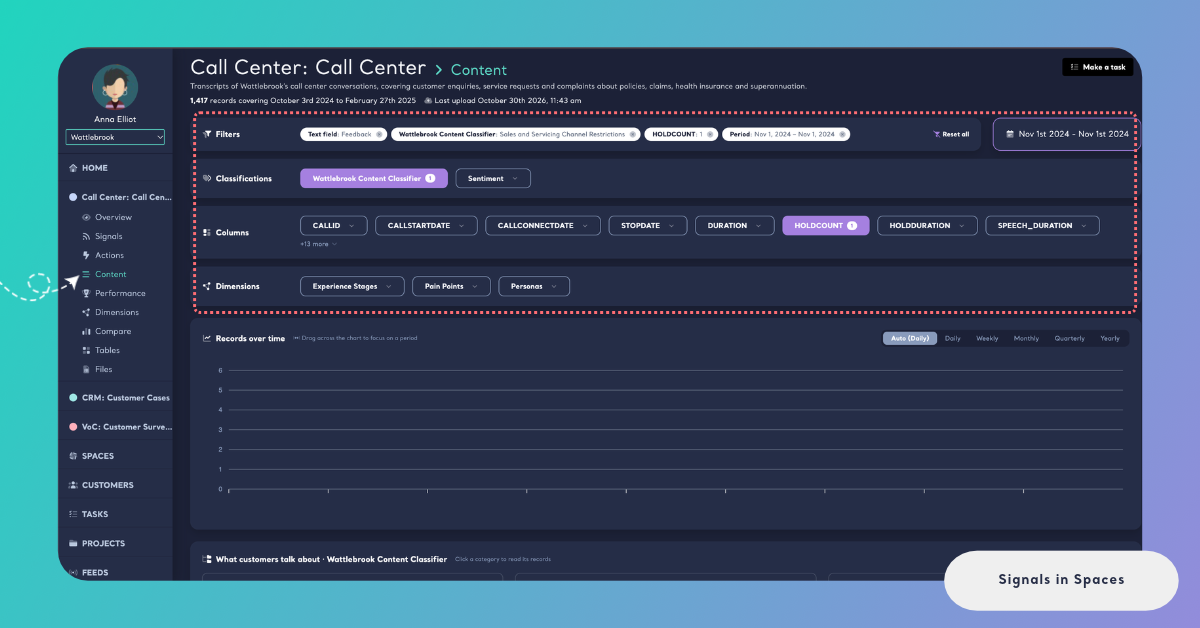
Open in Content opens the Space's Content page filtered to the Signal, so you read the feedback behind the finding instead of a sample of it. The filters cover the text field, the group the Signal is about (a column value, a Dimension answer or a file) and the topic it tested.
The filters show as chips in the Filters card, and you can add other filters next to them or remove them like any other chip. On the filtered Content page, Make a task at the top of the page turns the feedback you are reading into a task. See Filter Records in Spaces.
Make a Task from a Signal
A Signal tells you that something stands apart. A Task gives that finding to the teammate who can act on it, together with the feedback and the numbers behind it.
Tasks are available in the Enterprise package, and in Kimola they are made from Spaces only: the Signals of a Report don't offer Make a task.
Step 1: Click Make a Task
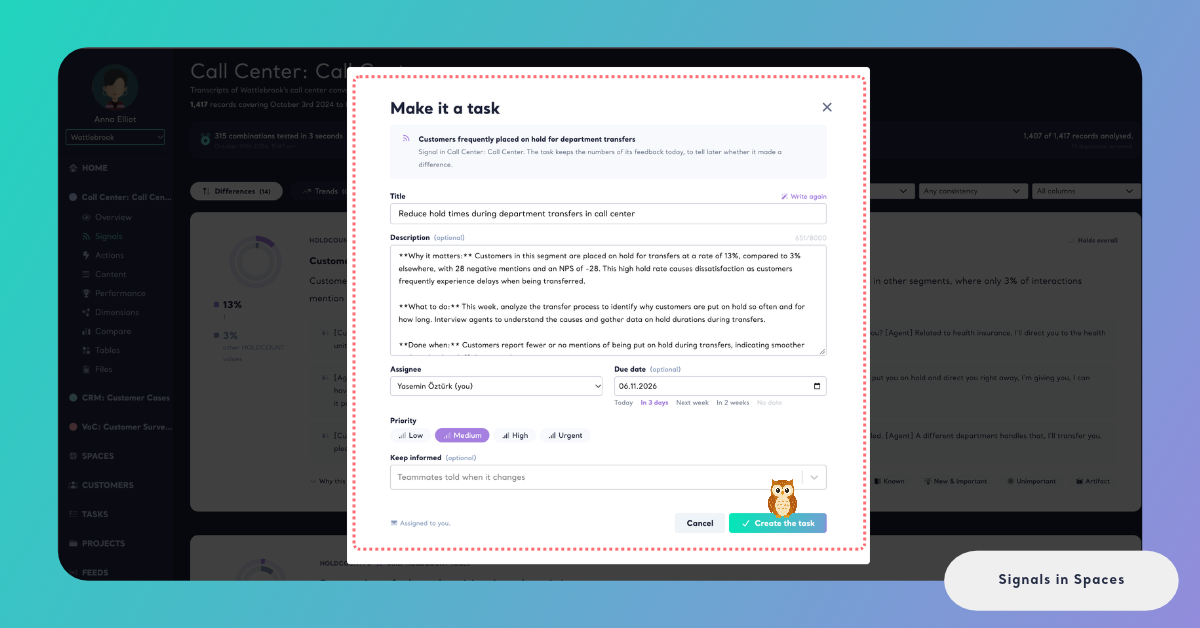
Click Make a task on the card. A window titled Make it a task opens with the Signal's title and the line "Signal in" followed by the Space's name: "The task keeps the numbers of its feedback today, to tell later whether it made a difference."
If a teammate has already made an open task of the same finding, the window says "There is an open task for this already", names that task and its assignee, and adds "You can follow one of them, or make a new task anyway."
Step 2: Review the Draft
Kimola drafts the Title and the Description of the task from the Signal, in the language of the Space's Funnel: why it matters, what to do and how you'll know it's done. Edit the text as you like, or click Write again for a new draft.
Step 3: Assign and Create
Choose the Assignee, a Due date (Today, In 3 days, Next week or In 2 weeks, optional), the Priority (Low, Medium, High or Urgent) and, under Keep informed, the teammates who are told when the task changes. Click Create the task. See Create a Task for every field.
What Happens Next
The card then shows a link such as 1 open task next to Make a task. Click it to open the task. On the Tasks page, the source of the task is named Signal. Once the task is done, Kimola reads the same feedback again two and four weeks later and tells you whether customers noticed. See How Kimola Measures Task Impact.
How It Differs in Reports
The Signals of a Report and of a Space are found, tested and shown the same way, with the same cards, filters and verdicts. A Report's Signals are generated once for its dataset, and Re-generate replaces them and deletes their verdicts. A Report has no files to compare, its cards open their records with Open in Tables, and they offer no Make a task. See Signals in Reports.