Review Signals
min read - Updated on Nov 03, 2026You can review the Signals of a Report to decide which findings matter to your team. On the Signals page you filter the list by measure, consistency and column, mark each Signal as Known, New & important, Unimportant or Artifact, and add a note that says why. Your verdict stays with the finding, so the next time the same finding appears you see what your team already decided about it. Reviewing Signals is available in every package. The same cards, filters and verdicts are on the Signals page of a Space, which is part of the Enterprise package.
Every Signal on the page has passed a statistical test, so it is unlikely to be chance. The test can't tell whether a finding is news to your team, whether it is worth acting on, or whether it comes from how the data was collected. That is what the review is for. A reviewed list separates the few findings that need action from the ones you already knew and the ones you can ignore.
To review Signals, you need a Kimola account and a Report with generated Signals. If you don’t have an account yet, sign up first.
Sign in and open the report you want to work with from the Reports section, then select Signals from the Report menu. If you haven’t created a report yet, follow one of these guides: Create a Report by Uploading a Custom Dataset, Create a Report by Adding Links.
Kimola generates Signals after the Report’s analysis is complete. If no finding has enough evidence to become a Signal, there will be no Signals to review. See Signals in Reports.
You can also review Signals in a Space. Open your Space from the Spaces section and select Signals once its first Signals are available. If you haven’t set up a Funnel and a Space yet, see Create a Funnel and Create a Space.
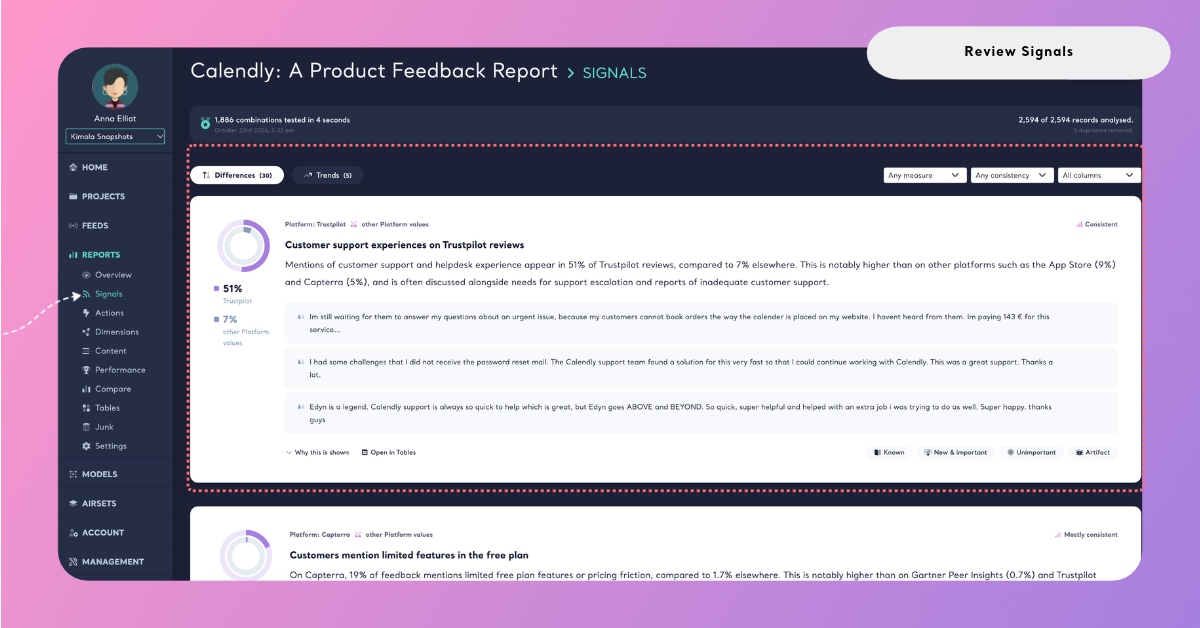
Filter Signals
The Signals of a Report are in two lists: Differences, where a topic is mentioned more, or more negatively, in one group of feedback than in the others, and Trends, where the mentions of a topic changed in the latest periods. Click a tab to switch lists. The number next to each tab is its number of Signals, and a list with no Signals can't be opened. On Trends, a line above the cards says which periods are compared, for example the latest months against the months before.
Three filters on the right of the tabs narrow the list you are reading. Each one starts with all Signals selected, and you can combine them.
Any measure shows only the Signals of one measure. Mentions is how much a topic is mentioned in a group: the share of the group's reviews that mention it. Negativity is how negatively a topic is mentioned in a group: the share of the reviews mentioning it that are negative. Change is how the mentions of a topic changed over time: the share in the latest periods against the periods before. The filter offers only the measures that appear in the list.
Any consistency shows only the Signals of one consistency level. Consistent holds the same way across positive and negative, short and long reviews and the other compared columns. Mostly consistent holds the same way in most of the comparable groups of reviews. Varies holds overall but not in every comparable group: open it in Tables to see where it comes from. Holds overall is confirmed on all the reviews together, but each comparable group has too few mentions to break it down.
All columns shows only the Signals of one column or Dimension. It lists the columns of your data, such as a product, platform or country column, and the Dimensions the list compares groups by.
When no Signal matches the filters, the page says "No signals match these filters." Change or clear a filter to see the list again.
The filters aren't saved: they return to all Signals when you reload the page.
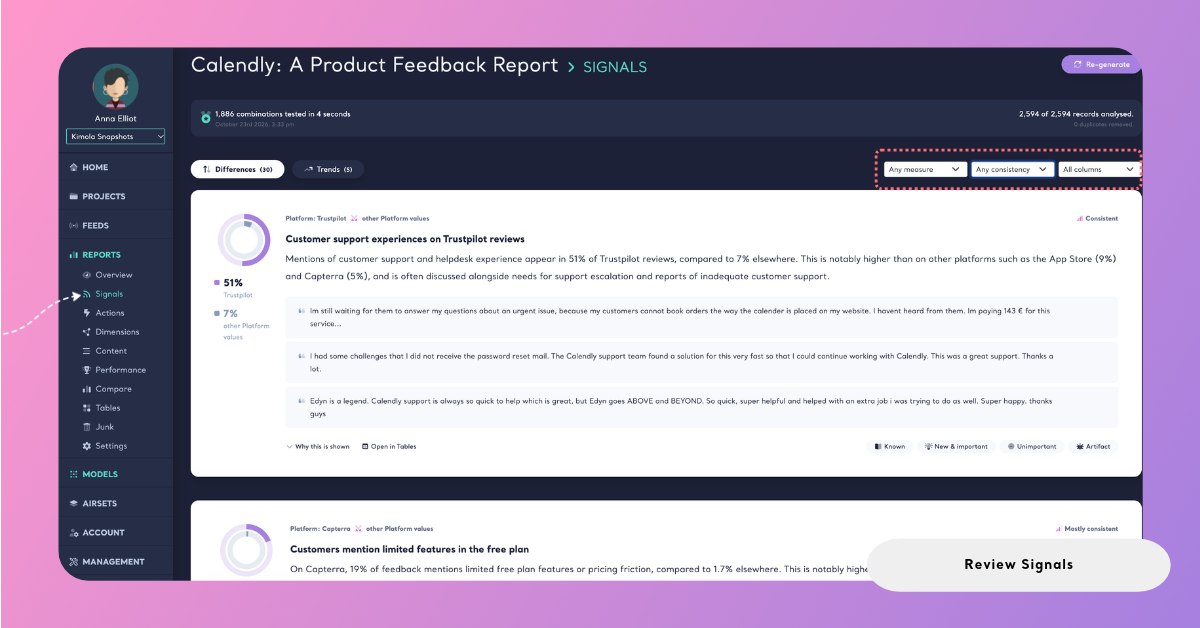
For a first review, choose Consistent under Any consistency and go through those Signals first, because they hold in every comparable group of reviews. Then move on to Mostly consistent, Varies and Holds overall, and check the cards of the last two in Tables before you act on them.
Give a Verdict
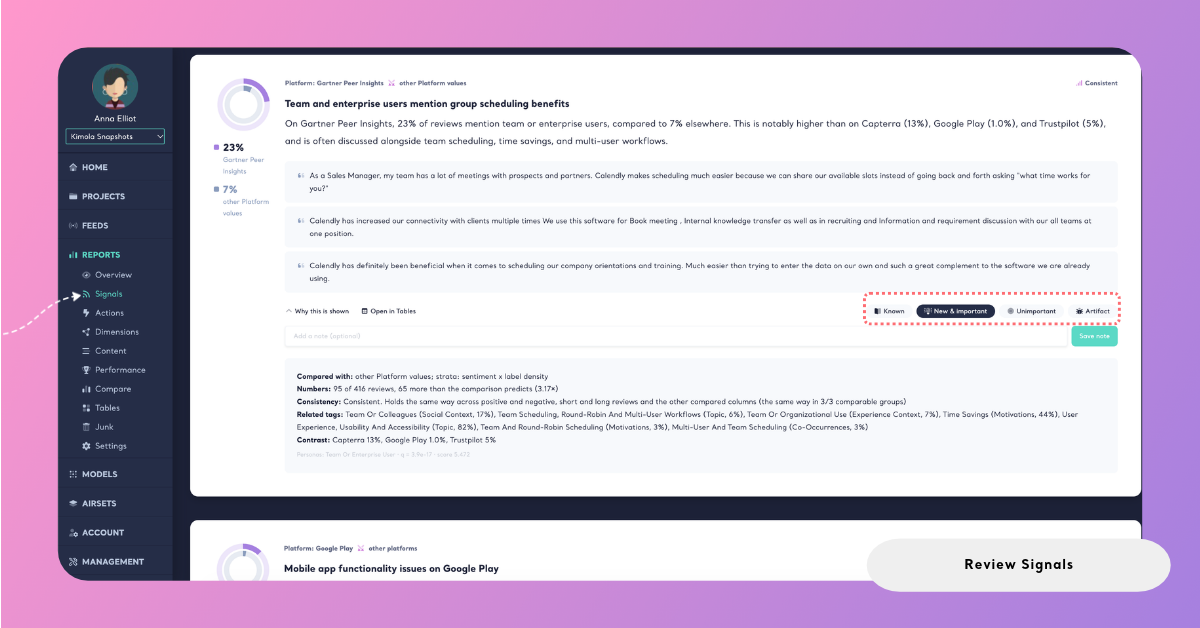
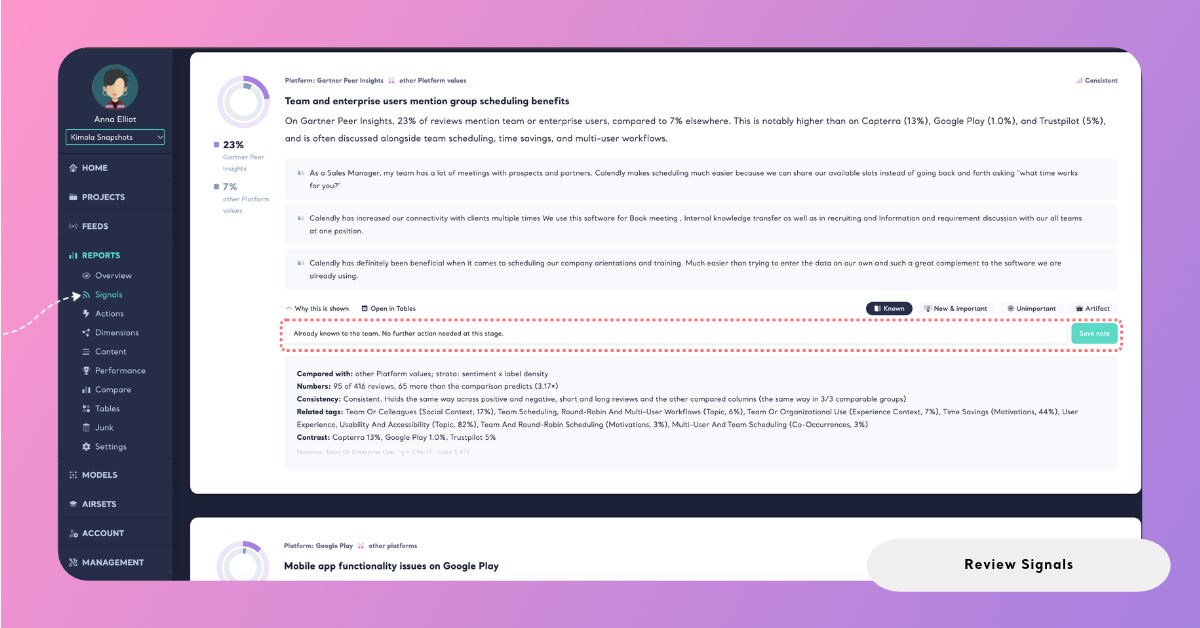
A verdict is your team's judgment of a Signal. Every card has four verdict buttons in its bottom-right corner, and you choose one of them. Read the card before you decide: its numbers, its quotes and the details under Why this is shown often settle the question.
Step 1: Read the Card
At the top of the card, Kimola shows the group the Signal is about and the group it is compared with, the consistency level, a title and a sentence with the numbers, for example "Checkout errors are mentioned in 18% of iOS reviews, against 6% on other platforms." Two or three quotes from the group's reviews come under it.
Click Why this is shown to open the evidence. Compared with names the group the Signal is measured against. Numbers gives how many reviews of the group mention the topic and how many more or fewer that is than the comparison predicts. Consistency explains the consistency level. When they apply, Driver names what carries most of the difference, and Related tags lists other topics that move together with this one. What is a Signal? explains each line.
To read the feedback behind the Signal, click Open in Tables. Tables opens with the records of the Signal, so you can check where the difference comes from. See Tables in Reports.
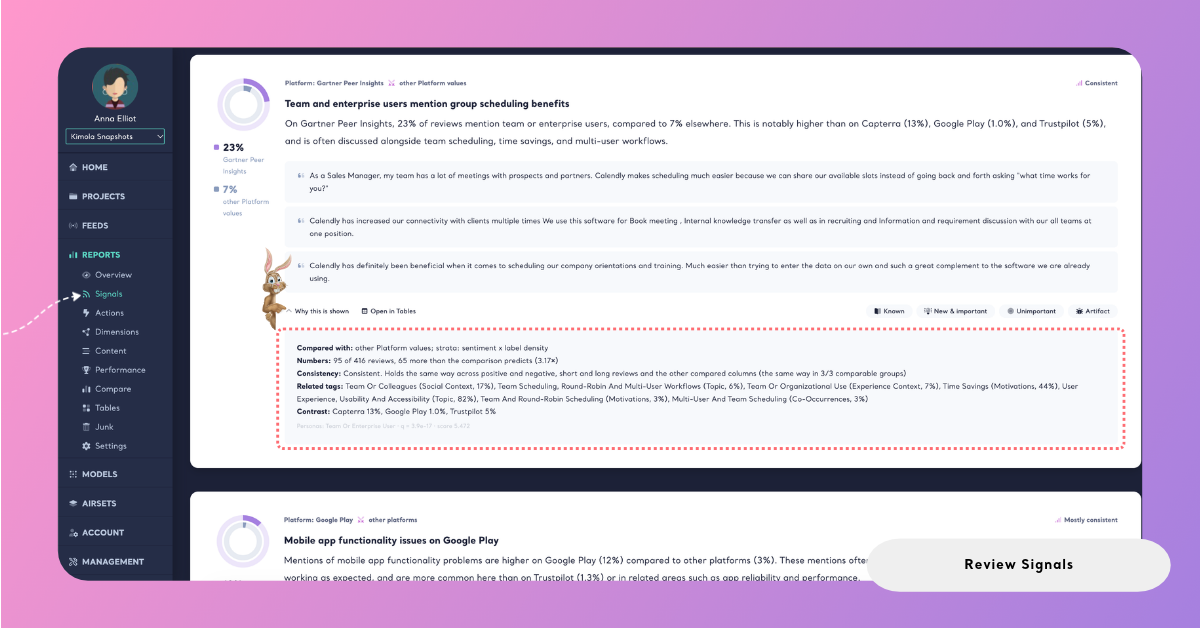
Step 2: Choose a Verdict
Click the verdict that fits. Each one answers a different question about the finding.
Known means your team already knew this. The finding is true but tells you nothing new, for example that a known bug shows up in the reviews of the version that had it.
New & important means this is new to your team and worth acting on. These are the Signals to share, discuss and plan work around.
Unimportant means the finding is true but doesn't matter for your decisions, for example a small difference about a topic your team doesn't own.
Artifact means the finding comes from the data, not from what customers experience. Use it when a difference is caused by how the feedback was collected or exported: duplicated rows, a column whose values name the topic itself, or a group that holds a single campaign's feedback.
The verdict you chose is highlighted on the card. If it can't be saved, Kimola says "Your feedback could not be saved, please try again."
Step 3: Change or Remove a Verdict
To change a verdict, click another one: it replaces the previous verdict. To remove a verdict, click the highlighted verdict again.
Removing a verdict removes its note with it.
A verdict follows the same finding into later runs of the Signals. In a Space, the Signals run again after every file, and a finding that is found again keeps the verdict and note your team gave it, so the review doesn't start from zero after each upload. Re-generating the Signals of a Report is the exception: it deletes every verdict of the Report. See Re-generate Signals below.
Add a Note
A note records why you chose a verdict: what your team already knows about the finding, who is handling it, or what made it an Artifact. A note belongs to a verdict, so you add one after you choose a verdict.
When you click a verdict, a text field with the hint Add a note (optional) opens under the card. Type your note, up to 1,000 characters, and click Save note. Kimola says "Thanks, your note is saved." If the note can't be saved, it says "Your note could not be saved, please try again." If you don't want a note, leave the field empty: the verdict is already saved.
Later, the card shows Add a note next to its verdict buttons, or Edit note when it has one. Click it to open the field again, change the text and click Save note.
Good notes are short and specific. For a mobile app: "Known since the March release, fix planned for the next version" or "Artifact: the iOS export of this month contains each review twice."
Show All Signals
Kimola hides two kinds of Signals by default, because their evidence is weaker than the rest of the list. A card marked Not supported by the verbatims is a finding the quotes of its group didn't back up when Kimola wrote the card. A card marked Volume driven is a difference that the amount of feedback in its group may explain on its own.
When a list has hidden Signals, a switch named Show hidden appears on the left of the filters, with the number of hidden Signals in brackets, for example Show hidden (4). Turn it on to add them to the list. They appear faded, with their mark next to the consistency level, and you can read them, open them in Tables and give them a verdict like any other Signal. Turn the switch off to hide them again. When a list has no hidden Signals, the switch doesn't appear.
Look at hidden Signals when the visible list is short, or when you expected a finding that isn't there. If a hidden Signal turns out to be real, give it a verdict and a note, so the next reader knows it was checked.
[Screenshot: The Show hidden switch turned on, with a faded Signal card marked Volume driven]
Re-generate Signals
You can generate the Signals of a Report again from its current records. Re-generate when the records of the Report have changed since its Signals were generated and you want the Signals to read them as they are now.
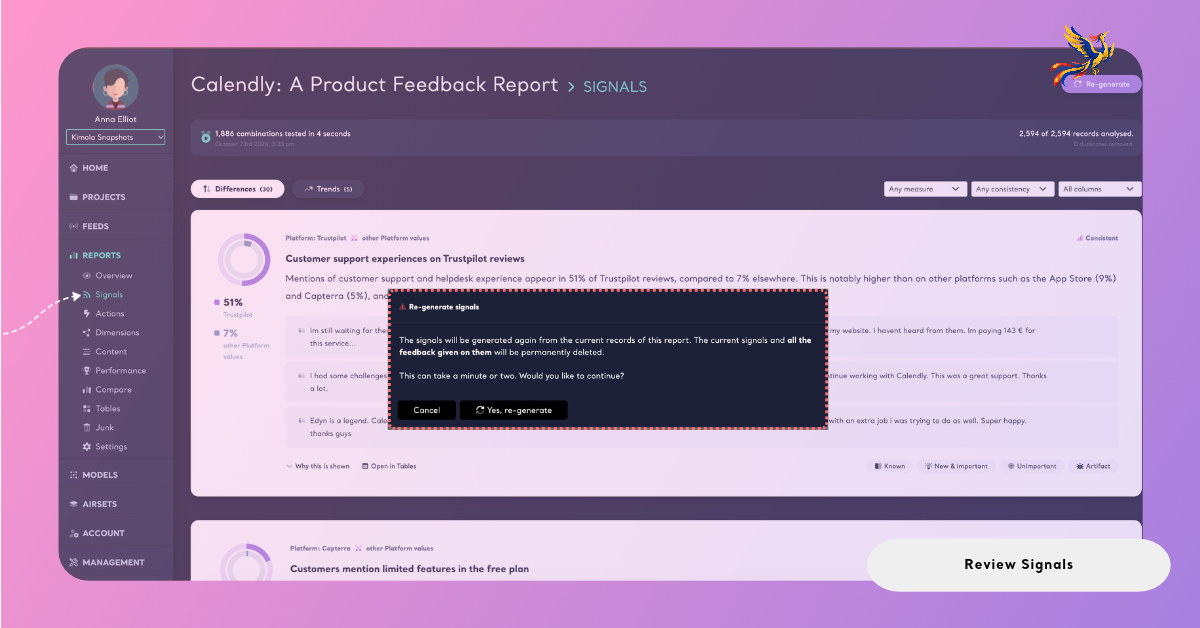
Re-generating starts over. The current Signals and all the verdicts and notes given on them are permanently deleted, and the new Signals have no verdicts. Before you re-generate, write down the verdicts and notes you want to keep.
Step 1: Click Re-generate
Open the Report's Signals page and click Re-generate at the top right. Its tooltip says "Generate the signals again from the current records".
Step 2: Confirm
A window titled Re-generate signals says: "The signals will be generated again from the current records of this report. The current signals and all the feedback given on them will be permanently deleted. This can take a minute or two. Would you like to continue?" Click Yes, re-generate to continue, or close the window to keep the current Signals.
Step 3: Wait for the New Signals
Generating takes a minute or two, and the button shows Generating... in the meantime. When it is done, Kimola says "The signals are generated again." and the page shows the new lists. If the records give no Signal with enough evidence, the page says "No signal has enough evidence in this report." If generating fails, Kimola says "The signals could not be generated, please try again." See Signals in Reports for what the new page shows.
Some older Reports show their Signals in an earlier format and have no Re-generate button. A Space has no Re-generate button either, because its Signals run again by themselves after every file, keeping your verdicts. See Signals in Spaces.