Actions in Reports
min read - Updated on Nov 11, 2026Actions is the page of a Report where Kimola turns the Report into an Action Plan: up to 12 concrete actions for the organization you choose, each saying what to change, for whom and when, who owns it and how to see it worked. Every action rests on figures and quotes from the Report's reviews, and the actions the evidence does not back are dropped before the plan is shown. On this page you start a plan, follow it while it is written, read its action cards and the evidence behind each one, rate the actions and delete plans you no longer need. Action Plans of a Report are available in every package.
You open the page from Actions in the menu of an open Report. To learn what an Action Plan is and how Kimola writes one, see What is an Action Plan?
Action Plans in Reports are available in every package. Sign in to Kimola and open a Report whose analysis is complete. If you don’t have a Report yet, see Create a Report by Uploading a Custom Dataset or Create a Report by Adding Links.
If you’re creating a plan, you’ll need a Profile for the organization it’s for. You can use an existing Profile or create one when you start the plan. If you’re creating one, have the organization’s name and a short description ready. See Manage Profiles.
Plans and Progress
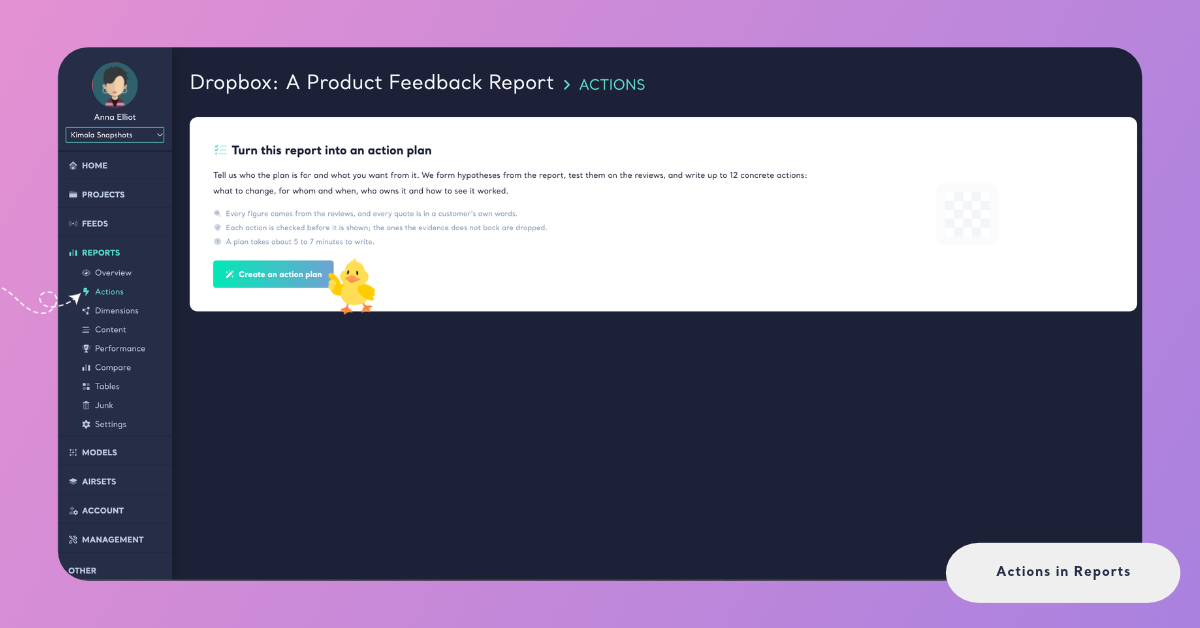
A Report without a plan shows Turn this report into an action plan. The panel sums up what a plan does: you tell Kimola who the plan is for and what you want from it, and Kimola forms hypotheses from the Report, tests them on the reviews and writes up to 12 concrete actions. It also states that every figure comes from the reviews and every quote is in a customer's own words, that each action is checked before it is shown, and that a plan takes about 5 to 7 minutes to write. Create an action plan opens the steps described in Create an Action Plan.
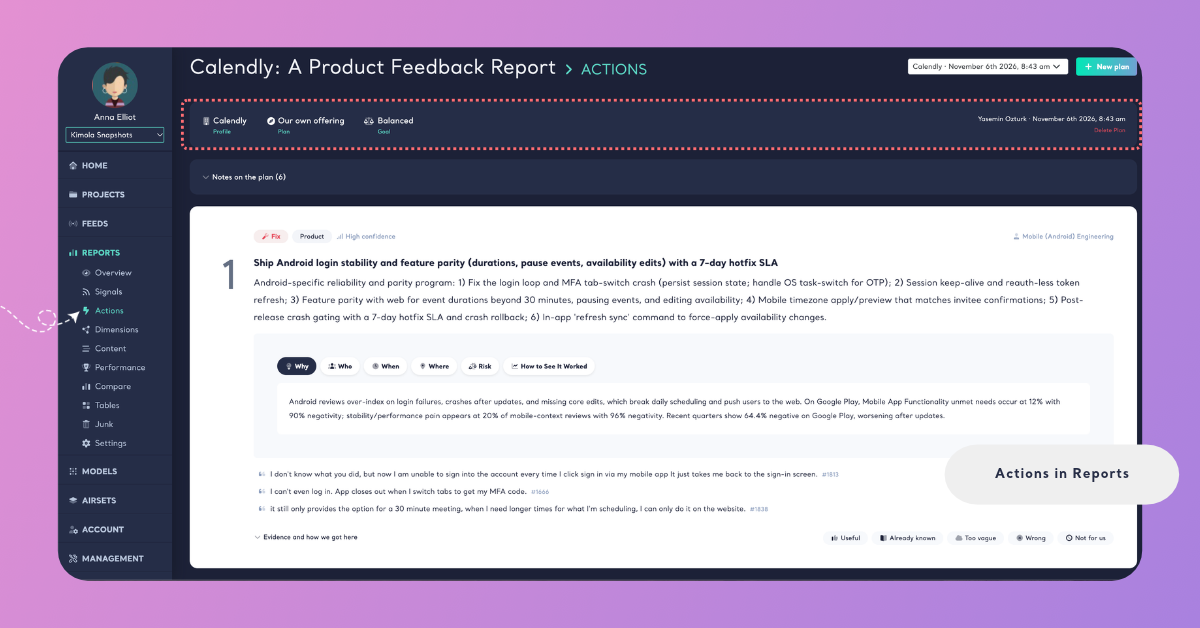
Once the Report has a plan, the top right of the page shows a list of its plans next to New plan. Each plan in the list is named after its Profile and the date it was written, for example "Acme Foods · October 12th 2026, 3:40 pm", and a plan that hasn't finished also shows its status. Pick a plan in the list to open it. New plan starts another plan for the same Report, for example for another Profile, side or goal, and keeps the plans already written.
Under the list, the plan's header shows what the plan was written for, from left to right:
- Profile is the organization the plan is written for. Profiles are described in Manage Profiles.
- Plan is the side the Report is read from: Our own offering, A rival or Our market. When you picked a column and its values for your side, they follow the side, for example "A rival: Brand B (Brand)".
- Goal is what the plan focuses on: Balanced, or the goal you chose (Product development, Positioning, Competitive strategy, Campaign or Customer experience).
- Situation is the situation you described in your own words. It appears only when you wrote one.
On the right, the header shows who started the plan and when, and Delete Plan.
While a plan is being written, the page shows Generating your action plan with a progress bar and the four steps Kimola goes through. Writing a plan usually takes 5 to 7 minutes, and you can leave the page meanwhile: the plan keeps being written and is ready when you return. A finished step gets a check mark, and the step in progress is marked as running:
- Forming hypotheses: reading the Report and testing where problems, needs and strengths concentrate.
- Reading the evidence: reading the reviews behind each hypothesis and sizing what actually happens.
- Writing the actions: turning each mechanism into a concrete change, with its owner and metric.
- Checking every claim: checking figures and quotes against the evidence. Unsupported actions are dropped.
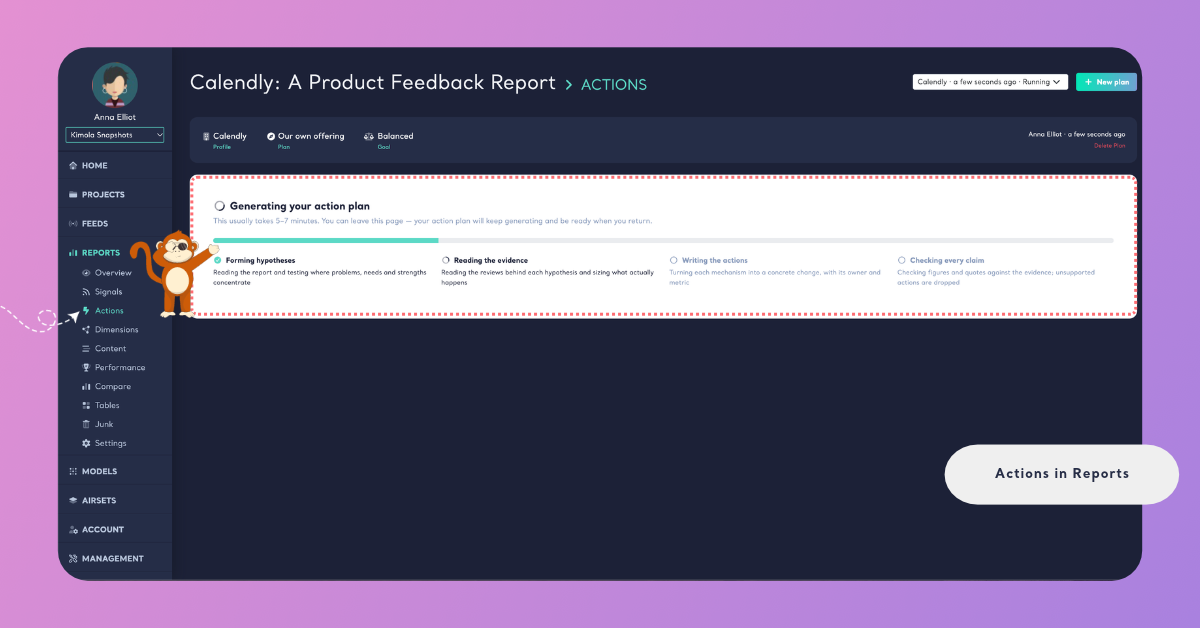
You can leave the page while a plan is being written. It will be ready when you return.
A plan doesn't always end with actions. When no action passes the checks, the page says "No action passed the checks this time: the evidence did not back any of them firmly enough. A narrower goal or a situation may help." When a plan stops with an error, the page shows This plan could not be generated with the reason and Start a new plan.
When a plan is ready, Notes on the plan appears above the action cards, with the number of notes in brackets. Click it to read the notes Kimola wrote while putting the plan together, for example which findings it joined into one action, which actions work better together, or which action rests on few reviews.
Action Cards
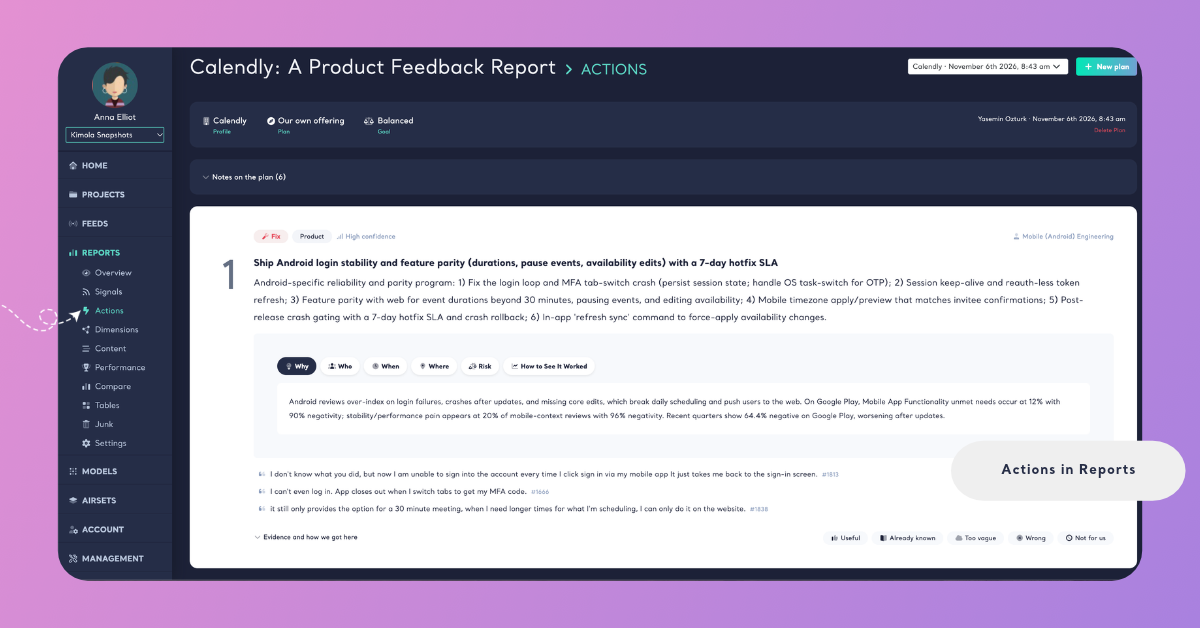
Each action of the plan is a card, numbered from 1. The card brings together what to do, why, and the customers' words behind it.
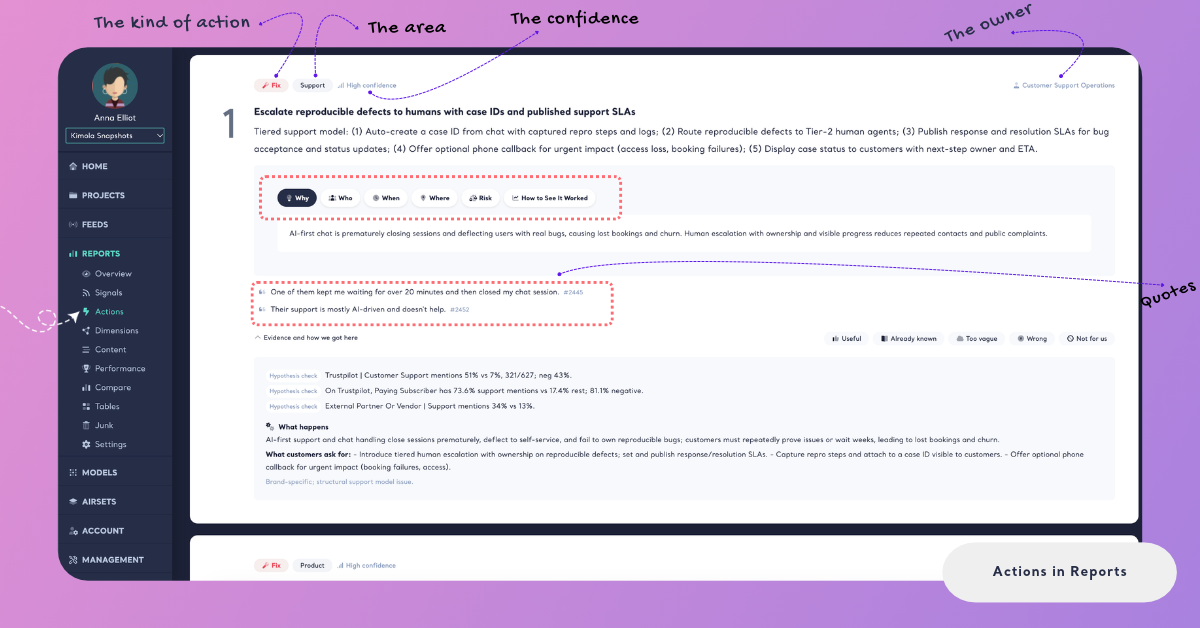
The top line of a card tells you what kind of action it is and who should take it:
- The kind of action, shown as a colored label: Fix, Lean in, Defend or Capture.
- The area of the organization the action belongs to, for example Product, Support or Operations.
- The confidence: High confidence, Medium confidence or Low confidence, depending on how firmly the evidence backs the action.
- The owner, on the right: the team that should own the action.
Below the number, the card states the action in a single line and then describes the change in concrete terms: what exactly to change, add or stop.
Under the description, a row of tabs answers the questions around the change. Why gives the reason for the action, from the evidence. Who says which customers the action is for, When says when it applies or when to act, and Where says where in the customer's experience it applies. Risk names what could go wrong or what to watch out for. How to See It Worked names the metric that shows whether the change worked. Click a tab to read it; a tab appears only when the action has something to say under it.
Under the tabs, a few quotes show what customers wrote, in their own words. Each quote ends with a reference number such as "#2445" that identifies the review it comes from.
At the bottom of each card, the buttons Useful, Already known, Too vague, Wrong and Not for us let you rate the action. Hover over a button to see what it means; select the same verdict again to remove it. After you choose a verdict, you can add a note under Why? (optional). Verdicts and notes are described in Rate Actions in an Action Plan.
Under the last card, a line tells you how many actions were drafted and then dropped, for example "4 more actions were drafted and dropped: the checks found them unsupported or repeating another." The plan shows only the actions that passed the checks.
Evidence and How We Got Here
Evidence and how we got here at the bottom of a card opens the evidence of that action, so you can check it yourself before you act on it, and rate the action Wrong if its evidence or reasoning is wrong. Click it again to close it.
The evidence starts with the claims the action rests on, each with a label that says where the claim comes from. Report brief marks a figure from Kimola's overview of the Report, and Signals marks a Signal of the Report, such as a topic mentioned more, or more negatively, in one group of reviews. Hypothesis check, Trend check, Follow-up check and Mechanism size mark the counts Kimola ran on the reviews while it tested its hypotheses. Every claim carries its numbers, such as a count of reviews, a share and the share it is compared with.
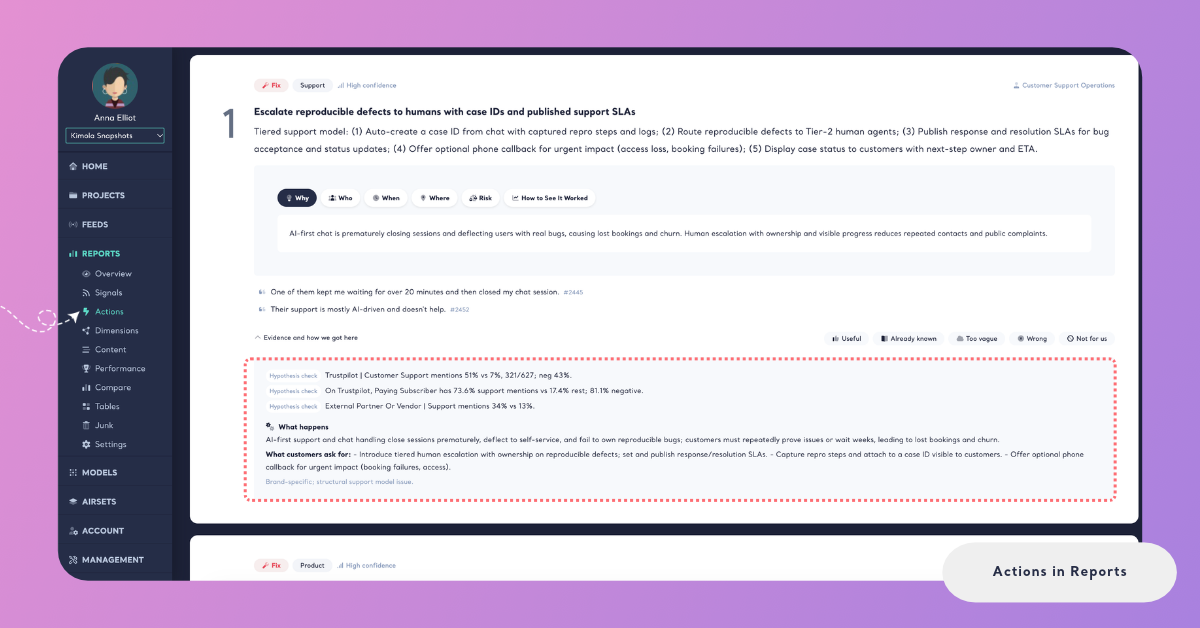
What happens describes the mechanism behind the action: what actually happens to customers, as the reviews tell it. What customers ask for: follows with the remedies customers ask for in their reviews. A last line may say how far the finding reaches, for example whether it holds across several months or may be a seasonal peak.
Delete a Plan
You can delete a plan you no longer need. Deleting is permanent: it removes the plan with its actions and their verdicts, and the other plans of the Report stay as they are.
Open the plan from the list at the top of the page and click Delete Plan in its header. Confirm with Yes, delete it when the app asks "Are you sure you want to permanently delete this action plan?". The page then opens the next plan of the Report, or shows Turn this report into an action plan if no plan is left.
Deleting a plan can't be undone. Its actions and their verdicts are deleted with it.
How It Differs in Spaces
A Report's Action Plans don't make Tasks. In a Space, available in the Enterprise package, the Actions page has the same plans, progress, cards and evidence, and every action card also has Make a task. A Space's plan reads every classified file of the Space and stays as it was written. See Actions in Spaces.