Rate Actions in an Action Plan
min read - Updated on Nov 11, 2026You can rate every action of an Action Plan to record what your team thinks of it. Each action card has five verdicts: Useful, Already known, Too vague, Wrong and Not for us. You can add a note to say why you chose one. A verdict marks which actions you would act on and which you would set aside. It doesn't change the plan, and every action stays on it.
Rating works the same way in the Action Plans of a Report and of a Space. You rate actions on the Actions page of the Report or Space, under each action card. Action Plans of a Report are available in every package. Action Plans of a Space are available in the Enterprise package. For every part of the page, see Actions in Reports and Actions in Spaces.
You need a finished Action Plan. Open the Report or Space, click Actions in its menu and pick the plan from the list at the top right.
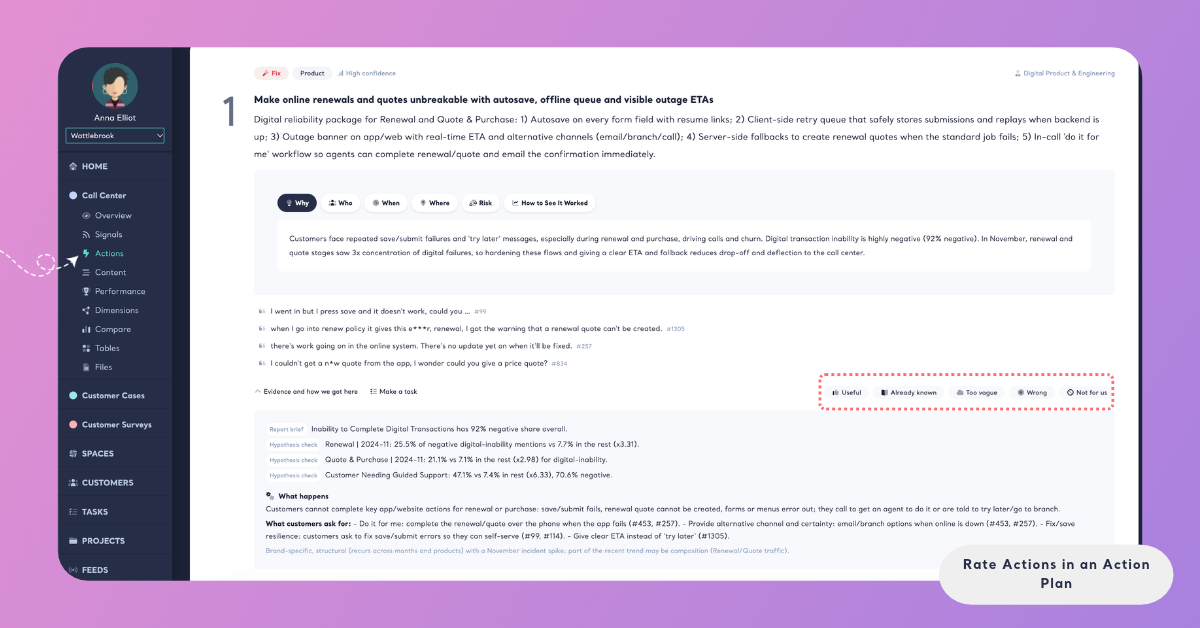
The Verdicts
A verdict is your judgment of one action. Every action card has the five verdict buttons in its bottom-right corner, and you choose one of them. Every team member gives their own verdict on each action, and the card shows the one you gave.
Step 1: Open the Plan
Open the Report or Space and click Actions in its menu. If it has more than one plan, pick the plan you want to rate from the list at the top right. Each plan in the list is named after its Profile and the date it was written. The plan's actions are shown as cards, numbered from 1.
Step 2: Read the Action and Its Evidence
Read the card before you decide. The action, its tabs (Why, Who, When, Where, Risk and How to See It Worked) and the customers' quotes tell you what to change and why. To check what the action rests on, click Evidence and how we got here at the bottom of the card. It lists the claims the action rests on with their numbers. What happens describes what actually happens to customers, and What customers ask for: lists the remedies they ask for.
Open Evidence and how we got here before you choose Wrong. It shows the figures and the reasoning behind the action.
Step 3: Choose a Verdict
Click the verdict that fits the action. Hover over a button to see what it means.
- Useful: we would act on it. The action is concrete, it fits your organization and the evidence backs it.
- Already known: we already know it or are already doing it. The action may be right, but it tells your team nothing new.
- Too vague: not concrete enough to act on. Your team couldn't say what exactly to change, who should do it or when.
- Wrong: its evidence or reasoning is wrong. The figures or quotes don't say what the action claims, or the action doesn't follow from them.
- Not for us: it does not fit our organization. The action may be sound, but it is outside what your organization does, sells or can change.
The verdict is saved as soon as you click it, and the button stays highlighted on the card. If it can't be saved, Kimola says "Your feedback could not be saved, please try again."
For an online course platform, a plan might suggest "Show learners how much of a course is left on every lesson page." The team rates it Useful. Another action, "Improve the learning experience for beginners," gets Too vague, because it doesn't say what to change. An action about adding live tutoring gets Not for us from a platform that only sells recorded courses.
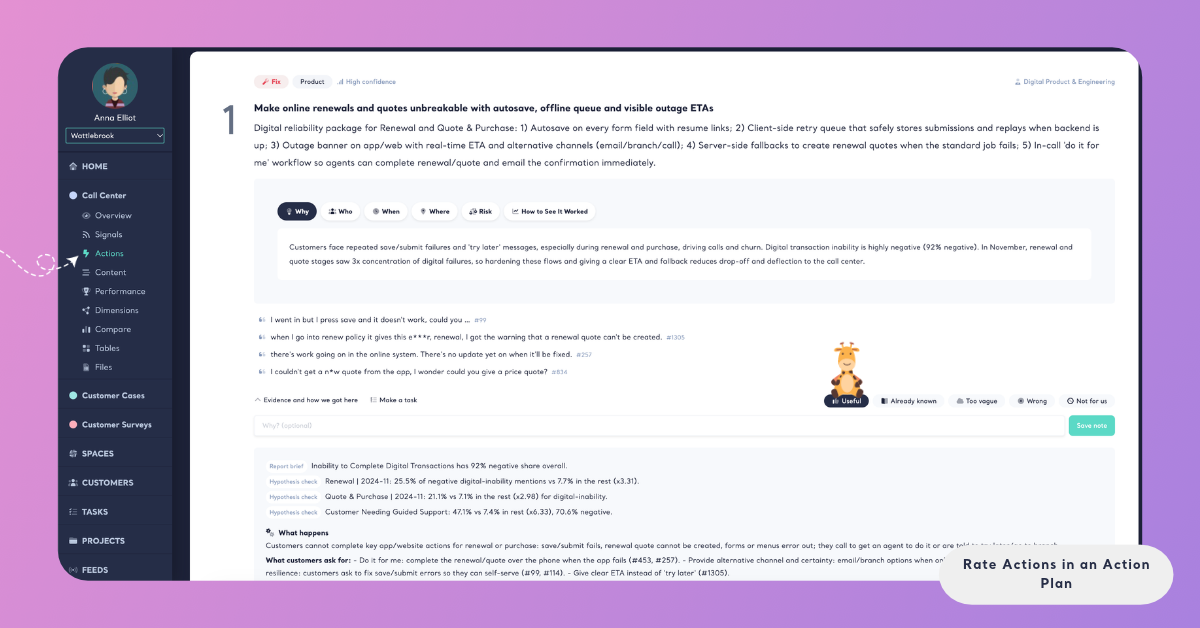
Step 4: Change Your Verdict
To change a verdict, click another one. It replaces the previous verdict, and the note you added stays with the new verdict.
Add a Note
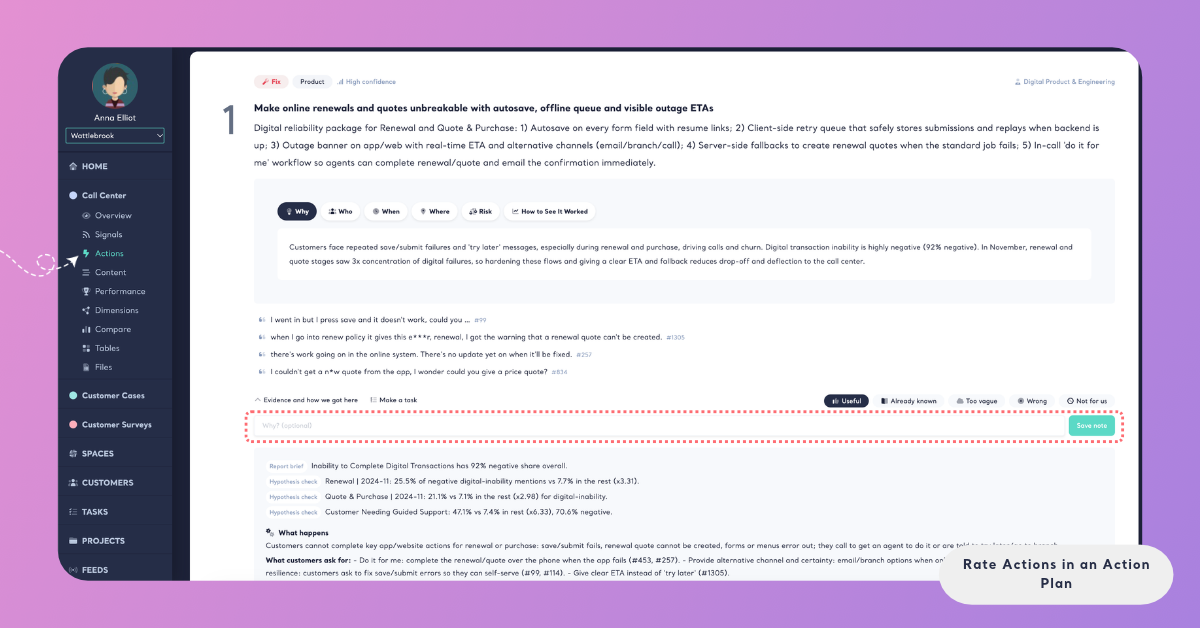
A note says why you chose a verdict: what your team already does about the action, what makes it too vague, or which figure in its evidence is wrong. A note belongs to a verdict, so you add one after you choose a verdict.
When you choose a verdict on an action that has no note, a text field with the hint Why? (optional) opens under the buttons. Type your note, up to 1,000 characters, and click Save note. Kimola says "Thanks, your note is saved." If the note can't be saved, it says "Your note could not be saved, please try again." If you don't want a note, leave the field empty: the verdict is already saved.
After you save it, the note appears under the verdict buttons. Next to the buttons, the card shows Edit note when the verdict has a note, or Add a note when it has none. Click it to open the field again, change the text and click Save note. To remove a note and keep the verdict, empty the field and click Save note.
Good notes are short and specific. For a hotel chain: "Already known: the new check-in kiosks open in all branches in March" or "Wrong: the late check-in reviews come from one branch, not from the whole chain."
Take Back a Verdict
You can remove a verdict you gave. Click the highlighted verdict again. The button is no longer highlighted, and the action has no verdict from you.
Taking back a verdict removes its note with it.
Verdicts stay with the actions of the plan. When a plan is deleted with Delete Plan, its actions are deleted with their verdicts and notes. See Actions in Reports.
Deleting a plan can't be undone. The verdicts and notes of its actions are deleted with it.