Manage Airsets
2 mins read - Created on Oct 31, 2025The Airsets section in Kimola allows you to manage all the datasets collected through the Airset Generator. Once an Airset is created, you can review, download, or delete it.
To view your Airsets, sign in to your Kimola Dashboard. From the left menu, click Datasets, then go to the Airsets tab.
View an Airset
Click the 👁 View icon next to any Airset to preview its contents. You’ll see the collected records.
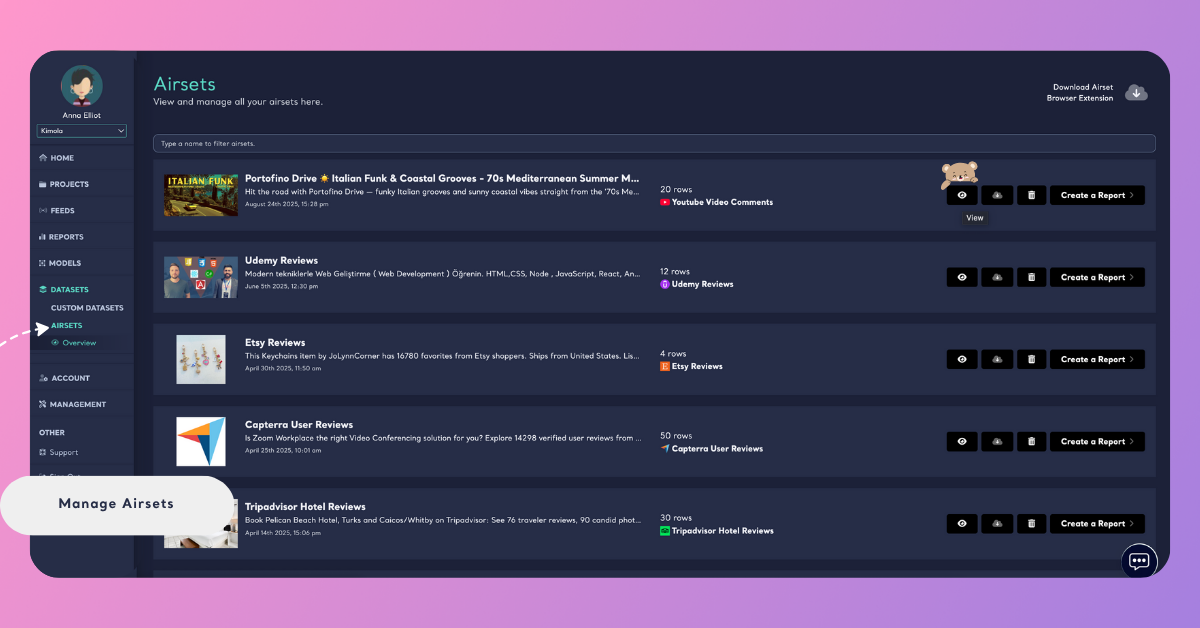
Use this preview to check the dataset size, content quality, and scraping accuracy before downloading or creating a report.
Download an Airset
To download your dataset:
- Locate the Airset you want to export.
- Click the ☁️ Download icon on the right.
- Your dataset will be downloaded as a .xlsx file.
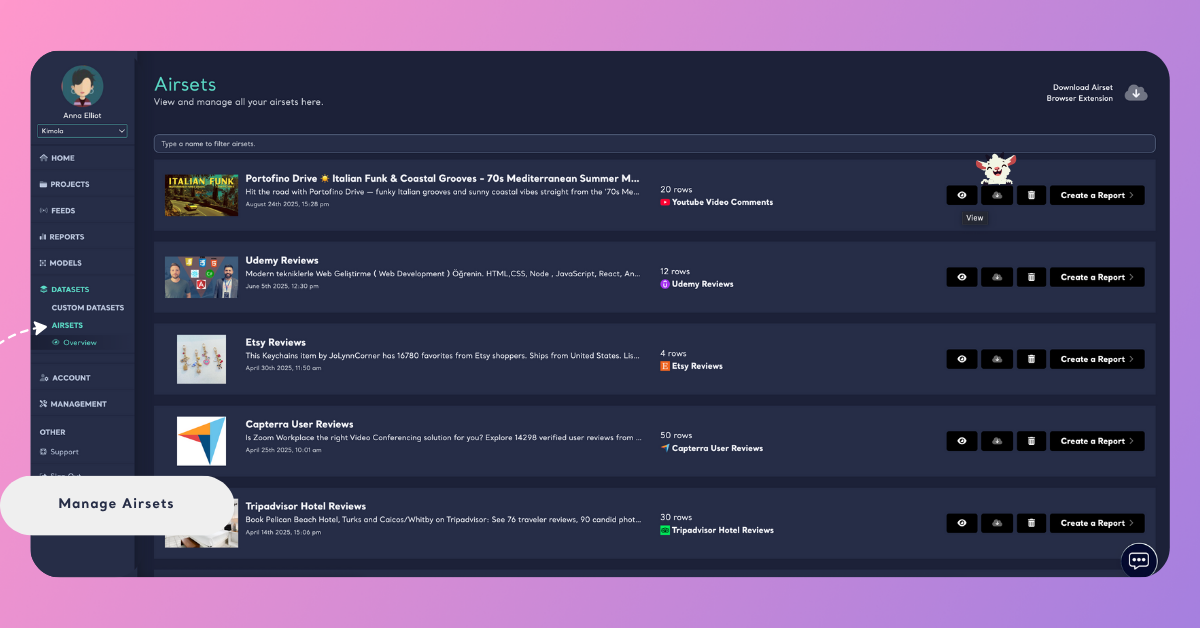
This is useful for creating offline backups or manually reviewing data outside Kimola.
Delete an Airset
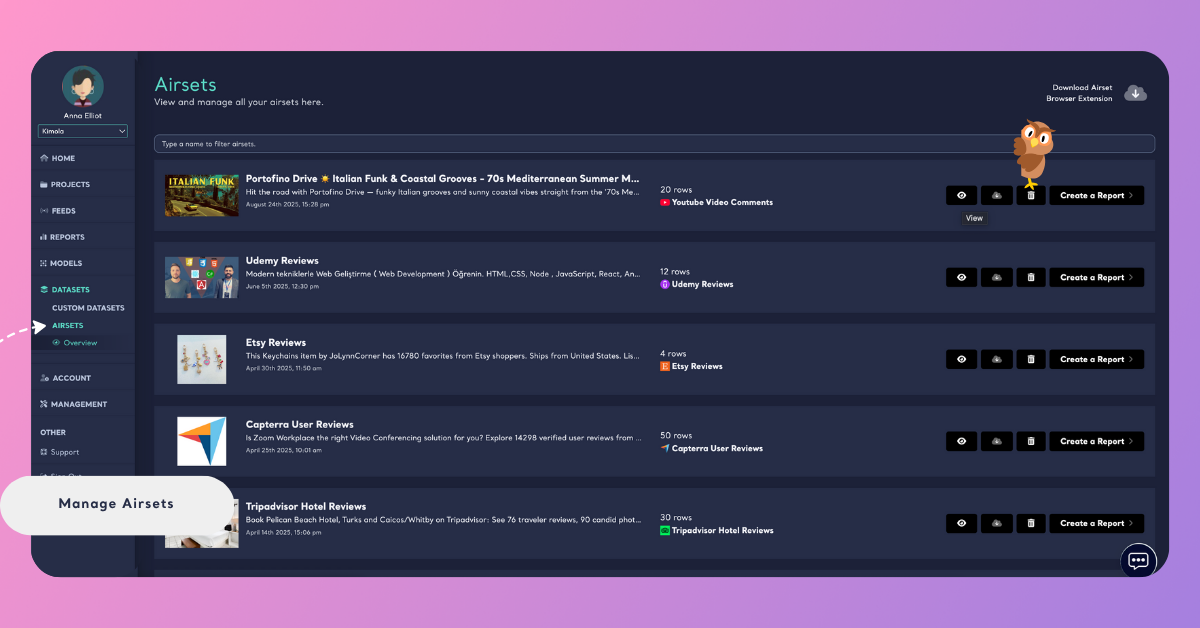
If you no longer need a dataset, click the Delete icon (🗑) next to it. This action permanently removes the Airset from your account — so be sure to download a copy first if you want to keep the data.
Delete Record in an Airset
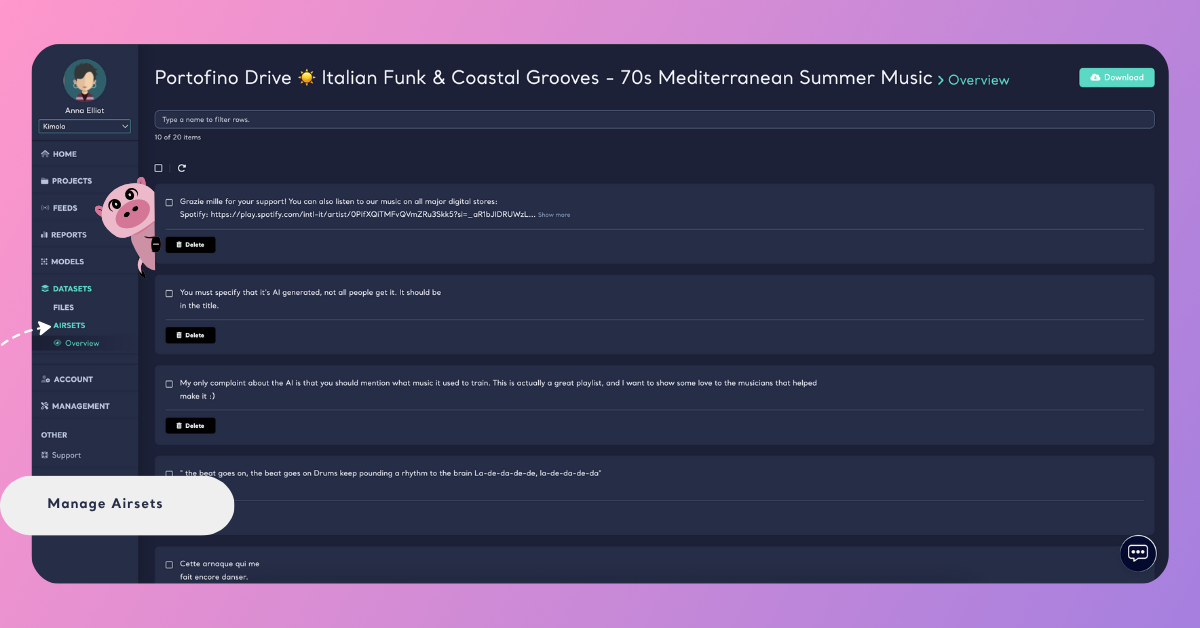
You can also remove specific records inside an Airset without deleting the entire dataset. Open the Airset by clicking View, then manage records directly.
Delete Records Individually
To remove a single record, click the Delete button below that record. This is ideal when you need to clean irrelevant or spam entries without affecting the rest of your dataset.
Delete Records in Bulk
To delete multiple records at once:
- Use the checkboxes on the left of each record to select them.
- Click the Delete Selected option at the top.
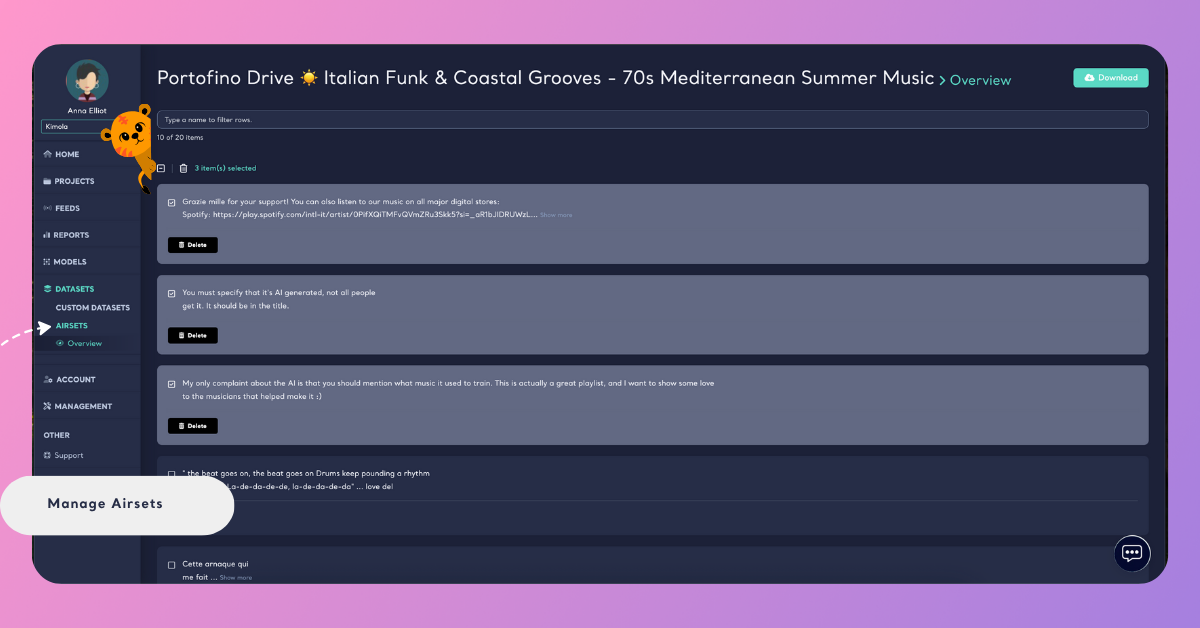
This bulk delete option is useful for large datasets with repetitive or unnecessary entries.