Set up the Airset Generator
2 mins read - Created on Oct 31, 2025Kimola provides a browser extension to make collecting consumer comments and reviews effortless. The Airset Generator, available on the Chrome Web Store, allows you to gather feedback from supported platforms and automatically send it to your Kimola dashboard — where it’s stored as an Airset for analysis.
Follow this guide to install and set up the extension so you can start capturing valuable insights in just a few minutes.
What is the Airset Generator
The Airset Generator, published by Kimola on the Chrome Store, helps you collect reviews and comments from supported websites such as Amazon, Tripadvisor, Yelp, and others.
Once installed, it connects directly to your Kimola account and automatically creates Airsets — ready for reporting or deeper analysis on your dashboard.
Before you begin, make sure you have:
- A Kimola account (sign up if you don’t have one).
- The Google Chrome browser or a Chromium-based browser (such as Edge or Brave).
Step 1: Install the Extension
- Visit the Chrome Web Store and search for “Airset Generator”, or use the direct link provided in Kimola’s dashboard.
- Click Add to Chrome, then select Add Extension when prompted.
- Once installed, you’ll see the Kimola icon appear in your browser’s toolbar.
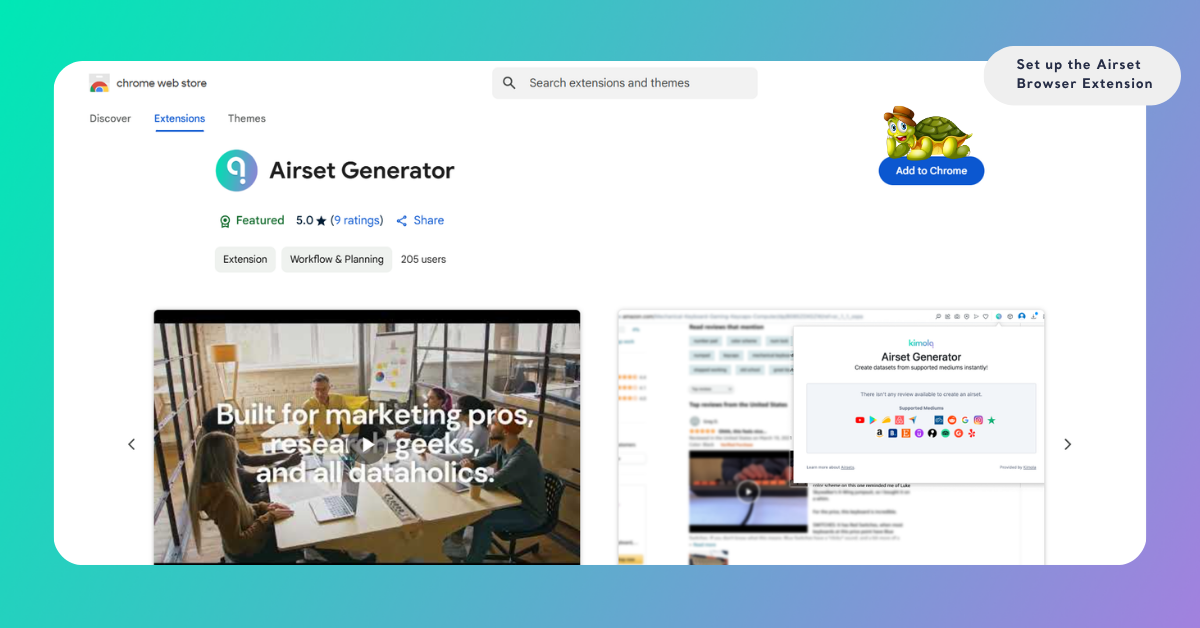
If you can’t see the icon, click the puzzle icon in your toolbar and pin Kimola Airset Generator for quick access.
Step 2: Initiate Setup
- Click the Airset Generator icon in your browser’s toolbar.
- Select Set Up within the extension.
- You’ll be prompted to enter your API Key to connect the extension to your Kimola account.
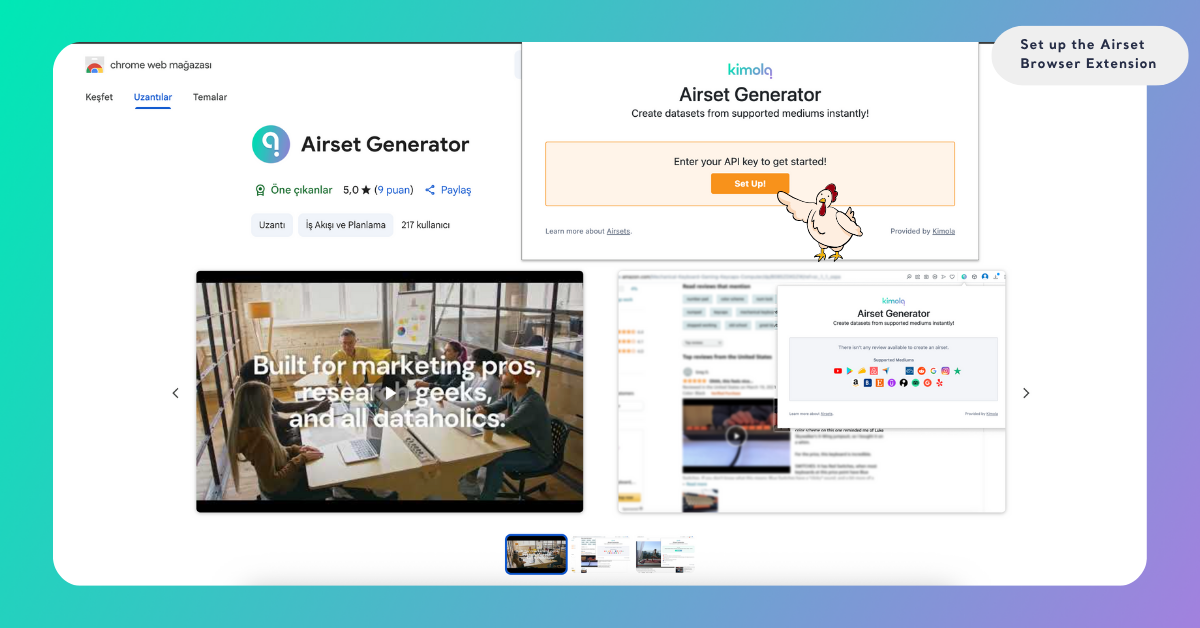
Step 3: Retrieve Your API Key
- Log in to your Kimola.
- From the left menu, go to Account.
- In your Account page, scroll down to the bottom and locate the API Key section. Click Copy to copy your unique key for use in the Airset Browser Extension.
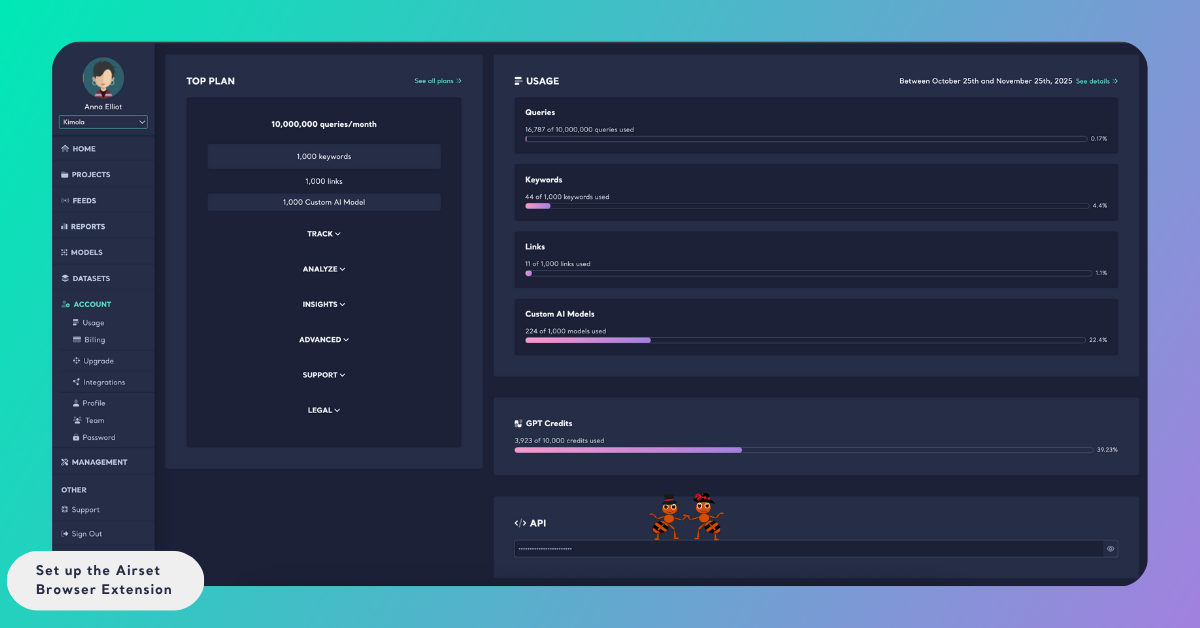
Step 4: Complete the Setup
- Return to the Airset Browser Extension.
- Paste your copied API Key into the required field.
- Click Save to complete the setup.
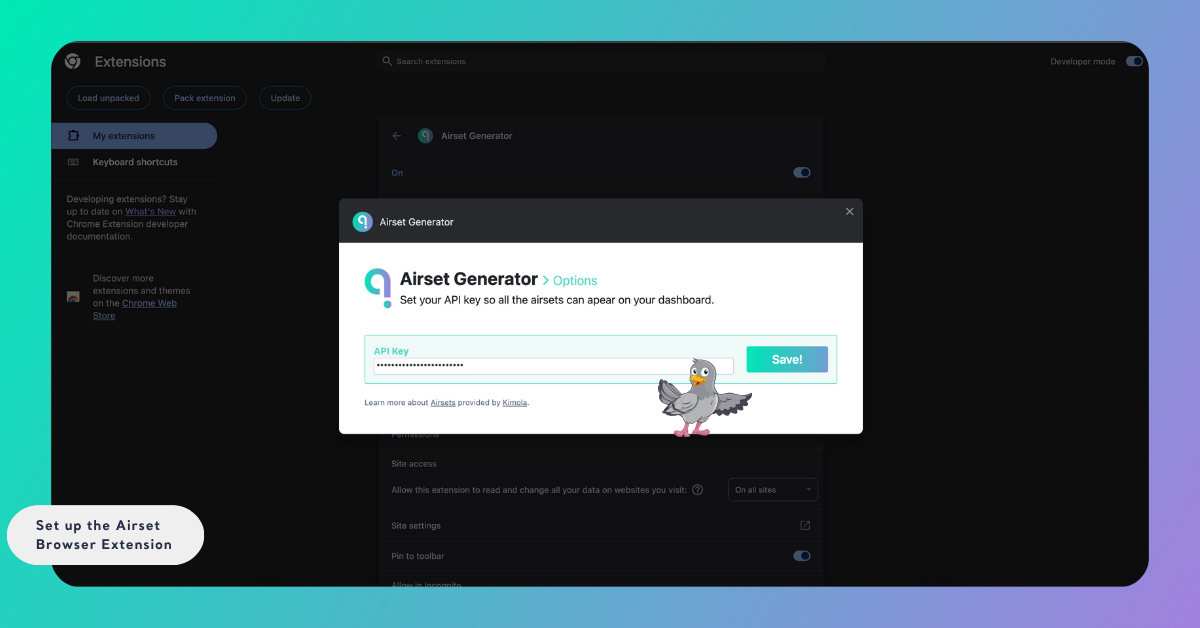
Once connected, the extension is ready to use. Every time you collect reviews or comments from supported platforms, your data will automatically appear as a new Airset under Datasets → Airsets in your Kimola dashboard.
If you prefer a visual guide, check out our YouTube video tutorial that walks you through the entire setup process for the Airset Generator.