What are Integrations?
min read - Updated on Oct 28, 2026Integrations connect Kimola to the tools where your customer feedback and your team's work already live. Zendesk, Intercom and Google Sheets bring support tickets, chat conversations and spreadsheets into a Report. Facebook pages and Radaar bring social media mentions, comments and messages into a Feed. Jira takes Tasks out to the tool where your team plans its work. The data integrations are available in every paid package; the Starter package doesn't include them. The Jira integration is available in the Enterprise package.
Without an integration, feedback that sits in a help desk or a spreadsheet has to be exported and uploaded as a file every time you want to analyze it. With one, you choose the source in Kimola and its data opens in the same steps as a file upload, ready to be classified into themes, sentiment and Dimensions.
You find every integration under Account › Integrations, a page that says "View and manage all your integrations here." Integrations you can connect are listed under AVAILABLE, and the ones you have connected move to ACTIVE. Jira has its own section, WORK MANAGEMENT ("Where your team's tasks go."), because it sends work out of Kimola instead of bringing feedback in.
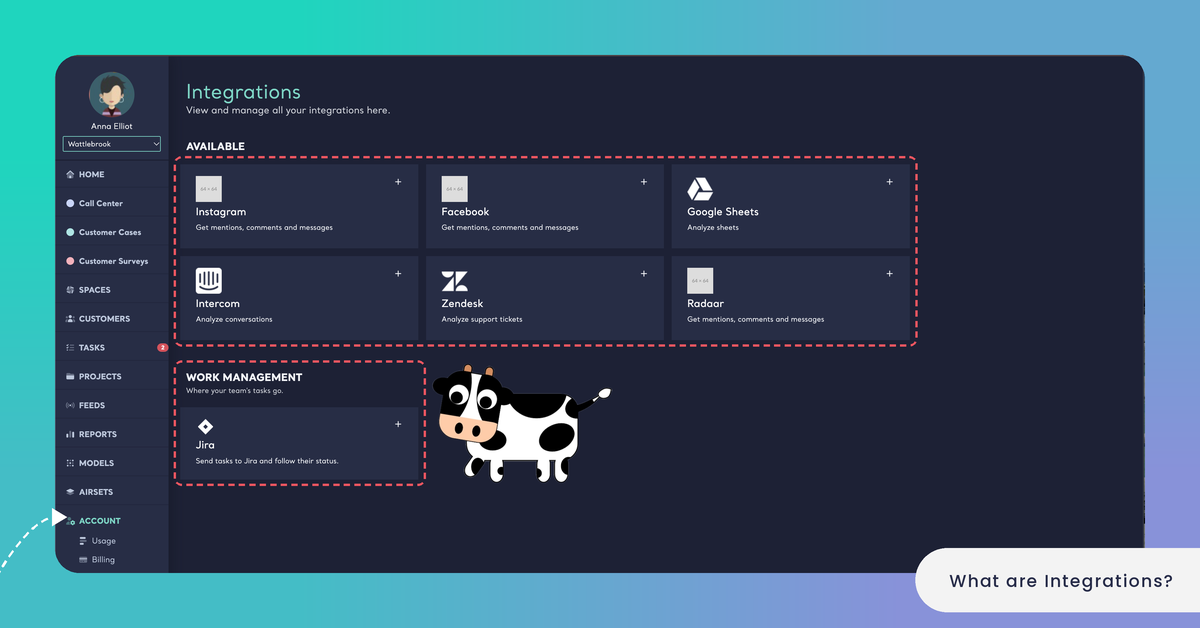
Data Sources for Reports
Three integrations bring feedback into a Report. On the Reports page, they are listed under Integrations next to the area where you upload a file, and see all opens Account › Integrations. An integration you have already connected opens its data; one that isn't connected yet asks you to connect it first. See Create a Report Using Integrations.
Zendesk. Analyze support tickets. You type your Zendesk subdomain (the subdomain part of https://subdomain.zendesk.com) and authorize Kimola in the Zendesk window. Kimola reads your tickets with their comments and opens them as a dataset with a Tickets sheet. See Connect Zendesk to Kimola.
Intercom. Analyze conversations. Choosing Intercom opens Intercom's authorization window. Kimola reads the customer's opening message of each conversation into a Conversations sheet. See Connect Intercom to Kimola.
Google Sheets. Analyze a spreadsheet without downloading it. You sign in to Google Drive and pick a spreadsheet in Google's file picker. See Connect Google Sheets to Kimola.
Whichever source you choose, the data continues in the same wizard as an uploaded file: you pick the sheet and its Text, URL and Date columns, then the classifiers, the structure and the Dimensions of the Report. See Create a Report by Uploading a Custom Dataset.
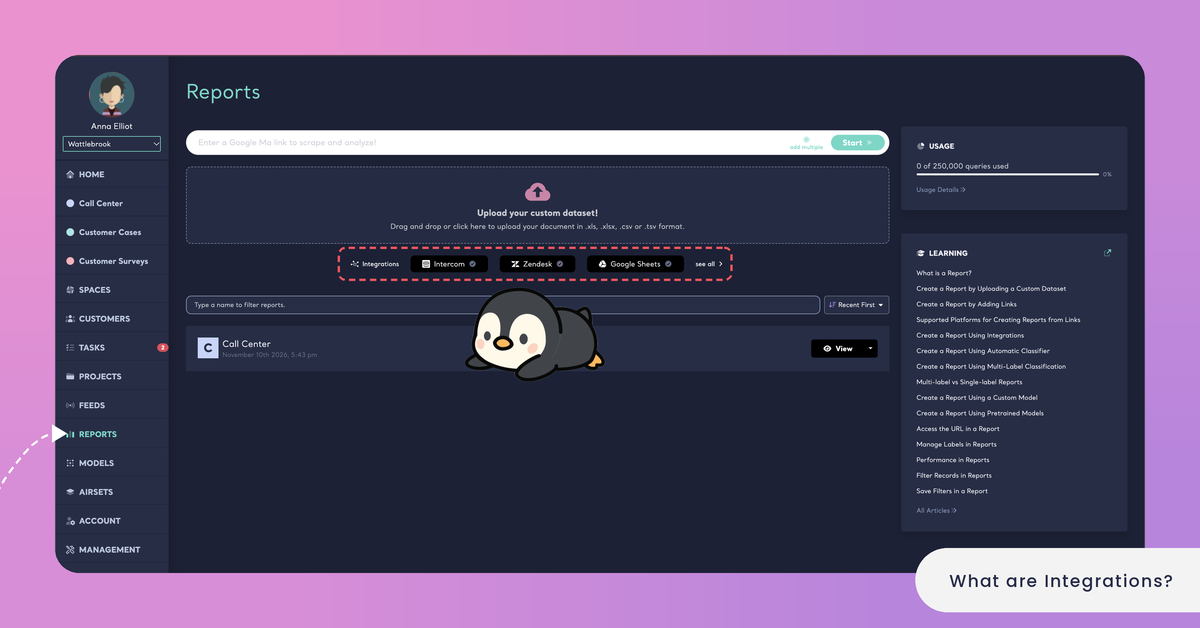
Sources for Feeds
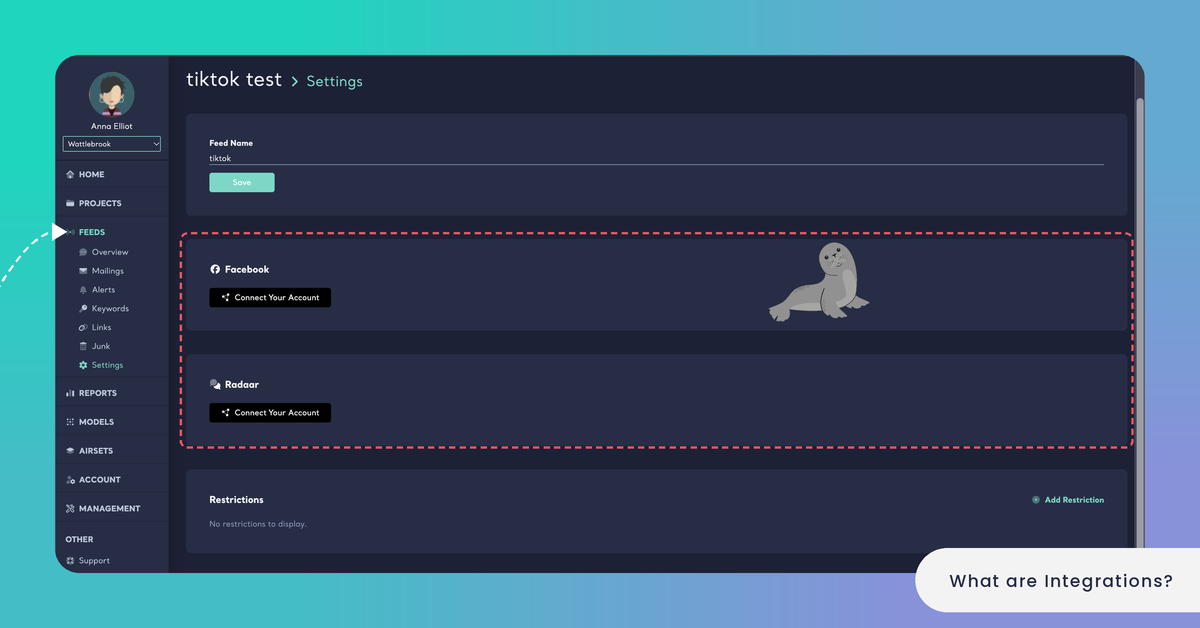
Two integrations add social media sources to a Feed, which collects new mentions and feedback continuously. Both are listed under Account › Integrations with "Get mentions, comments and messages", and you connect them in the Feed that should collect the data, from its Settings.
Facebook. In a Feed's Settings, under Facebook, Connect a Page lists the pages available in your Facebook account. Once a page is connected, the Feed starts listening to its mentions, comments and messages. See Connect a Facebook Page to a Feed.
Radaar. Radaar is a social media management and monitoring tool. You connect it with your Radaar Bearer Token and Workspace Id, and then connect a Radaar account or a keyword to the Feed, so the posts it tracks arrive in the Feed as records. See Connect Your Radaar Account to a Feed.
Feeds are not part of the Starter package.
Work Management
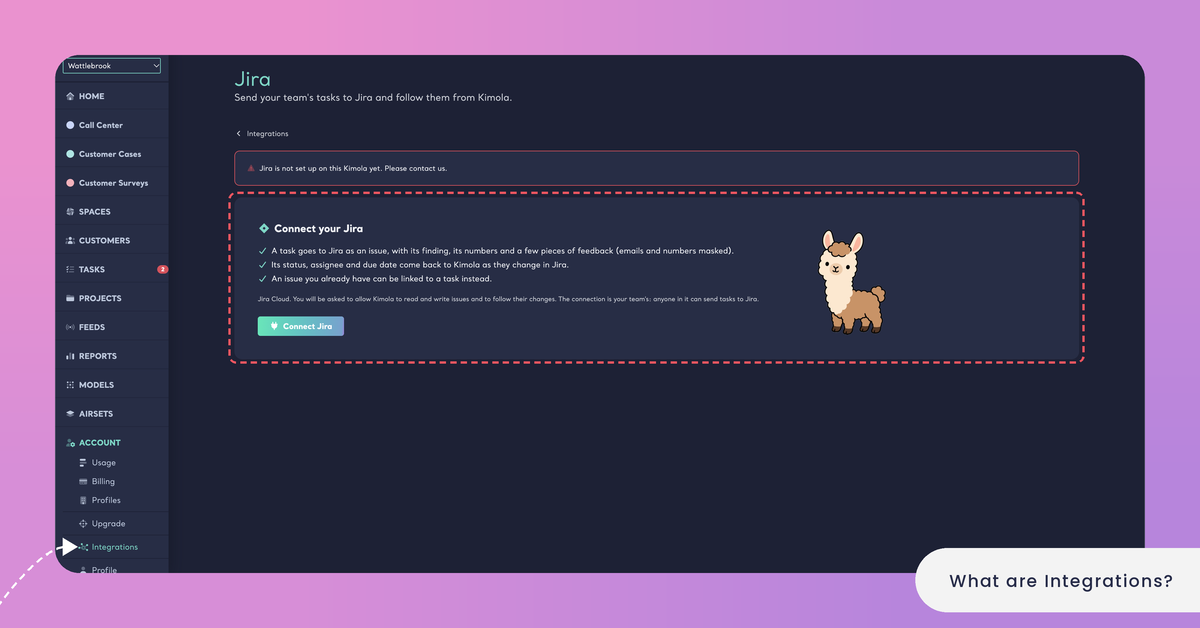
The Jira integration works in the other direction: it sends your team's Tasks to Jira Cloud and follows them from Kimola. On its page, under Account › Integrations › Jira, Kimola explains what it does:
A Task goes to Jira as an issue, with its finding, its numbers and a few pieces of feedback, with emails and numbers masked. An issue you already have can be linked to a Task instead. The issue's status, assignee and due date come back to Kimola as they change in Jira.
The Jira integration is available in the Enterprise package, like Tasks.
You connect Jira once for the whole team with Connect Jira, and Atlassian asks you to allow Kimola to read and write issues and to follow their changes. The connection belongs to your team: anyone in it can send Tasks to Jira. You then choose the SITE and, under Where tasks go, the default PROJECT and ISSUE TYPE; whoever sends a Task can pick others. If the connection expires, Kimola can't send Tasks or read their issues until you click Connect again. See Connect Jira to Kimola and Send a Task to Jira.
Connect and Disconnect
Every integration starts from Account › Integrations, or from the place where you use it: the Integrations list on the Reports page for Zendesk, Intercom and Google Sheets, a Feed's Settings for Facebook and Radaar, and the JIRA card of a Task for Jira. You authorize Kimola in the other service's own window, or, for Radaar, with the token and workspace of your Radaar account.
To disconnect an integration, open it under ACTIVE in Account › Integrations and click Disconnect. A Facebook page or a Radaar account can also be disconnected in the Feed's Settings. Disconnecting Jira unlinks the team's Tasks from their Jira issues.
Kimola On-Premises doesn't offer the data integrations (Zendesk, Intercom, Google Sheets) or Feeds; there, export your feedback and upload it as a file. The Jira integration is offered in Kimola On-Premises too, and connecting it is optional. See Kimola On-Premises.
The Kimola API
When the integration you need isn't listed, your own systems can work with Kimola through the Kimola API. It covers Reports and their analyses, Models (their labels and predictions), Feeds, Airsets, Presets and your query usage. See Use the Kimola API, and read the full documentation at github.com/Kimola/api.
To see which integrations your package includes, visit kimola.com/pricing.