Upgrade Your Plan
min read - Updated on Nov 04, 2026You can upgrade your Kimola account from the Upgrade page under Account in the left menu. Kimola has five packages: Starter (free), Basic, Standard, Business and Enterprise. Starter is free for as long as you use it. Basic, Standard and Business are paid monthly or yearly by card, and you start them yourself from the Upgrade page in a few minutes. Enterprise is agreed with the Kimola team, and its accounts are set up together with a dedicated Account Manager. The packages differ in how many queries, keywords, links and custom AI models they include, and in the features and support that come with them.
You need to be signed in to Kimola. You start from Upgrade under Account in the left menu.
The Packages
Every package, Starter included, lets you create Reports and analyze customer feedback with Kimola. What changes from one package to the next is how much you can use and which features are included. Current prices and limits are on kimola.com/pricing and on the Upgrade page itself.
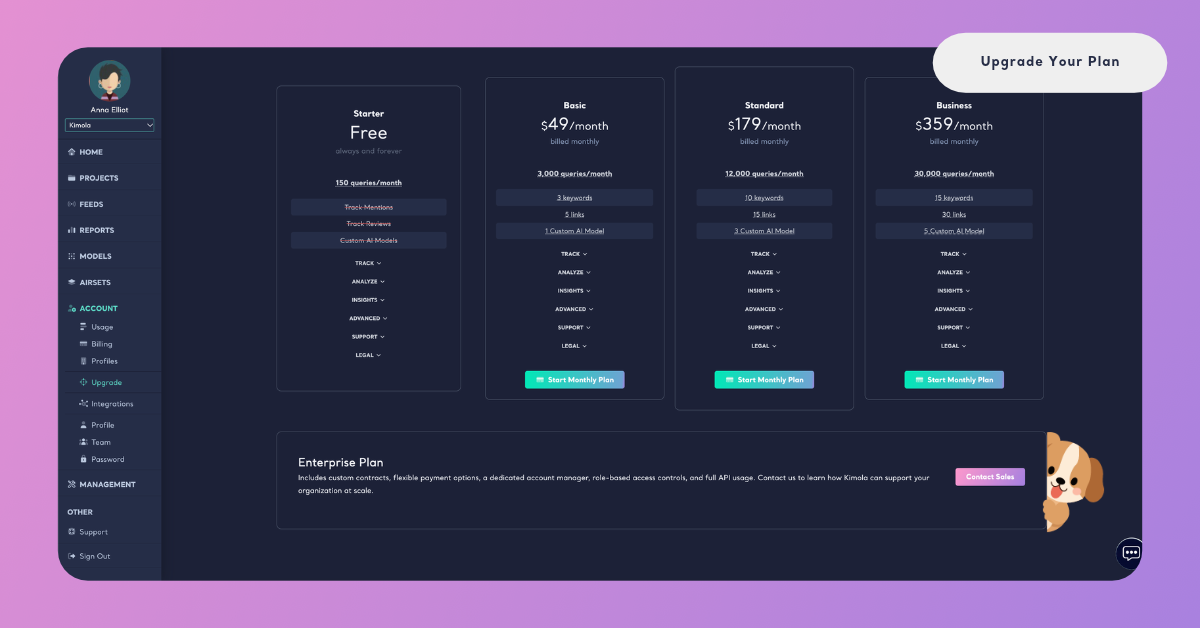
Starter is free, always. Starter doesn't include Feeds (mention tracking and review tracking), custom AI models or automated reports and alerts.
Basic, Standard and Business are the paid packages you can start yourself. They include Feeds and custom AI models. Each step up includes more queries, keywords, links and custom AI models, and the support that comes with each package is listed on the Upgrade page.
Enterprise is set up by agreement for organizations that analyze feedback across teams. It includes everything in the other packages, and features that are available only in Enterprise. See the Enterprise section below.
Starter doesn't include Feeds or custom AI models. To track mentions and reviews or to create your own models, choose Basic or a larger package.
Each package card shows four numbers. They are the limits you compare when you choose a package.
Queries are the total number of queries available in a billing period. Kimola counts queries as rows × models × Dimensions: every analyzed row of feedback, multiplied by the number of models that classify it and the number of Dimensions added to the analysis. How to Calculate Queries? explains the rule in detail.
Keywords are the maximum number of keywords your Feeds can track mentions for at the same time.
Links are the maximum number of web addresses your Feeds can monitor for new reviews at the same time.
Custom AI Models are the maximum number of custom AI models you can keep in your account at a time.
An online course platform analyzes 2,000 course reviews in one Report, with the Automatic Classifier and the Sentiment Classifier and with the Motivations, Pain Points and Personas Dimensions. The Report uses 2,000 × 2 × 3 = 12,000 queries. The team picks a package whose queries per billing period cover the Reports it plans to create each month.
To see how much of your current package you have used, open Usage under Account. Track Your Usage explains the page.
Monthly or Yearly
You can pay for Basic, Standard and Business monthly or yearly. The switch at the top of the Upgrade page moves between Monthly and Yearly (Save up to 20%), and the package cards change with it.
With Monthly, each card shows the monthly price with "billed monthly", and its button reads Start Monthly Plan. You pay every month.
With Yearly, each card shows the price per month with "billed annually", and its button reads Start Annual Plan. You pay for the whole year at once, and the yearly price saves up to 20% compared with paying monthly.
The package itself is the same either way: the queries, keywords, links and custom AI models on a card don't change when you switch between Monthly and Yearly.
[Screenshot: The Monthly and Yearly switch at the top of the Upgrade page, with the package cards below it]
Upgrade
Starting a paid package takes a few minutes. You choose the package on the Upgrade page, and you pay on a secure checkout page that opens in a new tab.
Step 1: Open the Upgrade Page
In the left menu, under Account, click Upgrade. The page opens with the title "We've got a plan that's perfect for you." and shows a card for each package, with Enterprise below them.
Step 2: Choose Monthly or Yearly
Use the switch at the top of the page to choose Monthly or Yearly (Save up to 20%). The prices and the buttons on the cards change to match your choice.
Step 3: Compare the Packages
Each card lists its queries, keywords, links and custom AI models. Under them, the card groups its features under Track, Analyze, Insights, Advanced, Support and Legal. Click a group to open it and see what the package includes.
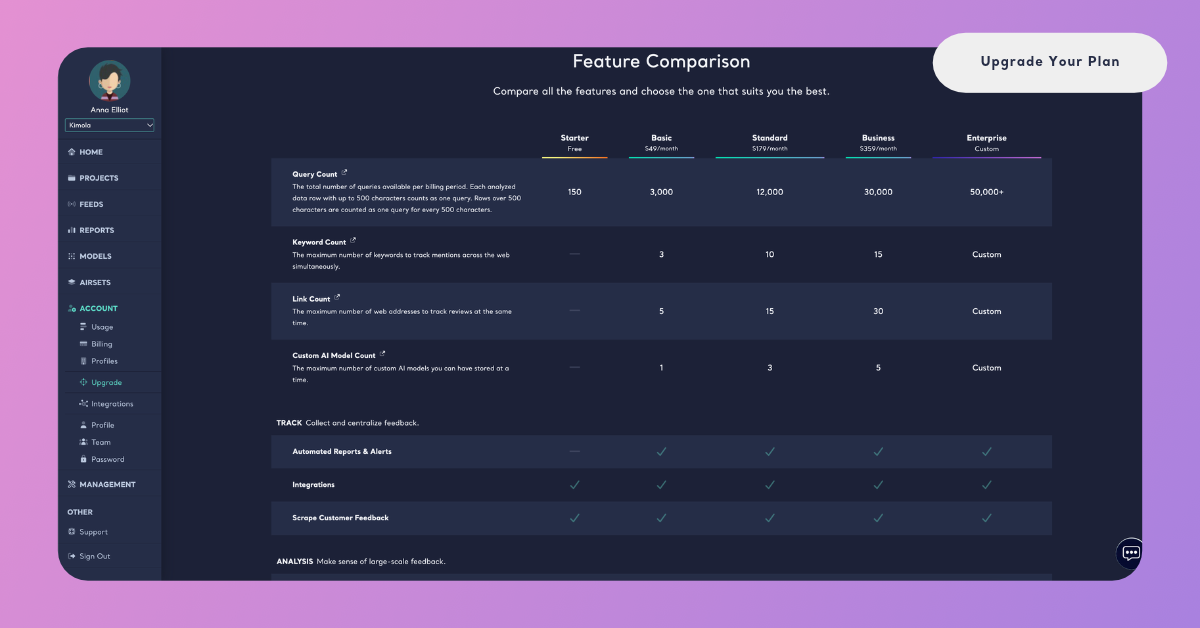
For a side-by-side view, scroll down to Feature Comparison. It puts every package in one table, row by row: the limits, the features for collecting, analyzing and exporting feedback, and the support each package comes with.
Step 4: Start the Package
On the card of the package you want, click Start Monthly Plan or Start Annual Plan. A secure checkout page from Stripe, Kimola's payment provider, opens in a new tab. It names the package and shows the amount you will pay for the period you chose.
The email address of your Kimola account is already filled in. Enter your card information, the cardholder name and your billing address, agree to Kimola's Terms of Service and Privacy Policy, and click Subscribe. The checkout page also states that the package renews and is charged every billing period until you cancel it.
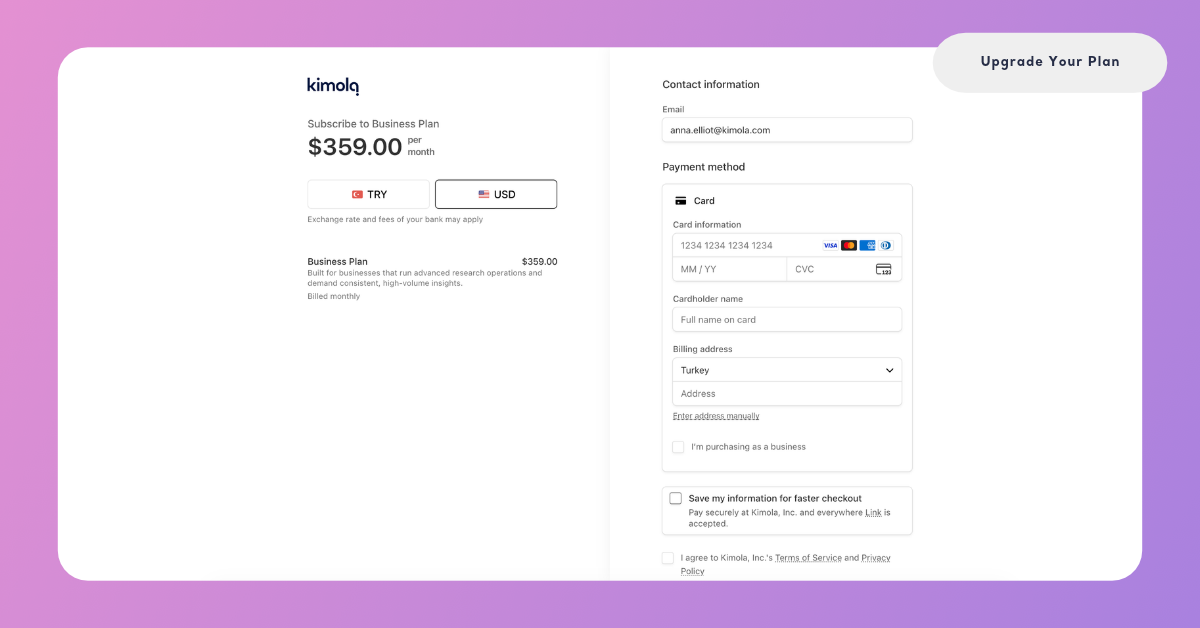
A package renews and is charged every billing period until you cancel it.
What Happens Next
After the payment, your account moves to the new package, with its limits and features. Your package and its consumption appear on Usage under Account, and your invoices on Billing under Account. Manage Billing and Invoices explains how to add your billing information, such as a company name and a Tax ID, and how to download your invoices.
When You Reach a Limit
Kimola tells you when your package isn't enough for what you are doing, and offers to upgrade right where you are. You can always go to the Upgrade page yourself instead.
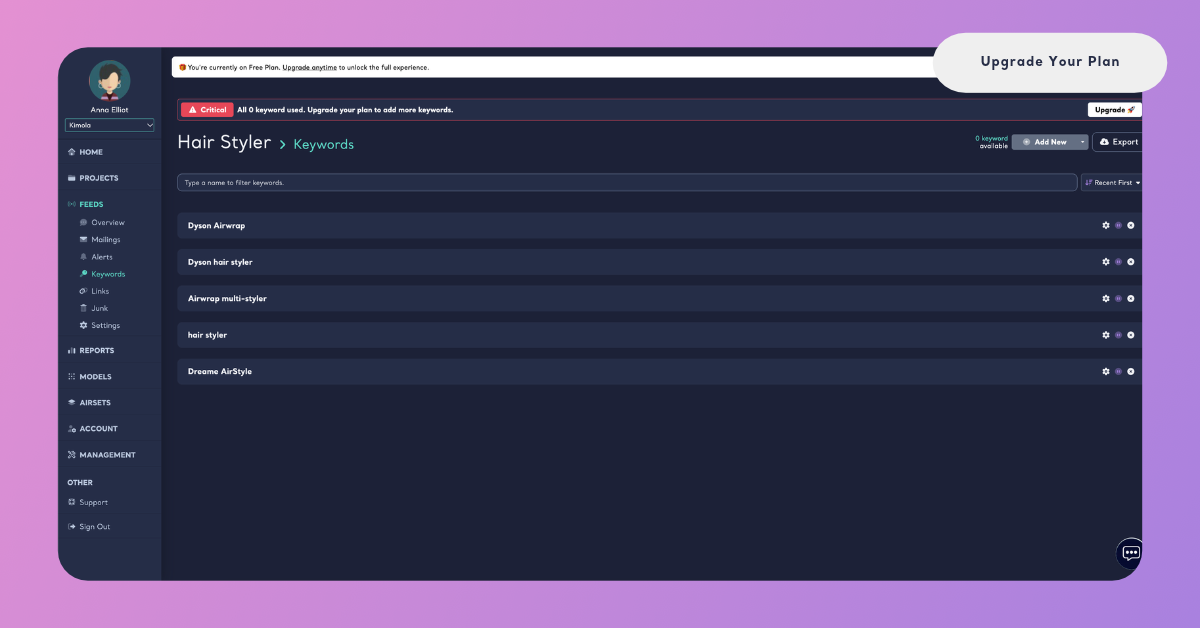
Keywords and links in Feeds. When every keyword of your package is in use, the Keywords page of a Feed shows a Critical banner with an Upgrade 🚀 button. The Links page does the same when every link of your package is in use.
Queries for a Report. When you create a Report and your package doesn't have enough queries left for it, the window says so and offers See all plans and Upgrade Now!. When none of the packages fits, it offers Contact Sales so the Kimola team can find the right option with you.
Custom AI models. When your package doesn't include custom models, the model wizard offers to upgrade your package or to contact sales. When you have reached the custom model limit of your package, it offers to upgrade or to delete a model you don't actively use.
Package limits in general. When you reach a limit of your package, the Upgrade Your Account window names the limit you reached and the package you can upgrade to, with See Packages and Upgrade. When your package is the largest you can start yourself, the window suggests contacting the Kimola team to discuss package options.
Enterprise
Enterprise is not bought on the Upgrade page. It is agreed with the Kimola team, because its contract, payment terms and setup are shaped around your organization. At the bottom of the Upgrade page, the Enterprise Plan card describes it, and Contact Sales opens Kimola's sales contact page on kimola.com.
Enterprise includes custom contracts, flexible payment options, a dedicated Account Manager and full use of the Kimola API. Your account is set up together with your Account Manager, who also helps you onboard your team and get the most out of Kimola.
Some features are available only in the Enterprise package: Spaces for feedback that keeps arriving from a channel such as a call center or a survey, Funnels, Insights, Customers, Departments, Tasks, the Jira integration, the Kimola API, and Action Plans written from a Space. With them, every team in your organization works from the same feedback and the same custom Models.
Kimola can also run inside your own infrastructure under a license, with the features of the Enterprise package. See Kimola On-Premises.