Manage Billing and Invoices
min read - Updated on Nov 04, 2026You manage how your Kimola package is paid for on the Billing page: the name and address your invoices are issued to, your company's tax ID, the payment methods your package is charged to, and every invoice issued to your account. In the words of the app, it is where you "View and manage your billing information, payment methods and previous invoices." You can change your billing details at any time, add or remove a payment method, and view or download your invoices.
The Billing page is for the paid packages (Basic, Standard, Business and Enterprise). You need to be signed in to Kimola, and you start from Billing under Account in the left menu.
Billing Information
Your billing information is the name and address Kimola bills, and the email address for billing. In the left menu, under Account, click Billing. The page opens with three parts, from top to bottom: Billing Information, Payment Methods and Invoice History.
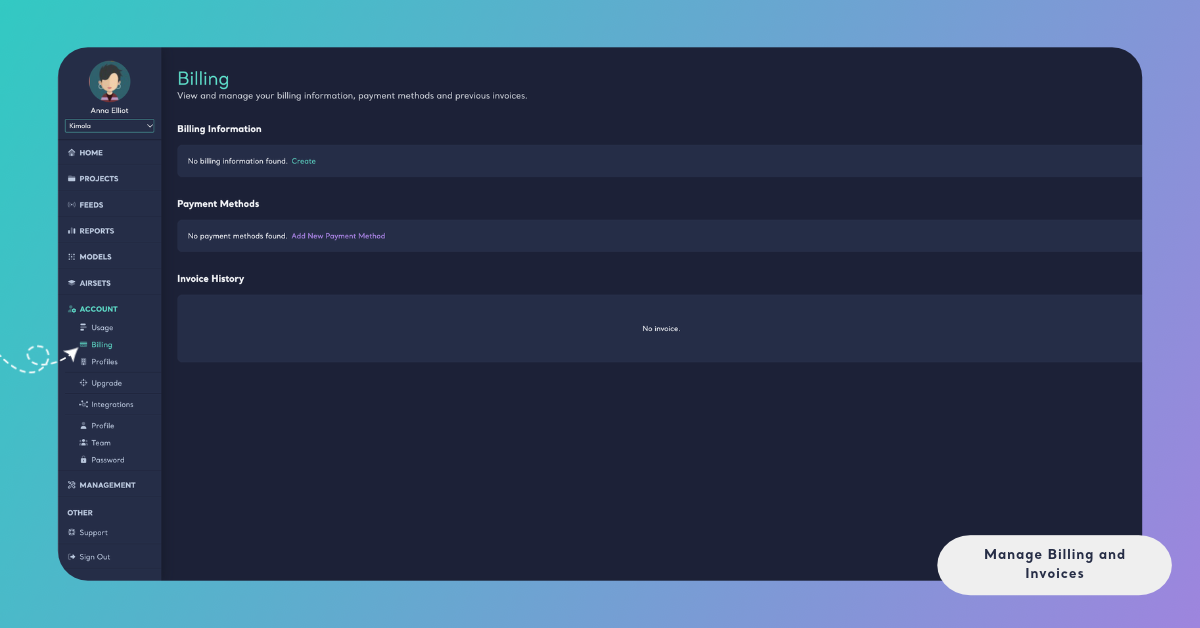
The Billing Information card shows the name you bill under, as Title, and your Address. If you haven't entered your billing information yet, the card says "No billing information found." and offers Create; once it is saved, the button reads Update.
Enter Your Billing Information
Click Create, or Update to change what is saved. The Billing Information window opens with these fields:
- E-mail: the billing email address, up to 100 characters.
- Name: the full name or the company name to bill, up to 100 characters. The card shows it as Title.
- Address: the street address, up to 250 characters.
- City and Postal code: up to 50 characters each.
- State / Province: up to 50 characters.
- Country: choose it from the Select a country list.
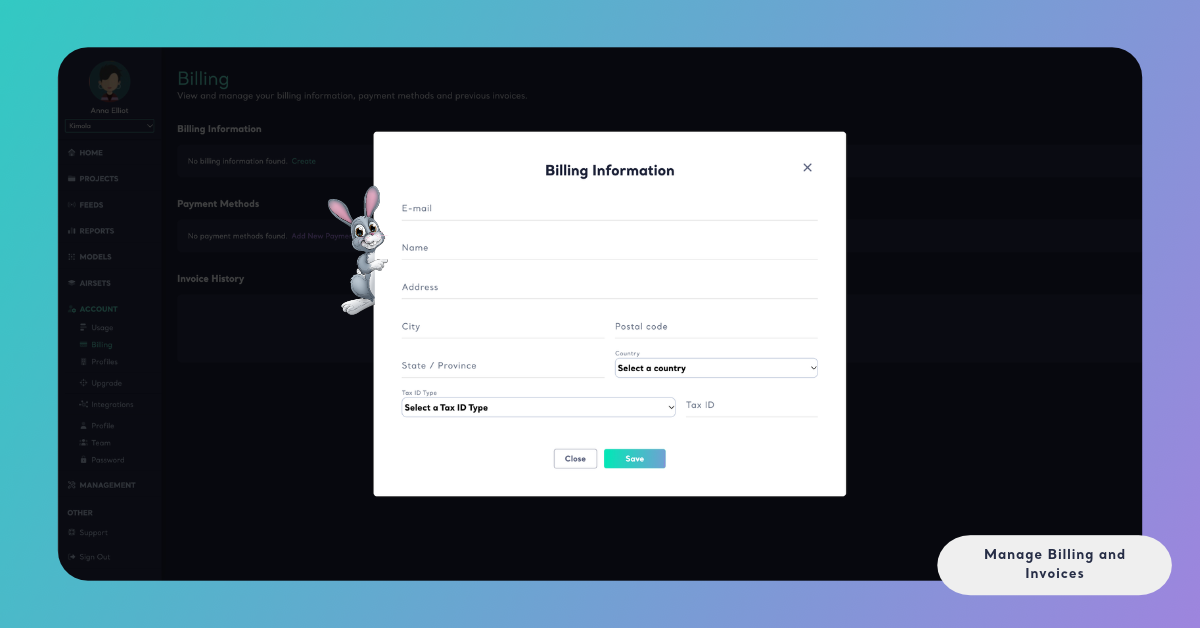
Fill in the fields and click Save. If a field is too long, the window says so, for example "Address must be 250 characters or fewer.", and nothing is saved until you shorten it. Close or the × closes the window without saving.
Write the name and address exactly as they should appear on your invoices.
Tax ID
If your company needs its tax identification number on its invoices, enter it in the same Billing Information window, below Country. It takes two fields that belong together.
Tax ID Type: choose it from the Select a Tax ID Type list. Each type names a country and the kind of number, for example "Austria - European VAT number or Australia - Australian Business Number (AU ABN)".
Tax ID: type the number itself.
Click Save. If you don't need a tax ID on your invoices, leave both fields empty.
Tax ID Type and Tax ID are saved together. If only one of them is filled in, the window says Tax ID and Tax ID Type fields must be provided together.
Payment Methods
The Payment Methods card shows each payment method saved for your account, such as a card with its last four digits, its expiry date and its brand. If none is saved, the card says "No payment methods found."
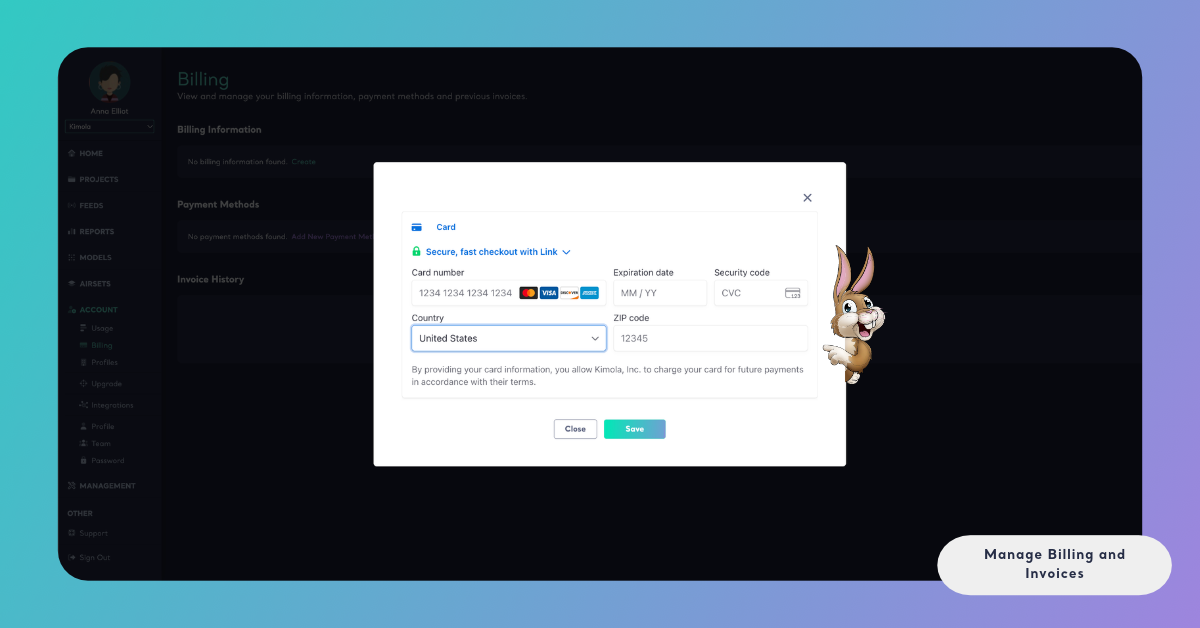
To add a payment method, click Add New Payment Method. A window opens with the methods you can choose from, such as Card. Choose one, enter its details and click Save. The new payment method then appears on the card.
To remove a payment method, click the trash icon on it.
To cancel your package, or for any other change to how your account is billed, email the Kimola team.
Cancelling your package is done by email to the Kimola team, not on the Billing page.
Invoice History
The Invoice History card lists the invoices of your account. Each row shows the invoice's date, its amount and its status. Until your first invoice is issued, the card says "No invoice."
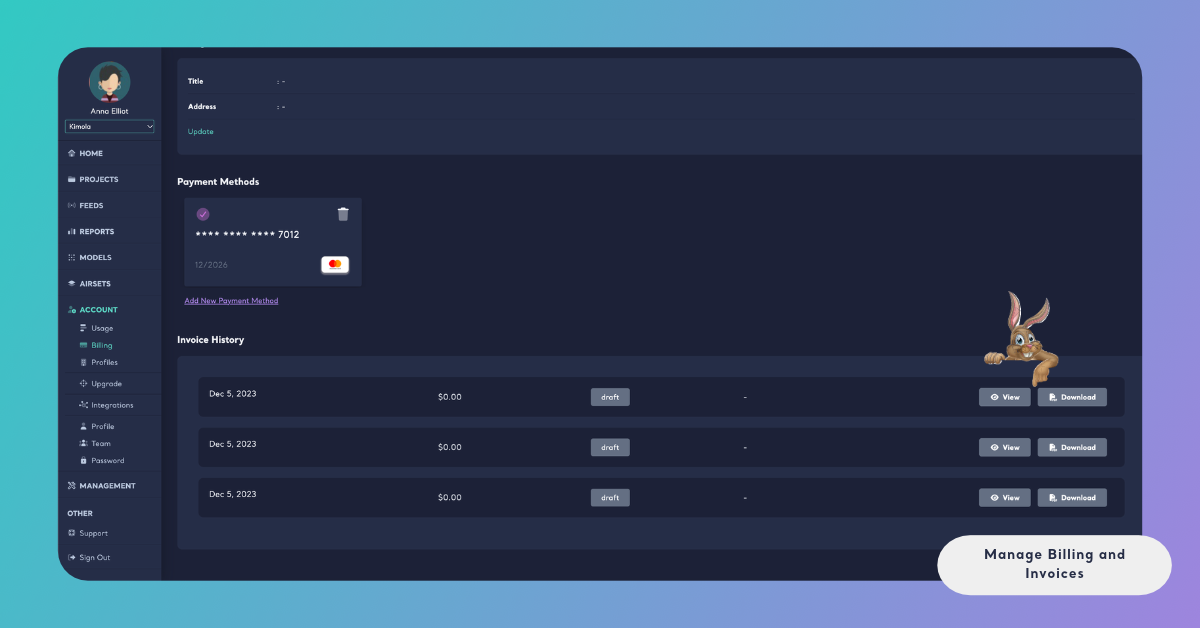
Every invoice has two buttons. View opens the invoice in a new browser tab, and Download saves a copy, for example to send to your finance team. An invoice that is still a draft can't be opened yet: its buttons become active once the invoice is issued.
To change your package or move between monthly and yearly billing, see Upgrade Your Plan. For prices, see kimola.com/pricing.