Change Your Password
min read - Updated on Nov 04, 2026You can change the password you sign in to Kimola with on the Password tab of your Account Settings page.
You need to be signed in to Kimola and to know your current password.
Open the Password Page
In the left menu, click Account to show its items, then click Password. Kimola opens Account Settings on kimola.com in a new browser tab, with the Password tab selected and the cursor in the Current Password field.
Enter Your Current and New Password
Type the password you use now in Current Password. Kimola checks it when you save, and changes your password only when it is correct.
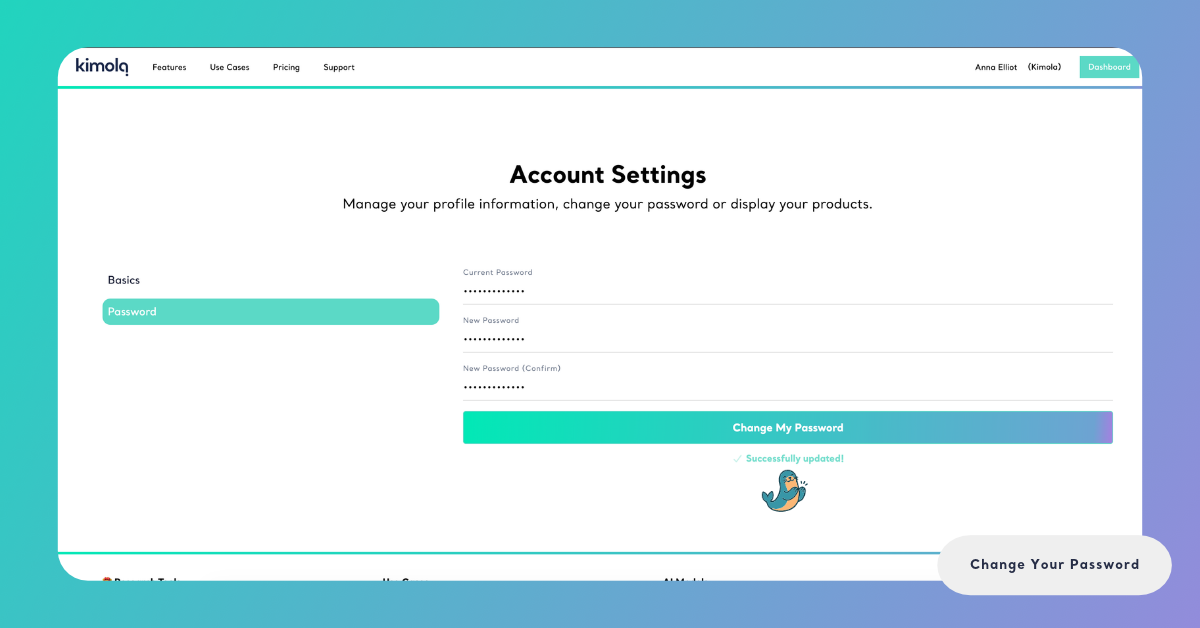
Type your new password in New Password, then type it again in New Password (Confirm). The new password must be at least 6 characters long, and each field takes up to 20 characters. The fields hide what you type, so typing the new password twice catches a typo you can't see.
When you signed up, Kimola asked for a password with a lowercase letter, an uppercase letter and a special character, such as ! @ # $ % & * + or a period. Choose your new password the same way, so it is at least as strong as the one you started with.
Save Your New Password
Click Change My Password. Kimola checks the fields and updates your password if they are valid. The button then turns green and says “Successfully updated!”. Use your new password the next time you sign in.
If a field needs correcting, your password stays unchanged. Follow the instructions below to resolve the error.
Fix an Error Message
Kimola checks the three fields when you click Change My Password and shows one message at a time. Fix the field the message points to, then click Change My Password again.
- Current Password can not be empty. You left Current Password empty. Type the password you use now.
- Aw, snap! Password is incorrect. The password in Current Password isn't the one your account uses. Check that Caps Lock is off, and type your current password again.
- New Password can not be empty. You left New Password empty. Type the new password you want to use.
- New Password must be at least 6 characters long. Your new password is shorter than 6 characters. Choose a longer one and type it in both new password fields.
- Password does not match. New Password and New Password (Confirm) are different. Type the new password again in both fields.
- Current Password too long. or New Password too long. A password has more than 20 characters. The fields stop at 20 characters, so this message is rare; if you see it, retype the password with 20 characters or fewer.