Invite Team Members
3 mins read - Created on Dec 03, 2025We explore how to effectively manage your team within Kimola, maximizing collaboration and productivity. Whether you’re looking to invite new members to your data-driven adventures, assist team members in joining effortlessly, or maintain an efficient team composition by removing existing users, we've got all the steps laid out for you. Teamwork is at the core of unlocking insightful analytics, and with these straightforward instructions, your team will be set up for success in no time. Let’s dive into the world of seamless team management and make your collaborative projects more dynamic than ever!
Invite new users
Sharing your Kimola journey with others is simple and straightforward. Follow these steps to invite new team members:
Step 1: Log into Your Kimola Account
Start by logging into your Kimola account and locating your username in the upper right corner of the dashboard.
2: Navigate to the "Team" Tab
Click your username and select the "Team" tab from the dropdown menu or visit https://kimola.com/team address. This will take you to the team management section.
3. Click on the "Invite User" Button
Spot the invitingly green “Invite User” button on the left side of the page and give it a click.
4. Enter Email Address
Input your team member’s email address and press "Invite!" The invitation will be sent, and soon you’ll have a new collaborator on board.
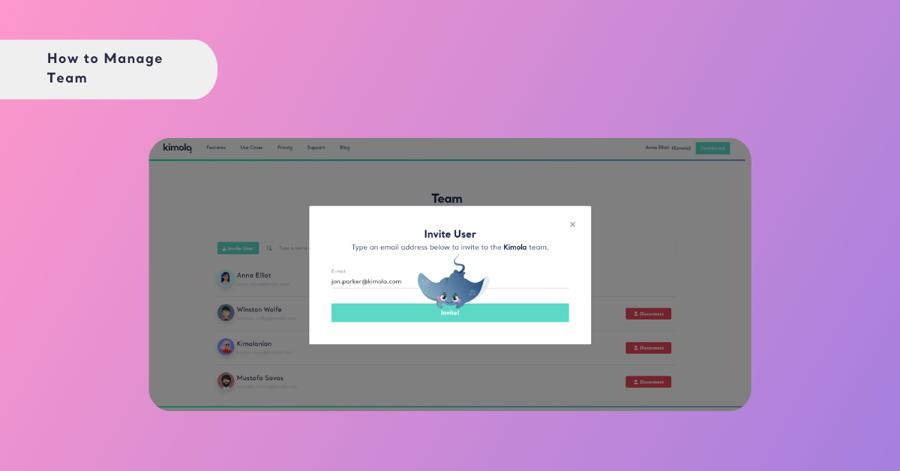
To cancel the invitation, click on the "Revoke" button located to the right of the user to whom you sent the invitation.
Accept the invitation to join your team
Once an invitation is sent, prospective team members will need to accept it to join the team:
Step 1: Check Your Email
Look for an invitation email in the inbox associated with the address provided.
Step 2: Accept Invitation
Click on the "Accept Invitation" button in the email to be redirected to Kimola.
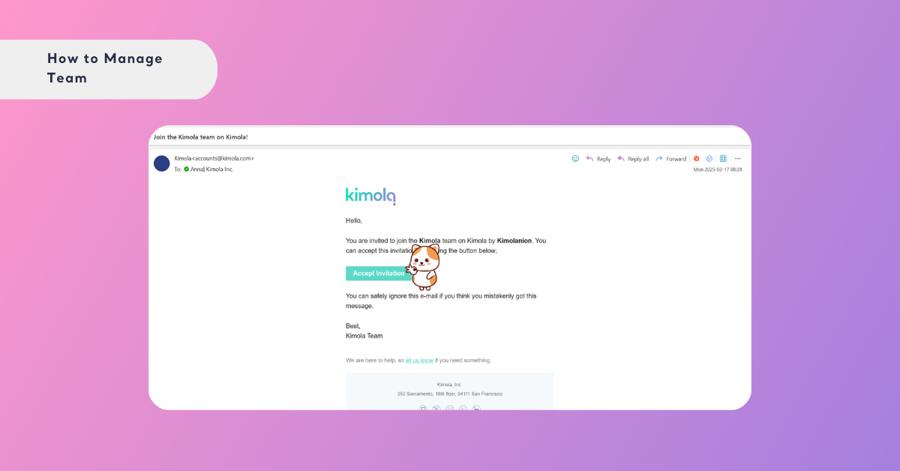
If the invitation is not accepted within 3 days, it will expire. In this case, the person will need to be re-invited by the team members.
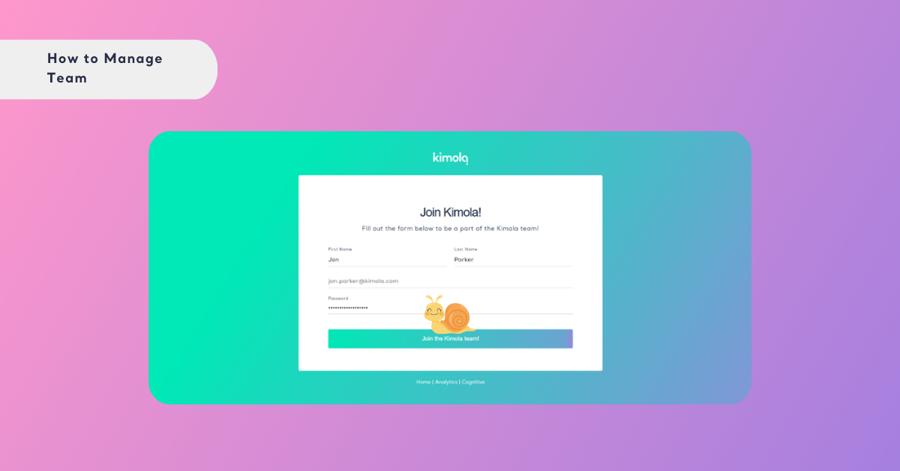
Step 3: Join Team
If you’re new to Kimola, you'll need to create an account. Otherwise, simply log in to join the team.
Remove existing users
Keeping your team focused requires flexibility with its composition. Follow these steps to remove members who may no longer need access:
Step 1: Access the "Team" Tab
Navigate back to the "Team" tab through your username dropdown.
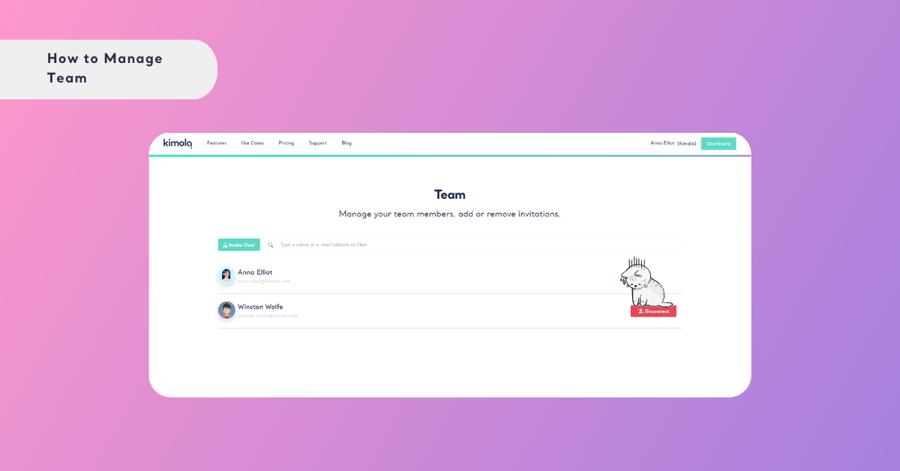
2. Locate the User
Browse through your existing team members and locate the user you wish to remove.
3. Remove the User
Click on the option to “Disconnect” the user from your team list. Confirm the action, and the team member will be removed.
Managing a team effectively ensures your collaborative potential is fully realized, keeping projects seamless and goals aligned. With team management made easy, you can focus more on unraveling insights and driving growth.