Manage Restrictions
2 mins read - Created on Oct 07, 2025Restrictions let you control which domains Kimola collects data from and how much is gathered from each source. This keeps your feeds relevant, balanced, and free from spam or overload.
Sign in to your Kimola account, go to the Feeds menu, select a feed, open Feed Settings, navigate to the Restrictions section, and click Add Restriction in the top right corner.
Add a Restriction
Enter the Host (domain such as cnn.com, amazon.com, x.com) and set the Limit:
0→ blocks all data.- A number (e.g.,
500) → caps how many records are collected.
Save to activate the rule.
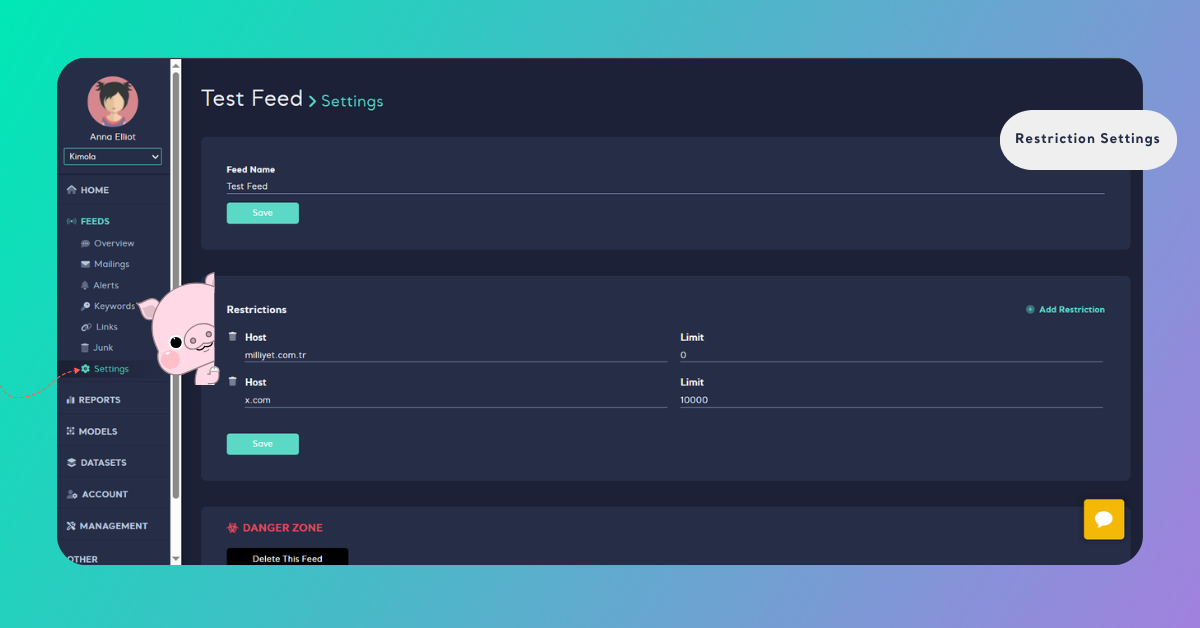
To block a news site, add cnn.com with limit 0.
To collect only 1000 posts from Twitter (X) each month, add x.com with limit 1000.
Adding Multiple Restrictions
You can add as many restrictions as needed. Each one is listed separately so you can easily review, edit, or update them later.
Remove a Restriction
If you wish to remove a restriction in the future, you can delete it at any time by clicking the trash can icon located next to the restriction entry.
Once removed, Kimola will resume data collection from that domain in the next data-gathering cycle.
Regularly reviewing restrictions keeps your feeds efficient, clean, and strategically aligned.