Manage Unsubscribers for Mailings
2 mins read - Updated on Oct 09, 2025Not every recipient should get every mailing. Managing unsubscribers helps you control who stops receiving updates and who can be re-subscribed later. This keeps your mailing lists clean, relevant, and targeted.
Sign in to your Kimola account, go to the Feeds menu, select your feed, open Mailings, then find the mailing you want to update and click the edit (pencil) icon.
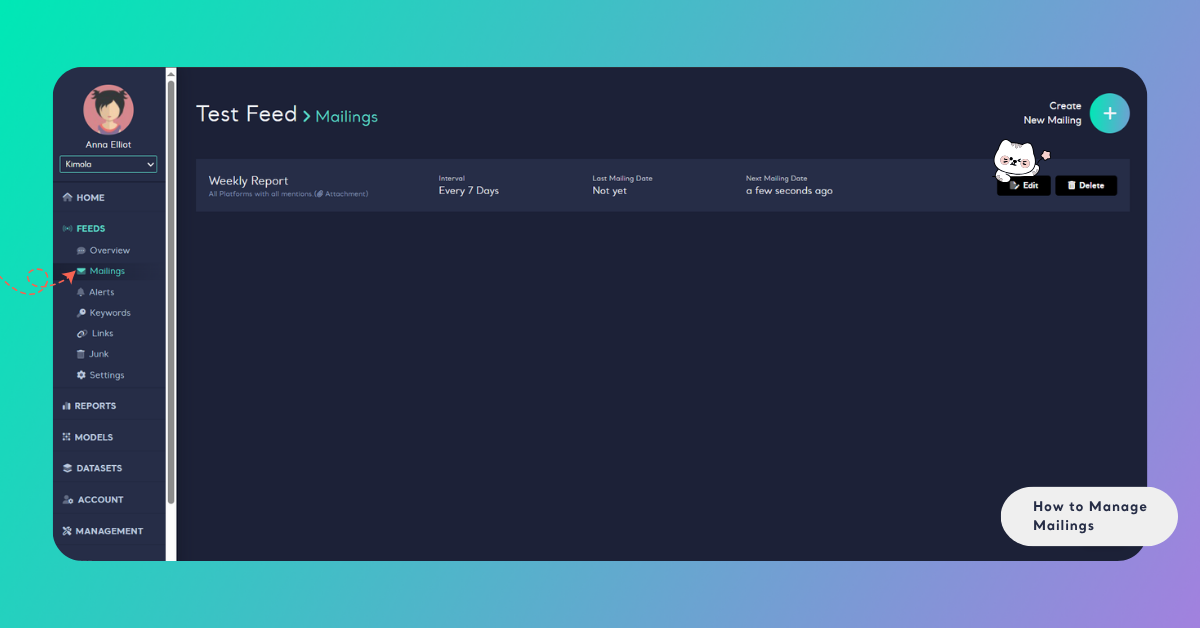
Add a Member to Unsubscribers
Use the "Choose an unsubscriber" dropdown menu to select the desired user. The selected user will then appear on the unsubscriber list.
Follow the same steps for any other members you need to update.
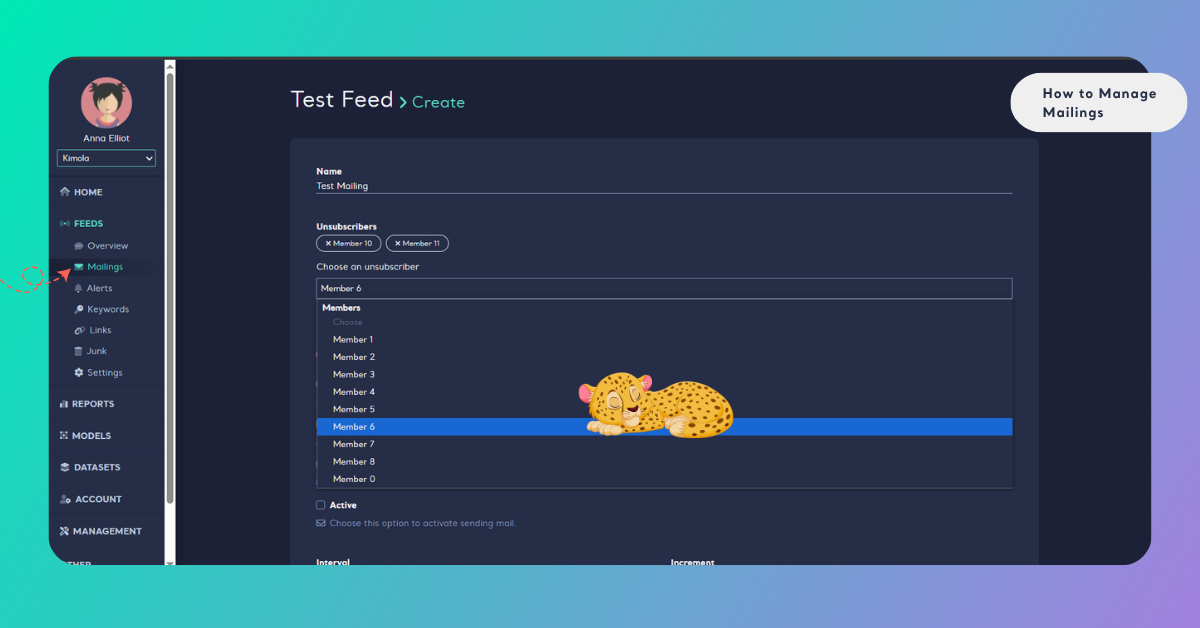
Re-subscribe a Member
Click on the name of the member you want to move back to the subscriber list from the unsubscriber section.
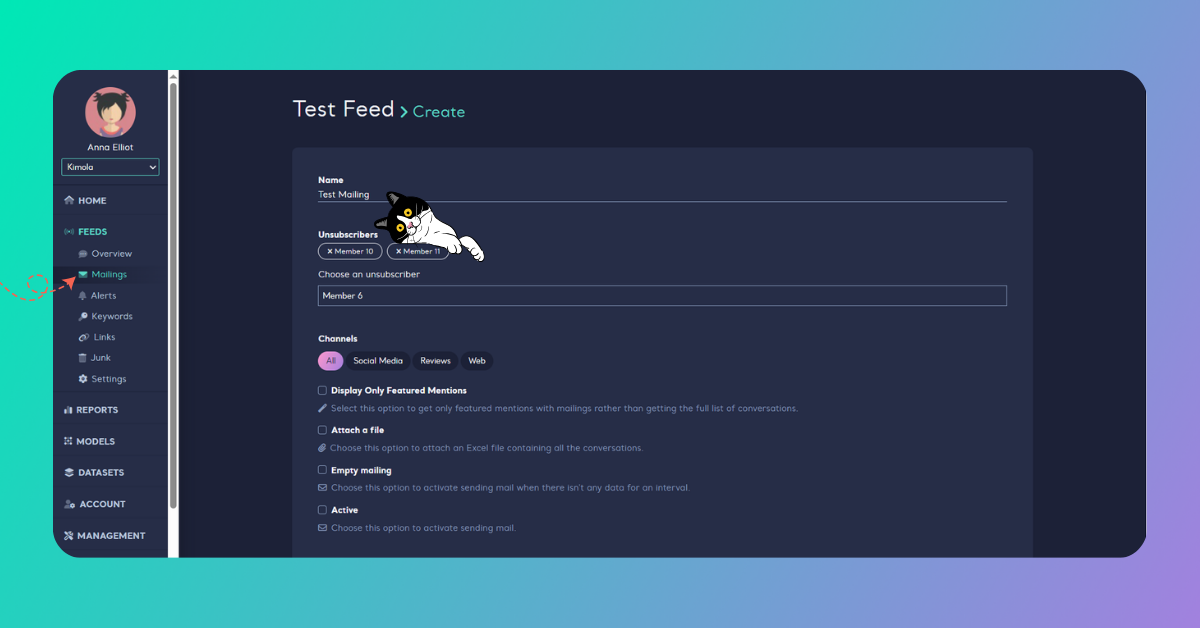
- Save Your Changes – Once you've adjusted the lists as necessary, finalize your changes by clicking "Save" or "Save & Close".
At the bottom of the email you received, you'll find a note that says "You can unsubscribe from these reports at any time." If you decide you no longer want to receive notifications, you can easily unsubscribe right from the email itself.
Managing unsubscribers ensures only the right people receive your mailings, reducing noise and keeping communication effective.