Add or Remove Items in a Project
min read - Created on Nov 15, 2026You can change what a Project holds at any time. Modify adds Feeds, Reports and Models to a Project, and the Project's View window takes them out again. Only the Project's list of items changes: the Feeds, Reports and Models themselves, with their data and analyses, stay as they are.
Sign in to Kimola, open Projects in the left menu and find the Project you want to change. An item must already exist in your account before you can add it, because Feeds, Reports and Models are created in their own sections and not from a Project. If you don't have a Project yet, see Create a Project.
Add Feeds, Reports or Models
You choose a Project's items in the Modify window, which lists your items on three tabs: Feeds, Reports and Models. The steps are the same for all three kinds, and you can repeat them whenever you want to add more items.
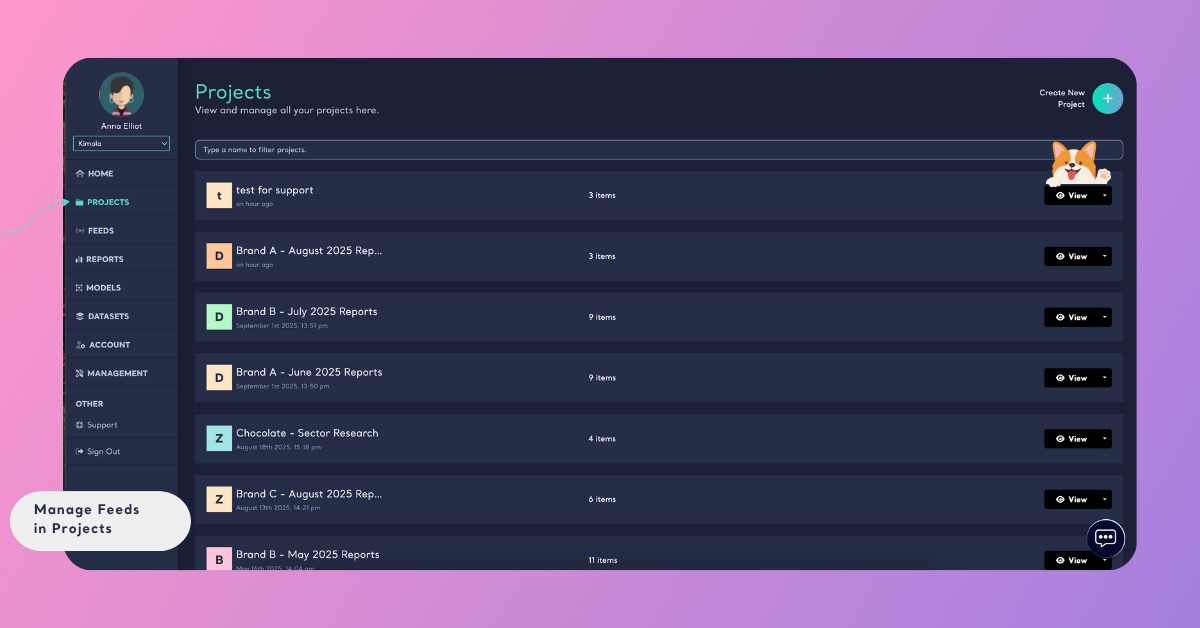
On the Projects page, find the Project and click the down arrow next to View, then select Modify.
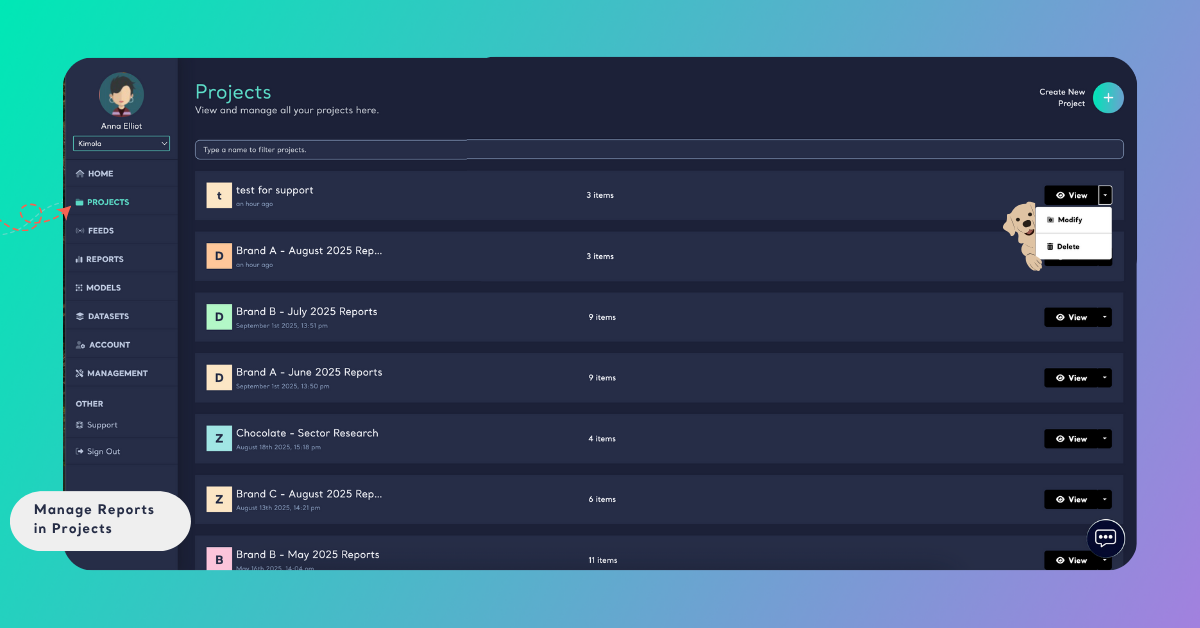
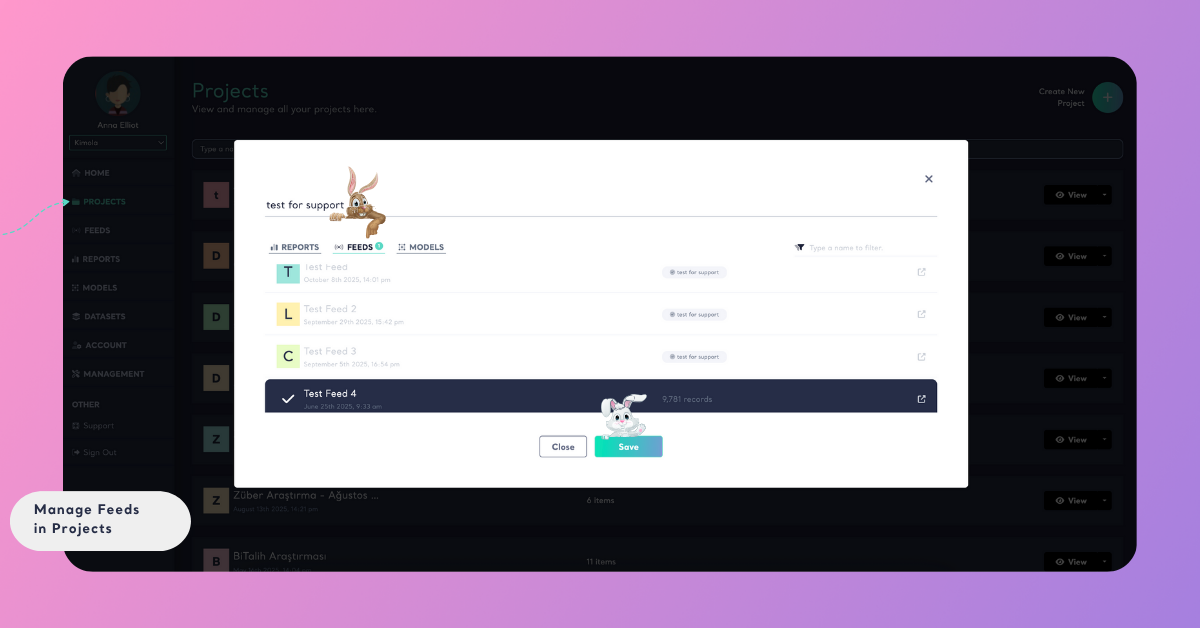
In the window that opens, go to the tab of the kind you want to add. To find an item in a long list, type part of its name in the filter field. Select the items you want and click Save. The selected items now belong to the Project.
The Feeds tab lists the Feeds of your account.
The Reports tab lists your Reports, each with its date and its number of records.
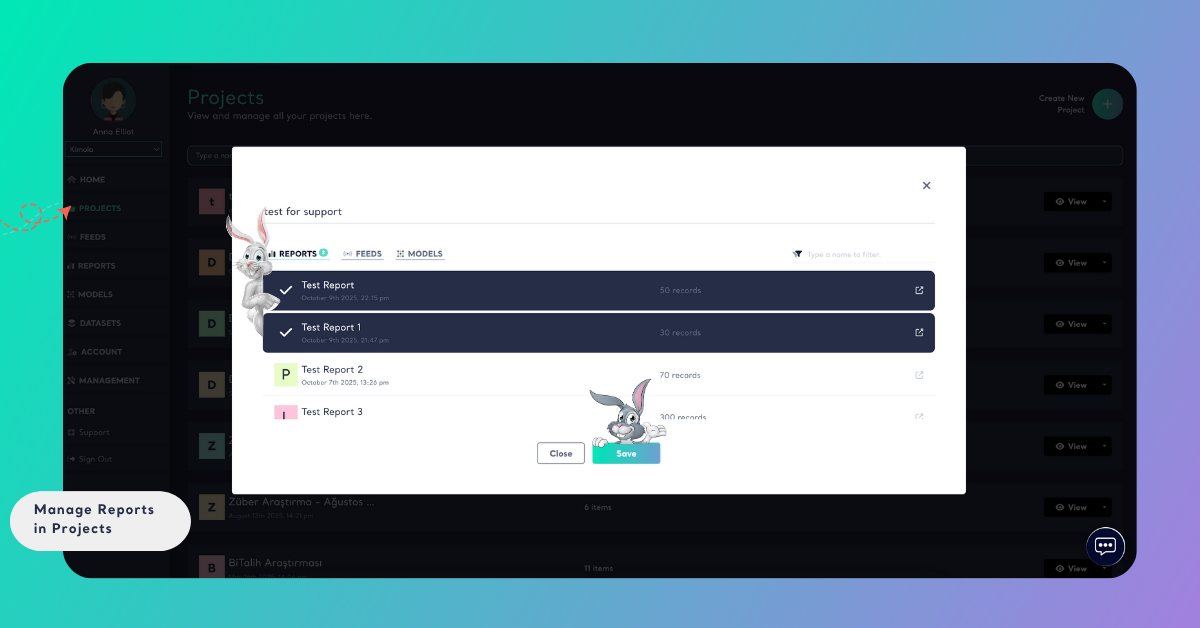
The date and the number of records next to each Report help you tell apart Reports with similar names.
The Models tab lists your Models.
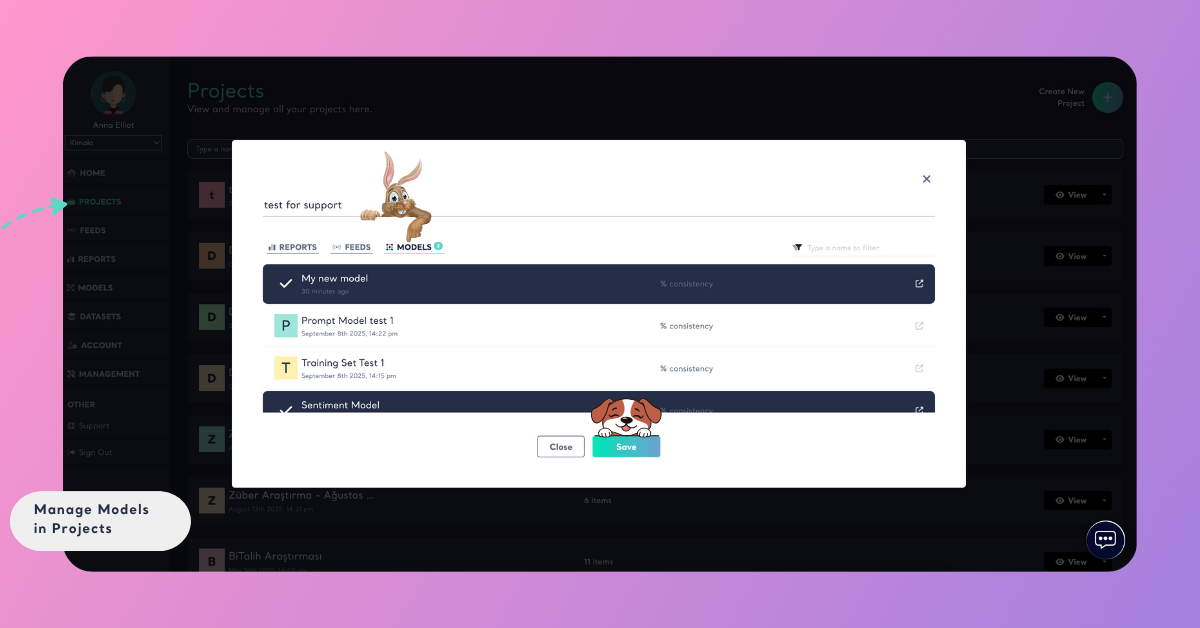
A software company keeps a Project named "Billing Redesign" that starts with one Report on its support tickets. Later the team builds a custom Model that sorts feedback into themes such as invoices, refunds and plan changes. It opens Modify, selects the Model on the Models tab and clicks Save, so the Report and the Model sit together in the same Project.
Remove an Item
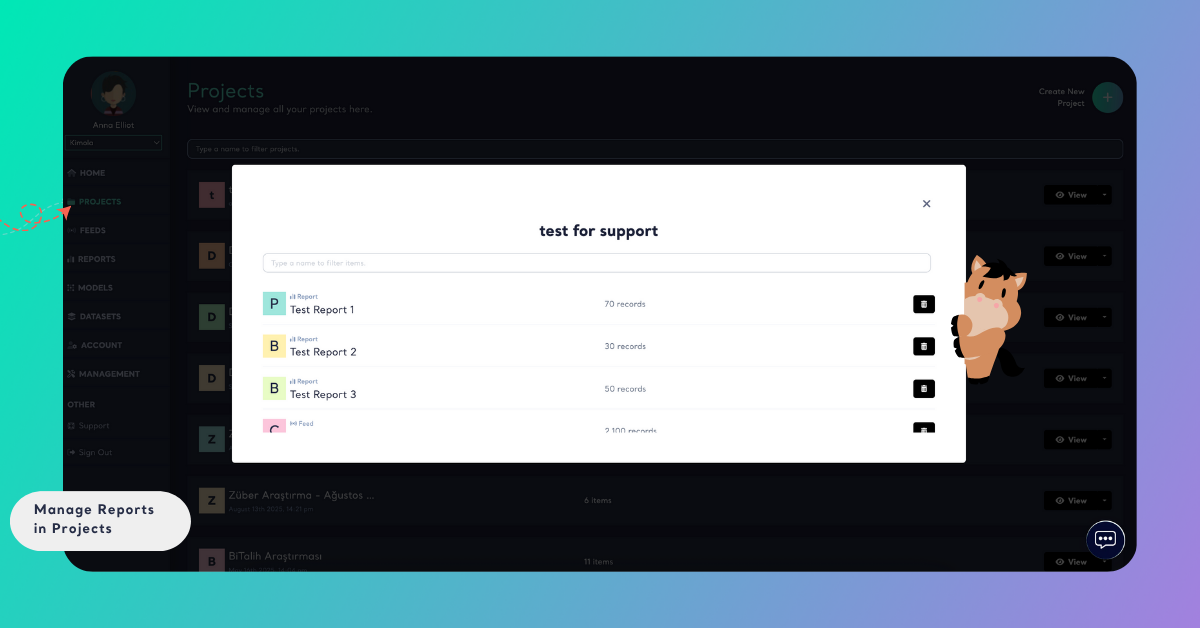
Remove an item when it no longer belongs to the work the Project stands for. You do this in the Project's View window, which lists everything the Project holds, each item marked as a Feed, a Report or a Model.
On the Projects page, click View next to the Project. Find the item in the list, using the filter field if the list is long, and click the trash can icon next to it. Close the window with the X in the top right corner. The item is no longer part of the Project.
Removing an item from a Project never deletes it. The same is true when you delete a whole Project: the Feeds, Reports and Models in it stay in your account, in their own lists. Deleting a Project is covered in Manage Projects.
A Project must hold at least one item. If you save a Project with none, Kimola shows "You must include at least one item."