Create a Project
2 mins read - Created on Oct 13, 2025Creating a Project in Kimola lets you organize feeds, reports, and models related to a specific brand, product, or campaign — all in one place. Projects act like folders, helping you keep your research structured and easy to navigate. This guide explains the steps to create a project in Kimola.
Sign in to your Kimola account. From the dashboard’s left menu, click Projects to open the projects page, then select Create New Project in the top-right corner.
A Project in Kimola is a workspace that keeps related feeds, reports, and models together for easier management. For more information, see "What is a Project".
You can create one Project for Brand A and another for Brand B, keeping each brand’s feeds and reports organized in separate workspaces.
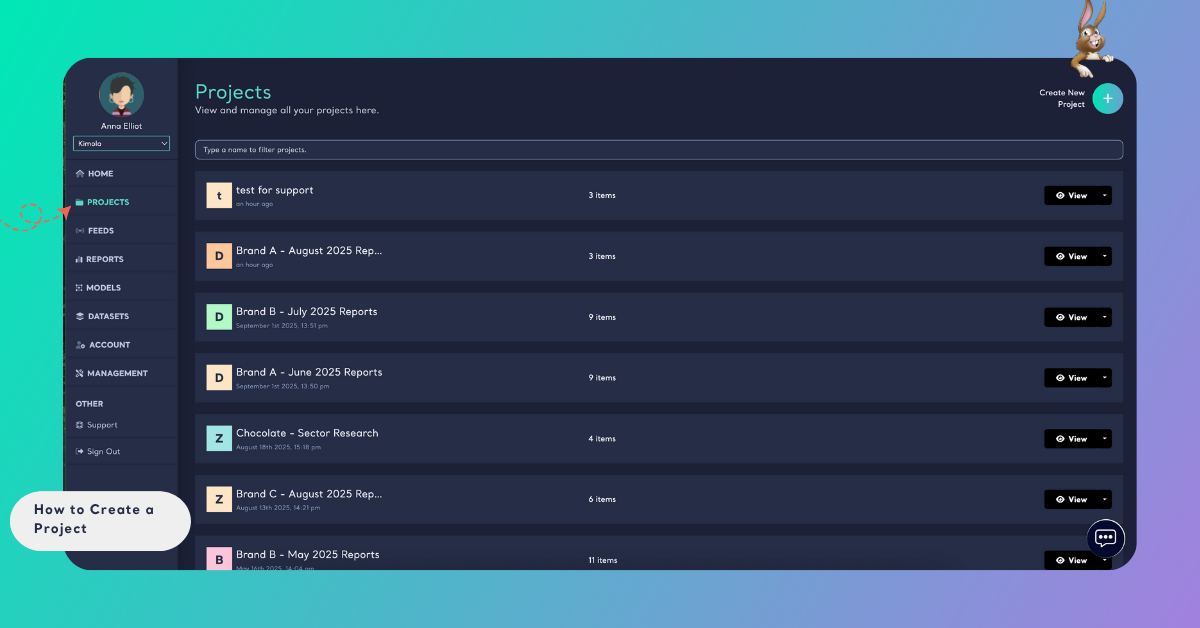
Step 1: Name your Project
In the window that opens, type a clear and descriptive name so the Project is easy to recognize later.
Step 2: Add items to your Project
Select the feeds, reports, or models you want to include by clicking on them in the list. You can choose one or multiple items depending on your needs.
Step 3: Finish creating
Click Create to save. The Project will now appear in your Projects list with the items you selected.
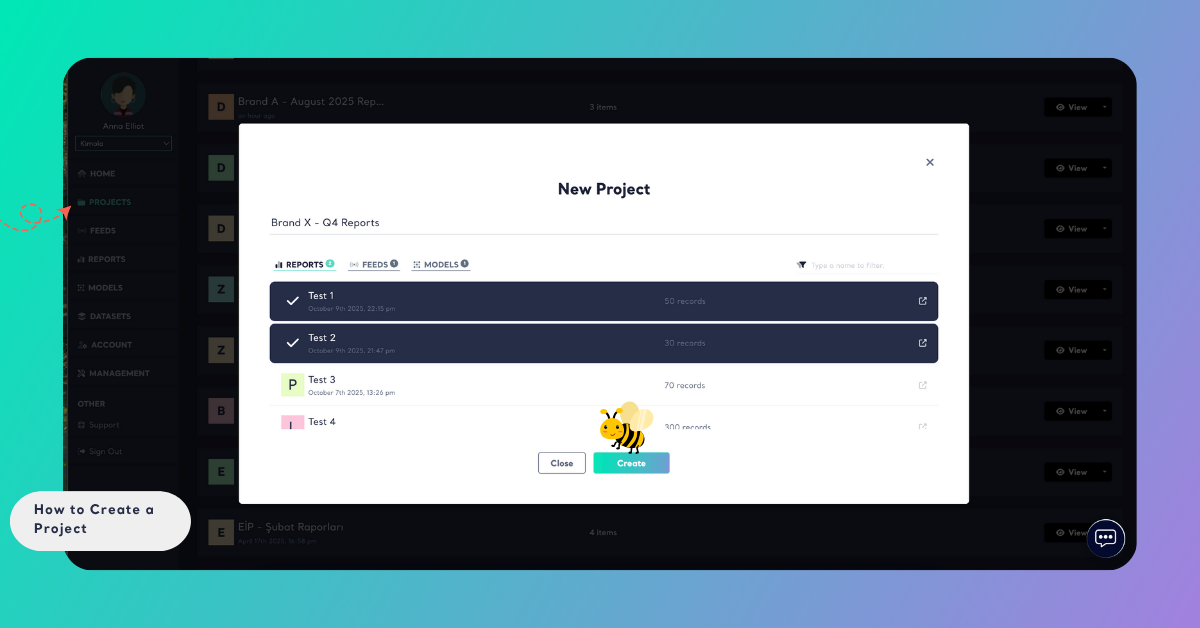
Your new Project will now appear in the Projects list.