Manage Feeds in Projects
2 mins read - Updated on Oct 14, 2025A Feed is a customizable data stream in Kimola that automatically collects online content about your brand, products, competitors, or industry. Adding feeds to a Project lets you keep these data streams organized under one workspace, so everything related stays together and easy to manage.
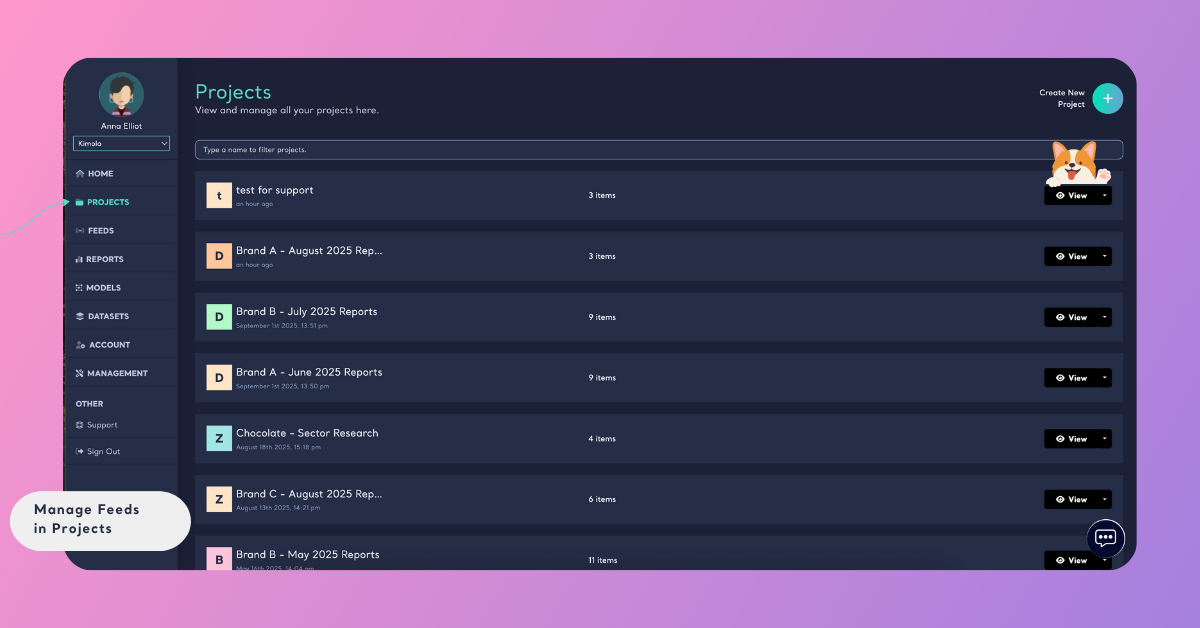
Sign in to your Kimola account, go to the left menu, click Projects, and look for the Project where you want to manage feeds.
If you’re running separate feeds for “Product Reviews” and “Social Media Mentions” of the same brand, you can keep both in the same Project to manage them together. You can also include competitor mention feeds in the same Project, so all related customer feedbacks are organized under one place.
If you haven’t created a Project yet, see Create a Project to get started.
example:!-
View Feeds in a Project
Click on the Project name or "View" from the Projects list. This will display all feeds, reports, and models stored in that Project.
Add a Feed to a Project
- On the Projects page, find the Project you want to edit.
- Click the down arrow next to the View button and select Modify.
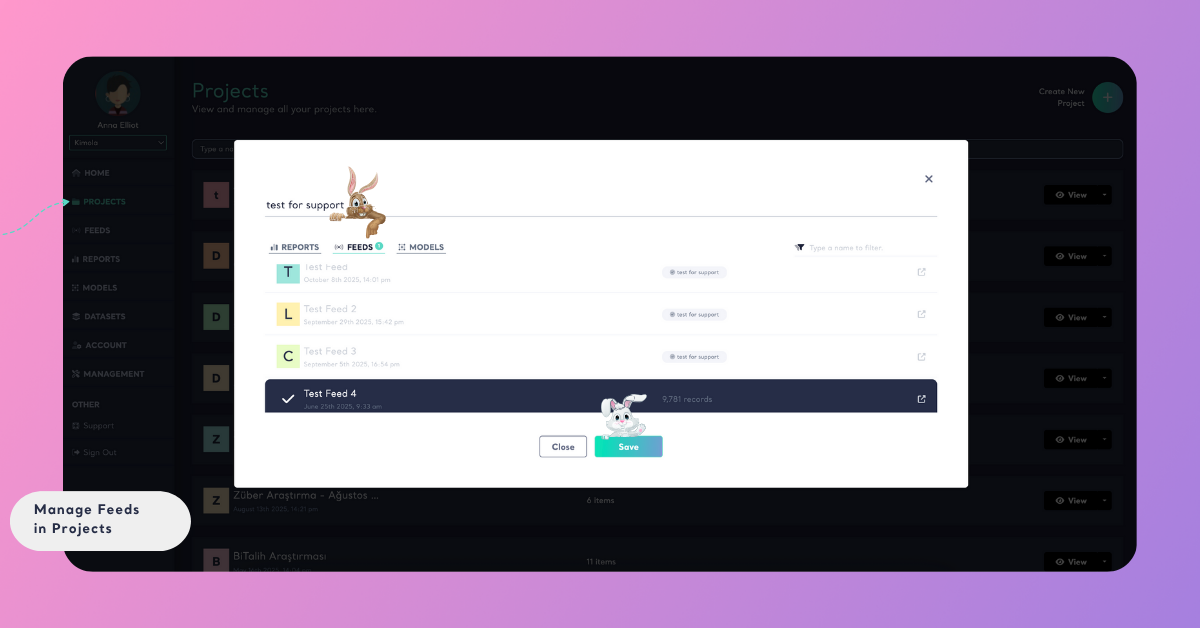
- In the window that opens, go to the Feeds tab.
- Select the feeds you want to add.
- Click Save. The selected feeds will now be included in the Project.
Remove a Feed from a Project
- Open the Project by clicking View.
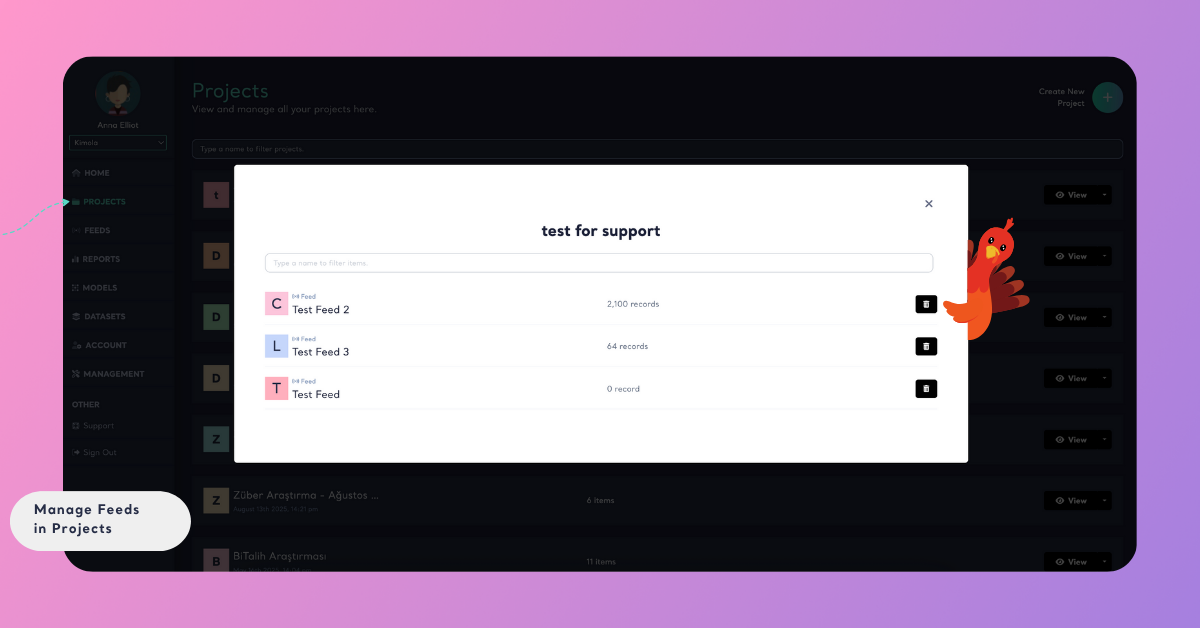
- In the list of feeds, find the one you want to remove (use the search box if needed).
- Click the trash can icon next to that feed.
- Close the window by clicking the X in the top right. The feed will be removed from the Project.
By managing feeds in Projects, you ensure your data sources remain structured and aligned with each brand, product, or campaign you’re tracking.