Manage Models in Projects
2 mins read - Created on Oct 13, 2025AI Models in Kimola are tools that classify, label, or analyze data — either collected through feeds or uploaded as custom datasets. Adding models to a Project helps you keep these AI tools organized together with the feeds and reports they support. By grouping them under the same Project, you can easily manage brand-, product-, or campaign-specific analysis and always have the right model ready when needed.Adding models to a Project in Kimola helps you organize your AI models together with the feeds and reports they work with. Keeping them under the same Project makes it easier to manage brand-, product-, or campaign-specific analysis and ensures you always have the right model ready when needed.
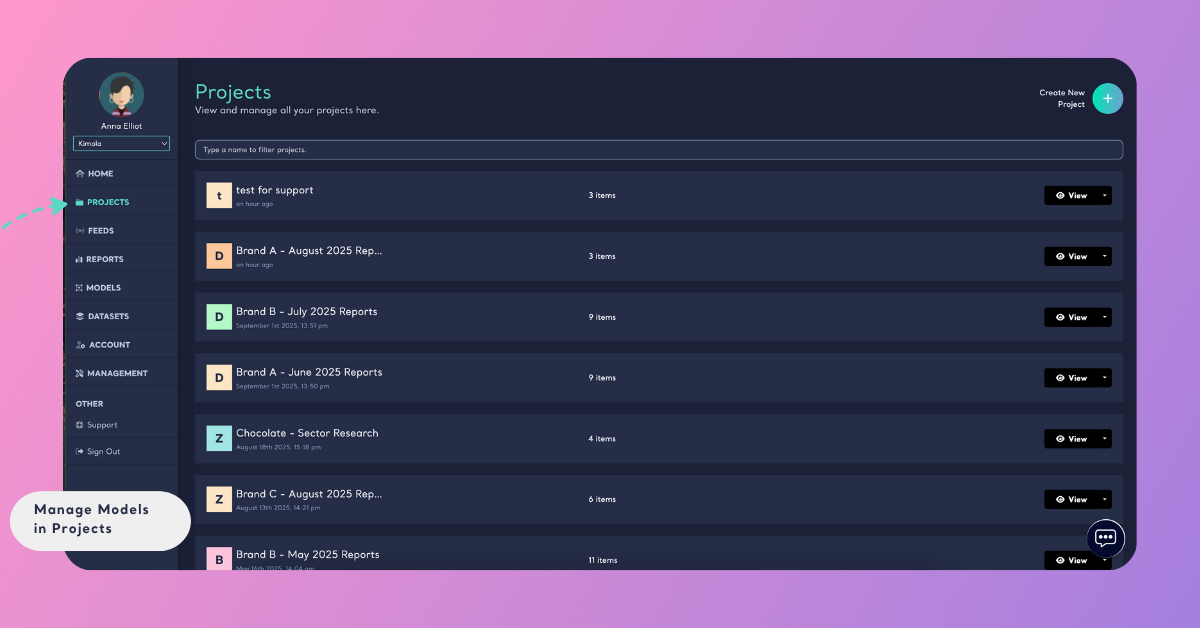
Sign in to your Kimola account, go to the left menu, click Projects, and search the Project where you want to manage models.
If you use a sentiment analysis model together with feeds tracking product reviews, you can keep both in the same Project. This way, you don’t need to switch between sections — the feed and its supporting model are stored together for easier access and reporting.
View Models in a Project
Click on the Project name or View from the Projects list. This will display all models included in that Project.
Add a Model to a Project
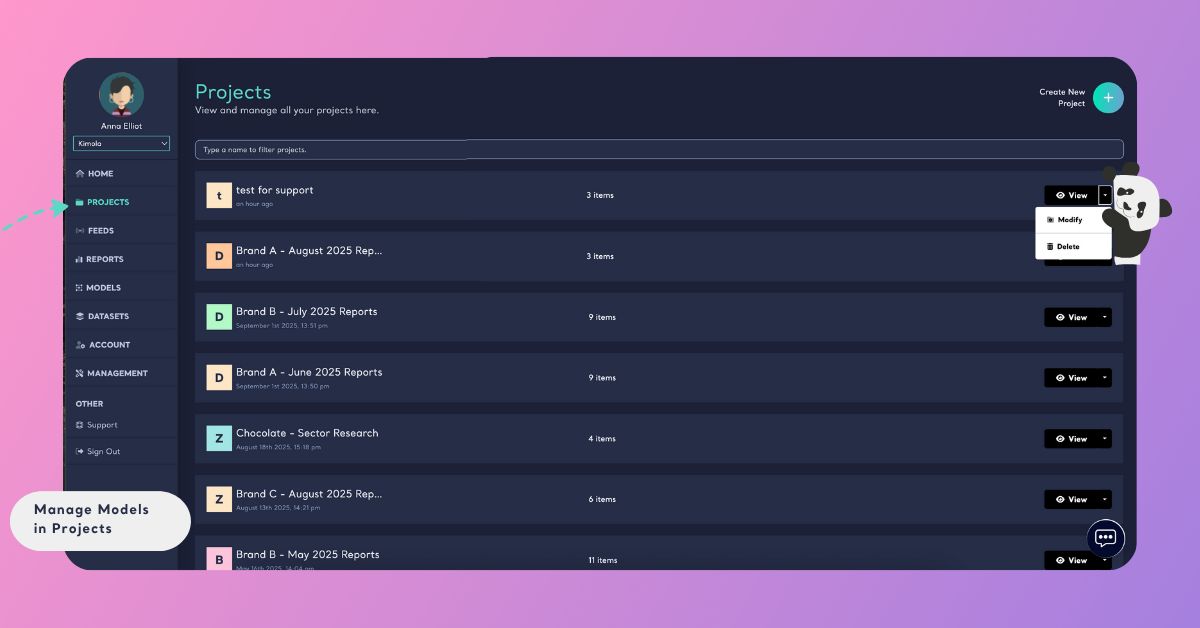
- On the Projects page, find the Project you want to update.
- Click the down arrow next to the View button and select Modify.
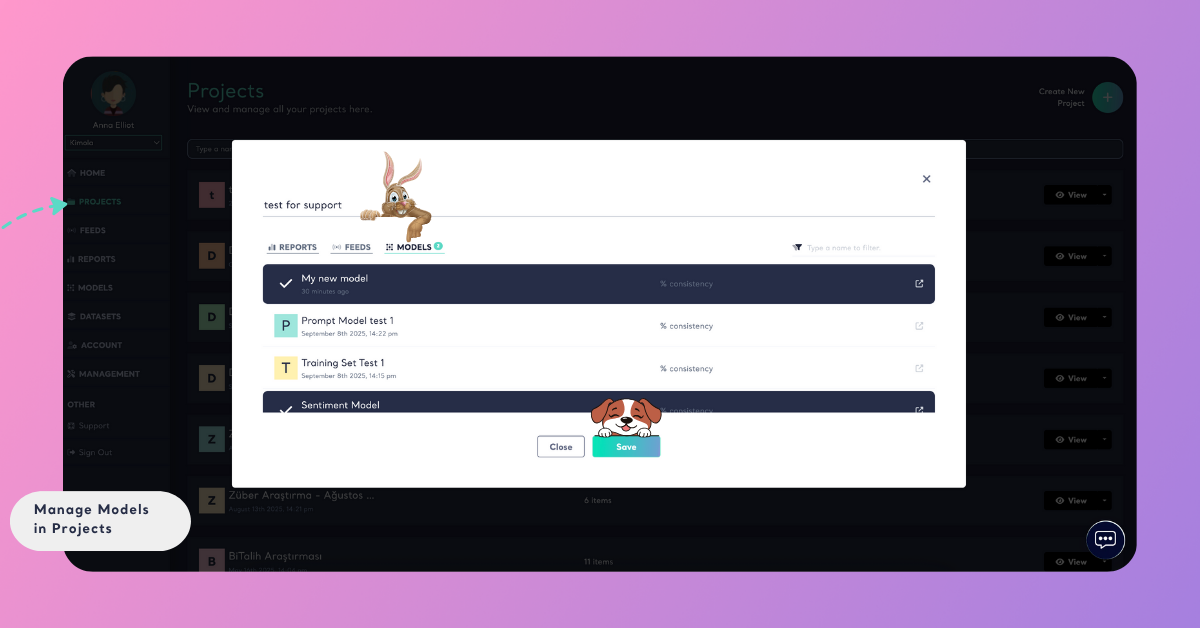
- In the window that opens, go to the Models tab.
- Select the models you want to add.
- Click Save. The selected models will now appear in the Project.
Remove a Model from a Project
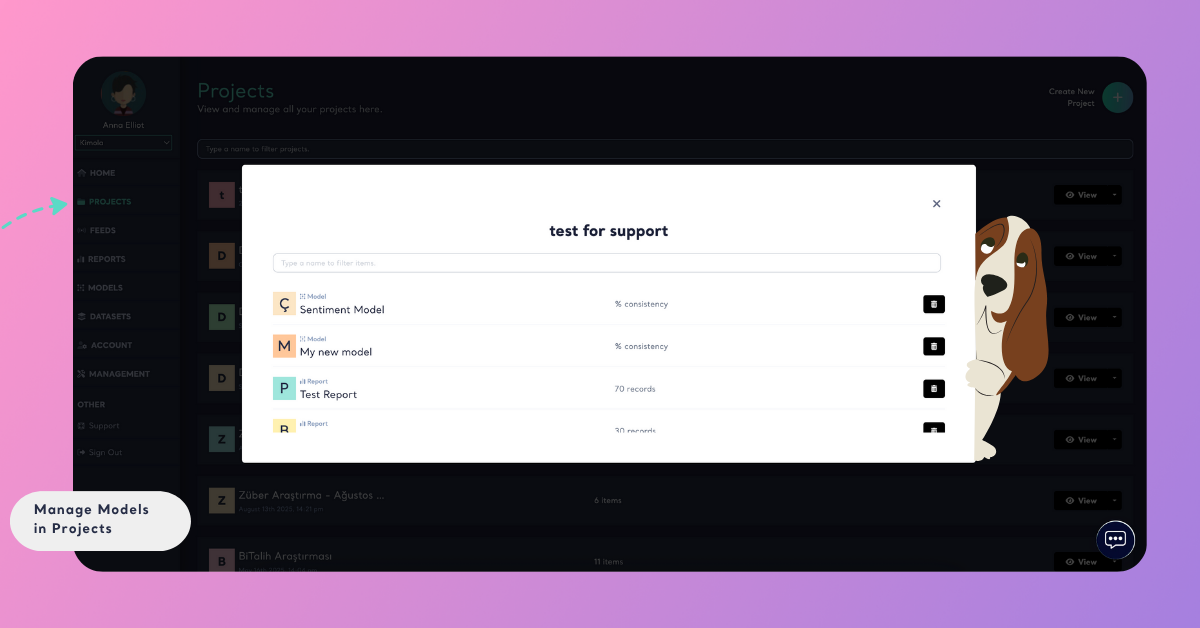
- Open the Project by clicking View.
- In the list of models, locate the one you want to remove (use the search bar if needed).
- Click the trash can icon next to that model.
- Close the window by clicking the X in the top right. The model will be removed from the Project.
By managing models in Projects, you keep your AI resources structured and aligned with the feeds and reports they support. This ensures smoother workflows and makes it easier to use the right models for the right analysis.