Compare in Spaces
min read - Updated on Nov 10, 2026Compare is the page of a Space that puts 2 to 5 parts of its feedback side by side: the records with different values of one column (such as two products or two regions), different files, or different text fields. For every part, the page shows its volume, its trend over time, its sentiment, its themes, its Dimension answers, its most frequent words and its languages, so you can see at a glance what one group of customers talks about that another doesn't.
Spaces are available in the Enterprise package and in Kimola On-Premises. To use Compare, sign in to Kimola and open a Space with classified feedback and at least two comparable groups. You’ll need two values in the same column, two classified files, or two text fields.
If you don’t have a Space yet, see Create a Space. For help uploading files or setting up the columns and text fields for your comparison, see Add Files to a Space.
You open the page from Compare in the menu of an open Space. It reads every classified file of the Space, and the filters at the top of the page apply to every part at once.
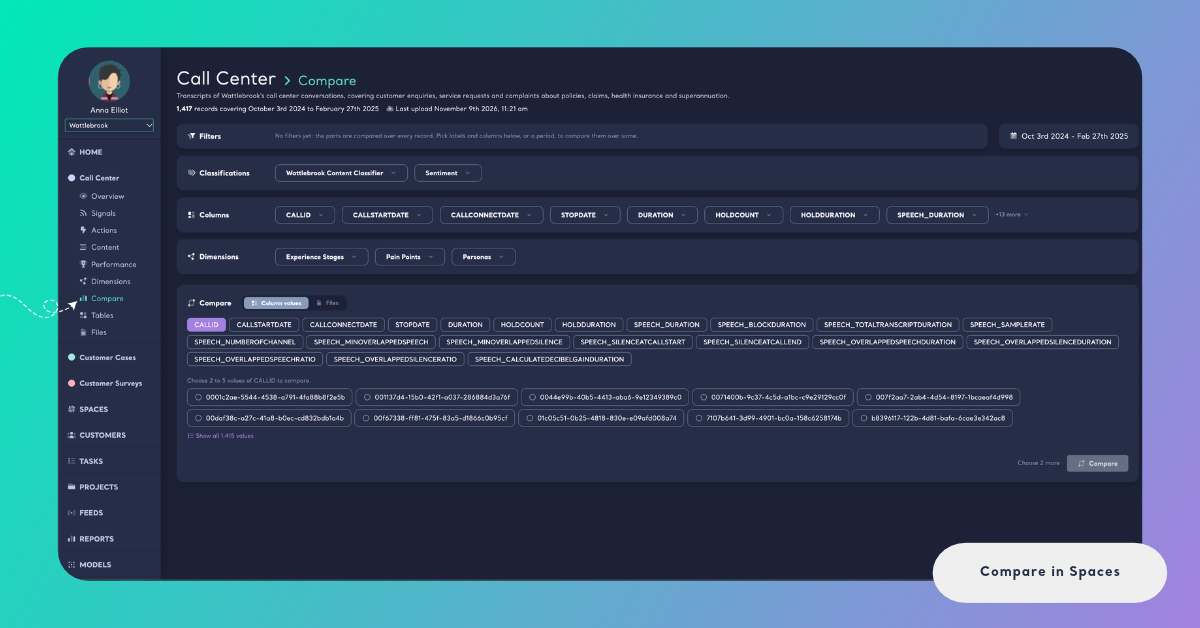
What You Can Compare
The Compare card under the filters offers up to three ways to split the Space's feedback. Kimola shows only the ones the Space can use:
- Column values compares the records that have different values in one column of the Space's files, such as a product, a region, a store or a survey score. It is offered when the Space has columns besides its Date Column and text fields.
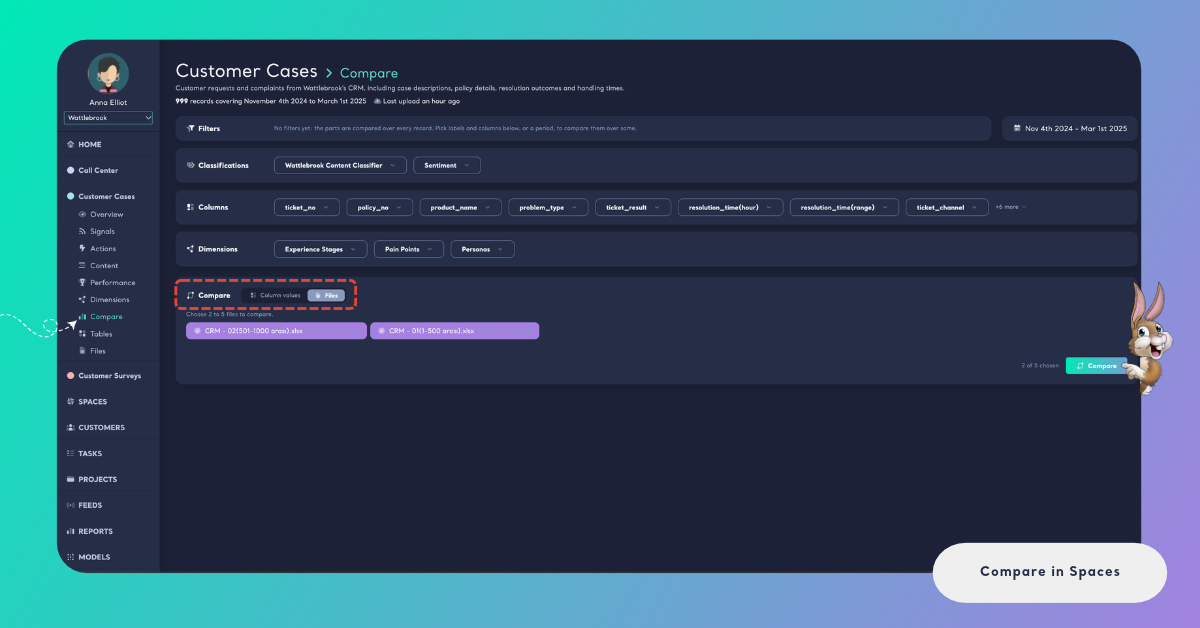
- Files compares the records of different files, such as this month's upload and last month's. It is offered when the Space has at least 2 classified files.
- Text fields compares the records of different text fields, such as the answers to two open-ended questions of the same survey. It is offered when the Space has at least 2 text fields.
Whichever you choose, you pick 2 to 5 parts and click Compare. Below the choices, the card counts your picks: "Choose 2 more" until you have enough, then "2 of 5 chosen". Once 5 are chosen, the other choices are greyed out until you remove one.
If the Space has none of these to offer, the card says "There is nothing to compare yet: a space compares the values of its columns, its files or its text fields." The columns, files and text fields come from the schema the Space's first file set. See Add Files to a Space.
Compare Column Values
Column values are the most common comparison, because the columns of a file usually hold the segments a team wants to tell apart: the product a review is about, the store a visit took place in, the team that handled a call, or the score a customer gave in a survey.
Click Column values in the Compare card. Every column of the Space appears as a button; click the one you want to compare by. The card then lists its values under "Choose 2 to 5 values of [column] to compare." When a column has many values, the card first shows the most frequent ones and offers Show all with the number of values (for example Show all 4,223 values) to list every one of them.
Click 2 to 5 values, then click Compare. Each part is named after its column and value, for example "Product: Wireless Earbuds" and "Product: Smart Watch".
A survey's score column works the same way. Choose the values 9 and 10 of a 0–10 score column and the values 0 to 6 in turn, for example, to read what promoters and detractors write about.
This compares the score customers gave in the survey. The NPS Kimola shows for a Space is calculated from the sentiment of the feedback text instead. See How NPS Is Calculated in Spaces.
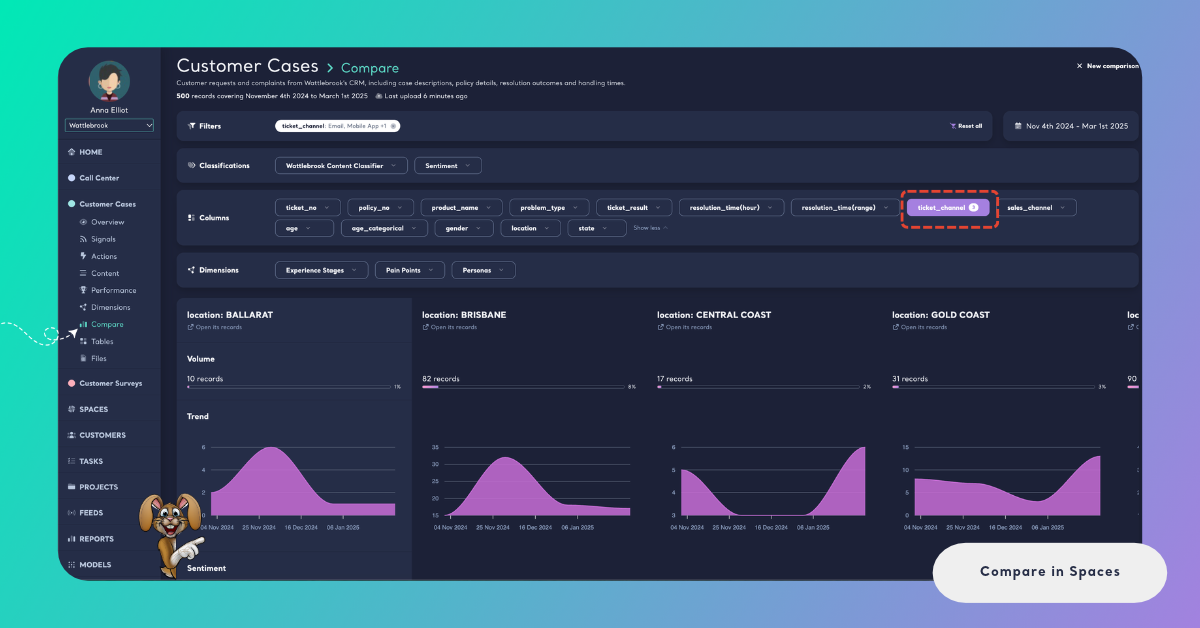
Compare Files
Comparing files shows how the feedback of one upload differs from another: whether the complaints of the latest month are the same as the month before, or whether a file from a new source talks about other things.
Click Files in the Compare card. The card lists the Space's classified files with their name, their number of rows and their upload date, for example "Survey-March.xlsx 2,021 rows · Oct 8, 2026". A file that is still being classified does not appear until its classification is completed.
Click 2 to 5 files, then click Compare. Each part is named after its file.
Compare Text Fields
A Space can classify more than one text field of every record: the answers to two open-ended questions of a survey, or a review's title and its body. Comparing them shows whether customers say different things in each.
Click Text fields in the Compare card. The card lists the text fields by the names they were given when the Space's first file was uploaded, for example "What did you like?" and "What should we improve?". Click 2 to 5 of them, then click Compare. Each part is named after its text field.
When you compare column values or files in a Space with more than one text field, a switch at the top right of the page reads the records "through one text field, or all of them". All text fields is the default; choose one field to compare the parts only by what customers wrote in it.
Narrow the Comparison with Filters
The filters at the top of the page set which records the parts are taken from. With no filter, the page says "No filters yet: the parts are compared over every record. Pick labels and columns below, or a period, to compare them over some."
Pick values from Classifications, Columns or Dimensions, or choose a period in the date box, and every part is calculated again for those records only.
For an online store, filter by the theme Late Delivery and compare the values of a Region column: you see which regions complain about late deliveries, and how.
Each filter shows as a chip you can remove, and Reset all removes them all. See Filter Records in Spaces.
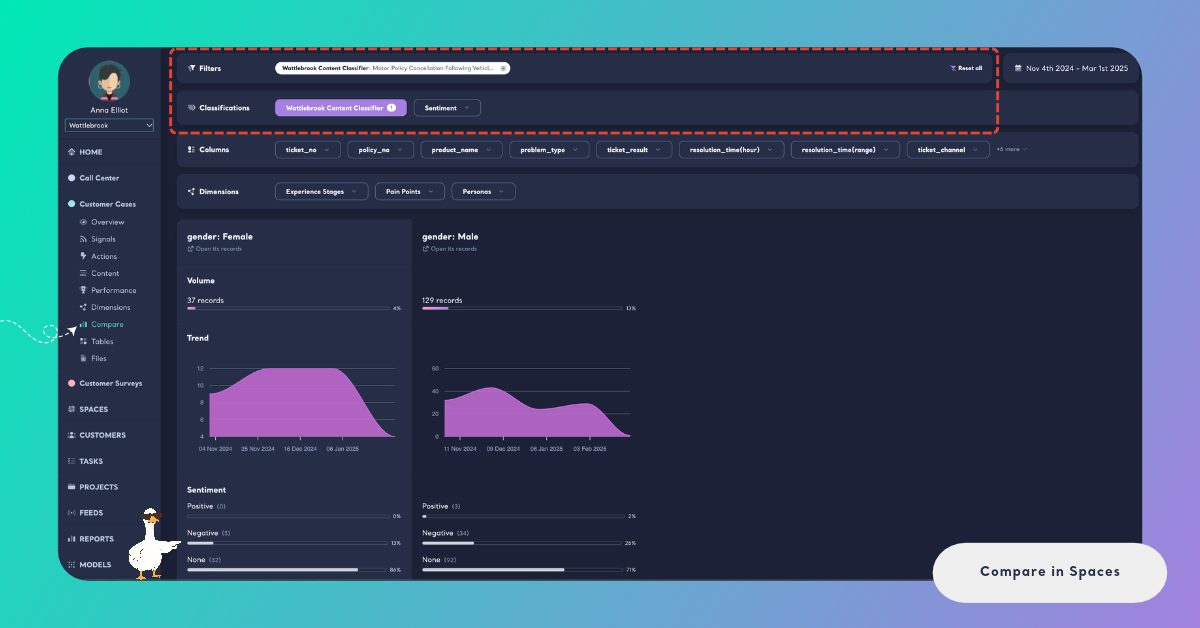
The filters are kept in the page address, so a copied link opens the page with the same filters. The parts you compare are not, so a teammate who opens the link picks them again.
Reading the Comparison
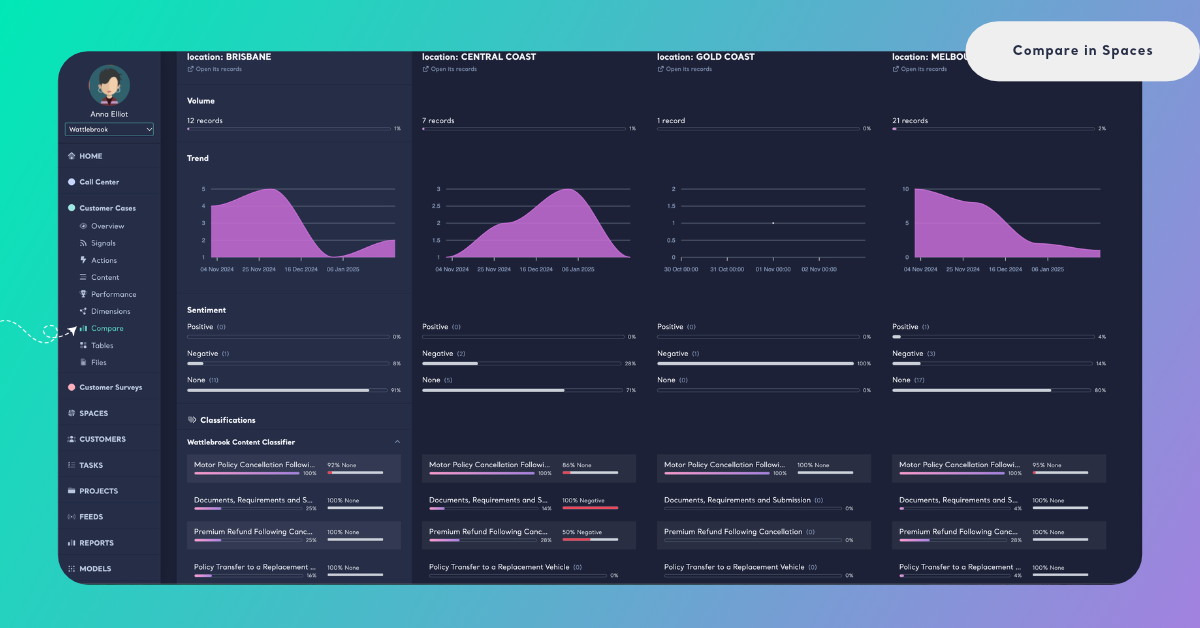
The comparison is a table with one column for every part, in the order you picked them, each headed by the part's name. Every row compares one measure across the parts. Scroll sideways when the parts don't fit on the screen; the first part stays in place. A row appears only when at least one part has data for it.
- Volume. The number of records in the part, and their share of all the records the page reads (all the records of the Space, or the ones your filters leave). Two parts with very different volumes are worth reading with that in mind.
- Trend. The number of records over time, by day for a Space that covers less than 30 days, by week under 60 days and by month beyond.
- Sentiment. The number and share of Positive, Negative and None records in the part, from the sentiment classifier of the Space's Funnel.
- Classifications. One row for each classifier of the Funnel. Click a classifier to open it: every label shows its number of records, its share of the part, and the sentiment most of its records carry, such as "69% Negative", with a bar of its positive and negative share. Labels are listed in the same order in every part, so a label sits on the same line from left to right.
- Dimensions. One row for each Dimension of the Funnel, such as Pain Points or Experience Stages. Click a Dimension to open its answers, read the same way as the labels of a classifier.
- Popular Terms. The words used most often in the part's records. The larger a word, the more often it is used.
- Languages. The languages of the part's records, with their number and share. It matters when a Space collects feedback in more than one language.
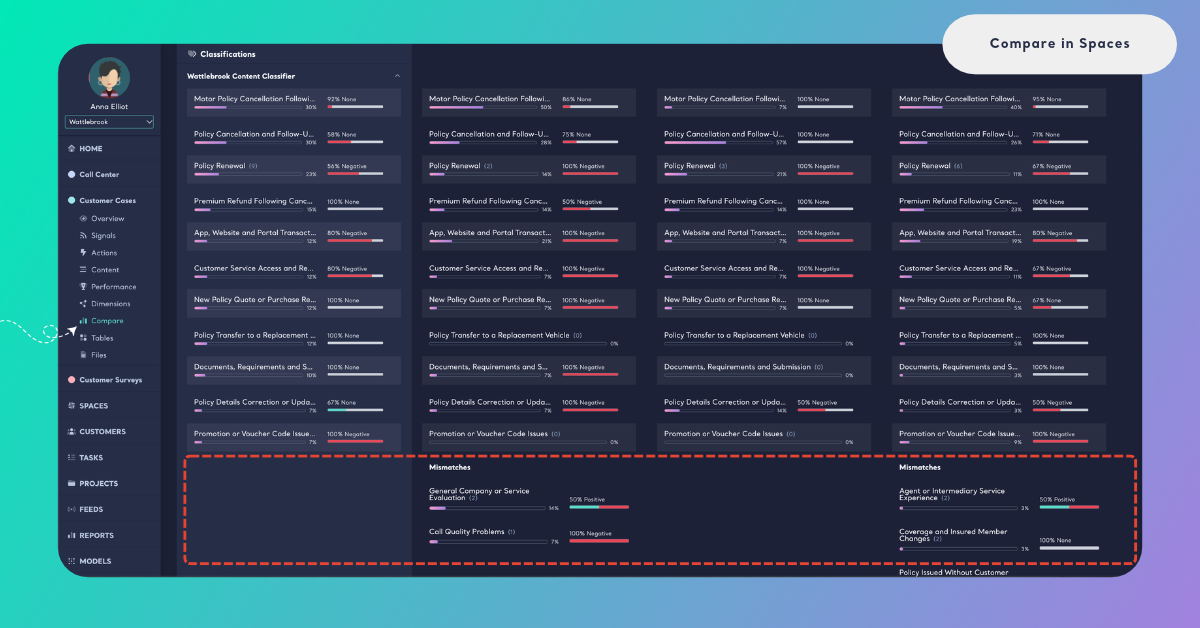
Mismatches
The labels of an opened classifier or Dimension follow the first part, the leftmost column. Every other part shows the same labels on the same lines, with 0 records where it has none, so you can read a label straight across.
A part can also have labels the first part doesn't have. They are listed under Mismatches at the end of that part's column when you open the classifier or Dimension, each with its number of records, its share and its sentiment. Mismatches are often the most telling result of a comparison: a theme that appears only in one region, one file or one text field.
To see a part's mismatches as the main list, start a new comparison and pick that part first.
Open the Records Behind a Group
Every number on the page comes from records you can read. Under the name of a part, Open its records opens the Space's Content page with the records of that part: the page's filters plus the part's column value or text field, already applied as filters. From there you can read the feedback, narrow it down further, or turn it into a task with Make a task.
Open its records is offered for column values and text fields. For a file, open Content and filter it by that file. See Filter Records in Spaces.
Start a New Comparison
Click New comparison at the top right of the page to clear the parts and go back to the Compare card. The filters stay as they are, so you can compare other parts of the same records. To compare the same parts over other records, change the filters instead: the comparison is calculated again without picking the parts again.
If the page says "The comparison could not be loaded, please try again.", reload the page and compare the parts again.
How It Differs from Reports
A Report has a Compare page too. There you compare the values of a column or the saved filters of the Report, and you can copy the results as a table. In a Space, you compare column values, files or text fields, up to 5 parts at once, over the records the page's filters leave, and every part opens its records on Content. See Compare in Reports for the Report's page.