How to Scrape and Analyze Google Business Reviews
7 mins read - Created on Mar 13, 2026Google Business reviews contain customer feedback about local businesses such as restaurants, cafes, hotels, retail stores, and service providers. Reviews typically describe aspects of the customer experience including service quality, staff behavior, product satisfaction, pricing, and overall business reputation.
Analyzing Google Business reviews helps identify recurring service issues, track customer satisfaction patterns, and examine how customers evaluate a business.
Kimola allows you to collect and analyze Google Business reviews without requiring any technical setup. By automatically gathering publicly available customer feedback and converting it into structured insights, Kimola helps businesses and researchers understand customer sentiment and experience patterns.
Create a free account or sign in to your existing Kimola account.
Google Business reviews can be collected automatically by adding a Google Maps business link to Kimola. This tutorial explains how to automatically scrape reviews using a Google Maps business link and how to analyze the collected review data within the platform.
Let's get started!
Automatically Scrape Google Business Reviews
Automatic scraping allows you to analyze Google Business reviews by providing the Google Maps link of a business location. There is no need to manually collect reviews or prepare a dataset beforehand.
Step 1: Find the Business on Google Maps
Open Google Maps and search for the business whose reviews you want to analyze. When the business listing appears, open its location panel and select the Share button. A dialog window will appear displaying the shareable business link. Copy the link provided in the Link to share section. This link represents the Google Maps page of the selected business and will be used to collect its reviews.
The link typically follows a format similar to: https://maps.app.goo.gl/...
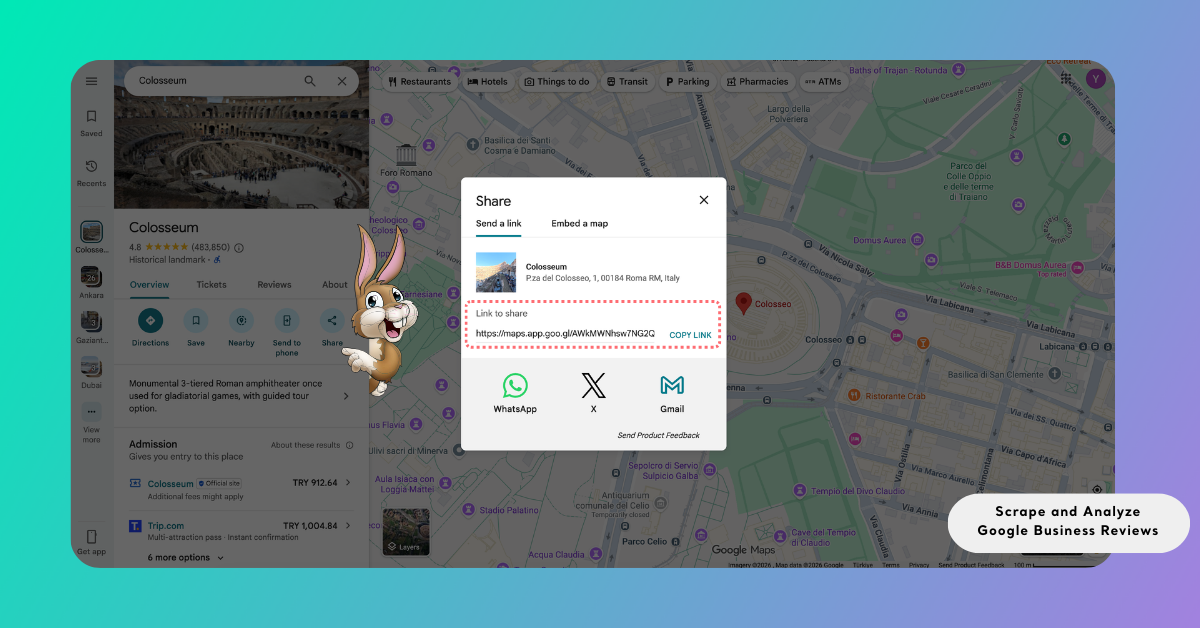
This share link is sufficient for Kimola to identify the business page and collect the associated reviews.
For a full list of supported platforms to create a report with auto-scraping, see Supported Platforms for Creating Reports from Links including platform-specific details.
Step 2: Enter the Link into Kimola
Open the Kimola Dashboard and locate the Create your report section on the home screen.
Paste the Google Maps business link you copied in the previous step into the input field and select Start to continue.
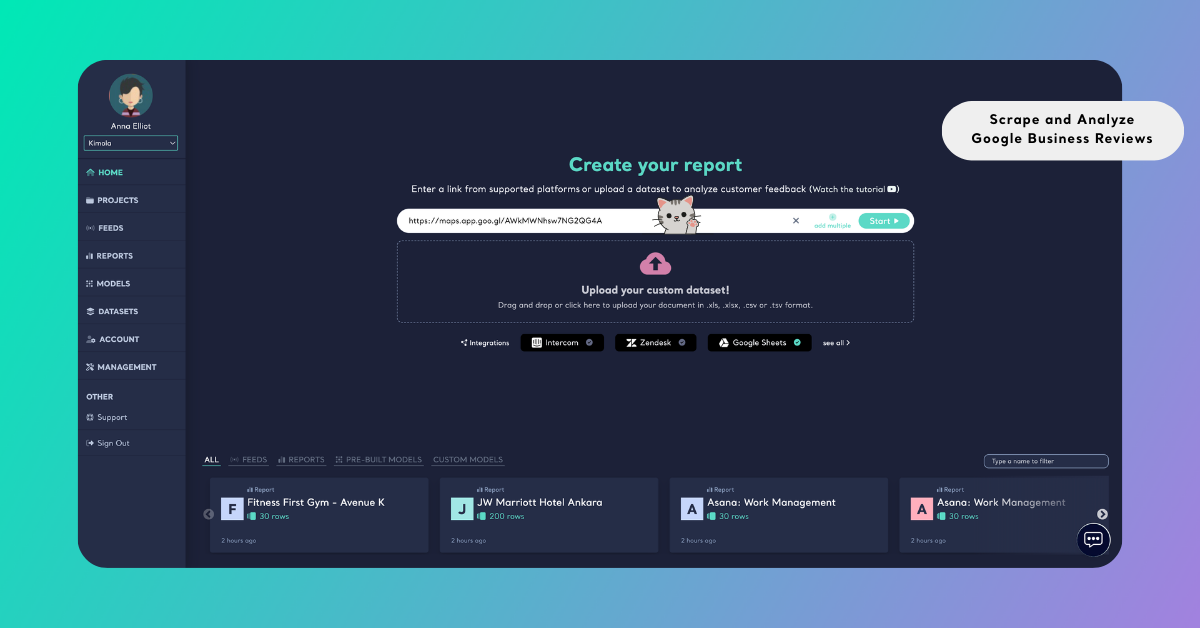
If you want to analyze reviews from multiple business locations, you can include more than one Google Maps link. This is useful when comparing customer feedback across different branches of the same brand or evaluating competitors within the same area.
To include multiple businesses, select Add Multiple and enter each Google Maps link on a separate line.
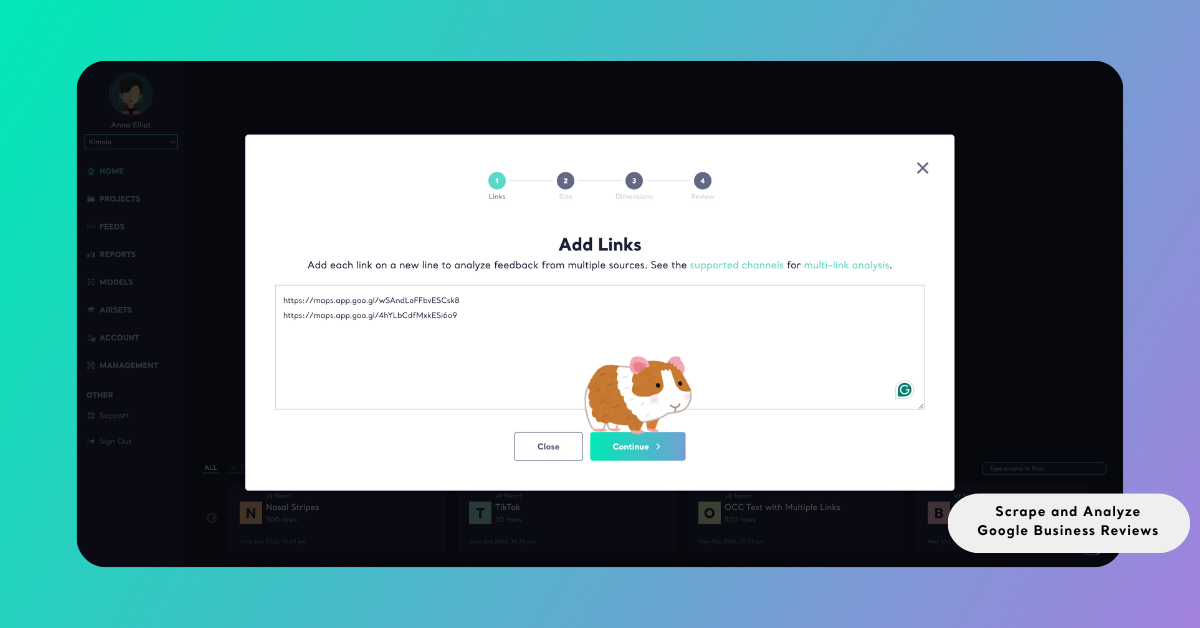
After the links are submitted, Kimola automatically validates each URL to ensure that the pages are accessible and supported. If any issues are detected, a validation screen highlights the problematic links so they can be corrected or removed before continuing.
Once validation is complete, Kimola collects the available Google Business reviews from the selected locations and prepares a dataset for analysis.
Step 3: Select the Report Size
Kimola then prompts you to define how many reviews will be collected and analyzed. Using the slider, you can select the dataset size that will be used to generate the report.
When multiple business links are included, Kimola distributes the selected dataset size across all locations. If one location contains fewer reviews than expected, the remaining portion is automatically filled using reviews from the other locations.
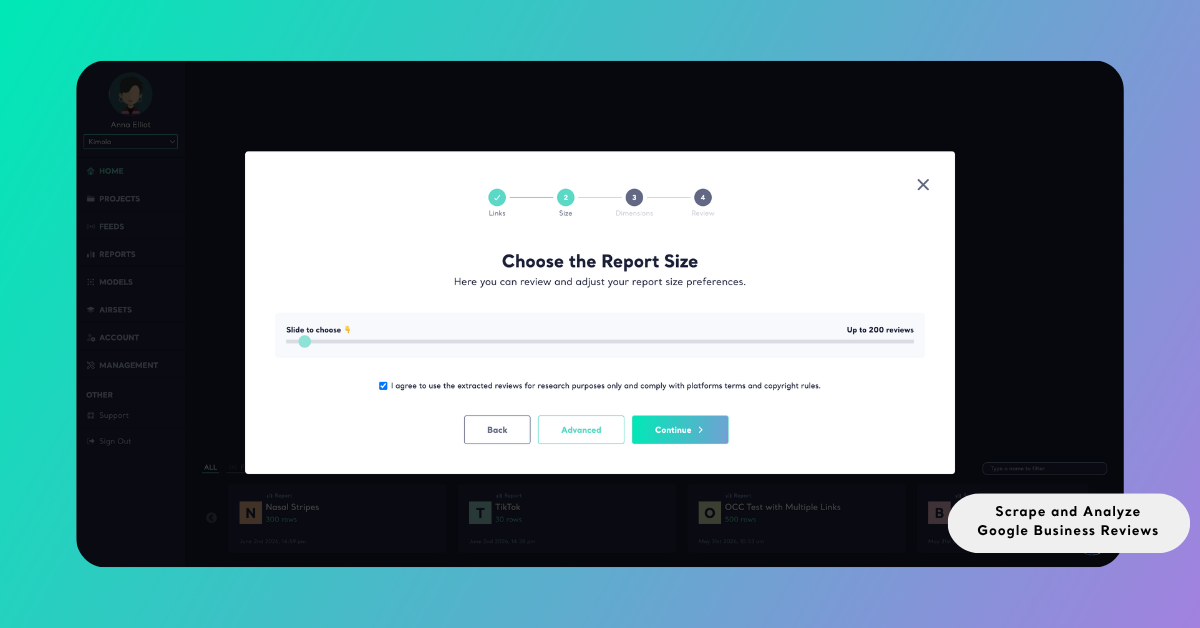
This ensures that the dataset reaches the selected size whenever sufficient data is available while also helping you manage query usage efficiently.
Understanding Google Business Review Data
Google Business reviews typically contain short, experience-based feedback written by customers after visiting or interacting with a business. Reviews frequently mention aspects such as service quality, staff attitude, product satisfaction, waiting times, and overall customer experience.
Each review usually includes a star rating that reflects the customer's overall evaluation of the business. Written comments often provide additional context explaining the reasons behind the rating.
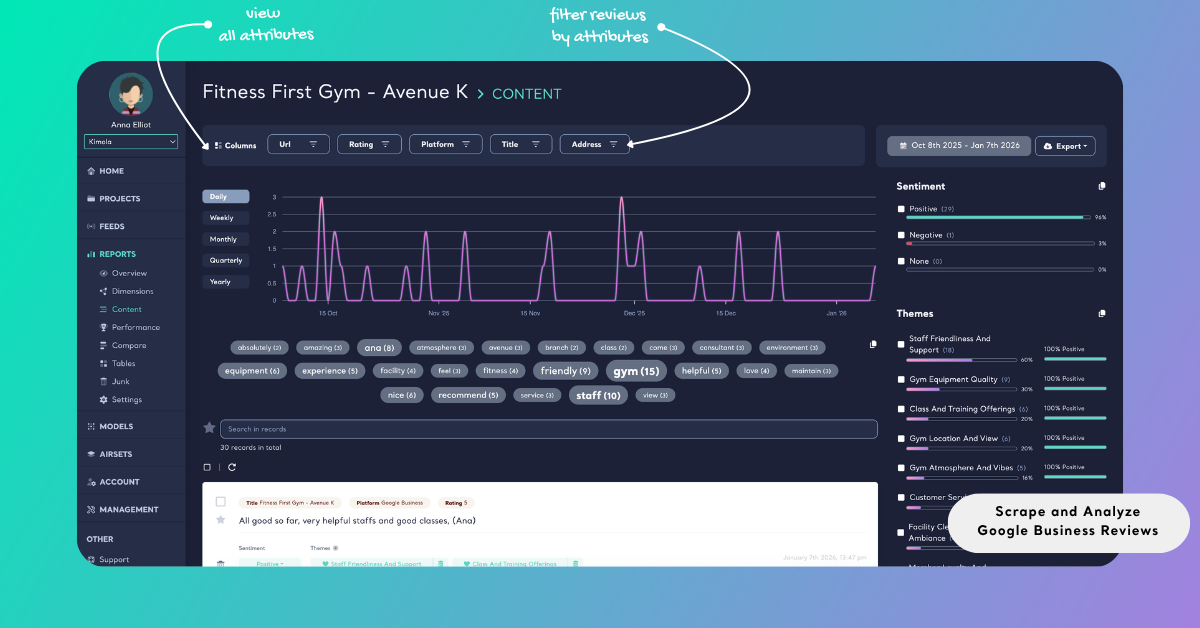
When Google Business reviews are collected automatically, Kimola captures the main fields available on the platform, including review text, rating, date, address, and source URL. These fields can later be used to filter insights by rating level, analyze sentiment trends over time, or identify recurring themes in customer feedback.
Analyze Google Business Reviews
Once the reviews are collected, they can be analyzed to identify recurring themes, sentiment patterns, and common customer experiences. This analysis converts unstructured customer feedback into structured insights that help businesses understand customer expectations and service quality perceptions.
Kimola applies a unified report creation workflow across all supported data sources. The following steps focus on configuring the analysis to align with your research or business objectives.
In addition to one-time analysis, you can automatically monitor Google Business reviews by creating a Feed, which generates regular reports and alerts.
Choose Dimensions
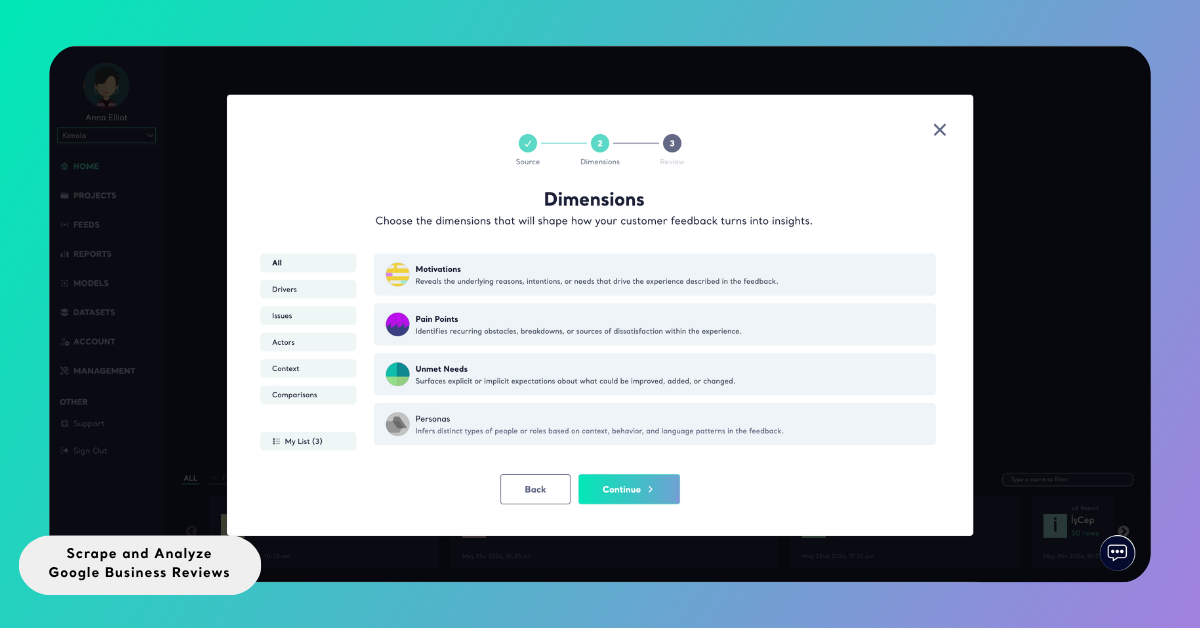
Beyond basic sentiment analysis and standard classifications, Kimola also supports advanced dimension layers for Google Business reviews. These dimensions help surface broader patterns in customer feedback, such as recurring service problems, expectations expressed by visitors, factors influencing satisfaction, and frequently mentioned complaints.
The dimensions you select are listed under My List, where they can be reviewed or modified before the report is generated.
Review Report Settings
Before the analysis starts, Kimola presents the Review screen, where the main report settings can be checked and adjusted if necessary.
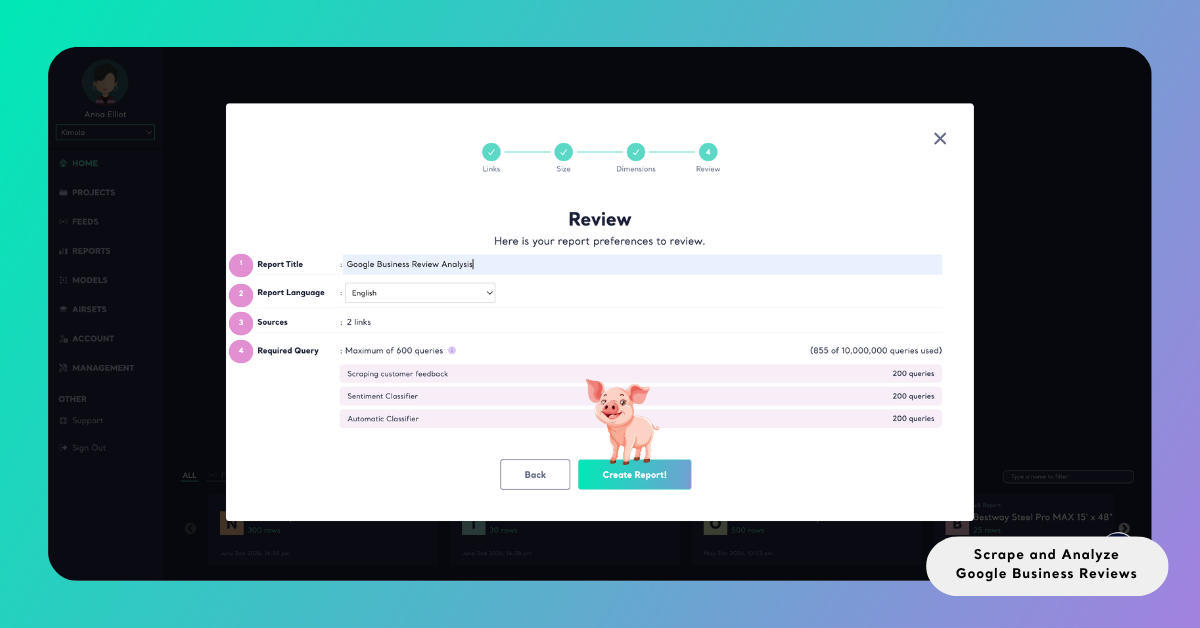
The Report Title field defines the name of the report. When the report is generated from a single Google Maps business link, Kimola automatically creates the title using the business name. If the report includes multiple business links, the title must be entered manually before proceeding.
The Source / Dataset section displays the origin of the data used for the report. For Google Business analyses, this typically refers to the Google Maps links added during the data collection stage.
Using the Report Output dropdown, you can choose the language in which the analysis results will be produced. This selection determines the language of elements such as sentiment labels, themes, summaries, and dimension outputs.
The Required Query area provides an overview of how many queries will be used to generate the report and how they are allocated across data collection and analysis steps.
Create the Report
Select Create Report to start the process. Kimola collects the selected Google Business reviews, applies the configured analyses, and generates the report automatically.
Once the report is ready, it appears in the Reports section of the dashboard. From there, you can review the analysis results, organize the report under a Project, or export the outputs for further use.
Reports can be exported in several formats depending on your workflow, including Excel, PowerPoint, and PDF. Reports can also be shared via email for scheduled or on-demand distribution.
This allows Google Business review insights to be easily converted into shareable outputs that support reporting, customer experience analysis, and business decision-making workflows.
Conclusion
Customer reviews on Google Maps offer a continuous stream of feedback about how people perceive local businesses. Examining these reviews can reveal recurring customer experiences, highlight operational strengths or weaknesses, and provide context around how a business is evaluated by its visitors.
Kimola automates the process of gathering these publicly available reviews and preparing them for analysis within a structured reporting workflow. This enables teams to explore customer feedback at scale without manually collecting or organizing review data.
All Google Business review data should be collected and analyzed solely for research and internal evaluation purposes. Review content must not be redistributed, republished, or used in ways that violate Google’s policies or applicable copyright regulations. Users are responsible for complying with all relevant platform terms.
If you’re new to Kimola, you can begin by trying the Google Business Review Analyzer. It provides a quick way to explore Google Business reviews and become familiar with how review data can be analyzed within the platform.