How to Scrape and Analyze Hepsiburada Reviews
8 mins read - Updated on Jun 05, 2026Customer feedback on Hepsiburada reflects more than individual product experiences. It captures how expectations are formed, how products are evaluated after purchase, and which factors influence satisfaction over time. When analyzed collectively, these reviews reveal patterns that help explain broader consumer behavior within the category.
With Kimola, you can collect and analyze Hepsiburada reviews through a fully automated workflow. By simply entering a product link, the platform handles data collection, dataset creation, and analysis in a single flow — eliminating the need for manual preparation or technical setup.
This guide explains how to collect and analyze Hepsiburada reviews step by step.
To begin, create a free account or sign in to your existing Kimola account. Once inside the platform, no additional setup is required.
Automatically Scrape Hepsiburada Reviews
The process starts with a single input: a Hepsiburada product link. Once the link is entered, Kimola automatically collects publicly available customer reviews associated with that product. These reviews are then structured into a dataset and prepared for analysis.
This approach removes the need for manual scraping or dataset formatting. More importantly, it ensures that the data is immediately ready for analysis, allowing you to focus on interpreting results rather than preparing inputs.
Step 1: Get the Hepsiburada Product Link
Navigate to the product page you want to analyze on Hepsiburada and copy the URL from your browser. It is important to make sure that the link belongs to a product detail page, as this is where customer reviews are located.
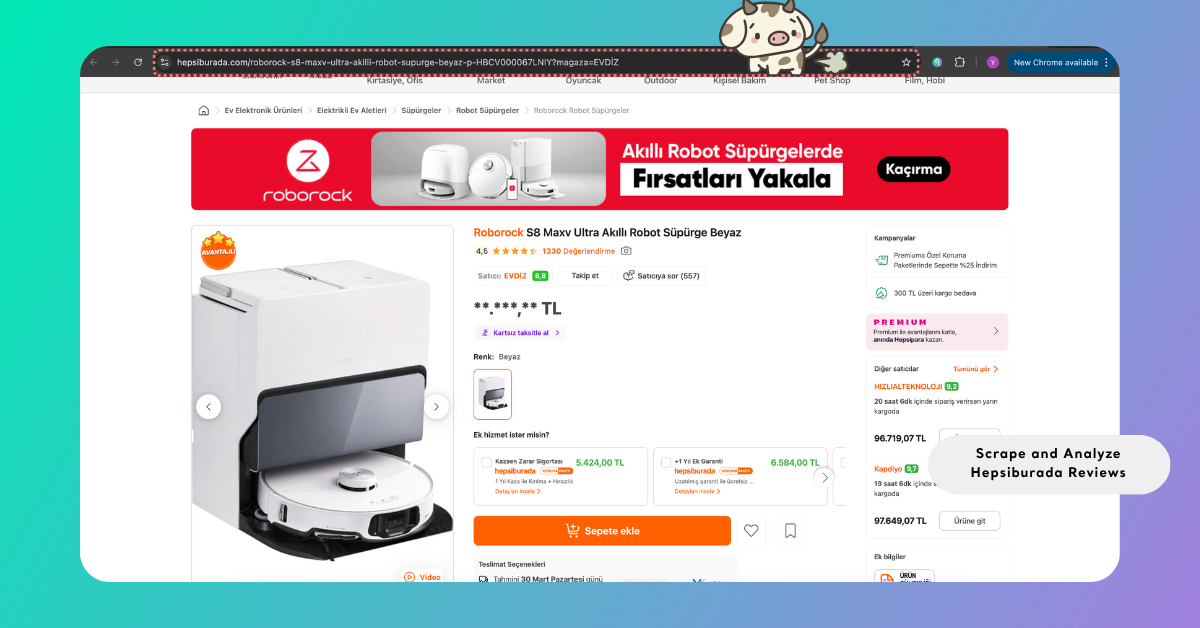
The selection of links directly defines the scope of your analysis. Whether you are focusing on a single product or comparing multiple listings, this step determines the structure and direction of your dataset.
Step 2: Enter the Link into Kimola
Once you have the product link, go to the Kimola dashboard and locate the Create your report section. Paste the Hepsiburada URL into the input field and click Start to begin.
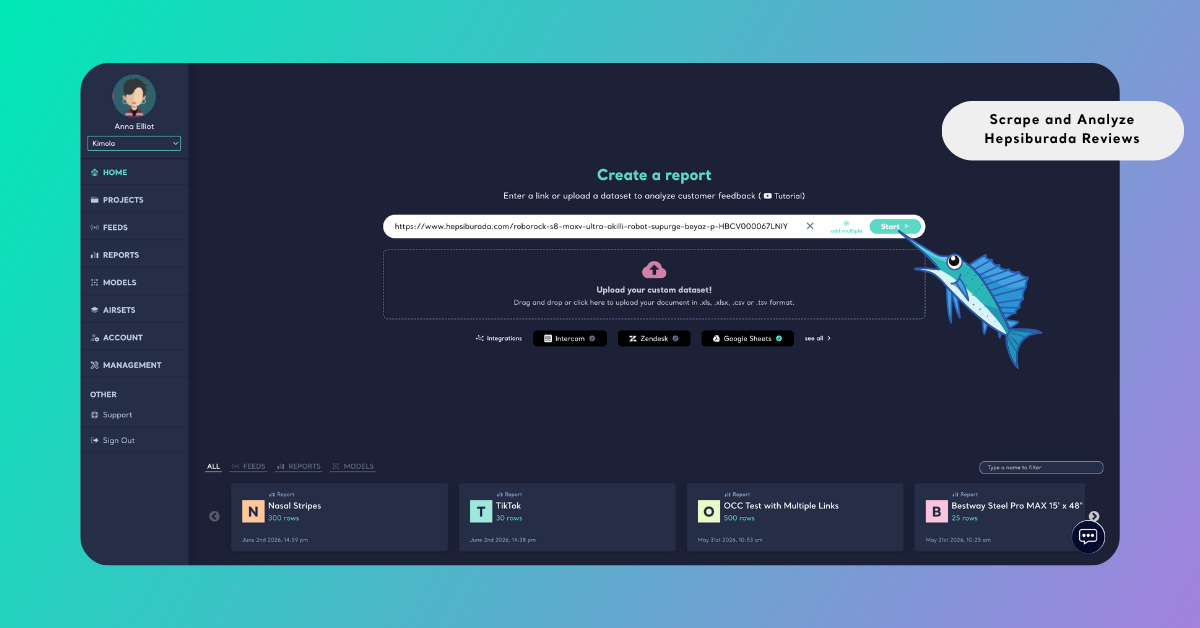
Kimola automatically validates the link and prepares it for data collection. If the link is valid, the process continues seamlessly; if not, the platform highlights the issue so it can be corrected before proceeding.
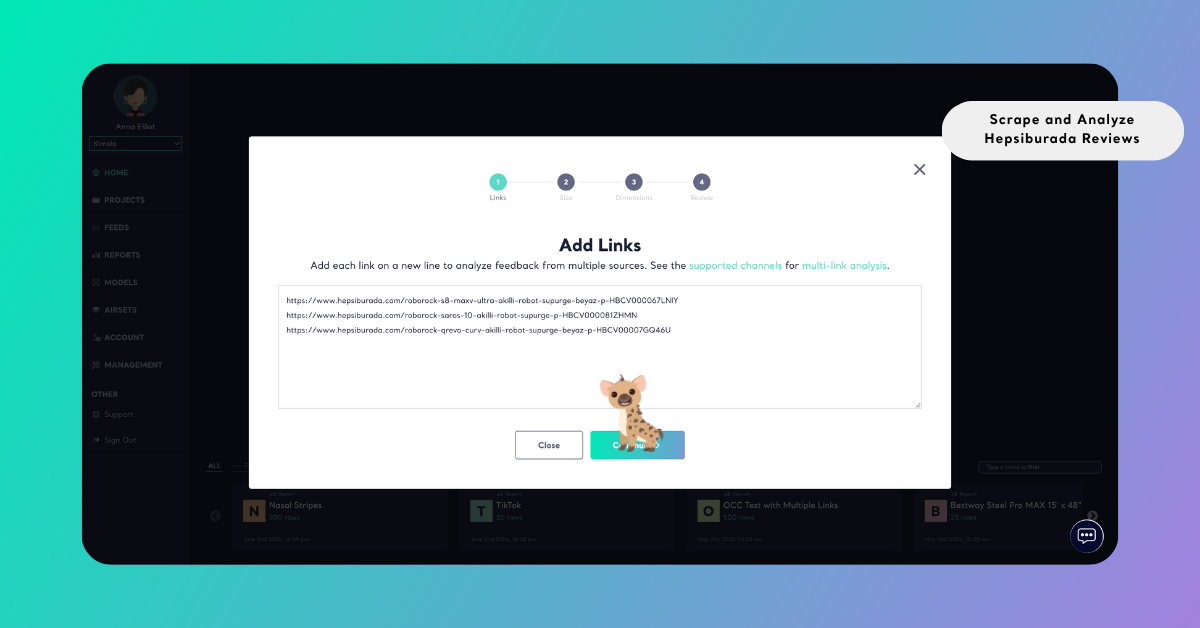
If you want to expand your analysis, you can include multiple product links by selecting the Add Multiple option and entering each link on a separate line. In this case, Kimola combines all collected reviews into a single dataset, enabling comparative analysis across products and helping you identify category-level patterns.
Step 3: Select the Report Size
After adding your link or links, you are taken to the dataset size selection screen. Here, you can define how many reviews will be included in your analysis by adjusting the slider. As you move the slider, the target dataset size updates accordingly, allowing you to set the scope of your analysis before proceeding.
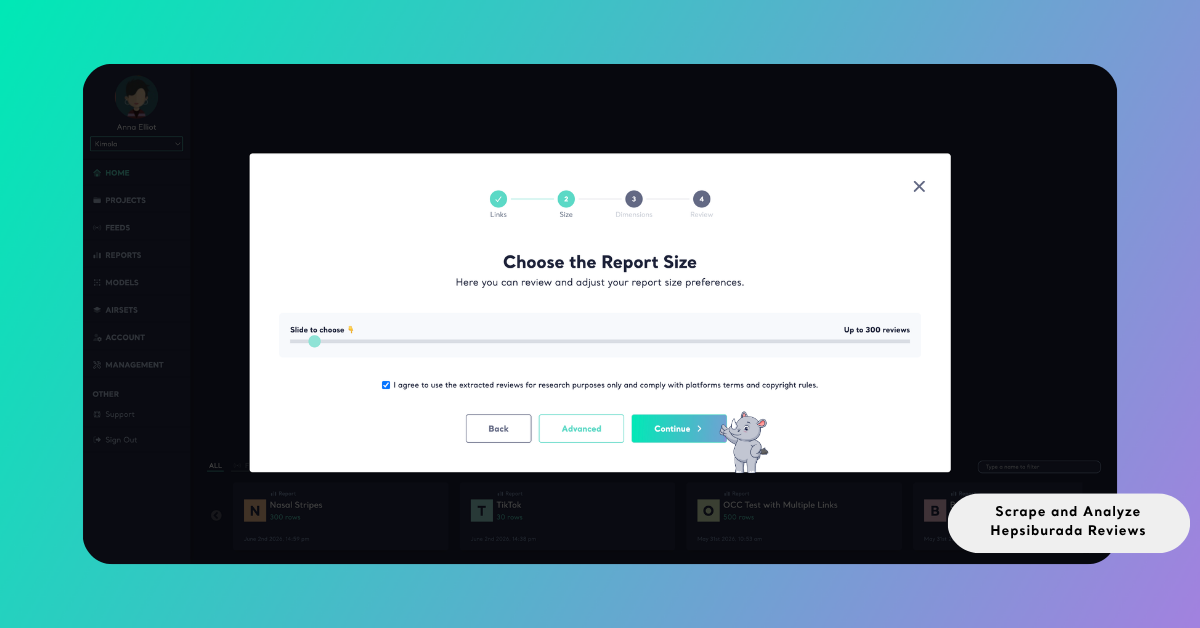
The size you choose directly shapes the depth and reliability of your insights. Smaller datasets are suitable for quick exploration, while larger datasets enable more robust pattern detection and a more comprehensive understanding of customer feedback. When multiple product links are included, Kimola automatically distributes the selected dataset size across them. If some products have fewer available reviews, the remaining portion is allocated from other links to ensure the total dataset size is fulfilled.
Leveraging Product Attributes in Hepsiburada Reviews
While collecting Hepsiburada reviews, Kimola captures not only the review text but also a set of structured attributes available on the product page. These typically include fields such as rating, review title, date, product URL, and seller name.
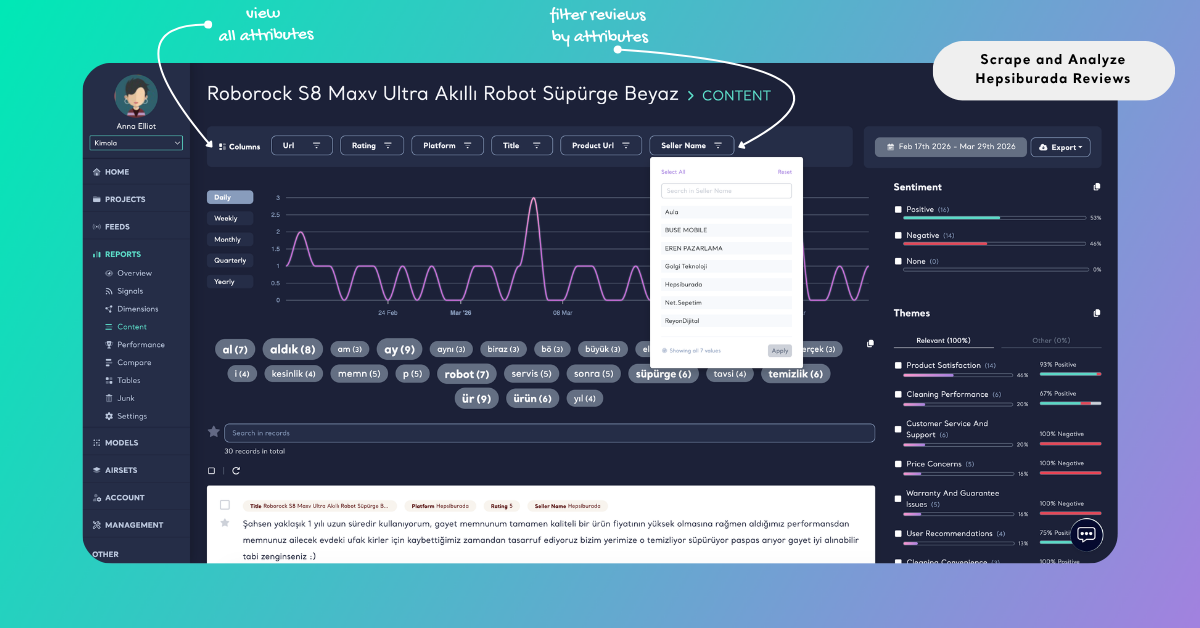
Once your report is generated, these attributes appear as filterable fields at the top of the report. You can use them to narrow down your dataset or segment the analysis based on specific conditions. For example, you can filter reviews by rating to compare positive and negative feedback, or group results by seller to identify differences in customer experience across vendors.
This allows you to move beyond a single stream of feedback and actively explore the data from different angles. Instead of analyzing all reviews together, you can focus on specific subsets and uncover more precise patterns tied to product variations, seller performance, or satisfaction levels.
Analyze Hepsiburada Reviews
Once Hepsiburada product reviews are collected, they can be systematically analyzed to uncover recurring themes, sentiment patterns, pain points, usage motivations, and underlying customer needs. This process transforms unstructured review content into structured insights that can support product decisions, marketing strategies, and broader business planning.
Kimola applies a unified report generation workflow across all data collection scenarios. In the previous steps, this workflow was initiated by collecting reviews directly from product links. From this point onward, the focus shifts to configuring the analysis to ensure that the resulting report aligns with your specific research goals and use cases.
In addition to one-time analysis, you can automatically track Amazon product reviews by creating a Feed, which provides regular reports and alerts in Kimola.
Choose Dimensions
To go beyond basic analysis, you can apply additional dimensions that help structure review data into more meaningful and actionable layers. These dimensions capture different aspects of the customer experience, such as when and where it happens, what influences it, and what is mentioned alongside it.
During report creation, navigate to the Dimensions step. Here, you can browse available dimension types. Each dimension focuses on a different aspect of the feedback, allowing you to analyze reviews from multiple perspectives.
To apply a dimension, simply select it from the list. Your selections are added to your active configuration, where you can review and adjust them before proceeding. You can choose multiple dimensions depending on how deep or multi-layered you want your analysis to be. Once applied, these dimensions appear within the report and organize the data accordingly.
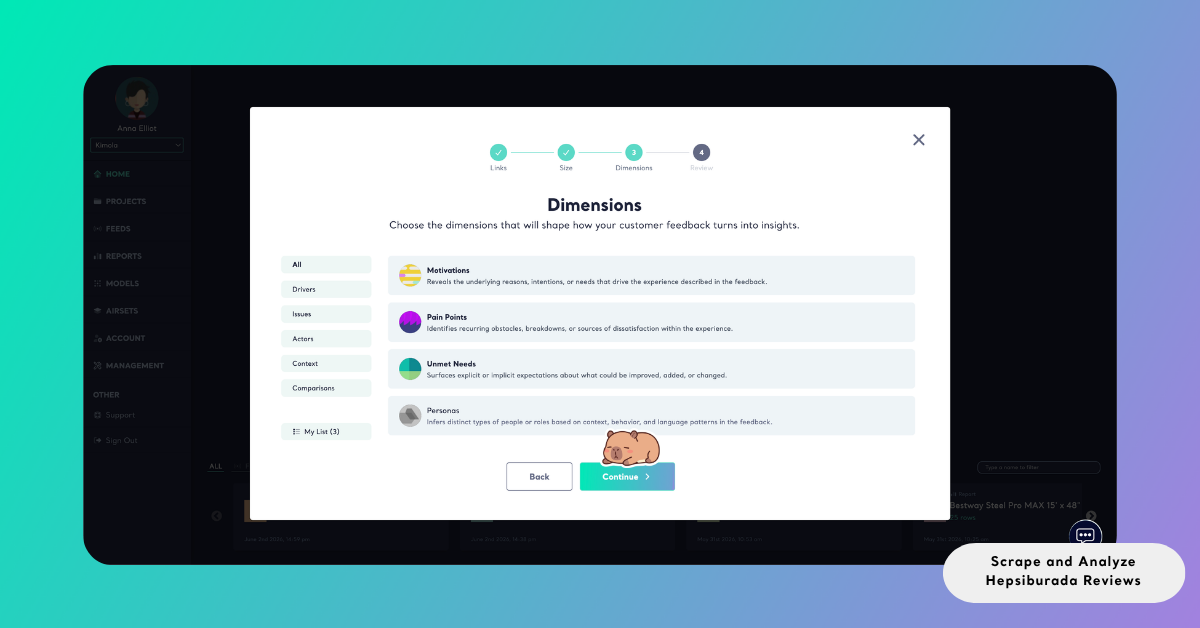
Selected dimensions appear under My List on the left side, allowing you to review and adjust them before creating the report.
At this stage, the analysis moves from identifying what is being said to understanding how and why it is being experienced, revealing the underlying structure behind customer feedback.
Review Report Settings
After completing the Dimensions step, the Review screen appears as the final stage before running the analysis.
This screen allows you to go over all selected configurations and make any final adjustments before generating the report.
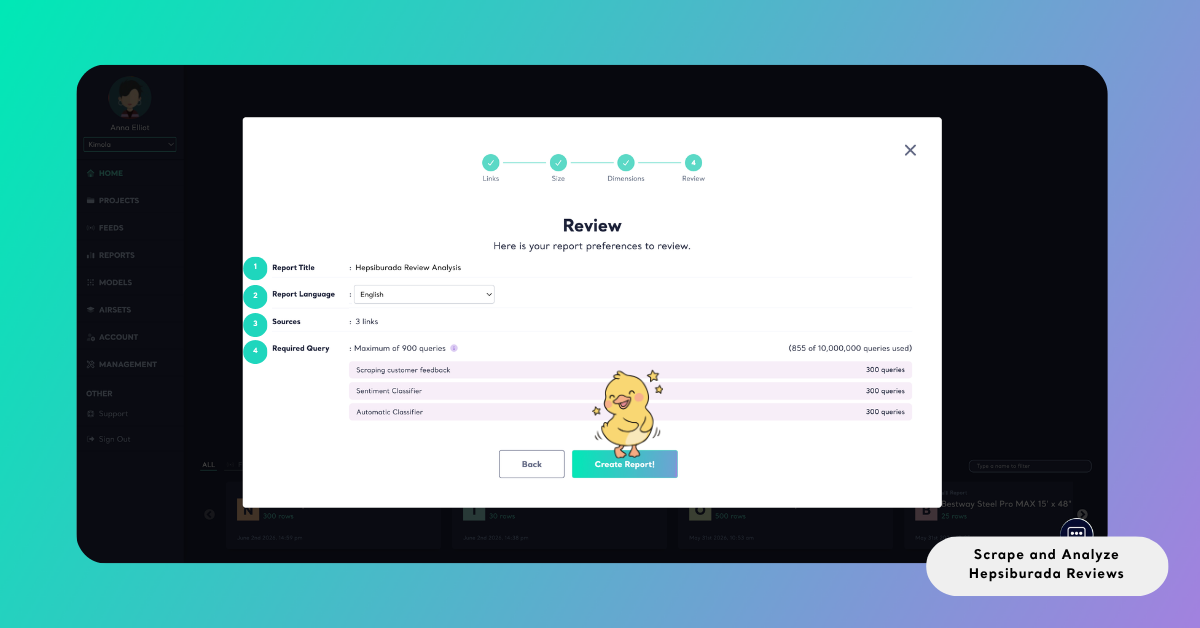
The Report Title is automatically generated when creating a report from a single product link, typically based on the product name. In most cases, this does not require editing. However, when working with multiple product links or a combined dataset, you will need to enter the report title manually before continuing.
The Source / Dataset field shows where your data is coming from. For link-based reports, this reflects the detected platform (such as Hepsiburada), while for dataset-based workflows, it displays the name of the uploaded or generated dataset.
Using the Report Output dropdown, you can select the language in which the report will be generated. This setting determines the language used across all outputs, including sentiment labels, themes, summaries, and dimension results.
The Required Query section provides a detailed breakdown of how your queries will be used. This may include queries allocated for data collection, sentiment classification, and automatic or custom classifier queries based on the analysis.
The total number shown represents the maximum query usage for the report. Reviewing this section helps you understand how dataset size and selected analysis layers impact your plan before starting the process.
Create the Report
To start the analysis, click Create Report. Kimola then handles the entire process in the background — collecting the selected data, applying the configured analyses, and compiling the results into a structured report.
Once the report is ready, it becomes available under the Reports section. From there, you can explore the results in detail, organize reports under a Project to keep related work together, or prepare the outputs for external use.
Reports can be exported in multiple formats depending on your workflow. You can download the results as an Excel file for deeper analysis and custom reporting, export them as PowerPoint or PDF for presentations and stakeholder sharing, or share them via email for scheduled or on-demand distribution.
This flexibility allows you to turn review data into structured, reusable insights that can be easily shared and integrated into your reporting and decision-making processes.
Conclusion
Analyzing Hepsiburada reviews is not just about collecting feedback — it is about identifying the patterns that shape how customers evaluate products and make decisions.
By automating both data collection and analysis, Kimola shifts the focus from operational tasks to insight generation. This makes it possible to move beyond individual comments and uncover consistent signals that can inform product, marketing, and strategy decisions.
As with any platform-based data, all collection and analysis should be conducted responsibly and in accordance with platform policies and applicable regulations.