How to Scrape and Analyze Walmart Reviews
7 mins read - Updated on Jun 05, 2026On Walmart, customer feedback accumulates across a wide range of products, reflecting real purchase experiences at scale. Within this volume, reviews begin to reveal consistent patterns — highlighting what customers value, where products fall short, and which factors influence satisfaction over time.
Turning this large and unstructured feedback into clear insight requires a systematic approach. With Kimola, you can collect and analyze Walmart reviews through a fully automated workflow. By simply entering a product link, the platform handles data collection, dataset creation, and analysis in a single flow.
To begin, create a free account or sign in to your existing Kimola account. Once inside the platform, no additional setup is required.
Automatically Scrape Walmart Reviews
Collecting Walmart reviews starts with a single input: a product page link. Once the link is entered into Kimola, the platform automatically retrieves all publicly available customer reviews associated with that product and organizes them into a structured dataset.
This process runs entirely in the background, removing the need for manual scraping or data preparation. As a result, your dataset is ready for analysis immediately, allowing you to focus on extracting insights rather than preparing inputs.
Step 1: Get the Walmart Product Link
Go to the Walmart product page you want to analyze and copy the URL from your browser. Make sure that the link points directly to a product detail page, as this is where customer reviews are located.
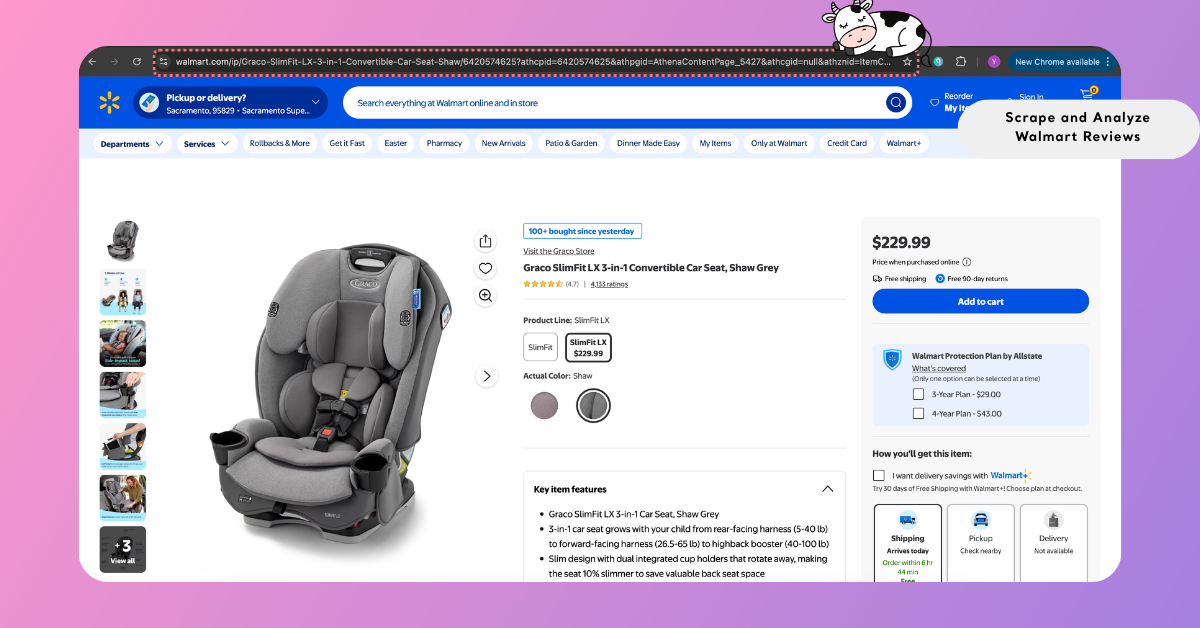
The links you choose define the scope of your analysis. You can focus on a single product to understand detailed feedback or include multiple product pages to compare customer experiences across similar listings.
For the complete list of platforms supported for auto-scraping, refer to Supported Platforms for Creating Reports from Links, where you can find platform-specific details.
Step 2: Enter the Link into Kimola
Open the Kimola dashboard and locate the Create your report section on the homepage. Paste the Walmart product link into the input field and click Start to begin.
Kimola automatically validates the link and prepares it for data collection. If the link is supported, the process continues without interruption. If any issues are detected, the platform highlights them so you can correct or replace the link before proceeding.
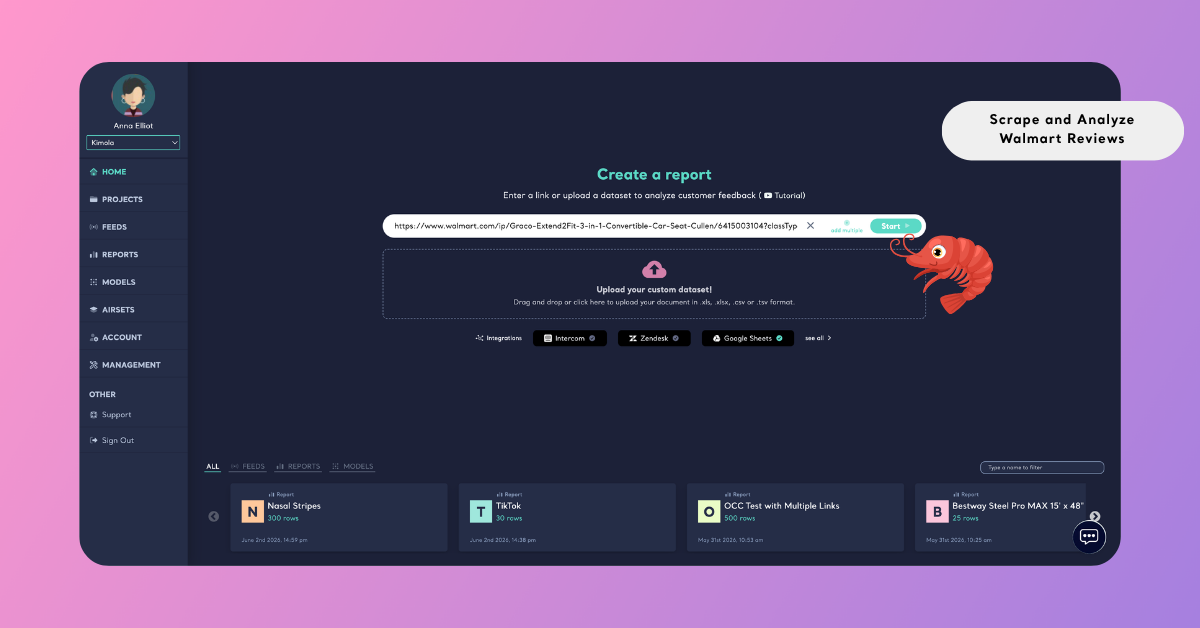
If you want to expand your analysis, you can select Add Multiple and enter several product links. Kimola validates each link and combines all collected reviews into a single dataset, enabling comparative analysis across products.
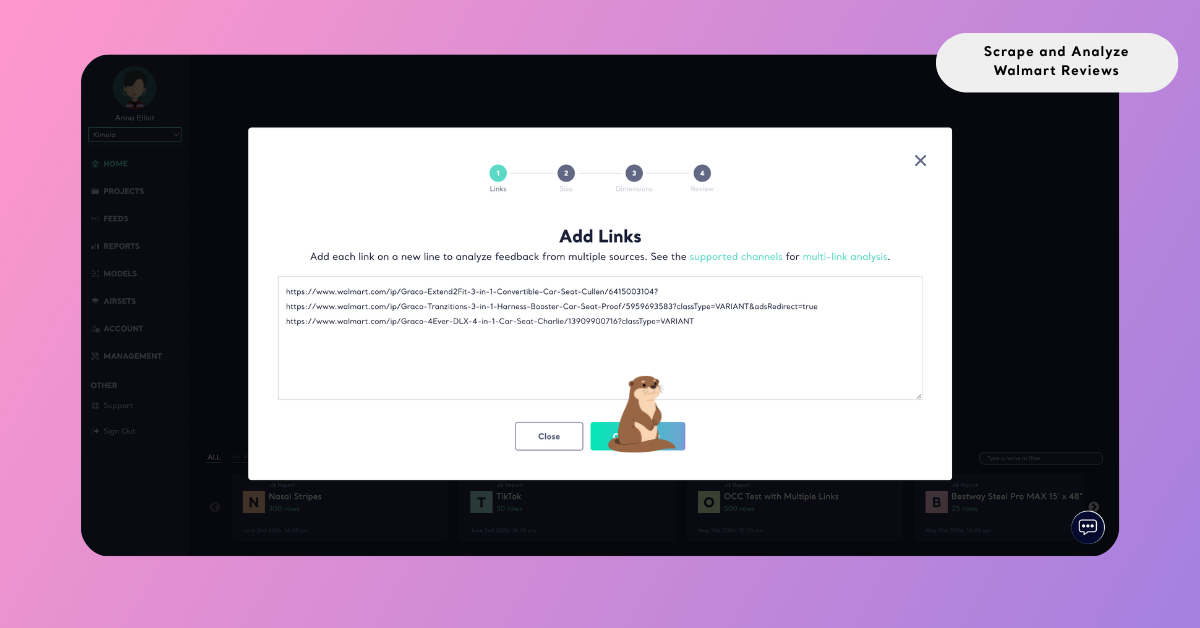
Step 3: Select the Report Size
After adding your link or links, you are taken to the dataset size selection screen. Here, you can define how many reviews will be included in your analysis by adjusting the slider. As you move the slider, the dataset size updates dynamically, allowing you to control the scope of your analysis.
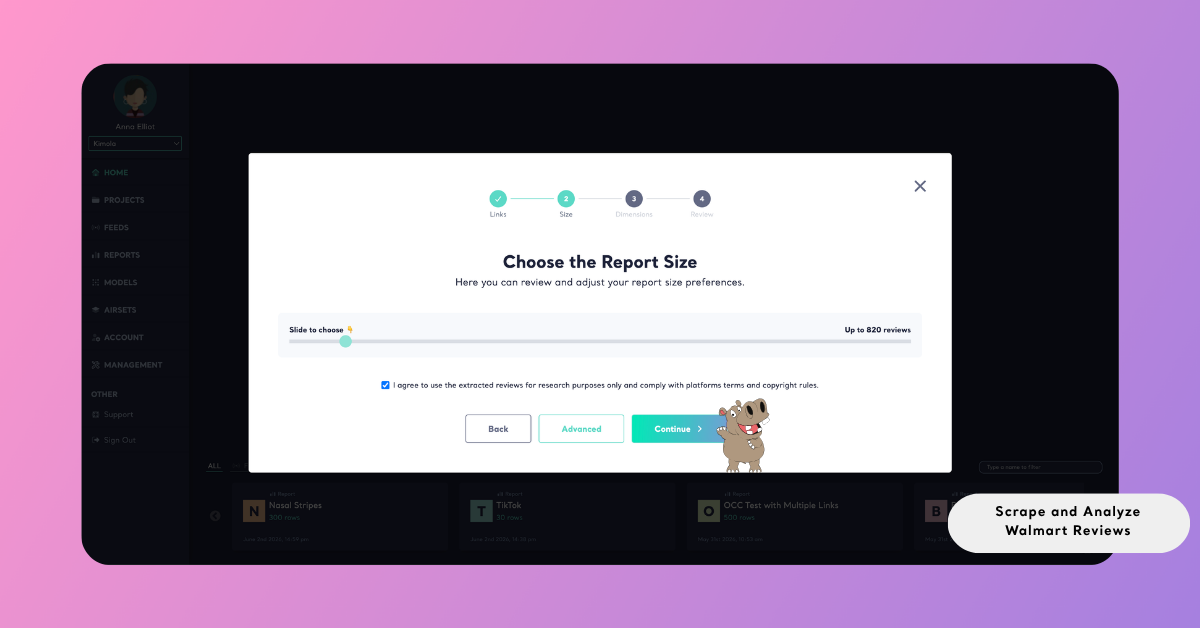
The size you select directly influences the depth of your insights. Smaller datasets are useful for quick exploration, while larger datasets provide a more comprehensive view and enable more reliable pattern detection. When working with multiple product links, Kimola automatically distributes the selected dataset size across them to maintain balance.
Leveraging Product Attributes in Walmart Reviews
While collecting Walmart reviews, Kimola captures not only the review text but also structured attributes available on the product page. These include fields such as rating, review title, color, and seller details.
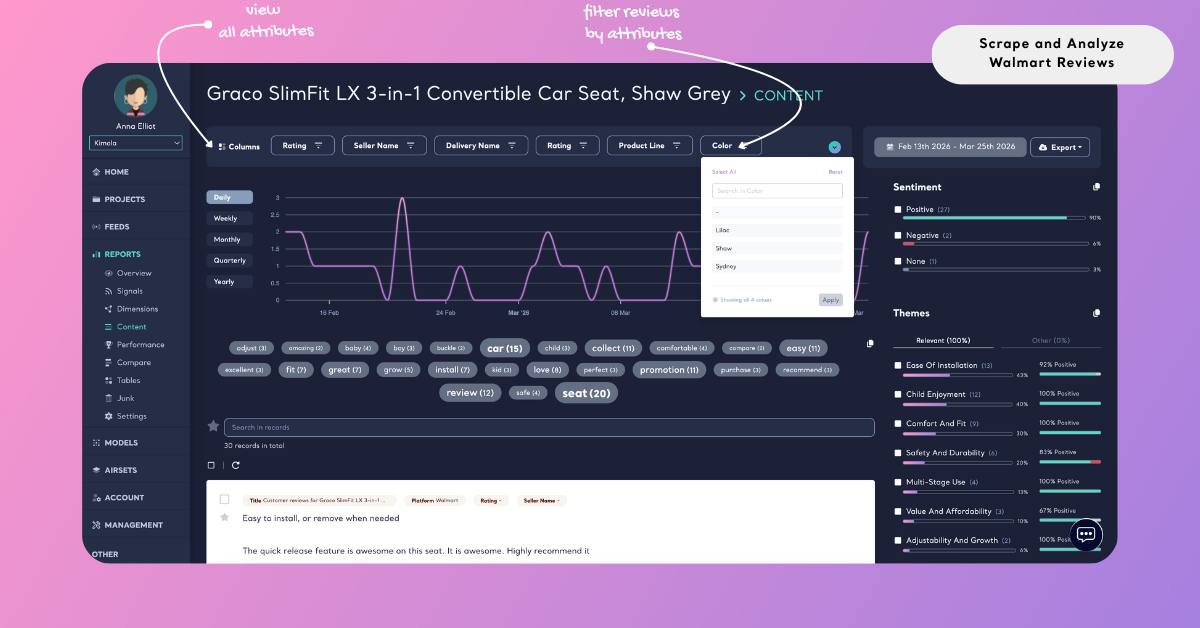
Once the report is generated, these attributes appear as filterable fields within the analysis. You can use them to segment the dataset and explore how feedback varies under different conditions. For example, you can compare sentiment across colors or identify differences between sellers offering similar products.
This allows you to analyze review data from multiple angles, rather than treating all feedback as a single stream.
Analyze Walmart Reviews
Once the dataset is ready, reviews can be analyzed systematically to identify recurring themes, sentiment patterns, pain points, usage motivations, and underlying customer needs. This process transforms unstructured review data into structured insights that support product and business decisions.
Kimola applies a unified analysis workflow across all data collection scenarios. In the previous steps, this workflow was initiated by collecting reviews from product links. From this point onward, the focus shifts to configuring the analysis so that the resulting report aligns with your research objectives.
You can also create a Feed to track Walmart reviews over time and receive regular reports and alerts in Kimola.
Choose Dimensions
To extend your analysis beyond basic themes and sentiment, you can apply additional dimensions that organize review data into structured layers. These dimensions add context to the feedback, helping you understand not only what customers are saying, but also how those experiences take shape.
During report creation, you will be guided to the Dimensions step after defining your dataset. On this screen, you can browse available dimension types and select the ones that align with your research objective. As you make selections, they are added to the My List panel on the side, where you can review and remove them before continuing.
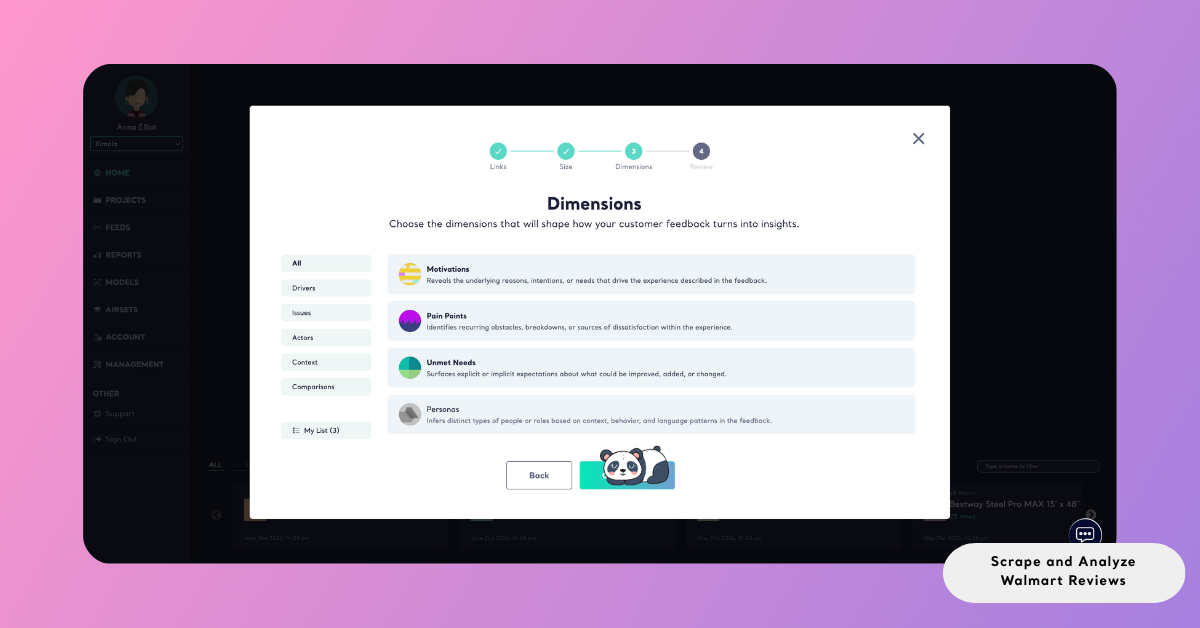
Once applied, these dimensions are integrated into the report and structure the dataset accordingly. This allows you to explore how feedback is distributed across different contexts, identify underlying drivers, and uncover patterns that are not visible through basic analysis alone.
Dimensions do not consume queries from your plan. Instead, they operate using GPT Credits, which are available as an add-on. These credits do not expire and can be purchased at any time as needed.
When you create your account, the free plan comes with 5 GPT Credits included.
Review Report Settings
After completing the Dimensions step, you will be taken to the Review screen — the final step before starting the analysis.
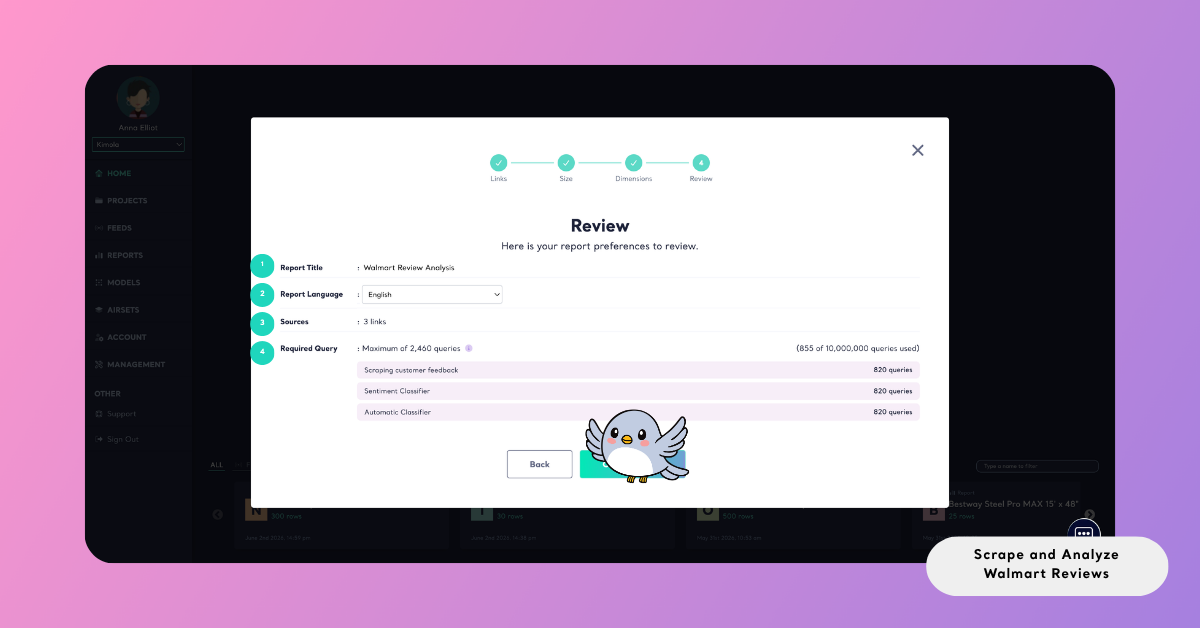
This screen displays a summary of your report setup, allowing you to review all key settings in one place. You can check the report title, confirm the data source, adjust the report language, and see how your queries will be used.
The Required Query section provides a clear breakdown of how the total query usage is distributed across different steps, such as data collection and analysis layers. This helps you understand the expected resource usage before running the report.
At this stage, you can still go back and make changes if needed. Once everything looks correct, you can proceed to generate the report.
Create the Report
To start the analysis, click Create Report. Kimola then executes the entire workflow in the background — collecting the selected data, applying the configured analyses, and compiling the results into a structured report.
Once the report is ready, it becomes available under the Reports section. From there, you can explore the findings, organize reports under Projects, or export the results for further use.
Reports can be exported in multiple formats depending on your workflow. You can download them as Excel files for deeper analysis, export them as PowerPoint or PDF for presentations, or share them via email for easy distribution.
Conclusion
Walmart reviews reflect large-scale, real-world customer experiences — but their value lies in the patterns they reveal when analyzed systematically.
By automating both data collection and analysis, Kimola enables you to move beyond individual comments and focus on understanding these patterns. This makes it possible to translate raw feedback into clear, actionable insights that support better decisions.
As with any platform-based data, all collection and analysis should be conducted responsibly and in accordance with platform policies and applicable regulations.