List Custom Models
2 mins read - Updated on Oct 27, 2025In Kimola, a Custom Model is an AI model you create and train with your own labeled data to automatically classify new text according to your categories.
Once you’ve built one or more custom models, you can easily view and manage them all in one place from your Models section.
To view your custom models, sign in to your Kimola account and open your dashboard. From the left panel, click Models and choose the Custom tab.
Explore the Custom Models
The Custom tab shows a list of all your models, where each row includes important details at a glance:
- Model Name: The name you gave your model.
- Created Date: When the model was built.
- Consistency Rate: Indicates how stable and accurate your model’s predictions are.
- Records: The number of samples used to train the model.
- Classifier Type: Whether the model is Binary Classifier (two classes) or Multi-class Classifier (multiple categories).
- Algorithm: The algorithm Kimola used to train the model (e.g., SdcaMaximumEntropyMulti, AveragedPerceptronOva).
- View Button: Opens your model’s overview page, where you can test it.
To delete a model, click the arrow icon next to the View button and select Delete. This provides a quick way to remove models you no longer need — just remember that deletion is permanent and cannot be undone. If you’d like to learn more about renaming or deleting models safely, check out the Manage Custom Models article for detailed instructions.
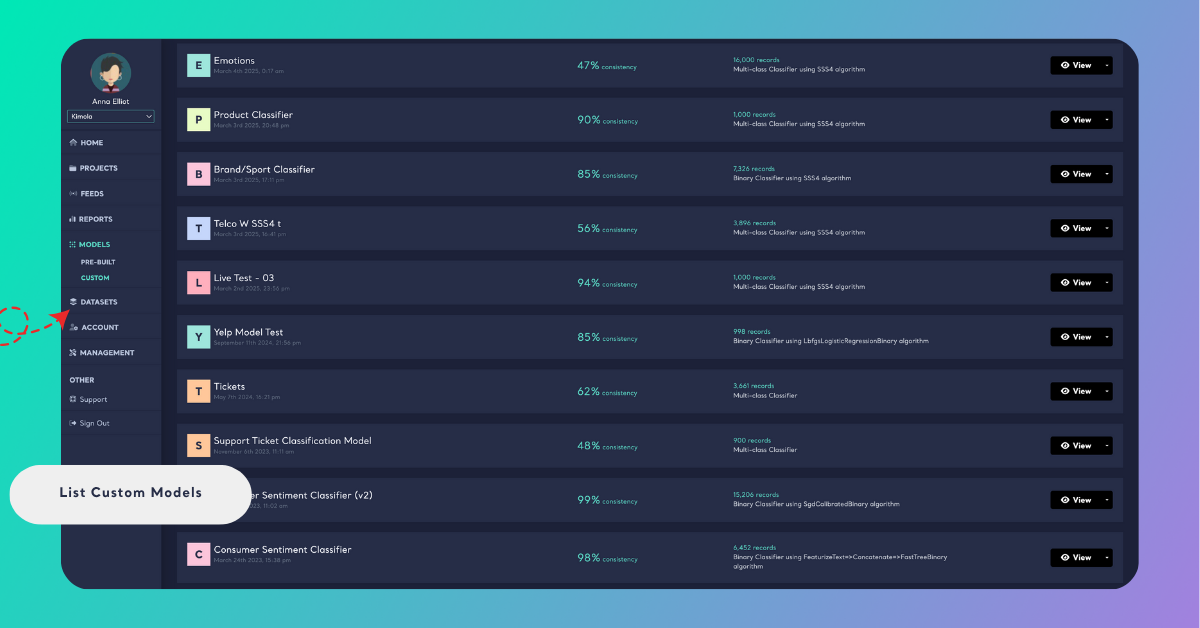
This view helps you monitor the performance and structure of each model at a glance — especially useful if you’re maintaining several models for different research areas or projects.
Search and Sort Custom Models
At the top of the page, you can quickly find or organize your models:
Search Models
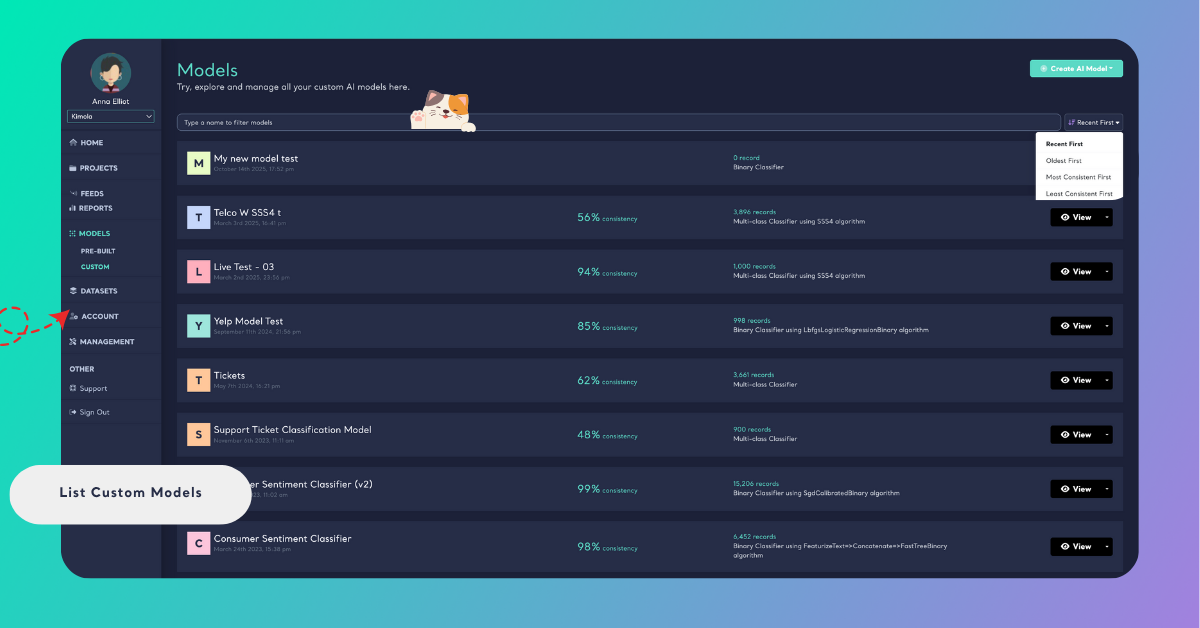
Use the search bar to filter models by name — ideal for locating a specific project among many.
Sort Models
Click the Sort menu on the right to reorder your list by:
- Recent First: Displays your most recently created models at the top.
- Oldest First: Shows your earliest models first.
- Most Consistent First: Prioritizes models with the highest consistency scores.
- Least Consistent First: Highlights models that may need attention or retraining.
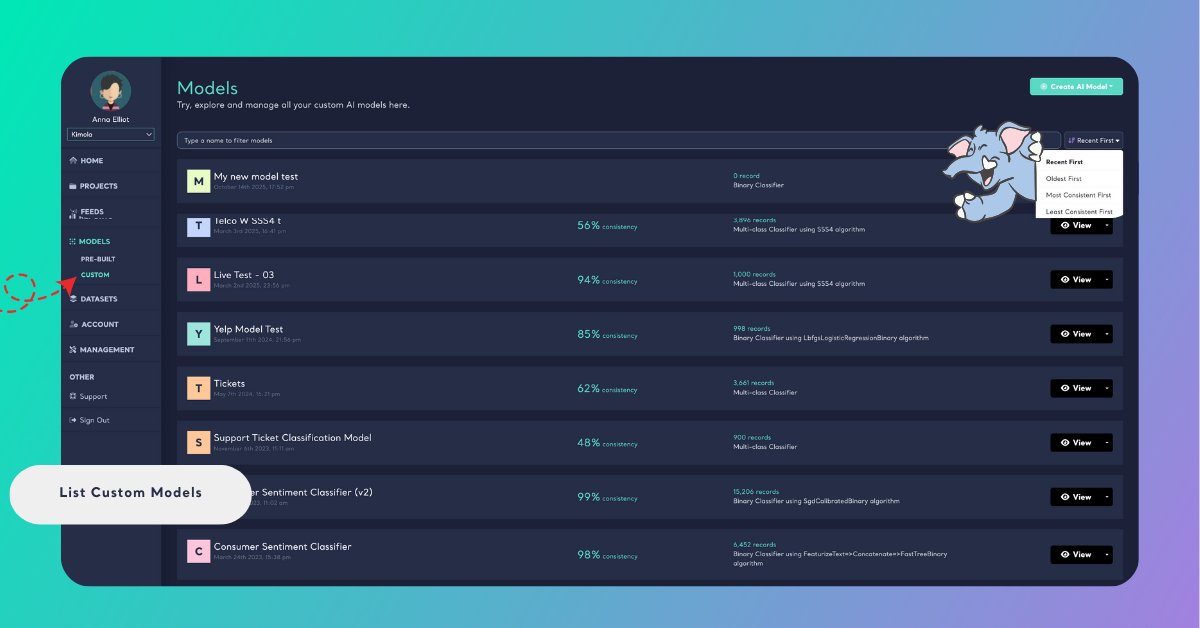
These tools help you browse and manage your models efficiently, especially when working with multiple AI models across different datasets or research topics.