How to Scrape and Analyze YouTube Comments
7 mins read - Updated on Jun 05, 2026YouTube comments provide a continuous stream of user reactions, opinions, and discussions around video content. Unlike structured review platforms, feedback appears in the form of comments and replies, often reflecting immediate reactions, sentiment shifts, and community interaction.
When analyzed collectively, these comments reveal patterns in audience perception, content performance, and recurring themes across discussions.
Kimola enables you to capture and analyze YouTube comments directly, without requiring any technical setup. By collecting comments from video pages and structuring them into datasets, you can turn scattered discussions into actionable insights.
Create a free account or sign in to your existing Kimola account.
YouTube comments are collected through manual scraping using Kimola’s browser extension. This tutorial walks you through the process step by step and shows how the collected data can be analyzed within Kimola.
By the end of this guide, you will be able to collect YouTube comments, organize them into datasets, and generate reports based on your analysis.
Let’s begin.
Manually Scrape YouTube Comments
Manual scraping allows you to collect YouTube comments directly while browsing video pages using Kimola’s browser extension. This approach lets you capture audience feedback in real time and store it as a dataset for later analysis.
To support this workflow, Kimola provides its browser extension, Airset Generator, which detects available comment data on the page and saves it to your account as you collect it.
Before you begin, make sure Airset Generator is installed and properly set up on your browser. You should also be logged in to your Kimola account and have your API Key connected. If the setup is not complete, follow the extension setup guide before continuing.
Collected comments are stored as datasets in your account, allowing you to build your data over time. This is particularly useful when analyzing multiple videos, channels, or content themes. Instead of running analysis immediately, you can first gather and organize your data, then decide when to generate a report.
Manual scraping does not consume queries from your plan. This allows you to collect YouTube comments freely, even on the free plan, without query-based limitations.
Step 1: Open the YouTube Video Page
Go to youtube.com and navigate to the video you want to analyze. Scroll down to the comments section to make the initial set of comments visible.
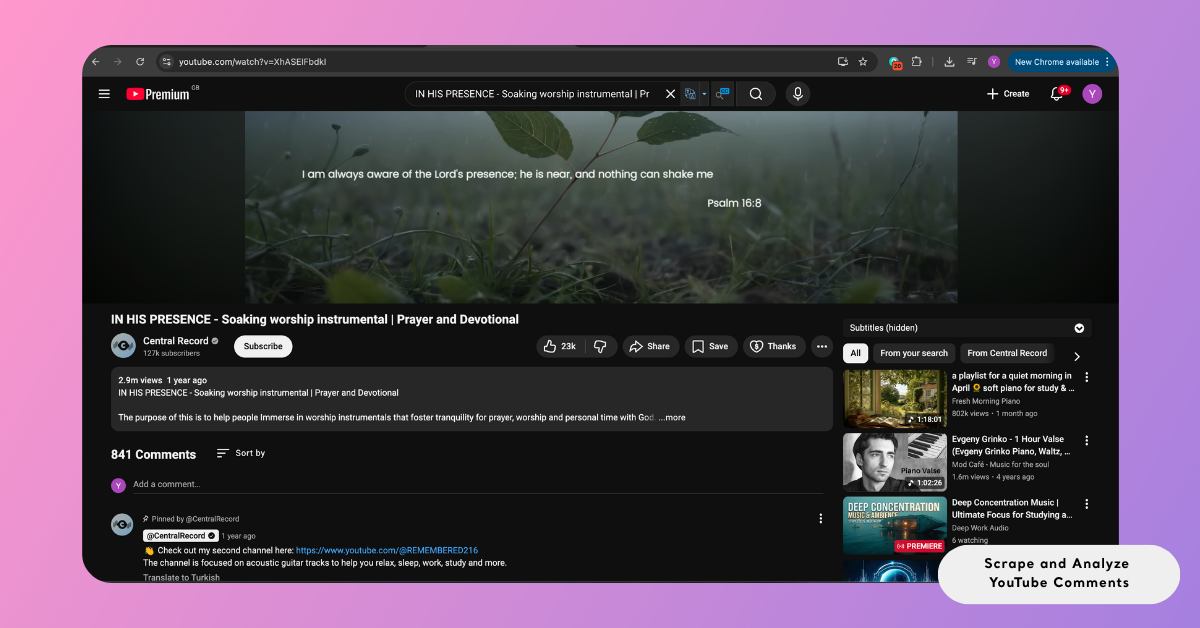
YouTube comments are loaded dynamically as you scroll, so additional comments will appear as you move down the page.
You can pin the browser extension next to your address bar for quick access while browsing.
Step 2: Start Scraping YouTube Comments
Scroll through the comments section under the video to load more comments. Continue scrolling until you reach the amount of data you want to collect. The number of available comments is displayed as a badge on the browser extension icon.
Once you have loaded enough comments, stop scrolling and click the extension icon. Then, click the Generate button to start scraping the loaded comments. To avoid interruptions during the scraping process, keep the browser tab active and do not close or refresh the page until the process is complete.
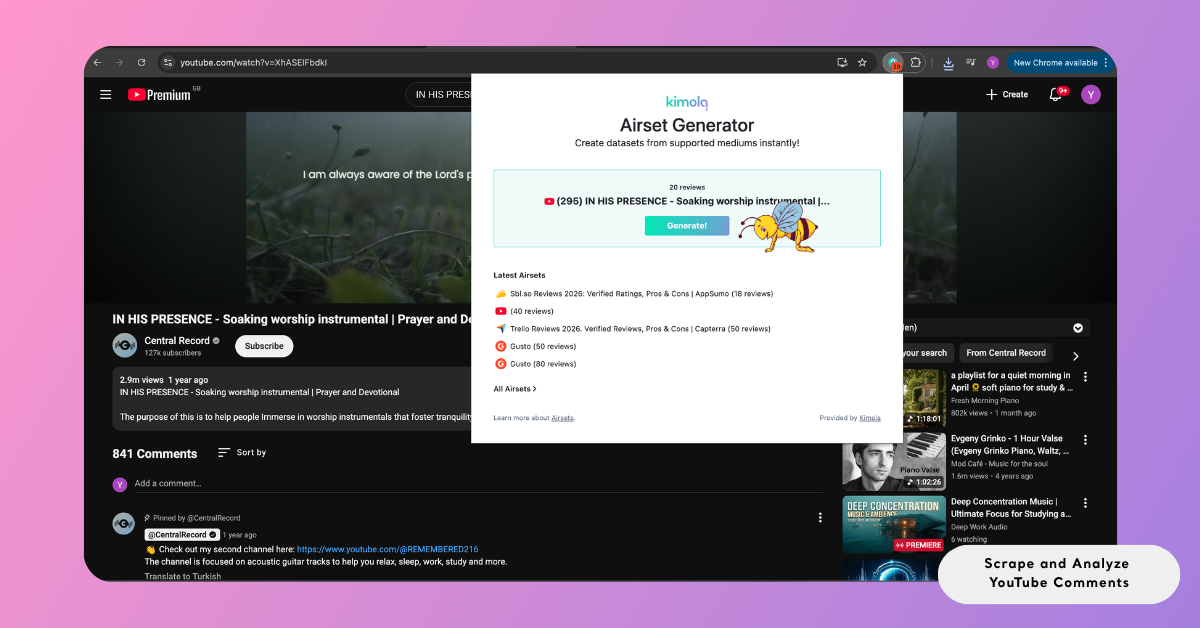
Step 3: Complete the Scraping
Once the scraping process starts, the extension collects the comments that are currently loaded on the page. If needed, you can stop the process at any time using the extension's controls.
When the process finishes — whether stopped manually or completed automatically — the collected data is saved as a dataset and appears in the extension alongside your most recent datasets. If you are logged in to your Kimola account, you can open the dataset directly from the extension to review, manage, or analyze the data by creating a report.
The extension only collects comments that are loaded on the page. To capture more data, make sure to load enough comments before starting the scraping process.
Analyze YouTube Comments
YouTube comments, once collected through manual scraping, can be systematically analyzed to identify recurring themes, sentiment patterns, audience reactions, and underlying motivations. This process transforms unstructured comment data into structured insights that can support content strategy, audience understanding, and performance optimization.
Kimola uses a unified report generation workflow that applies across all data collection scenarios. In the previous steps, this workflow was initiated by collecting YouTube comments through manual scraping. In the following steps, the focus shifts to configuring the analysis to ensure that the resulting report aligns with your specific research and business objectives.
In addition to one-time analysis, you can continuously track YouTube comments by creating a Feed, which provides regular reports and updates within Kimola.
Create a Report from the Airset
To analyze the collected YouTube comments, open the Kimola dashboard and select Airsets to view the complete list of available datasets.
Locate the relevant dataset and click Create Report.
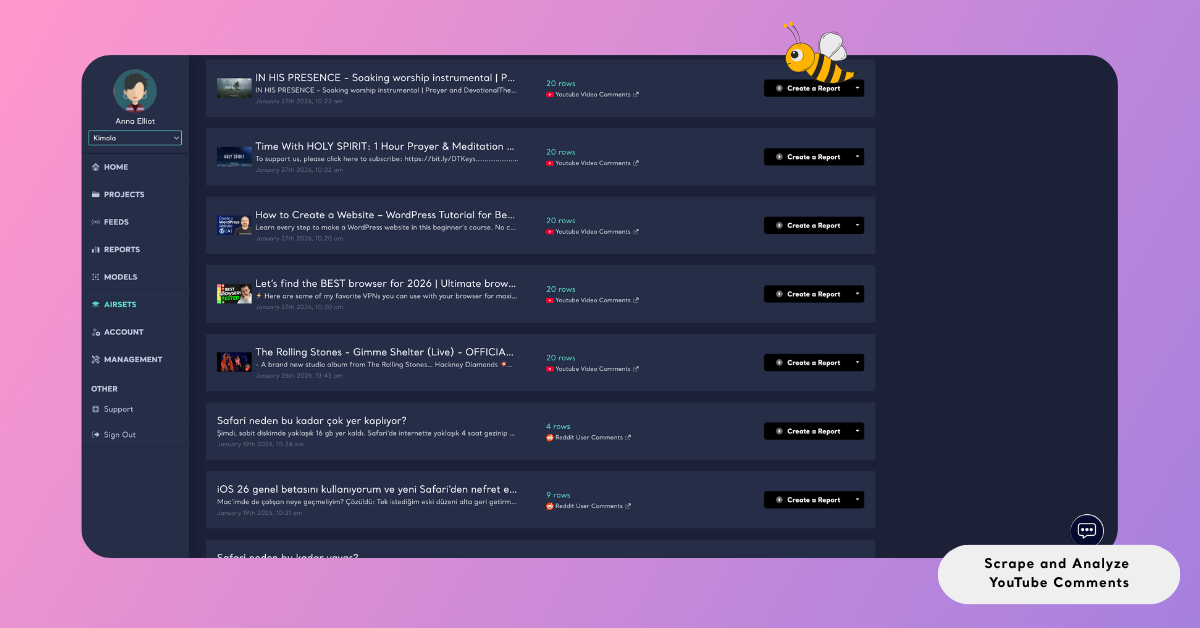
This action initiates Kimola’s standard report creation workflow. Select the column that contains the main comment text, and optionally include additional fields such as date and URL if they are available. These selections define how your dataset will be structured and processed during the analysis.
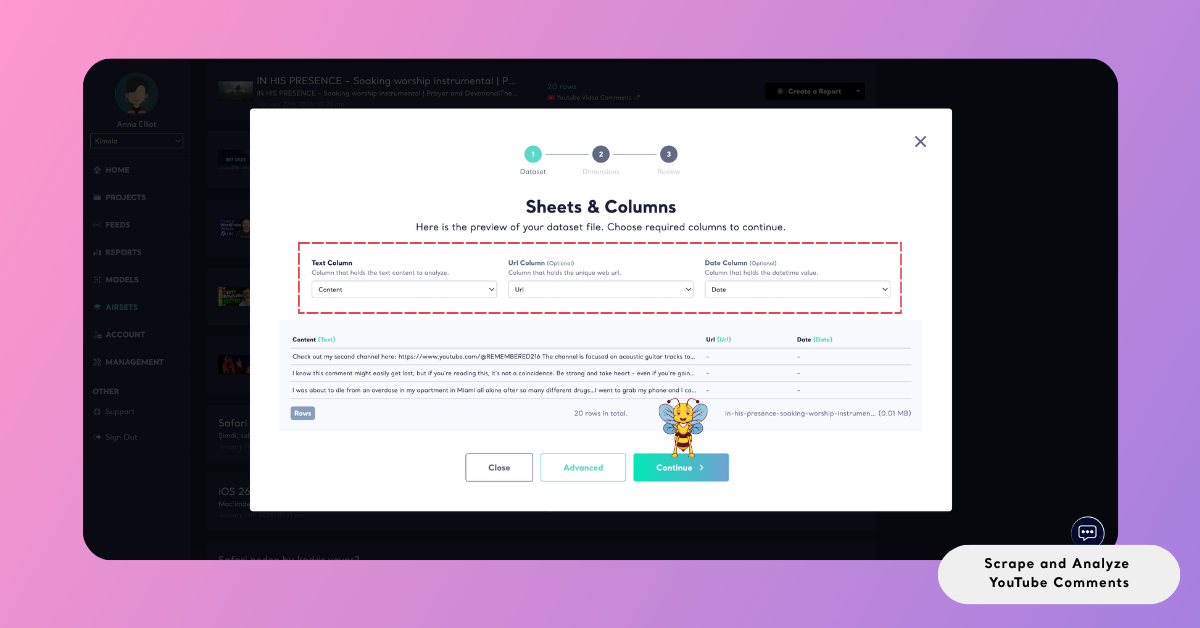
Choose Dimensions
In addition to standard classifications and aspect-based sentiment results, Kimola allows you to apply higher-level dimensions to your YouTube comment analysis. These dimensions enable more advanced dimensions such as user personas, pain points, usage motivations, unmet needs, and different experience contexts and stages, helping you better understand how audiences react and engage with content.
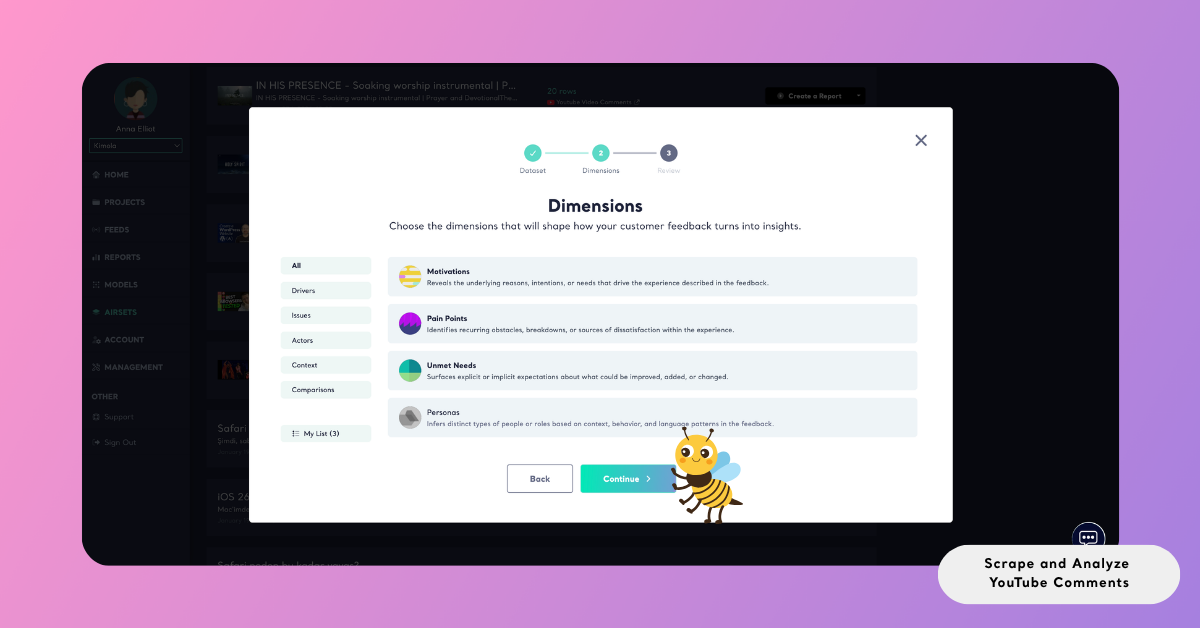
Selected dimensions appear under My List on the left side, allowing you to review, adjust, or remove them before creating the report.
Review Report Settings
After completing the dimension steps, you will be taken to the Review screen — the final step before running the analysis.
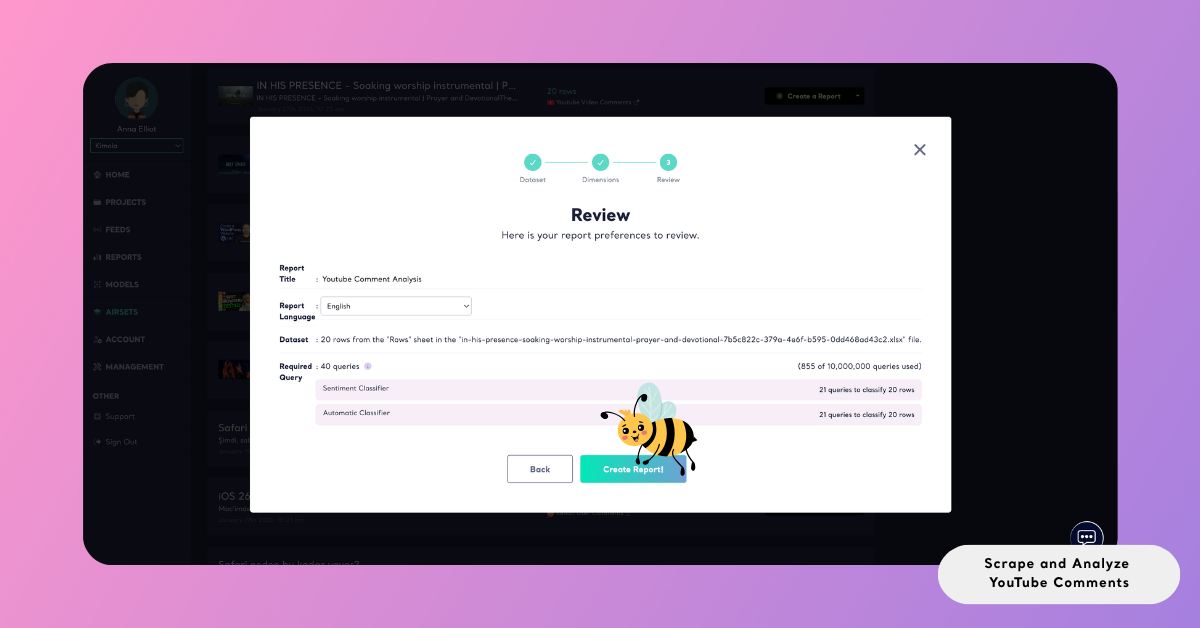
At this stage, you can review and finalize your report configuration before generating the output. Since the report is created from a dataset, you will need to enter a Report Title manually. This title cannot be left empty and will be used to identify your report within the platform.
The screen also displays the selected dataset as the Dataset and allows you to choose the Report Output language. This setting determines the language of all analysis outputs, including sentiment labels, themes, summaries, and dimension results.
In addition, the Required Query section provides a breakdown of how your queries will be used across different analysis steps. This typically includes sentiment classification and any additional dimensions you selected. The total number shown represents the maximum queries required for the report, helping you understand how dataset size and selected configurations impact your plan usage.
If needed, you can return to previous steps and adjust your selections before proceeding.
Create the Report
Click Create Report to start the process. Kimola processes the selected dataset, applies the configured analyses, and generates your report automatically.
Once the report is ready, it appears under the Reports section. From there, you can review the analysis results, organize the report under a Project to keep related work together, or export the outputs for external use.
Reports can be exported in multiple formats depending on your workflow. You can download them as Excel files for deeper analysis, export them as PowerPoint or PDF for presentations and stakeholder sharing, or send them via email for scheduled or on-demand distribution.
This makes it easy to turn YouTube comment insights into reusable, shareable outputs that fit directly into your reporting and decision-making processes.
Conclusion
Kimola is built on the idea that meaningful decisions should be informed by real user feedback. By structuring and analyzing YouTube comments, you can move beyond individual reactions and uncover patterns in audience perception, engagement, and content performance.
When working with YouTube data, all collection and analysis should be conducted strictly for research and internal decision-making purposes. Content should not be redistributed or used in ways that violate platform policies or applicable regulations. It is the user’s responsibility to ensure compliance with all platform-specific guidelines.