Manage Custom Datasets
1 min read - Created on Oct 31, 2025In Kimola, Custom Datasets represent your raw data — either uploaded manually or automatically created when you generate a report from a link.
From the Custom Datasets page, you can download or delete these datasets to keep your workspace organized and up to date.
Getting Ready
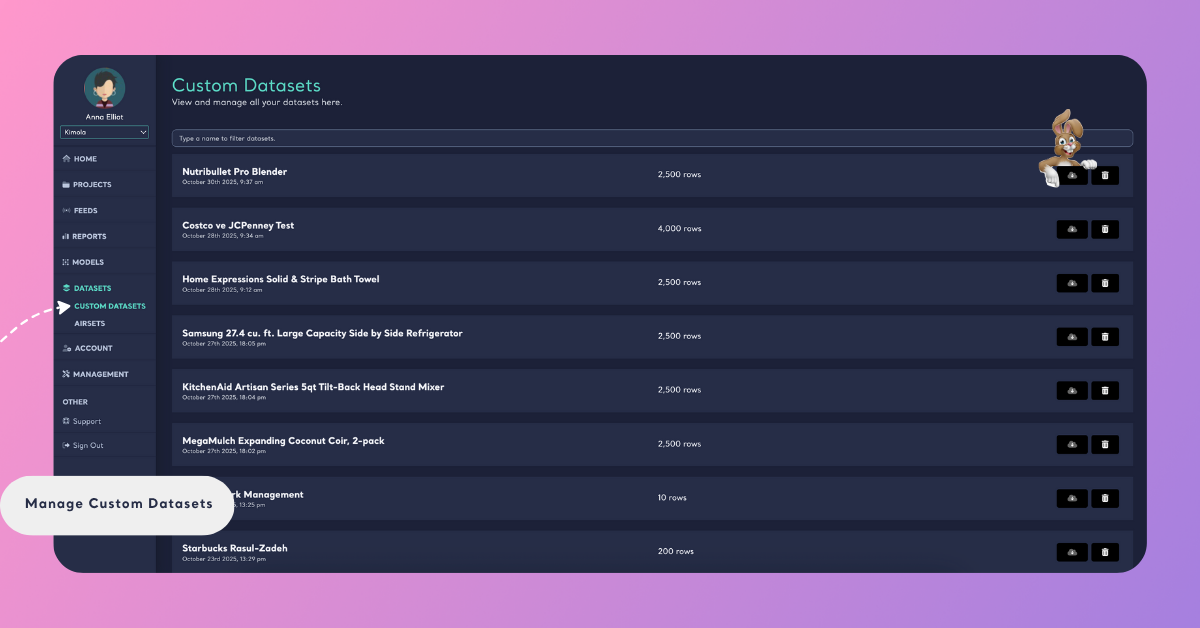
To access your custom datasets, sign in to your Kimola account and open your Dashboard. From the left panel, click Datasets, then select Custom Datasets.
Download a Dataset
You can download any dataset you’ve uploaded or generated. To do this:
- Find the dataset you want to download.
- Click the Download (cloud icon) on the right side of the dataset row.
- The dataset will be exported to your computer as an
.xlsxfile.
This is especially useful if you want to:
- Review the raw data locally,
- Share it with your team, or
- Back it up for future analysis.
Delete a Dataset
If you no longer need a dataset, you can safely remove it from your account.
- Locate the dataset you want to delete.
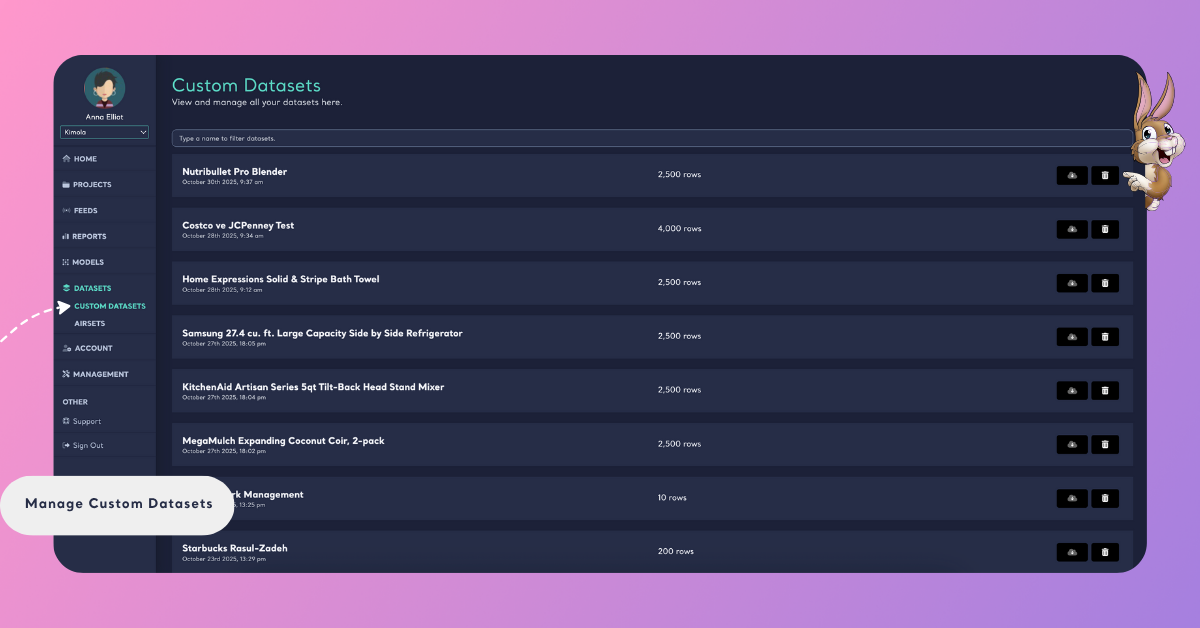
- Click the Delete (trash icon) next to it.
- Confirm your choice in the popup window.
Note
Deleting a dataset is permanent — once deleted, it cannot be recovered.